
1. పరిచయం
This manual provides detailed instructions for the installation, operation, and maintenance of your CARDORIA 1028ZM-1S Smart Fingerprint Keyless Entry Door Lock. Please read this manual thoroughly before installation and use to ensure proper function and safety. Keep this manual for future reference.
2. ఉత్పత్తి లక్షణాలు
The CARDORIA 1028ZM-1S Smart Door Lock offers multiple unlocking methods and smart functionalities for enhanced security and convenience.
- 5-ఇన్-1 కీలెస్ ఎంట్రీ: Unlock using Fingerprint, RFID Card, Passcode, TUYA APP, or Mechanical Keys.
- రిమోట్ కంట్రోల్: Built-in WiFi module allows remote unlocking and temporary password generation via the TUYA app.
- ఆటోమేటిక్ లాకింగ్: Features automatic and passage modes, suitable for various door types.
- రివర్సిబుల్ హ్యాండిల్: Both the latch and handle are reversible to accommodate different door orientations.
- Energy-saving Design: Utilizes passive signal transmission technology for extended battery life (up to one year with 4 AA batteries).
- వేగవంతమైన గుర్తింపు: 3D Biometric Fingerprint Verification Speed: <0.3 seconds.
- భద్రతా హెచ్చరికలు: Low battery reminder and abnormal alarm functions.

3 చేర్చబడిన భాగాలు
ఇన్స్టాలేషన్ ప్రారంభించే ముందు అన్ని భాగాలు ఉన్నాయని నిర్ధారించుకోండి:
- Front panel (x1)
- Rear panel (x1)
- User Manual (English and Spanish) (x2)
- RFID Card (x3)
- Mechanical Key (x2)
- Accessory pack (x1)
- Drill template (x1)
- Lock body (x1)
4. స్పెసిఫికేషన్లు
| గుణం | వివరాలు |
|---|---|
| బ్రాండ్ | CARDORIA |
| మోడల్ సంఖ్య | 1028ZM-1S |
| ప్రత్యేక ఫీచర్ | Fingerprint, Smart Lock, Wi-Fi |
| లాక్ రకం | బయోమెట్రిక్ |
| మెటీరియల్ | Stainless steel & AL-alloy |
| అంశం కొలతలు (L x W x H) | 8.86 x 5.91 x 3.54 అంగుళాలు |
| వస్తువు బరువు | 2.3 కిలోలు |
| సిఫార్సు చేసిన ఉపయోగాలు | Securing doors in residential and commercial settings |
| కంట్రోలర్ రకం | Android, Hand Control, Mechanical knob |
| నియంత్రణ పద్ధతి | యాప్ |
| కనెక్టివిటీ ప్రోటోకాల్ | Wi-Fi |
| రంగు | నలుపు |
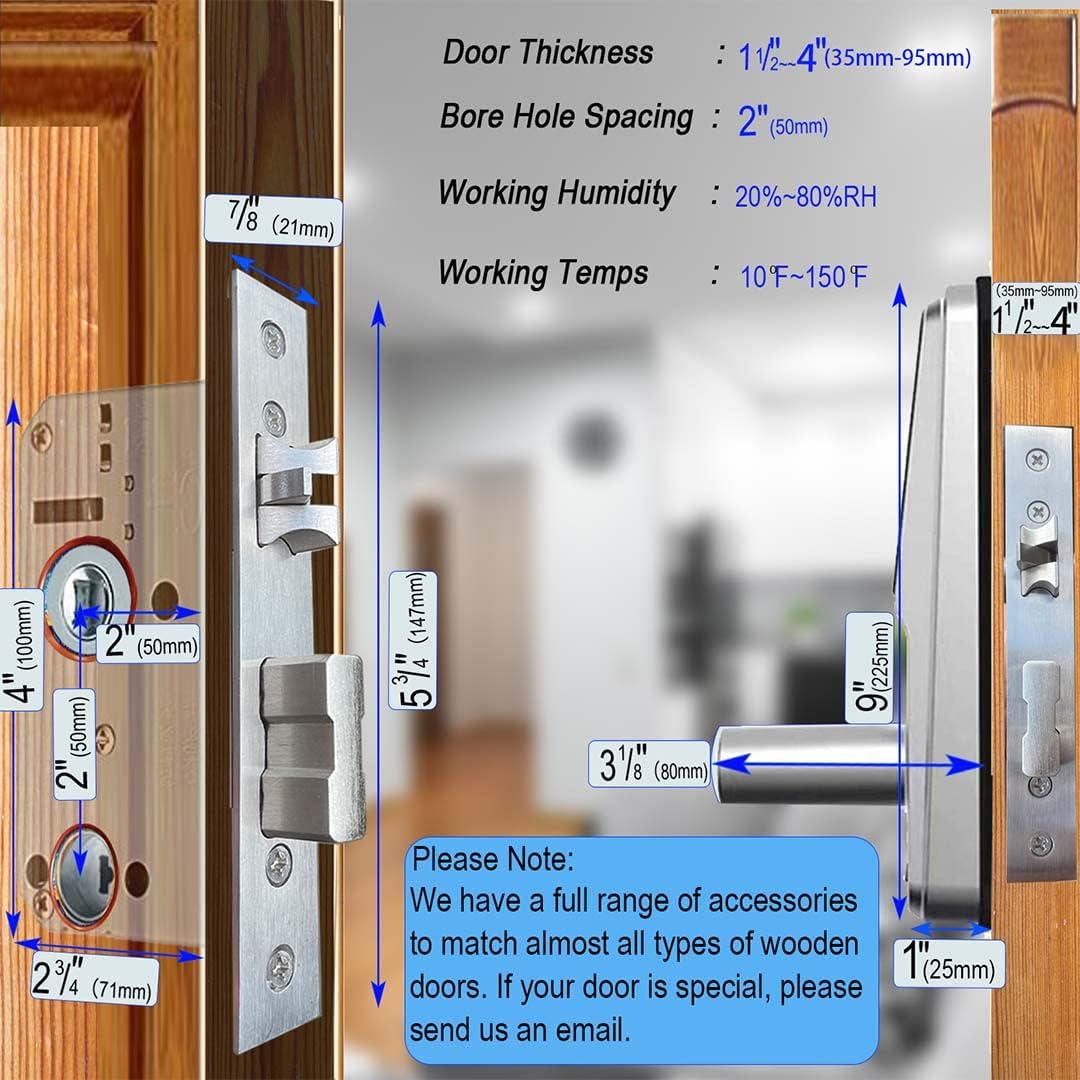
| తలుపు మందం అనుకూలత | 1 1/2" - 4" (35mm-95mm) |
| Bore Hole Spacing | 2" (50మి.మీ) |
| పని తేమ | 20% - 80% ఆర్హెచ్ |
| పని ఉష్ణోగ్రత | 10°F - 150°F |

5. సెటప్ & ఇన్స్టాలేషన్
Follow these steps carefully for proper installation of your smart door lock.
5.1. Handle and Latch Adjustment
If necessary, adjust the handles or latches to match your door's orientation. Remove the screw to pull out the handle and adjust it. Do not overtighten the screw when putting it back, as this may prevent the handle from bouncing back correctly.

5.2 లాక్ బాడీ ఇన్స్టాలేషన్
Use the provided drill template to make the necessary door holes. Insert the lock body into the door hole and secure it with screws. Ensure the concave end of the square rod faces outwards when inserting it into the lock body.
5.3. Panel Connection and Battery Installation
Connect the front and rear panel cables. Screw the front and rear panels to the door. When fixing the front panel, ensure the left handle 'L' is facing down and the right handle 'R' is facing down. Install 4 AA batteries (purchased separately) into the rear panel. After installation, test the door lock function.
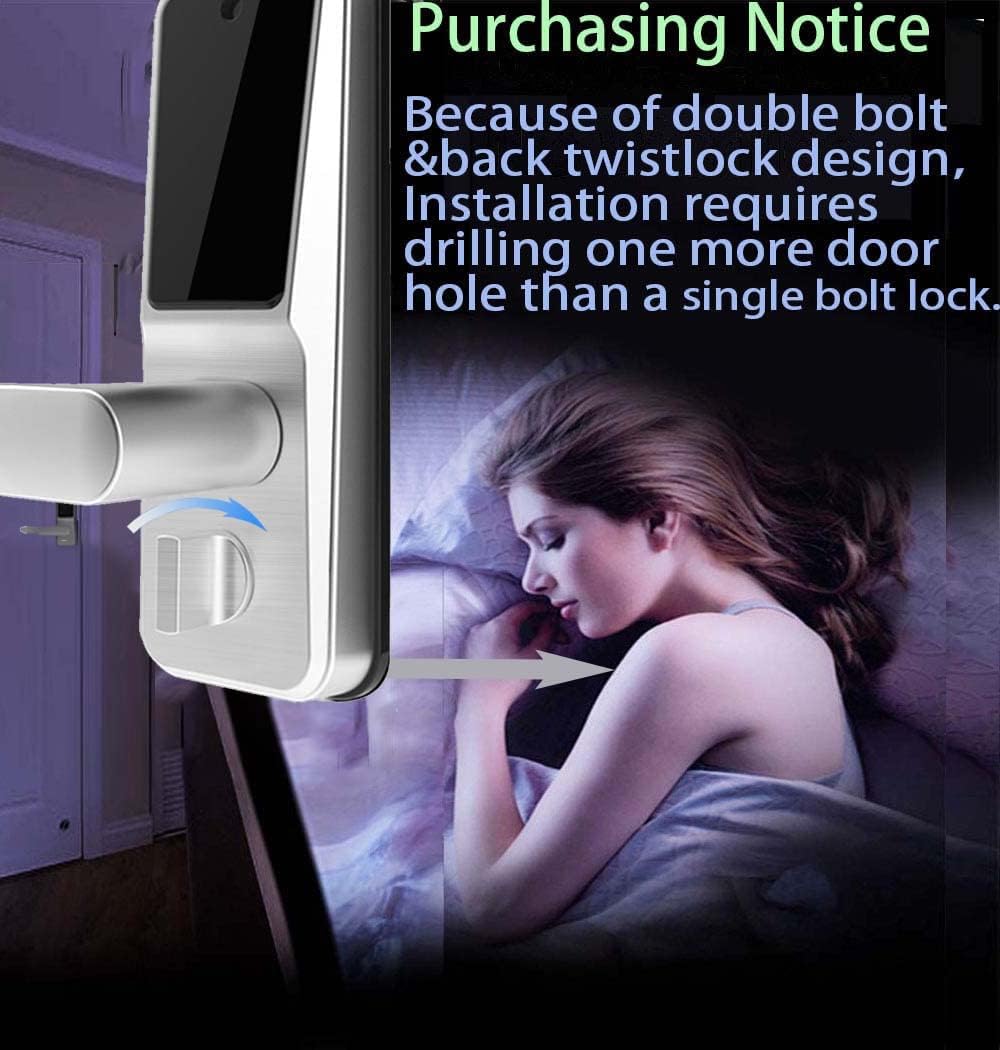
ముఖ్యమైన గమనిక: This product features a double bolt and back twistlock design. Installation requires drilling one more door hole than a single bolt lock. Refer to the drill template for precise measurements.
6. ఆపరేషన్
6.1. Adding Administrator Password
To enter system settings and add your administrator password, press the asterisk (*) and hash (#) keys on the keypad. Follow the voice prompts to set your password. The password should be 6-12 digits long and needs to be entered twice for confirmation.
6.2. Adding Users (Fingerprint, Card, Passcode)
After setting the administrator password, you can add users. Press '1' to hear the voice prompt "Add User". You can then add a fingerprint (enter four times), an RFID card (tap the card), or a passcode (6-12 digits, entered twice). The system will confirm successful addition.
6.3. TUYA App Setup and WiFi Connection
Download the "TUYA Smart" app from the App Store or Google Play and sign up for an account. Turn on Bluetooth on your device. In the app, click "Add Device" to search for the smart lock. If the device is not found, poke the reset hole on the lock with a stick to make it discoverable. Once found, click "Add" and enter your WiFi network name and password. If the WiFi connection fails, move the lock closer to the router and try again.
6.4. రిమోట్ అన్లాకింగ్
After successfully connecting the lock to WiFi via the TUYA app, you can remotely unlock the door. When a visitor requests entry, you will receive a notification on your phone. Press "9" and "#" on the lock keypad, then confirm the remote unlocking request in the TUYA app to open the door.


7. నిర్వహణ
- శుభ్రపరచడం: Wipe the lock surface with a soft, dry cloth. Avoid using abrasive cleaners or solvents that could damage the finish or electronic components.
- బ్యాటరీ భర్తీ: The lock will provide a low battery reminder. Replace all 4 AA batteries promptly when indicated to ensure continuous operation. Do not mix old and new batteries or different types of batteries.
- సాధారణ తనిఖీలు: అన్ని స్క్రూలు మరియు కనెక్షన్లు సురక్షితంగా ఉన్నాయని నిర్ధారించుకోవడానికి కాలానుగుణంగా వాటిని తనిఖీ చేయండి.
- సాఫ్ట్వేర్ అప్డేట్లు: Keep the TUYA Smart app updated to the latest version for optimal performance and security features.
8. ట్రబుల్షూటింగ్
- లాక్ స్పందించడం లేదు: Check battery levels. If batteries are low or depleted, replace them.
- వేలిముద్ర గుర్తించబడలేదు: మీ వేలు శుభ్రంగా మరియు పొడిగా ఉందని నిర్ధారించుకోండి. సమస్యలు కొనసాగితే మీ వేలిముద్రను తిరిగి నమోదు చేసుకోవడానికి ప్రయత్నించండి.
- Passcode Not Working: Verify the correct passcode is being entered. Ensure the keypad is clean and free from obstructions.
- వైఫై కనెక్టివిటీ సమస్యలు: Ensure the lock is within range of your WiFi router. Try moving the router closer or improving WiFi signal strength. If connection fails, try the reset procedure (poking the reset hole) and re-add the device in the app.
- Remote Unlocking Failure: Check your phone's internet connection and ensure the TUYA app is running and connected to the lock.
- Handle Not Bouncing Back: This may indicate that the handle screw was overtightened during installation. Loosen the screw slightly to allow for proper movement.
9. వారంటీ & సపోర్ట్
The CARDORIA 1028ZM-1S Smart Fingerprint Keyless Entry Door Lock comes with a 2 సంవత్సరాల వారంటీ. For technical support, product inquiries, or warranty claims, please contact CARDORIA customer service. Refer to the contact information provided in your product packaging or on the official CARDORIA webసైట్.
CARDORIA is committed to providing quality products and excellent customer service. Your satisfaction is our priority.