
1. పరిచయం
This manual provides essential information for setting up, operating, maintaining, and troubleshooting your Beelink SER5 5500U Mini PC. Please read it carefully before using the product to ensure optimal performance and longevity.
The Beelink SER5 5500U is a compact and powerful Mini PC featuring an AMD Ryzen 5 5500U processor, designed for various applications from office work to multimedia entertainment and light gaming. It supports dual 4K display output and offers robust connectivity options.
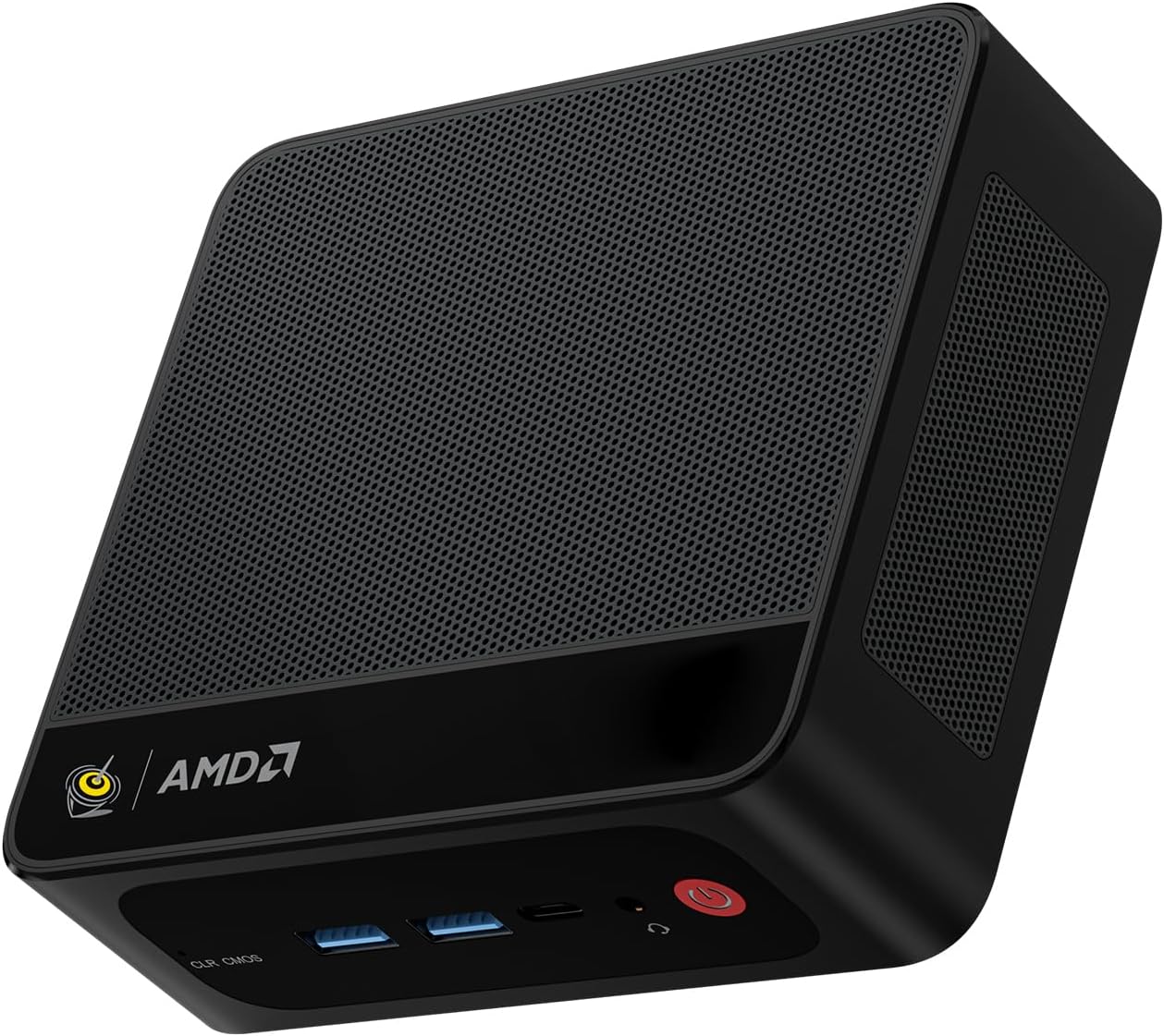
Figure 1: Beelink SER5 5500U Mini PC
2. ప్యాకేజీ విషయాలు
ప్యాకేజీలో అన్ని అంశాలు ఉన్నాయని నిర్ధారించుకోండి:
- Beelink SER5 5500U Mini PC (x1)
- HDMI Cable (100cm) (x1)
- Power Adapter (19V/3.42A) (x1)
- Wall-Mounted Bracket (x1)
- వినియోగదారు మాన్యువల్ (ఈ పత్రం)
3. సెటప్ సూచనలు
3.1 కనెక్ట్ పెరిఫెరల్స్
- డిస్ప్లేను కనెక్ట్ చేయండి: Use the provided HDMI cable to connect your monitor to the HDMI port on the Mini PC. Alternatively, use a DisplayPort cable for DP connection.
- కీబోర్డ్ మరియు మౌస్ను కనెక్ట్ చేయండి: Plug your USB keyboard and mouse into the available USB ports.
- పవర్ కనెక్ట్ చేయండి: Connect the power adapter to the DC-in port on the Mini PC, then plug the adapter into a power outlet.
- నెట్వర్క్ కనెక్షన్ (ఐచ్ఛికం): For a wired connection, connect an Ethernet cable to the 2.5G LAN port. For wireless, ensure your WiFi network is available.

చిత్రం 2: ముందు మరియు వెనుక పోర్టులు
3.2 Initial Boot-Up
Press the power button on the front of the Mini PC. The system will boot up, and you will see the Windows 11 Pro setup screen. Follow the on-screen instructions to complete the initial Windows setup.
4. ఆపరేటింగ్ సూచనలు
4.1 పవర్ ఆన్/ఆఫ్ మరియు పునఃప్రారంభించండి
- పవర్ ఆన్: పవర్ బటన్ను నొక్కండి.
- పవర్ ఆఫ్: Click the Start button in Windows, then select Power > Shut down. Alternatively, press and hold the power button for 5 seconds to force a shutdown (not recommended for regular use).
- పునఃప్రారంభించు: విండోస్లో స్టార్ట్ బటన్ను క్లిక్ చేసి, ఆపై పవర్ > రీస్టార్ట్ ఎంచుకోండి.
4.2 డ్యూయల్ డిస్ప్లే సెటప్
The Beelink SER5 5500U supports dual 4K display output via its HDMI and DisplayPort interfaces. Connect two monitors to these ports. Windows will automatically detect the displays. You can configure display settings (extend, duplicate, etc.) via Windows Display Settings.

Figure 3: Dual Display Configuration
4.3 వైర్లెస్ కనెక్టివిటీ
- Wi-Fi 6: The Mini PC supports Wi-Fi 6 (802.11ax) for high-speed wireless internet. Connect via Windows network settings.
- బ్లూటూత్ 5.2: Pair Bluetooth devices such as keyboards, mice, or headphones through Windows Bluetooth settings.
4.4 నిల్వ విస్తరణ
The Mini PC includes a 500GB M.2 PCIe NVME 2280 SSD. For additional storage, a 2.5-inch HDD/SSD (not included) can be installed in the dedicated slot. Refer to the internal hardware guide for installation steps.
5. నిర్వహణ
5.1 శుభ్రపరచడం
Regularly clean the exterior of the Mini PC with a soft, dry cloth. Use compressed air to gently clear dust from the ventilation openings to maintain optimal airflow and cooling performance. Do not use liquid cleaners directly on the device.
5.2 సాఫ్ట్వేర్ నవీకరణలు
Keep your Windows operating system and device drivers updated. Windows Update will handle most OS updates. For graphics drivers (AMD Radeon Graphics), visit the AMD official webతాజా వెర్షన్ల కోసం సైట్.
5.3 శీతలీకరణ వ్యవస్థ
The Beelink SER5 5500U features a high-speed cooling fan. Ensure the Mini PC is placed in a well-ventilated area and that the air vents are not obstructed to prevent overheating.

Figure 4: Internal Cooling Fan
6. ట్రబుల్షూటింగ్
6.1 శక్తి లేదు
- పవర్ అడాప్టర్ మినీ పిసి మరియు పనిచేసే పవర్ అవుట్లెట్ రెండింటికీ సురక్షితంగా కనెక్ట్ చేయబడిందని నిర్ధారించుకోండి.
- మరొక పరికరాన్ని ప్లగ్ చేయడం ద్వారా పవర్ అవుట్లెట్ పనిచేస్తుందో లేదో తనిఖీ చేయండి.
- అందుబాటులో ఉండి, అనుకూలంగా ఉంటే వేరే పవర్ అడాప్టర్ను ప్రయత్నించండి.
6.2 డిస్ప్లే లేదు
- Verify that the HDMI or DisplayPort cable is securely connected to both the Mini PC and the monitor.
- Ensure the monitor is powered on and set to the correct input source (HDMI/DP).
- వీలైతే వేరే మానిటర్ లేదా కేబుల్తో పరీక్షించండి.
- If the issue persists, try resetting the CMOS by pressing the CLR CMOS button (refer to Figure 2 for location).
6.3 నెట్వర్క్ కనెక్టివిటీ సమస్యలు
- వైర్డు (LAN): Check the Ethernet cable connection and your router/modem.
- Wireless (Wi-Fi/Bluetooth): Ensure Wi-Fi and Bluetooth are enabled in Windows settings. Restart your router/modem.
- అవసరమైతే నెట్వర్క్ డ్రైవర్లను నవీకరించండి.
6.4 సిస్టమ్ నెమ్మదించడం
- నేపథ్యంలో నడుస్తున్న అనవసరమైన అప్లికేషన్లను మూసివేయండి.
- ఏవైనా పెండింగ్ విండోస్ అప్డేట్ల కోసం తనిఖీ చేసి, ఇన్స్టాల్ చేయండి.
- Ensure the cooling vents are clear of obstructions.
- డిస్క్ క్లీనప్ మరియు డిఫ్రాగ్మెంటేషన్ (HDD కోసం, SSD కోసం అవసరం లేదు) అమలు చేయండి.
7. స్పెసిఫికేషన్లు

Figure 5: Product Specification Overview
| ఫీచర్ | వివరాలు |
|---|---|
| బ్రాండ్ | బీలింక్ |
| మోడల్ | SER5 5500U |
| ఆపరేటింగ్ సిస్టమ్ | Windows 11 ప్రో |
| CPU | AMD Ryzen 5 5500U (6 Cores/12 Threads, 2.1GHz Base, up to 4.0GHz Boost) |
| గ్రాఫిక్స్ | AMD Radeon Graphics (7 Cores, 1800 MHz) |
| RAM | 16GB DDR4 (డ్యూయల్ ఛానల్, 64GB వరకు విస్తరించవచ్చు) |
| నిల్వ | 500GB M.2 PCIe NVME 2280 SSD (expandable with 2.5-inch HDD/SSD) |
| వీడియో అవుట్పుట్ | 1x HDMI (4K@60Hz), 1x డిస్ప్లేపోర్ట్ (4K@60Hz) |
| USB పోర్ట్లు | 3x USB 3.2 Gen2, 1x USB 2.0, 1x Type-C (Data) |
| నెట్వర్క్ | Wi-Fi 6 (802.11ax), Bluetooth 5.2, 2.5G LAN (RJ45) |
| ఆడియో | Audio Jack (HP&MIC) |
| కొలతలు | 12.6 x 11.3 x 4.2 సెం.మీ |
| శీతలీకరణ | గాలి శీతలీకరణ |
| పవర్ అడాప్టర్ | 19V/3.42A |
8. వారంటీ మరియు మద్దతు
8.1 వారంటీ సమాచారం
Your Beelink SER5 5500U Mini PC comes with a 3-సంవత్సరం తయారీదారు వారంటీవారంటీ క్లెయిమ్ల కోసం దయచేసి మీ కొనుగోలు రుజువును ఉంచుకోండి.
8.2 Product Key Retrieval
If you received your product without a physical product key, you can contact Beelink support to obtain it. Please provide the SN code located on the bottom of your product when contacting support.
8.3 కస్టమర్ మద్దతు
For technical assistance, warranty claims, or any other inquiries, please contact Beelink customer support through the official Beelink store or website. Support is typically available within 24 hours for messages.