
1. పరిచయం
This manual provides detailed instructions for the DSD TECH SH-C31A USB to CAN Adapter. The SH-C31A is a non-isolated USB to CAN adapter based on the open-source hardware project Canable 2.0, designed to facilitate communication with CAN and CAN-FD networks via a USB interface.
It features a robust design and supports both CAN and CAN-FD protocols, making it suitable for various industrial and automotive applications. The device comes with pre-installed candlelight firmware, but can be updated to slcan firmware for CAN FD functionality.
2. ప్యాకేజీ విషయాలు
మీ ప్యాకేజీలో అన్ని అంశాలు ఉన్నాయని ధృవీకరించండి:
- 1 x DSD TECH SH-C31A USB to CAN Adapter
- 1 x 3PIN Terminal Block
- 1 x యూజర్ గైడ్ (ఈ పత్రం)

Image: Contents of the DSD TECH SH-C31A package, showing the adapter, a 3-pin terminal block, and a user guide.
3. ఉత్పత్తి ముగిసిందిview
The DSD TECH SH-C31A is a compact USB to CAN adapter. It features a transparent casing, allowing visibility of the internal circuitry. Key components include a USB-A connector, a 3-pin terminal block for CAN bus connections, and a boot switch for mode selection.
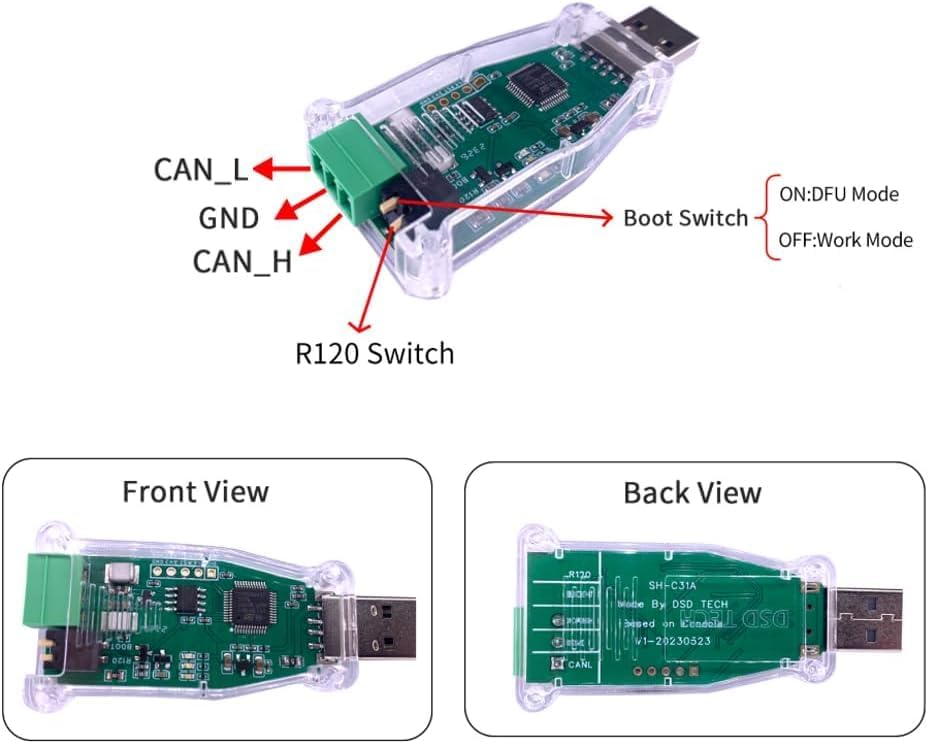
చిత్రం: వివరణాత్మకం view of the SH-C31A adapter, highlighting the CAN_L, GND, CAN_H pins, the Boot Switch (ON: DFU Mode, OFF: Work Mode), and the R120 Switch. Separate images show the front and back viewపరికరం యొక్క s.
3.1. Pinout Description
- CAN_L: CAN Low signal line.
- GND: గ్రౌండ్ కనెక్షన్.
- CAN_H: CAN High signal line.
3.2. Boot Switch
- ఆఫ్ స్థానం: Work Mode. The adapter operates with its current firmware (default is candlelight).
- ON స్థానం: DFU (Device Firmware Upgrade) Mode. Used for flashing new firmware to the device.
4. సెటప్ మరియు కనెక్షన్
Follow these steps to connect your DSD TECH SH-C31A USB to CAN Adapter:
- Connect CAN Bus Wires: Insert the CAN_H, CAN_L, and GND wires from your CAN network into the provided 3-pin terminal block. Ensure correct polarity.
- Attach Terminal Block: Securely plug the terminal block into the corresponding connector on the SH-C31A adapter.
- కంప్యూటర్కు కనెక్ట్ చేయండి: Plug the USB-A connector of the SH-C31A adapter into an available USB port on your desktop or laptop computer.

Image: Step-by-step visual guide showing how to connect the CAN bus wires to the removable 3-pin terminal block, and then how to insert the terminal block into the SH-C31A adapter. The terminal block is included in the package.

Image: Illustrates the process of securing the CAN bus wires into the 3-pin terminal block using a small screwdriver, ensuring a firm connection before attaching the block to the SH-C31A adapter.
5. ఆపరేటింగ్ సూచనలు
5.1. Work Mode (Default)
In Work Mode, the Boot Switch should be in the OFF position. The adapter will operate with its currently installed firmware. By default, the SH-C31A comes with candlelight firmware, which supports standard CAN frames but not CAN FD frames.
To use the adapter in Work Mode with software like Cangroo or BUSMASTER:
- Ensure the Boot Switch is in the OFF position.
- Connect the adapter to your computer and CAN bus as described in Section 4.
- Open your preferred CAN analysis software (e.g., Cangroo, BUSMASTER).
- Configure the software to recognize the "candleLight USB to CAN adapter" or similar device under Universal Serial Bus devices.
- Initiate measurement or communication within the software.
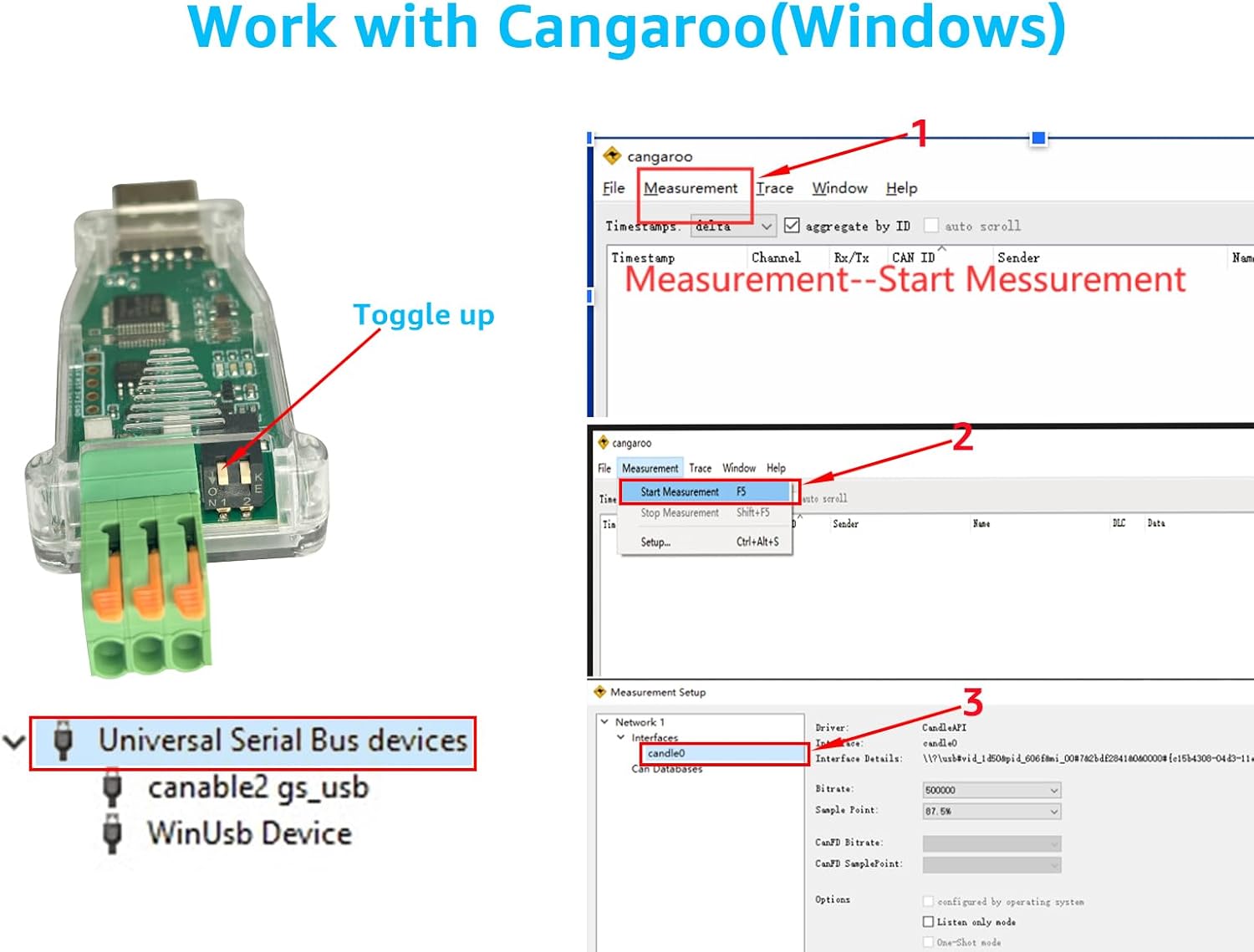
Image: Demonstrates the SH-C31A adapter connected and recognized by Cangroo software on Windows. It shows the device listed under "Universal Serial Bus devices" and steps to start a measurement within Cangroo.
5.2. Firmware Update (DFU Mode)
If you require CAN FD functionality, you must flash the firmware to slcan firmware. This process involves putting the device into DFU Mode.
- Enter DFU Mode: Move the Boot Switch to the ON position.
- కంప్యూటర్కు కనెక్ట్ చేయండి: Plug the SH-C31A adapter into your computer's USB port. The device should appear as "STM Device in DFU Mode" in your device manager.
- Access Firmware Updater: Navigate to the official CANable 2.0 firmware updater webసైట్: https://www.canable.io/updater/canable2.html
- ఫర్మ్వేర్ను ఎంచుకోండి: న website, select the desired firmware (e.g., "slcan with FD support") from the dropdown menu.
- ఫ్లాష్ ఫర్మ్వేర్: Click "Connect and Update" and follow the on-screen prompts to flash the new firmware.
- Exit DFU Mode: After successful flashing, return the Boot Switch to the OFF position. Unplug and replug the device to start with the new firmware.

Image: Illustrates the process of flashing firmware. The SH-C31A is shown with its boot switch toggled to DFU mode, and a screenshot of the CANable 2.0 updater website is displayed, showing the selection of 'slcan with FD support' firmware.

Image: A comparative diagram showing how the SH-C31A is recognized by a computer in Work Mode (as "candleLight USB to CAN adapter") versus DFU Mode (as "STM Device in DFU Mode"), along with a summary of features for each mode.
5.3. అధికారిక ఉత్పత్తి వీడియో
Video: An official product video from DSD TECH demonstrating the SH-C31A USB to CAN Adapter, including its physical features, connection process, and basic operation with software. This video provides a visual guide to the adapter's functionality.
6. నిర్వహణ
The DSD TECH SH-C31A USB to CAN Adapter is designed for durability and requires minimal maintenance. To ensure optimal performance and longevity:
- పరికరాన్ని శుభ్రంగా మరియు దుమ్ము మరియు చెత్త లేకుండా ఉంచండి. శుభ్రం చేయడానికి మృదువైన, పొడి వస్త్రాన్ని ఉపయోగించండి.
- అడాప్టర్ను తీవ్రమైన ఉష్ణోగ్రతలు, తేమ లేదా ప్రత్యక్ష సూర్యకాంతికి గురిచేయకుండా ఉండండి.
- సి ని తెరవడానికి ప్రయత్నించవద్దుasing or modify the internal components, as this will void the warranty.
- Ensure connections are secure but do not overtighten the terminal block screws.
7. ట్రబుల్షూటింగ్
If you encounter issues with your DSD TECH SH-C31A adapter, consider the following troubleshooting steps:
- పరికరం గుర్తించబడలేదు:
- అడాప్టర్ ఫంక్షనల్ USB పోర్ట్కి సురక్షితంగా ప్లగ్ చేయబడిందని నిర్ధారించుకోండి.
- Check your computer's Device Manager to see if the device is listed (e.g., "candleLight USB to CAN adapter" or "STM Device in DFU Mode").
- వేరే USB పోర్ట్ లేదా కంప్యూటర్ని ప్రయత్నించండి.
- If in DFU mode, ensure the Boot Switch is in the ON position. If in Work Mode, ensure it's OFF.
- No CAN Communication:
- Verify that the CAN_H, CAN_L, and GND connections are correct and secure.
- Check the CAN bus termination resistors if applicable to your network.
- Ensure your software is correctly configured for the adapter and the CAN bus parameters (e.g., baud rate).
- If using CAN FD, confirm that the slcan firmware has been successfully flashed.
- ఫర్మ్వేర్ అప్డేట్ సమస్యలు:
- Ensure the Boot Switch is in the ON position before connecting for DFU mode.
- అనుకూలతను ఉపయోగించండి web browser (e.g., Chrome) for the CANable updater webసైట్.
- If on Linux, you may need to add a udev rule for proper device recognition. Refer to the CANable documentation for details.
For further assistance, please contact DSD TECH customer support.
8. స్పెసిఫికేషన్లు
| ఫీచర్ | వివరణ |
|---|---|
| బ్రాండ్ | DSD TECH |
| మోడల్ సంఖ్య | SH-C31A |
| హార్డ్వేర్ ఇంటర్ఫేస్ | USB |
| CAN Protocol Support | CAN, CAN FD (with slcan firmware) |
| డేటా లింక్ ప్రోటోకాల్ | USB |
| డేటా బదిలీ రేటు | సెకనుకు 5 మెగాబిట్లు |
| అనుకూల పరికరాలు | డెస్క్టాప్, ల్యాప్టాప్ |
| విడిగా ఉంచడం | నాన్-ఐసోలేటెడ్ |
| వస్తువు బరువు | 0.02 కిలోలు |
| UPC | 794251080989 |

Image: A comparison table detailing different DSD TECH USB CAN series adapters (SH-C30A, SH-C30G, SH-C31A, SH-C31G), showing their base CANable version, ASIN, CAN FD support, isolation status, CAN pinout, and interface type.
9. వారంటీ మరియు మద్దతు
DSD TECH provides a manufacturer warranty for 12 months from the date of purchase for the SH-C31A USB to CAN Adapter. Additionally, DSD TECH offers permanent technical support and a 1-year product replacement service.
For technical assistance, warranty claims, or product replacement inquiries, please contact DSD TECH customer support through their official webఉత్పత్తిని కొనుగోలు చేసిన సైట్ లేదా ప్లాట్ఫారమ్.
Further documentation, including schematics, BOM lists, and Gerb files, for this open-source hardware product is publicly available on the DSD TECH webసైట్.