
WeHere KB501
WeHere Smart Key Lock Box User Manual
మోడల్: KB501
1. పరిచయం
This manual provides comprehensive instructions for the installation, operation, and maintenance of your WeHere Smart Key Lock Box (Model KB501). This device offers multiple secure unlocking methods, including app-based Bluetooth, temporary passcodes, and remote Wi-Fi access (with optional bridge), along with a traditional physical key backup. Designed for durability and convenience, it is an ideal solution for secure key management in various settings such as homes, apartments, offices, and for realtors or service providers.

Figure 1.1: WeHere Smart Key Lock Box with its mobile application interface.
2. ప్యాకేజీ విషయాలు
క్రింద జాబితా చేయబడిన అన్ని వస్తువులు మీ ప్యాకేజీలో చేర్చబడ్డాయని దయచేసి ధృవీకరించండి:
- WeHere Smart Key Lock Box (Model KB501)
- WeHere B100 Smart Lock (integrated)
- 2 x భౌతిక కీలు
- మౌంటింగ్ హార్డ్వేర్ (స్క్రూలు, యాంకర్లు)
- వినియోగదారు మాన్యువల్ (ఈ పత్రం)
3. సెటప్
3.1 బ్యాటరీ ఇన్స్టాలేషన్
The WeHere Smart Key Lock Box requires 2 alkaline batteries for operation. The external battery compartment design allows for easy replacement without needing to access the main key storage area.
- Locate the external battery compartment on the lock box.
- కంపార్ట్మెంట్ కవర్ తెరవండి.
- Insert 2 alkaline batteries, ensuring correct polarity (+/-).
- కంపార్ట్మెంట్ కవర్ను సురక్షితంగా మూసివేయండి.
Note: The key box will resume operation immediately after battery replacement. Fully charged batteries can last for approximately six months.
3.2 యాప్ డౌన్లోడ్ మరియు సెటప్
The WeHere Smart Key Lock Box is controlled via a mobile application available for both Android and iOS devices.
- కోసం వెతకండి the "WeHere" app in your device's app store (Google Play Store for Android, Apple App Store for iOS).
- అప్లికేషన్ను డౌన్లోడ్ చేసి, ఇన్స్టాల్ చేయండి.
- Open the app and follow the on-screen instructions to create an account and pair your lock box via Bluetooth. Ensure Bluetooth is enabled on your smartphone.

Figure 3.1: Secure storage and convenient access with the WeHere Smart Key Lock Box.
3.3 Mounting the Lock Box
The lock box is designed for wall mounting. Choose a secure location that is protected from direct rain exposure, as recommended for optimal product longevity.
- తగిన మౌంటు ఉపరితలాన్ని ఎంచుకోండి.
- Mark the drilling points using the lock box as a template.
- అవసరమైతే పైలట్ రంధ్రాలు వేయండి మరియు వాల్ యాంకర్లను చొప్పించండి.
- అందించిన స్క్రూలను ఉపయోగించి లాక్ బాక్స్ను గోడకు భద్రపరచండి.
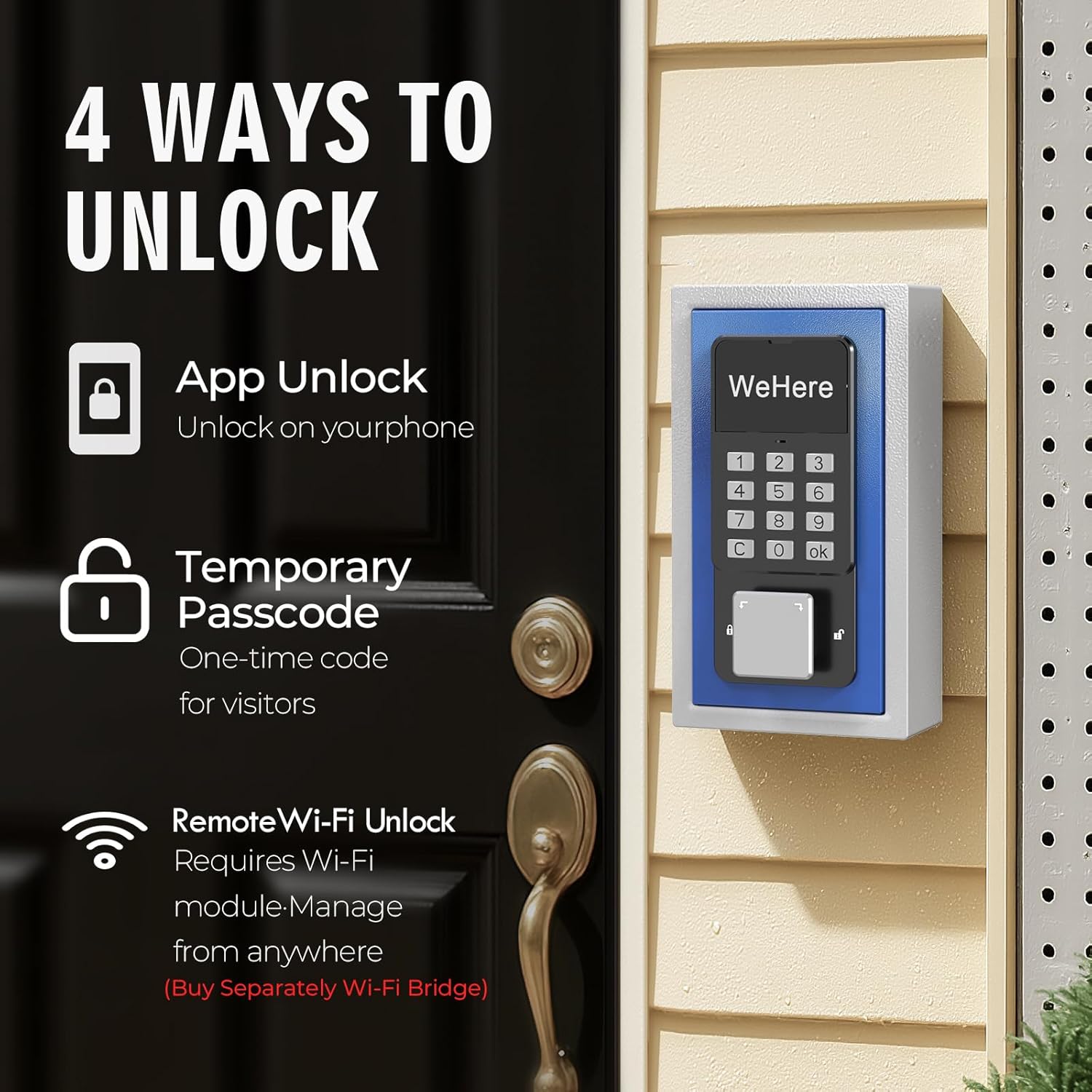
Figure 3.2: Wall-mounted installation of the WeHere Smart Key Lock Box.
4. ఆపరేటింగ్ సూచనలు
The WeHere Smart Key Lock Box offers multiple convenient unlocking methods.
4.1 App Unlock (Bluetooth)
Unlock the key box directly via Bluetooth using the WeHere app when you are within range.
- Ensure Bluetooth is enabled on your smartphone and the app is open.
- Within the app, select your lock box and tap the "Unlock" button.
- The lock box will open, allowing access to the contents.
4.2 Passcode Unlock (OTP/Fixed)
Access the lock box using a numerical passcode entered on the keypad.
- One-Time Passcode (OTP): Generate temporary, time-sensitive passcodes through the WeHere app for visitors or one-time access. These codes expire after a single use or a set duration.
- Fixed Passcode: Set permanent passcodes via the app for regular users.
To use a passcode:
- Enter the valid passcode on the lock box keypad.
- Press the "OK" button (or equivalent) on the keypad.
- The lock box will open.
4.3 Remote Wi-Fi Unlock (Requires WeHere W100 Bridge)
For remote unlocking from anywhere, the WeHere W100 Bridge (sold separately) is required. This bridge connects your lock box to your home Wi-Fi network.
- Ensure your WeHere W100 Bridge is properly set up and connected to your Wi-Fi network and paired with your lock box.
- Open the WeHere app on your smartphone.
- Select your lock box and use the remote unlock function within the app.
- The lock box will receive the command via the Wi-Fi bridge and unlock.

Figure 4.1: Remote unlocking capability with the optional WeHere Wi-Fi Bridge.
4.4 Physical Key Unlock
A traditional physical key is provided as a backup unlocking method.
- Insert the physical key into the keyhole on the lock box.
- Turn the key to unlock the box.
- Open the lock box door.
5. నిర్వహణ
5.1 బ్యాటరీ భర్తీ
When the battery level is low, the lock box may indicate this through the app or a visual/audible cue. Replace batteries promptly to ensure continuous operation. Refer to Section 3.1 for detailed battery installation instructions.
5.2 శుభ్రపరచడం
Clean the exterior of the lock box with a soft, damp వస్త్రం. ముగింపు లేదా ఎలక్ట్రానిక్ భాగాలను దెబ్బతీసే రాపిడి క్లీనర్లు లేదా ద్రావకాలను ఉపయోగించకుండా ఉండండి.
6. ట్రబుల్షూటింగ్
| సమస్య | సాధ్యమైన కారణం | పరిష్కారం |
|---|---|---|
| Lock box does not respond to app unlock. | Low batteries; Bluetooth off; Out of range; App not connected. | Replace batteries; Ensure Bluetooth is on; Move closer to the lock box; Reconnect app. |
| పాస్కోడ్ పనిచేయడం లేదు. | Incorrect passcode entered; Passcode expired (OTP); Keypad issue. | Verify passcode; Generate new OTP; Check battery level. |
| Remote Wi-Fi unlock fails. | WeHere W100 Bridge not connected/powered; Wi-Fi issue. | Check W100 Bridge power and Wi-Fi connection; Ensure bridge is paired with lock box. |
| Physical key does not unlock. | Incorrect key; Obstruction in keyhole. | Ensure you are using the correct key; Check for debris in the keyhole. |
7. స్పెసిఫికేషన్లు
| ఫీచర్ | వివరాలు |
|---|---|
| బ్రాండ్ | మేము ఇక్కడ |
| మోడల్ పేరు | KB501 |
| లాక్ రకం | Electronic Lock, Mechanical Lock |
| ప్రత్యేక ఫీచర్ | స్మార్ట్ లాక్ |
| మెటీరియల్ | కోల్డ్ రోల్డ్ స్టీల్ |
| రంగు | నీలం |
| కొలతలు (L x W x H) | 4.1 x 2 x 7.3 అంగుళాలు (105 x 45 x 185 మిమీ) |
| వస్తువు బరువు | 8.8 ఔన్సులు |
| కనెక్టివిటీ ప్రోటోకాల్ | Bluetooth, Wi-Fi (with optional WeHere W100 Bridge) |
| కంట్రోలర్ రకం | ఆండ్రాయిడ్, iOS యాప్ |
| శక్తి మూలం | 2 x Alkaline Batteries (not included) |
| సిఫార్సు చేయబడిన ఉపయోగం పర్యావరణం | Install in a location where it won't be exposed to rain. |
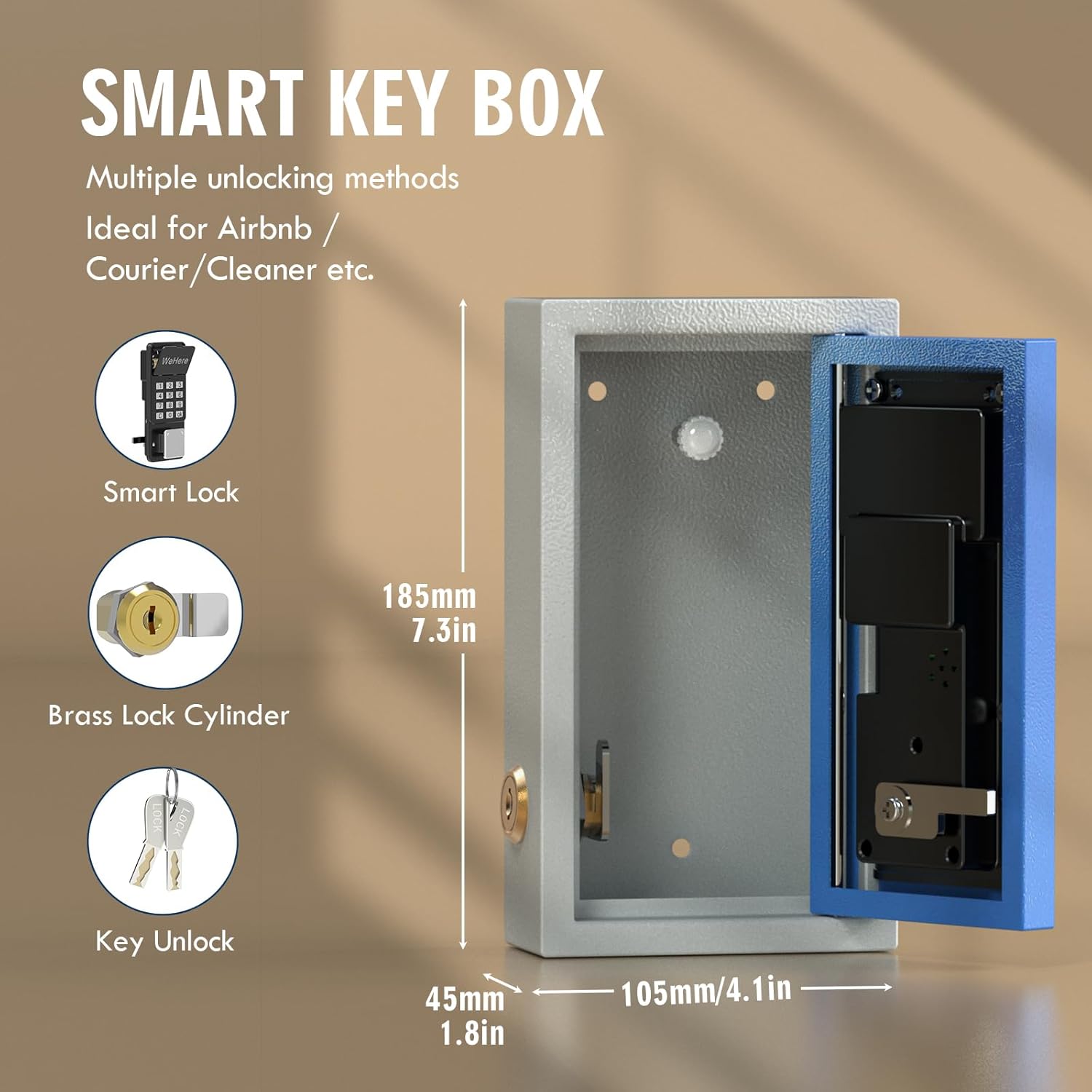
Figure 7.1: Key dimensions and components of the Smart Key Box.
8. వారంటీ మరియు మద్దతు
WeHere is committed to delivering high-quality and secure products. For any questions, technical assistance, or warranty inquiries, please contact WeHere customer support.
- ఆన్లైన్ మద్దతు: Visit the official WeHere webతరచుగా అడిగే ప్రశ్నలు మరియు మద్దతు వనరుల కోసం సైట్.
- ఇమెయిల్ మద్దతు: Refer to your product packaging or the WeHere webకస్టమర్ సర్వీస్ ఇమెయిల్ చిరునామాల కోసం సైట్.
వారంటీ ధ్రువీకరణ కోసం దయచేసి మీ కొనుగోలు రసీదుని ఉంచుకోండి.
Ask a question about this manual
Ask about setup, troubleshooting, compatibility, parts, safety, or missing instructions. Manuals+ will review the question and use this page’s manual context to help answer it.