
1. పరిచయం
This manual provides essential information for setting up, operating, maintaining, and troubleshooting your Lenovo ThinkPad T14 Gen 4 laptop. Please read this guide thoroughly to ensure proper use and to maximize the performance and longevity of your device.
2. ఉత్పత్తి ముగిసిందిview
The Lenovo ThinkPad T14 Gen 4 is a high-performance business laptop featuring a 13th Generation Intel Core i7-1355U processor, a 14-inch WUXGA (1920 x 1200) IPS touch screen, 16GB DDR5 RAM, and a 512GB PCIe SSD. It comes pre-installed with Windows Pro and includes a backlit keyboard and fingerprint reader for enhanced security and usability.
2.1 ల్యాప్టాప్ భాగాలు

Image: The ThinkPad T14 Gen 4 laptop shown open, with its screen displaying a video editing application. This view highlights the keyboard, TrackPoint, and touchpad.

Image: The ThinkPad T14 Gen 4 laptop shown open, with its screen displaying abstract red light art. This view emphasizes the display quality and overall design.
2.2 పోర్ట్లు మరియు కనెక్టర్లు
Your ThinkPad T14 Gen 4 is equipped with various ports for connectivity and expansion:
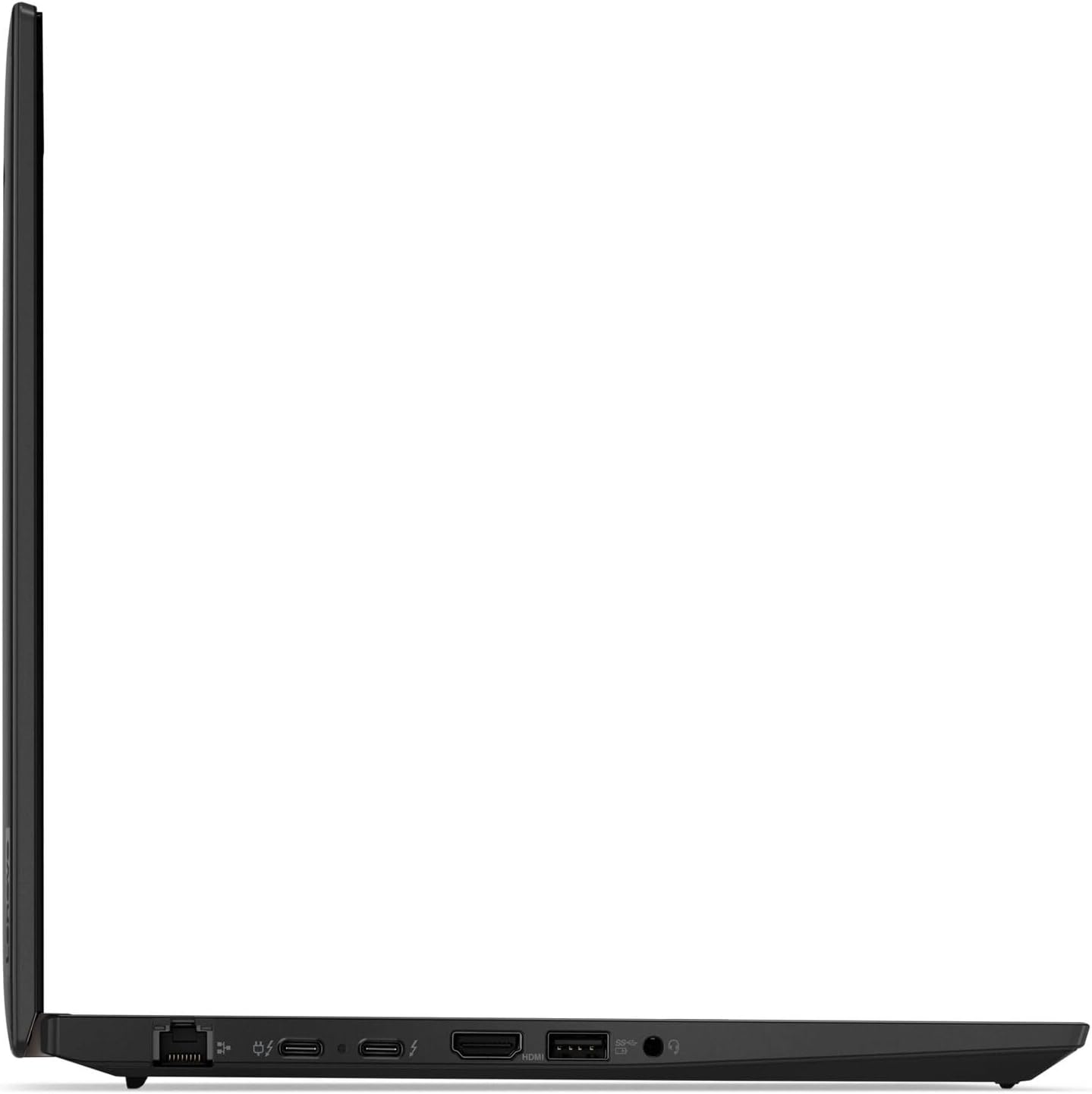
Image: Left side of the laptop, featuring an Ethernet port, two USB-C ports (Thunderbolt compatible), an HDMI port, and a USB-A port.
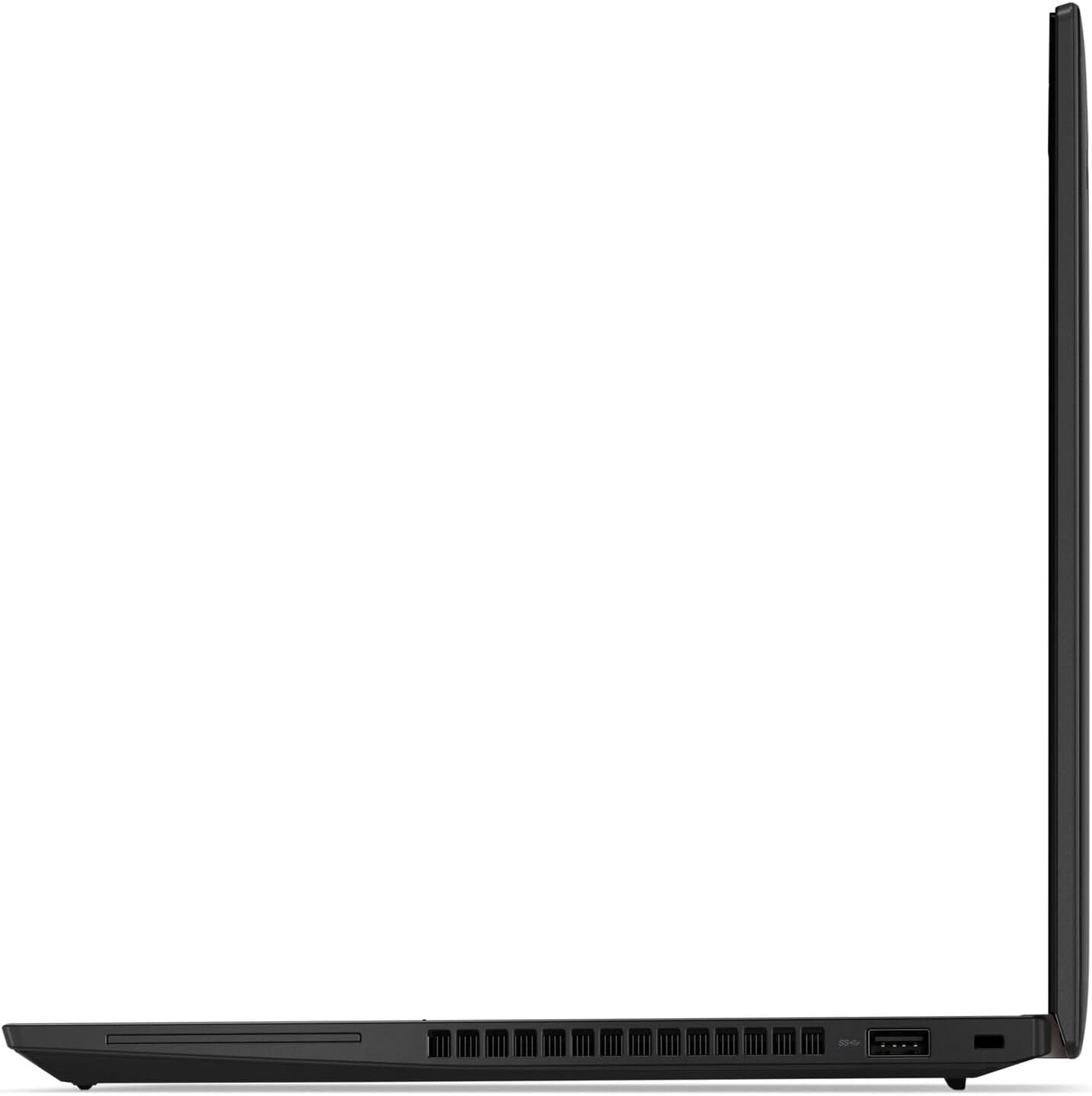
Image: Right side of the laptop, featuring a USB-A port and a security lock slot.
3. సెటప్
3.1 ప్రారంభ పవర్ ఆన్
- Connect the power adapter to the laptop's USB-C power port and then to an electrical outlet.
- Open the laptop lid. The laptop may power on automatically, or you may need to press the power button located on the side or top right of the keyboard deck.
- Follow the on-screen instructions to complete the Windows Pro initial setup, including language selection, network connection, and user account creation.
3.2 ఫింగర్ప్రింట్ రీడర్ సెటప్
To enhance security, set up the integrated fingerprint reader:
- నావిగేట్ చేయండి సెట్టింగ్లు > ఖాతాలు > సైన్-ఇన్ ఎంపికలు in Windows Pro.
- "Windows హలో ఫింగర్ ప్రింట్" కింద, ఏర్పాటు చేయండి.
- Follow the prompts to scan your finger multiple times until the setup is complete.
4. ఆపరేటింగ్ సూచనలు
4.1 పవర్ మేనేజ్మెంట్
- పవర్ ఆన్: పవర్ బటన్ను నొక్కండి.
- స్లీప్ మోడ్: మూత మూసివేయండి లేదా నొక్కండి Fn + F4 (or equivalent sleep key).
- షట్ డౌన్: వెళ్ళండి ప్రారంభం > పవర్ > షట్ డౌన్.
- పునఃప్రారంభించు: వెళ్ళండి Start > Power > Restart.
4.2 Touch Screen Usage
Your laptop features a multi-touch display. Use standard touch gestures for navigation and interaction:
- నొక్కండి: Equivalent to a left-click.
- నొక్కండి మరియు పట్టుకోండి: కుడి-క్లిక్తో సమానం.
- Pinch/Stretch: జూమ్ ఇన్ లేదా అవుట్ చేయండి.
- స్వైప్: కంటెంట్ ద్వారా స్క్రోల్ చేయండి లేదా స్క్రీన్ల మధ్య నావిగేట్ చేయండి.
4.3 కీబోర్డ్ మరియు పాయింటింగ్ పరికరాలు
The ThinkPad T14 Gen 4 includes a full-size backlit keyboard, a TrackPoint pointing device, and a multi-touch touchpad.
- కీబోర్డ్ బ్యాక్లైట్: నొక్కండి Fn + స్పేస్ బార్ బ్యాక్లైట్ బ్రైట్నెస్ స్థాయిల ద్వారా చక్రం తిప్పడానికి.
- ట్రాక్పాయింట్: కర్సర్ను తరలించడానికి కీబోర్డ్ మధ్యలో ఉన్న ఎరుపు రంగు ట్రాక్పాయింట్ క్యాప్ను ఉపయోగించండి. స్పేస్బార్ కింద ఉన్న మూడు బటన్లు ట్రాక్పాయింట్ కోసం ఎడమ-క్లిక్, స్క్రోల్ మరియు కుడి-క్లిక్గా పనిచేస్తాయి.
- టచ్ప్యాడ్: Use the multi-touch touchpad for cursor control and gestures. Refer to Windows settings for touchpad customization.
5. నిర్వహణ
5.1 మీ ల్యాప్టాప్ను శుభ్రపరచడం
- స్క్రీన్: మెత్తని, మెత్తని బట్టను తేలికగా ఉపయోగించండి డిampనీటితో లేదా స్క్రీన్-క్లీనింగ్ ద్రావణంతో కలిపిన తర్వాత. స్క్రీన్పై నేరుగా ద్రవాన్ని పిచికారీ చేయవద్దు.
- చాసిస్ మరియు కీబోర్డ్: మెత్తటి, పొడి వస్త్రాన్ని ఉపయోగించండి. మొండి ధూళి కోసం, తేలికగా ఒక వస్త్రాన్ని dampఐసోప్రొపైల్ ఆల్కహాల్ కలిపి ఉపయోగించవచ్చు. అధిక తేమను నివారించండి.
- పోర్టులు: Ensure ports are free of dust and debris. Use compressed air if necessary, holding the can upright to prevent liquid propellant discharge.
5.2 బ్యాటరీ సంరక్షణ
- తీవ్రమైన ఉష్ణోగ్రతలను నివారించండి.
- బ్యాటరీని తరచుగా పూర్తిగా డిశ్చార్జ్ చేయవద్దు.
- For long-term storage, charge the battery to approximately 50-60% and store the laptop in a cool, dry place.
5.3 సాఫ్ట్వేర్ నవీకరణలు
Regularly update your operating system and drivers to ensure optimal performance and security. Windows Update will handle most OS updates. For Lenovo-specific drivers and firmware, use the Lenovo Vantage application or visit the official Lenovo support webసైట్.
6. ట్రబుల్షూటింగ్
This section addresses common issues you might encounter with your ThinkPad T14 Gen 4.
6.1 విద్యుత్ సమస్యలు
- ల్యాప్టాప్ ఆన్ అవ్వడం లేదు: Ensure the power adapter is securely connected and the outlet is functional. Try a different power outlet. If the battery is completely drained, it may take a few minutes of charging before the laptop can power on.
- బ్యాటరీ ఛార్జింగ్ కాదు: Verify the power adapter is correctly connected. Check for any damage to the adapter or charging port. Update power management drivers.
6.2 ప్రదర్శన సమస్యలు
- తెరపై డిస్ప్లే లేదు: Connect an external monitor to check if the issue is with the laptop's internal display. Press Fn + F7 (or equivalent display toggle key) to cycle through display modes.
- టచ్ స్క్రీన్ స్పందించడం లేదు: Restart the laptop. Ensure display drivers are up to date. Check for any physical obstructions or damage to the screen.
6.3 కనెక్టివిటీ సమస్యలు
- Wi-Fi కనెక్ట్ కావడం లేదు: Wi-Fi ప్రారంభించబడిందని నిర్ధారించుకోండి (తనిఖీ చేయండి Fn + F5 or Windows settings). Restart your router and laptop. Update wireless drivers.
- బ్లూటూత్ పరికరం జత కావడం లేదు: Ensure Bluetooth is enabled on both devices. Place devices close to each other. Remove and re-add the device in Windows Bluetooth settings.
మరింత వివరణాత్మక ట్రబుల్షూటింగ్ కోసం, Lenovo మద్దతును చూడండి. webసైట్ లేదా సాంకేతిక మద్దతును సంప్రదించండి.
7. స్పెసిఫికేషన్లు
| ఫీచర్ | స్పెసిఫికేషన్ |
|---|---|
| ప్రాసెసర్ | 13th Generation Intel Core i7-1355U (E-cores up to 3.70 GHz, P-cores up to 5.00 GHz) |
| ఆపరేటింగ్ సిస్టమ్ | విండోస్ ప్రో |
| ప్రదర్శించు | 14" WUXGA (1920 x 1200) IPS, Anti-Glare, Touch, 45% NTSC, 300 nits |
| గ్రాఫిక్స్ | ఇంటిగ్రేటెడ్ ఇంటెల్ UHD గ్రాఫిక్స్ |
| జ్ఞాపకశక్తి | 16 GB DDR5-4800MHz (Soldered) |
| నిల్వ | 512 GB SSD M.2 2280 PCIe |
| వైర్లెస్ కనెక్టివిటీ | 5 GHz Radio Frequency (Wi-Fi), Bluetooth |
| ఓడరేవులు | USB-C (Thunderbolt), USB-A, HDMI, Ethernet |
| కొలతలు (WxDxH) | 317.7 x 226.9 x 17.9 మిమీ (12.51 x 8.93 x 0.70 అంగుళాలు) |
| బరువు | 1.36 kg (3.0 lbs) వద్ద ప్రారంభమవుతుంది |
| బ్యాటరీ లైఫ్ | 16 గంటల వరకు (సగటున) |
| ప్రత్యేక లక్షణాలు | బ్యాక్లిట్ కీబోర్డ్, ఫింగర్ప్రింట్ రీడర్ |
8. వారంటీ సమాచారం
Your Lenovo ThinkPad T14 Gen 4 laptop comes with a standard manufacturer's warranty. The specific terms and duration of the warranty may vary by region and purchase agreement. For detailed warranty information, including coverage, limitations, and how to make a claim, please refer to the official Lenovo warranty documentation included with your product or visit the official Lenovo support webసైట్.
Please note that unauthorized upgrades or repairs may affect your warranty status. The hard drive upgrade performed by the seller will not affect the manufacturer's warranty.
9. మద్దతు
For further assistance, technical support, driver downloads, or service requests, please visit the official Lenovo Support webసైట్:
You can also utilize the Lenovo Vantage application pre-installed on your system for system health checks, updates, and direct access to support resources.