
1. పరిచయం
This manual provides essential information for the setup, operation, maintenance, and troubleshooting of your DELTACO GAMING WM87 Gaming Mouse. Please read these instructions carefully to ensure proper use and to maximize your gaming experience.
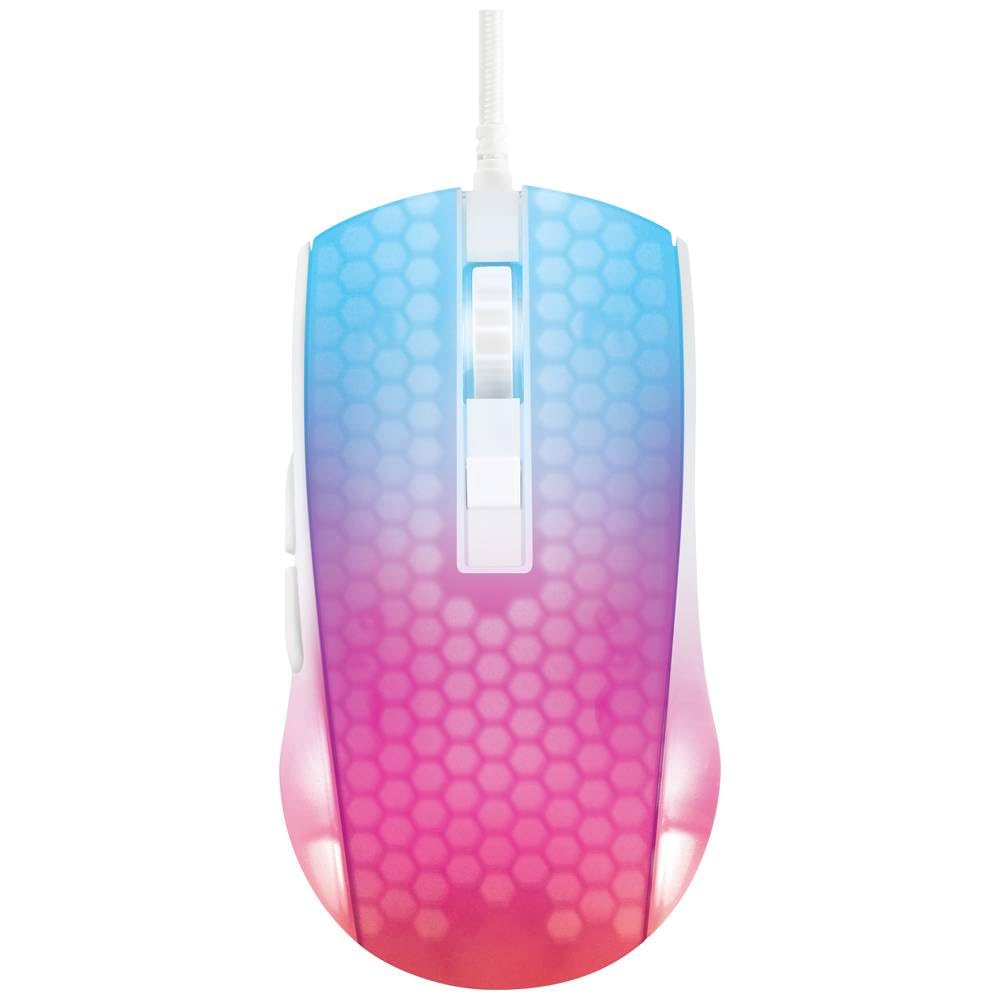
ఒక ఓవర్ హెడ్ view of the DELTACO GAMING WM87 Gaming Mouse. The mouse features a translucent white body with an illuminated honeycomb pattern that transitions from blue at the front to pink and red at the rear. It has a scroll wheel and two main buttons, along with two side buttons visible on the left.
2. ఉత్పత్తి ముగిసిందిview
The DELTACO GAMING WM87 is a high-performance gaming mouse designed for precision and comfort. It features a transparent design with integrated illumination, a high-accuracy optical sensor, and six programmable buttons.
ముఖ్య లక్షణాలు:
- కనెక్టివిటీ: USB వైర్డ్
- సెన్సార్: ఆప్టికల్, 6200 DPI వరకు
- బటన్లు: 6 (Left, Right, Scroll Click, DPI Cycle, Forward, Back)
- డిజైన్: Transparent shell with illuminated honeycomb pattern
- అనుకూలత: వ్యక్తిగత కంప్యూటర్, ల్యాప్టాప్
3. సెటప్ సూచనలు
- మౌస్ను విప్పండి: Carefully remove the DELTACO GAMING WM87 mouse from its packaging.
- కంప్యూటర్కు కనెక్ట్ చేయండి: Locate an available USB port on your personal computer or laptop. Insert the USB connector of the mouse firmly into the USB port.
- డ్రైవర్ ఇన్స్టాలేషన్: The mouse is plug-and-play. Your operating system should automatically detect and install the necessary drivers. No additional software installation is typically required for basic functionality.
- కార్యాచరణను ధృవీకరించండి: Once connected, move the mouse and click the buttons to ensure it is working correctly. The integrated illumination should light up.
4. ఆపరేటింగ్ సూచనలు
ప్రాథమిక విధులు:
- ఎడమ క్లిక్ చేయండి: ప్రాథమిక చర్య, ఎంపిక.
- కుడి క్లిక్ చేయండి: సందర్భ మెనూ, ద్వితీయ చర్య.
- స్క్రోల్ వీల్: Scroll up/down pages. Pressing the scroll wheel typically acts as a middle click.
- ముందుకు/వెనుకకు బటన్లు: Located on the left side of the mouse, these buttons are commonly used for navigation in web బ్రౌజర్లు లేదా file అన్వేషకులు.
DPI సర్దుబాటు:
The DELTACO GAMING WM87 mouse features adjustable DPI (Dots Per Inch) settings, allowing you to change the cursor sensitivity on the fly. A dedicated DPI button (often located behind the scroll wheel) cycles through preset DPI levels up to 6200 DPI. Press this button to adjust the sensitivity to your preference.
ప్రకాశం:
The mouse features integrated illumination. The lighting pattern and colors are typically pre-programmed and may change based on DPI settings or automatically cycle through colors. Refer to any potential software for advanced customization, if available.
5. నిర్వహణ
- శుభ్రపరచడం: మౌస్ బాహ్య భాగాన్ని శుభ్రం చేయడానికి మృదువైన, పొడి, మెత్తటి బట్టను ఉపయోగించండి. మొండి ధూళి కోసం, కొద్దిగా dampen the cloth with water. Avoid using harsh chemicals, solvents, or abrasive materials.
- సెన్సార్ క్లీనింగ్: అప్పుడప్పుడు, మౌస్ దిగువ భాగంలో ఉన్న ఆప్టికల్ సెన్సార్ చుట్టూ దుమ్ము లేదా శిధిలాలు పేరుకుపోవచ్చు. సెన్సార్ ప్రాంతాన్ని సున్నితంగా శుభ్రం చేయడానికి కాటన్ శుభ్రముపరచు లేదా సంపీడన గాలిని ఉపయోగించండి.
- నిల్వ: ఉపయోగంలో లేనప్పుడు, తీవ్రమైన ఉష్ణోగ్రతలు మరియు ప్రత్యక్ష సూర్యకాంతి నుండి దూరంగా శుభ్రమైన, పొడి వాతావరణంలో మౌస్ను నిల్వ చేయండి.
- కేబుల్ కేర్: USB కేబుల్ దెబ్బతినకుండా ఉండటానికి దాన్ని ఎక్కువగా వంచడం లేదా తిప్పడం మానుకోండి.
6. ట్రబుల్షూటింగ్
- మౌస్ స్పందించడం లేదు:
- USB కేబుల్ పనిచేసే USB పోర్ట్కి సురక్షితంగా ప్లగ్ చేయబడిందని నిర్ధారించుకోండి.
- మీ కంప్యూటర్లోని వేరే USB పోర్ట్లోకి మౌస్ని ప్లగ్ చేసి ప్రయత్నించండి.
- మీ కంప్యూటర్ని పునఃప్రారంభించండి.
- అనియత కర్సర్ కదలిక:
- మౌస్ కింద ఉన్న ఆప్టికల్ సెన్సార్ను శుభ్రం చేయండి.
- మీరు మౌస్ను తగిన ఉపరితలంపై (ఉదా. మౌస్ ప్యాడ్) ఉపయోగిస్తున్నారని నిర్ధారించుకోండి. అధిక ప్రతిబింబం లేదా పారదర్శక ఉపరితలాలను నివారించండి.
- ఇల్యూమినేషన్ పనిచేయడం లేదు:
- USB కనెక్షన్ని తనిఖీ చేయండి.
- If the mouse has a dedicated lighting control button or software, ensure it is enabled.
7. స్పెసిఫికేషన్లు
| ఫీచర్ | వివరాలు |
|---|---|
| బ్రాండ్ | డెల్టాకో గేమింగ్ |
| మోడల్ సంఖ్య | GAM-144-W (WM87) |
| కనెక్టివిటీ టెక్నాలజీ | USB |
| మూవ్మెంట్ డిటెక్షన్ టెక్నాలజీ | ఆప్టికల్ |
| బటన్ల సంఖ్య | 6 |
| DPI | 6200 వరకు |
| చేతి ధోరణి | కుడి |
| సిఫార్సు చేయబడిన ఉత్పత్తి వినియోగం | గేమింగ్ |
| అనుకూల పరికరాలు | ల్యాప్టాప్, పర్సనల్ కంప్యూటర్ |
| ఉత్పత్తి కొలతలు | 180 x 0.07 x 0.12 cm (Note: These dimensions appear to be for the cable or packaging, not the mouse itself. Please refer to product packaging for accurate mouse dimensions.) |
| బరువు | Approximately 65 Grams (Lithium battery weight, likely referring to overall mouse weight if no battery is present) |
| మొదట అందుబాటులో ఉన్న తేదీ | సెప్టెంబర్ 16, 2023 |
8. వారంటీ మరియు మద్దతు
For warranty information, technical support, or service inquiries regarding your DELTACO GAMING WM87 Gaming Mouse, please refer to the warranty card included with your product or visit the official DELTACO GAMING webవారంటీ క్లెయిమ్ల కోసం మీ కొనుగోలు రుజువును ఉంచండి.