
1. పరిచయం
Thank you for choosing the Baseus AeQur G10 TWS Earphones. This manual provides detailed instructions on how to set up, operate, maintain, and troubleshoot your new earphones. Please read this manual thoroughly before using the product to ensure optimal performance and longevity.
2. ప్యాకేజీ విషయాలు
పెట్టెను జాగ్రత్తగా అన్ప్యాక్ చేసి, క్రింద జాబితా చేయబడిన అన్ని వస్తువులు ఉన్నాయని మరియు మంచి స్థితిలో ఉన్నాయని నిర్ధారించుకోండి. ఏవైనా వస్తువులు తప్పిపోయినా లేదా దెబ్బతిన్నా, దయచేసి మీ రిటైలర్ను సంప్రదించండి.
- Baseus AeQur G10 TWS Earphones (Left and Right)
- ఛార్జింగ్ కేసు
- USB-A/USB-C Wireless Dongle
- USB-C ఛార్జింగ్ కేబుల్
- బహుళ పరిమాణాల చెవి చిట్కాలు
- వినియోగదారు మాన్యువల్ (ఈ పత్రం)

Image 2.1: Complete package contents of the Baseus AeQur G10 TWS Earphones.
3. ఉత్పత్తి ముగిసిందిview
Familiarize yourself with the components of your Baseus AeQur G10 TWS Earphones.
3.1 ఇయర్ఫోన్లు
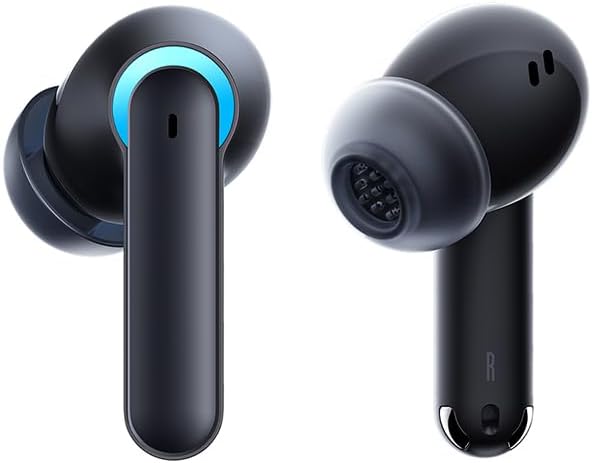
Image 3.1: Left and Right Baseus AeQur G10 Earphones. Each earphone features a touch control area, microphone, and charging contacts.
3.2 ఛార్జింగ్ కేసు

Image 3.2: Baseus AeQur G10 Earphones in their charging case with the lid open. The case has charging slots for each earphone and an LED indicator for battery status.
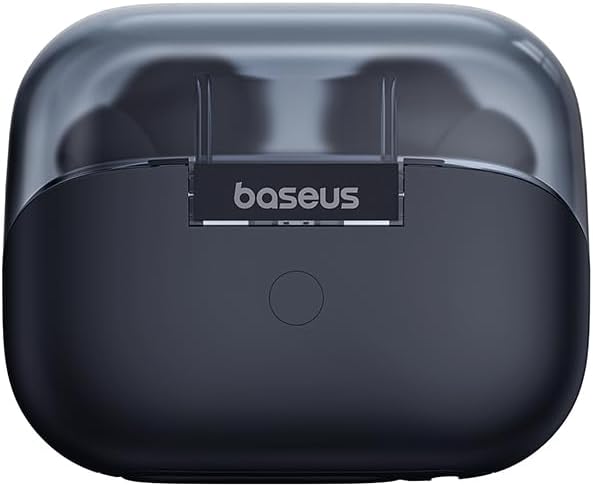
చిత్రం 3.3: వెనుక view of the Baseus AeQur G10 charging case, displaying the Baseus brand logo and a USB-C charging port (not explicitly visible but implied by common design).
3.3 USB-A/USB-C Wireless Dongle
The included wireless dongle allows for low-latency connection to various devices, including PCs, laptops, gaming consoles, and mobile devices.

Image 3.4: Compatibility diagram for the Baseus AeQur G10, illustrating connections to Type-C Androids & Tablets, Type-C/USB-A PCs & Laptops, PS5/PS4/Switch, Steam Deck, and VR devices.
4. సెటప్
4.1 ప్రారంభ ఛార్జింగ్
- రెండు ఇయర్ఫోన్లను ఛార్జింగ్ కేస్లో ఉంచండి.
- Connect the USB-C charging cable to the charging port on the case and the other end to a USB power source (e.g., computer USB port, wall adapter).
- The LED indicator on the case will show charging status. A full charge typically takes approximately 1.5 hours for the earphones and 2 hours for the case.
4.2 Pairing with Bluetooth Devices
- Ensure the earphones are in the charging case and the case has sufficient charge.
- Open the charging case lid. The earphones will automatically enter pairing mode (indicated by a flashing LED on the earphones or case).
- మీ పరికరంలో (స్మార్ట్ఫోన్, టాబ్లెట్, ల్యాప్టాప్), బ్లూటూత్ను ప్రారంభించి, కొత్త పరికరాల కోసం శోధించండి.
- Select "Baseus AeQur G10" from the list of available devices.
- Once connected, the LED indicator will stop flashing, and you will hear a confirmation tone.
4.3 Connecting via USB Wireless Dongle
- Insert the USB-A or USB-C end of the wireless dongle into the corresponding port on your device (PC, laptop, gaming console).
- Ensure the earphones are in the charging case and the lid is open.
- The earphones will automatically attempt to connect to the dongle. The dongle's LED indicator will show connection status.
- Once connected, the LED on the dongle will become solid, and you will hear a confirmation tone from the earphones.
5. ఆపరేటింగ్ సూచనలు
5.1 పవర్ ఆన్/ఆఫ్
- పవర్ ఆన్: Open the charging case lid, or take the earphones out of the case. They will power on automatically.
- పవర్ ఆఫ్: ఇయర్ఫోన్లను తిరిగి ఛార్జింగ్ కేసులో ఉంచి మూత మూసివేయండి. అవి స్వయంచాలకంగా పవర్ ఆఫ్ అయి ఛార్జింగ్ ప్రారంభమవుతాయి.
5.2 ఇయర్ఫోన్లు ధరించడం
- Identify the 'L' (left) and 'R' (right) markings on each earphone.
- Gently insert the earphones into your ear canals.
- Rotate them slightly to find a comfortable and secure fit. Choose the appropriate ear tip size for optimal sound quality and comfort.
5.3 టచ్ నియంత్రణలు
The Baseus AeQur G10 earphones feature touch-sensitive controls on each earbud. The specific functions may vary slightly depending on the device and application.
| చర్య | ఫంక్షన్ |
|---|---|
| సింగిల్ ట్యాప్ (L/R) | సంగీతాన్ని ప్లే చేయండి/పాజ్ చేయండి, సమాధానం ఇవ్వండి/కాల్ని ముగించండి |
| డబుల్ ట్యాప్ (L) | మునుపటి ట్రాక్ |
| డబుల్ ట్యాప్ (R) | తదుపరి ట్రాక్ |
| ట్రిపుల్ ట్యాప్ (L/R) | వాయిస్ అసిస్టెంట్ని యాక్టివేట్ చేయండి |
| లాంగ్ ప్రెస్ (L/R, 2సె) | కాల్ని తిరస్కరించండి |
| లాంగ్ ప్రెస్ (L/R, 3సె) | Toggle Gaming/Music Mode (if applicable) |
6. నిర్వహణ
6.1 శుభ్రపరచడం
- ఇయర్ఫోన్లు మరియు ఛార్జింగ్ కేసును శుభ్రం చేయడానికి మృదువైన, పొడి, మెత్తటి బట్టను ఉపయోగించండి.
- For earwax or debris in the ear tips, gently remove the ear tips and clean them with a cotton swab lightly dampened with rubbing alcohol. Ensure they are completely dry before reattaching.
- రాపిడి క్లీనర్లు, ద్రావకాలు లేదా ఏరోసోల్ స్ప్రేలను ఉపయోగించవద్దు.
6.2 నిల్వ
- ఇయర్ఫోన్లను రక్షించడానికి మరియు వాటిని ఛార్జ్లో ఉంచడానికి ఉపయోగంలో లేనప్పుడు ఎల్లప్పుడూ వాటి ఛార్జింగ్ కేసులో ఉంచండి.
- తీవ్రమైన ఉష్ణోగ్రతలు మరియు ప్రత్యక్ష సూర్యకాంతి నుండి దూరంగా చల్లని, పొడి ప్రదేశంలో నిల్వ చేయండి.
6.3 బ్యాటరీ సంరక్షణ
- Charge the earphones and case regularly, even if not used frequently, to maintain battery health.
- బ్యాటరీలను ఎక్కువసేపు పూర్తిగా డిశ్చార్జ్ చేయడాన్ని నివారించండి.
7. ట్రబుల్షూటింగ్
If you encounter issues with your Baseus AeQur G10 earphones, refer to the following common solutions:
7.1 శబ్దం లేదు లేదా అడపాదడపా కనెక్షన్ లేదు
- Ensure earphones are charged and properly connected to your device (Bluetooth or dongle).
- ఇయర్ఫోన్లు మరియు మీ కనెక్ట్ చేయబడిన పరికరం రెండింటిలోనూ వాల్యూమ్ స్థాయిని తనిఖీ చేయండి.
- జోక్యం లేదా పరిధి సమస్యలను నివారించడానికి మీ పరికరానికి దగ్గరగా వెళ్లండి.
- Try disconnecting and re-connecting the earphones.
- For Bluetooth, forget the device on your phone and re-pair.
- For dongle, unplug and re-plug the dongle.
7.2 ఇయర్ఫోన్లు ఛార్జింగ్ కావడం లేదు
- ఛార్జింగ్ కేబుల్ కేస్ మరియు పవర్ సోర్స్ రెండింటికీ సురక్షితంగా కనెక్ట్ చేయబడిందని నిర్ధారించుకోండి.
- పవర్ సోర్స్ యాక్టివ్గా ఉందని ధృవీకరించండి.
- Clean the charging contacts on both the earphones and inside the case with a dry cotton swab.
- వేరే ఛార్జింగ్ కేబుల్ లేదా పవర్ అడాప్టర్ని ప్రయత్నించండి.
7.3 Only One Earphone Working
- రెండు ఇయర్ఫోన్లను తిరిగి ఛార్జింగ్ కేసులో ఉంచండి, మూత మూసివేసి, కొన్ని సెకన్లు వేచి ఉండండి, ఆపై మూత తెరిచి వాటిని మళ్ళీ బయటకు తీయండి.
- రెండు ఇయర్ఫోన్లు ఛార్జ్ అయ్యాయని నిర్ధారించుకోండి.
- Try resetting the earphones (refer to manufacturer's webఅవసరమైతే నిర్దిష్ట రీసెట్ సూచనల కోసం సైట్).
8. స్పెసిఫికేషన్లు
Key technical specifications for the Baseus AeQur G10 TWS Earphones:
| ఫీచర్ | స్పెసిఫికేషన్ |
|---|---|
| మోడల్ పేరు | A00055400111-00 |
| బ్రాండ్ | బేసియస్ |
| రంగు | నలుపు |
| చెవి ప్లేస్మెంట్ | చెవిలో |
| ఫారమ్ ఫ్యాక్టర్ | చెవిలో |
| కనెక్టివిటీ టెక్నాలజీ | వైర్లెస్ (బ్లూటూత్) |
| వైర్లెస్ కమ్యూనికేషన్ టెక్నాలజీ | బ్లూటూత్ |
| బ్యాటరీలు | 1 లిథియం అయాన్ బ్యాటరీలు అవసరం (చేర్చబడినవి) |
| ఉత్పత్తి కొలతలు | 10 x 5 x 1.27 సెం.మీ |
| వస్తువు బరువు | 220 గ్రా |
| తయారీదారు | బేసియస్ |
| నిర్దిష్ట ఉపయోగాలు | ప్రయాణం |
9. వారంటీ మరియు మద్దతు
Baseus products are designed and manufactured to the highest quality standards. For information regarding warranty coverage, technical support, or service, please refer to the warranty card included with your product or visit the official Baseus webవారంటీ క్లెయిమ్ల కోసం మీ కొనుగోలు రుజువును ఉంచండి.
For further assistance, you may contact Baseus customer support through their official channels.