
Xiaomi A27i
Xiaomi A27i మానిటర్ యూజర్ మాన్యువల్
Model: A27i (ELA5345EU)
1. పరిచయం
Thank you for choosing the Xiaomi A27i Monitor. This 27-inch Full-HD IPS display is designed to provide a clear and vibrant visual experience with a 100Hz refresh rate and 6ms response time, suitable for both work and entertainment. It features Low Blue Light technology for eye comfort and HDR 10 support for enhanced contrast and color.

మూర్తి 1.1: ముందు view of the Xiaomi A27i Monitor.
2. ప్యాకేజీ విషయాలు
దయచేసి ఈ క్రింది అంశాల కోసం ప్యాకేజీని తనిఖీ చేయండి:
- Xiaomi A27i మానిటర్
- మానిటర్ స్టాండ్ (బేస్ మరియు మెడ)
- పవర్ అడాప్టర్ మరియు కేబుల్
- HDMI కేబుల్
- వినియోగదారు మాన్యువల్ (ఈ పత్రం)
3. సెటప్ గైడ్
3.1 స్టాండ్ను అసెంబుల్ చేయడం
- ప్యాకేజింగ్ నుండి మానిటర్ మరియు స్టాండ్ భాగాలను జాగ్రత్తగా తొలగించండి.
- స్టాండ్ మెడను మానిటర్ ప్యానెల్కు అటాచ్ చేయండి. అది సురక్షితంగా స్థానంలో క్లిక్ అవుతుందని లేదా అందించినట్లయితే స్క్రూలతో బిగించబడిందని నిర్ధారించుకోండి.
- Connect the stand base to the stand neck. Tighten the thumb screw at the bottom of the base to secure it.

చిత్రం 3.1: వెనుక view of the monitor, illustrating the stand connection area.
3.2 మానిటర్ను కనెక్ట్ చేస్తోంది
Before connecting, ensure your computer and the monitor are powered off.
- పవర్ కనెక్షన్: పవర్ అడాప్టర్ను మానిటర్ యొక్క DC ఇన్పుట్ పోర్ట్కు కనెక్ట్ చేయండి, ఆపై పవర్ కేబుల్ను వాల్ అవుట్లెట్లోకి ప్లగ్ చేయండి.
- వీడియో కనెక్షన్: Connect one end of the provided HDMI cable to the HDMI port on your computer's graphics card and the other end to the HDMI port on the monitor. Alternatively, use a DisplayPort (DP) cable if your computer supports it for optimal performance.
- ఆడియో (ఐచ్ఛికం): If your computer has an audio output and you wish to use external speakers or headphones, connect them to your computer's audio jack. The monitor does not have built-in speakers.
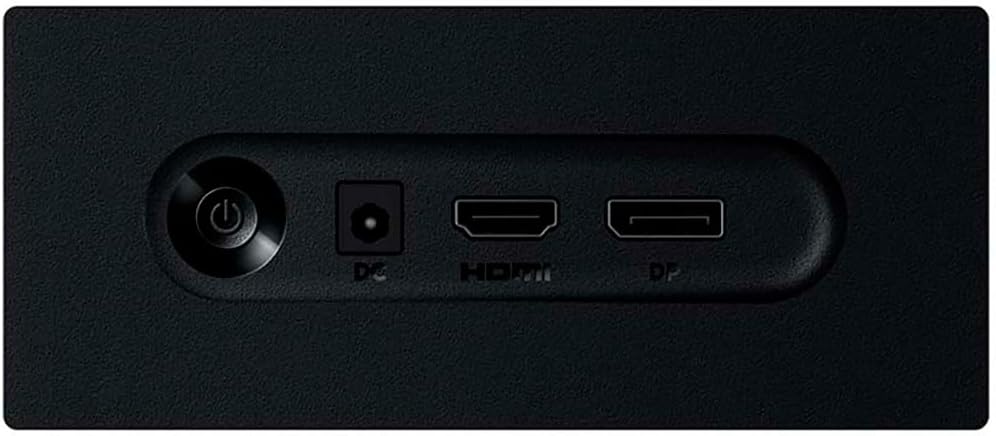
Figure 3.2: Monitor input ports (Power, HDMI, DisplayPort).
4. ఆపరేటింగ్ సూచనలు
4.1 పవర్ చేయడం ఆన్/ఆఫ్
Press the power button located on the back of the monitor (refer to Figure 3.2) to turn the monitor on or off. The power indicator light will illuminate when the monitor is on.
4.2 ఆన్-స్క్రీన్ డిస్ప్లే (OSD) మెనూ
The OSD menu allows you to adjust various monitor settings. Use the joystick/buttons located near the power button on the back of the monitor to navigate the OSD menu.
- నావిగేషన్: మెను ఎంపికల ద్వారా నావిగేట్ చేయడానికి జాయ్స్టిక్ను పైకి/క్రిందికి/ఎడమ/కుడి వైపుకు తరలించండి.
- ఎంపిక: ఒక ఎంపికను ఎంచుకోవడానికి లేదా సెట్టింగ్ను నిర్ధారించడానికి జాయ్స్టిక్ను లోపలికి నొక్కండి.
- నిష్క్రమించు: Move the joystick left or press it to go back to the previous menu or exit the OSD.
4.3 కీ OSD సెట్టింగ్లు
| సెట్టింగ్ | వివరణ |
|---|---|
| ప్రకాశం / కాంట్రాస్ట్ | కాంతి మరియు చీకటి ప్రాంతాల మధ్య మొత్తం ప్రకాశం మరియు వ్యత్యాసాన్ని సర్దుబాటు చేయండి. |
| రంగు ఉష్ణోగ్రత | Select predefined color temperature modes (e.g., Warm, Cool, User) or adjust RGB values. |
| ఇన్పుట్ మూలం | HDMI మరియు DisplayPort ఇన్పుట్ల మధ్య మాన్యువల్గా ఎంచుకోండి. |
| తక్కువ బ్లూ లైట్ | Enable or disable the blue light filter to reduce eye strain. |
| HDR మోడ్ | Activate High Dynamic Range for compatible content. (Note: May disable other picture modes). |
| రిఫ్రెష్ రేట్ | View the current refresh rate. Ensure your graphics card settings match the monitor's capabilities (up to 100Hz). |

Figure 4.1: Low Blue Light feature for eye protection.

Figure 4.2: Display features including HDR10 and sRGB color accuracy.
5. నిర్వహణ
5.1 మానిటర్ను శుభ్రపరచడం
- శుభ్రపరిచే ముందు ఎల్లప్పుడూ మానిటర్ను పవర్ అవుట్లెట్ నుండి అన్ప్లగ్ చేయండి.
- కొద్దిగా మెత్తని, మెత్తని బట్టను ఉపయోగించండి dampనీరు లేదా రాపిడి లేని స్క్రీన్ క్లీనర్తో శుభ్రం చేయండి.
- క్లీనర్ను నేరుగా స్క్రీన్పై పిచికారీ చేయవద్దు.
- Avoid using benzene, thinner, ammonia-based cleaners, or abrasive materials, as they can damage the screen or casing.
5.2 సాధారణ సంరక్షణ
- మానిటర్ను ప్రత్యక్ష సూర్యకాంతి, వేడి వనరులు మరియు అధిక దుమ్ము నుండి దూరంగా ఉంచండి.
- వేడెక్కడాన్ని నివారించడానికి మానిటర్ చుట్టూ సరైన వెంటిలేషన్ ఉండేలా చూసుకోండి.
- మానిటర్ లేదా దాని కేబుల్స్పై బరువైన వస్తువులను ఉంచడం మానుకోండి.
6. ట్రబుల్షూటింగ్
మీ మానిటర్తో మీరు సమస్యలను ఎదుర్కొంటే, దయచేసి ఈ క్రింది సాధారణ సమస్యలు మరియు పరిష్కారాలను చూడండి:
| సమస్య | సాధ్యమైన కారణం / పరిష్కారం |
|---|---|
| తెరపై చిత్రం లేదు |
|
| చిత్రం అస్పష్టంగా లేదా వక్రీకరించబడింది |
|
| స్క్రీన్ ఫ్లికర్స్ |
|
| రంగులు తప్పుగా కనిపిస్తున్నాయి |
|
7. స్పెసిఫికేషన్లు
| ఫీచర్ | స్పెసిఫికేషన్ |
|---|---|
| మోడల్ పేరు | Xiaomi A27i |
| మోడల్ సంఖ్య | ELA5345EU |
| ప్రదర్శన పరిమాణం | 27 అంగుళాలు |
| ప్యానెల్ రకం | IPS |
| రిజల్యూషన్ | 1920 x 1080 (పూర్తి HD) |
| రిఫ్రెష్ రేట్ | 100 Hz |
| ప్రతిస్పందన సమయం | 6 మిల్లీసెకన్లు |
| ప్రకాశం | 250 నిట్లు |
| కాంట్రాస్ట్ రేషియో | 1000:1 |
| రంగు స్వరసప్తకం | 99% sRGB |
| HDR మద్దతు | HDR10 |
| కనెక్టివిటీ | 1x HDMI, 1x డిస్ప్లేపోర్ట్ (DP) |
| ప్రత్యేక లక్షణాలు | Low Blue Light, Frameless Design, Tilt Adjustment |
| విద్యుత్ వినియోగం | 19 వాట్స్ |
| కొలతలు (W x H x D) | 61.2 x 45.1 x 3.73 సెం.మీ (సుమారుగా) |
| బరువు | 3.6 కిలోలు |
8. వారంటీ మరియు మద్దతు
This Xiaomi A27i Monitor comes with a standard manufacturer's warranty. For detailed warranty terms and conditions, please refer to the warranty card included in your product packaging or visit the official Xiaomi support webసైట్.
For technical support, troubleshooting assistance, or service requests, please contact Xiaomi customer service through their official channels. You may need your product's model number (ELA5345EU) and serial number (if applicable) when contacting support.
ఆన్లైన్ మద్దతు: అధికారిక Xiaomi ని సందర్శించండి webతరచుగా అడిగే ప్రశ్నలు, డ్రైవర్ డౌన్లోడ్లు మరియు మద్దతు సంప్రదింపు సమాచారం కోసం సైట్.
సంప్రదింపు సమాచారం: మీ ప్రాంతీయ Xiaomi ని చూడండి website or product packaging for local customer service phone numbers or email addresses.
Ask a question about this manual
Ask about setup, troubleshooting, compatibility, parts, safety, or missing instructions. Manuals+ will review the question and use this page’s manual context to help answer it.