
1. పరిచయం
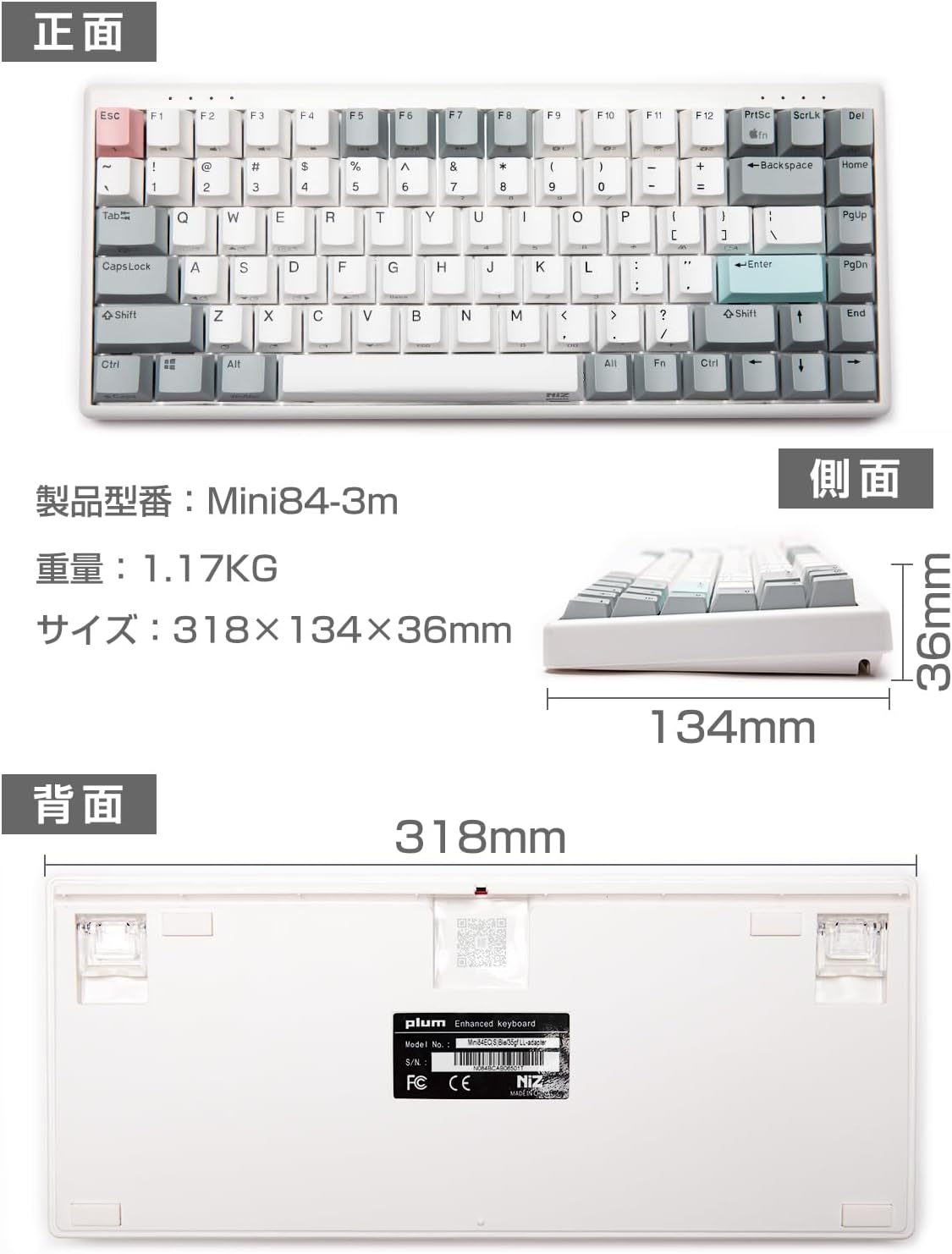
ధన్యవాదాలు, ధన్యవాదాలు.asing the NiZ Mini84-pro Wireless Keyboard. This keyboard features an 84-key layout, electrostatic capacitive switches, and multiple connectivity options. It is designed for comfortable and efficient typing across various operating systems.
This manual provides essential information for setting up, operating, and maintaining your keyboard. Please read it carefully before use.

2. సెటప్
2.1 ప్యాకేజీ విషయాలు
మీరు ప్రారంభించడానికి ముందు, దయచేసి అన్ని అంశాలు ప్యాకేజీలో ఉన్నాయని నిర్ధారించుకోండి:
- NiZ Mini84-pro Wireless Keyboard
- USB టైప్-C నుండి USB టైప్-A కేబుల్
- 2.4G USB రిసీవర్
- కీకాప్ పుల్లర్
- Additional Springs (for key weight adjustment)
- వినియోగదారు మాన్యువల్

2.2 కనెక్టివిటీ ఎంపికలు
The NiZ Mini84-pro keyboard supports three connection modes: Bluetooth 5.0, 2.4G USB Receiver, and Wired USB Type-C.
2.2.1 Bluetooth 5.0 Connection (Up to 2 devices)
- నొక్కండి మరియు పట్టుకోండి Fn కీ మరియు గాని F9 or F10 simultaneously to enter Bluetooth pairing mode. The indicator light will flash.
- On your device (PC, smartphone, tablet), navigate to Bluetooth settings and select "NIZ BT5.2" to connect.
- జత చేసిన బ్లూటూత్ పరికరాల మధ్య మారడానికి, షార్ట్ ప్రెస్ చేయండి Fn + F9 or Fn + F10.

2.2.2 2.4G USB Receiver Connection (1 device)
- మీ కంప్యూటర్లో అందుబాటులో ఉన్న USB పోర్ట్లోకి 2.4G USB రిసీవర్ను చొప్పించండి.
- నొక్కండి మరియు పట్టుకోండి Fn కీ మరియు F11 simultaneously. The keyboard will automatically recognize and connect to the receiver.
- To switch to the 2.4G connection, short press Fn + F11.

2.2.3 Wired USB Type-C Connection
Connect the keyboard to your computer using the provided USB Type-C to USB Type-A cable. The keyboard will function as a wired keyboard and charge simultaneously.

2.3 పవర్ ఆన్/ఆఫ్
Locate the power switch on the side of the keyboard to turn it on or off.
3. ఆపరేటింగ్ సూచనలు
3.1 OS అనుకూలత
The NiZ Mini84-pro keyboard is compatible with Windows, macOS, Android, and Linux operating systems. You can seamlessly switch between Windows and Mac layouts using specific key combinations.

3.2 Key Mapping and Customization
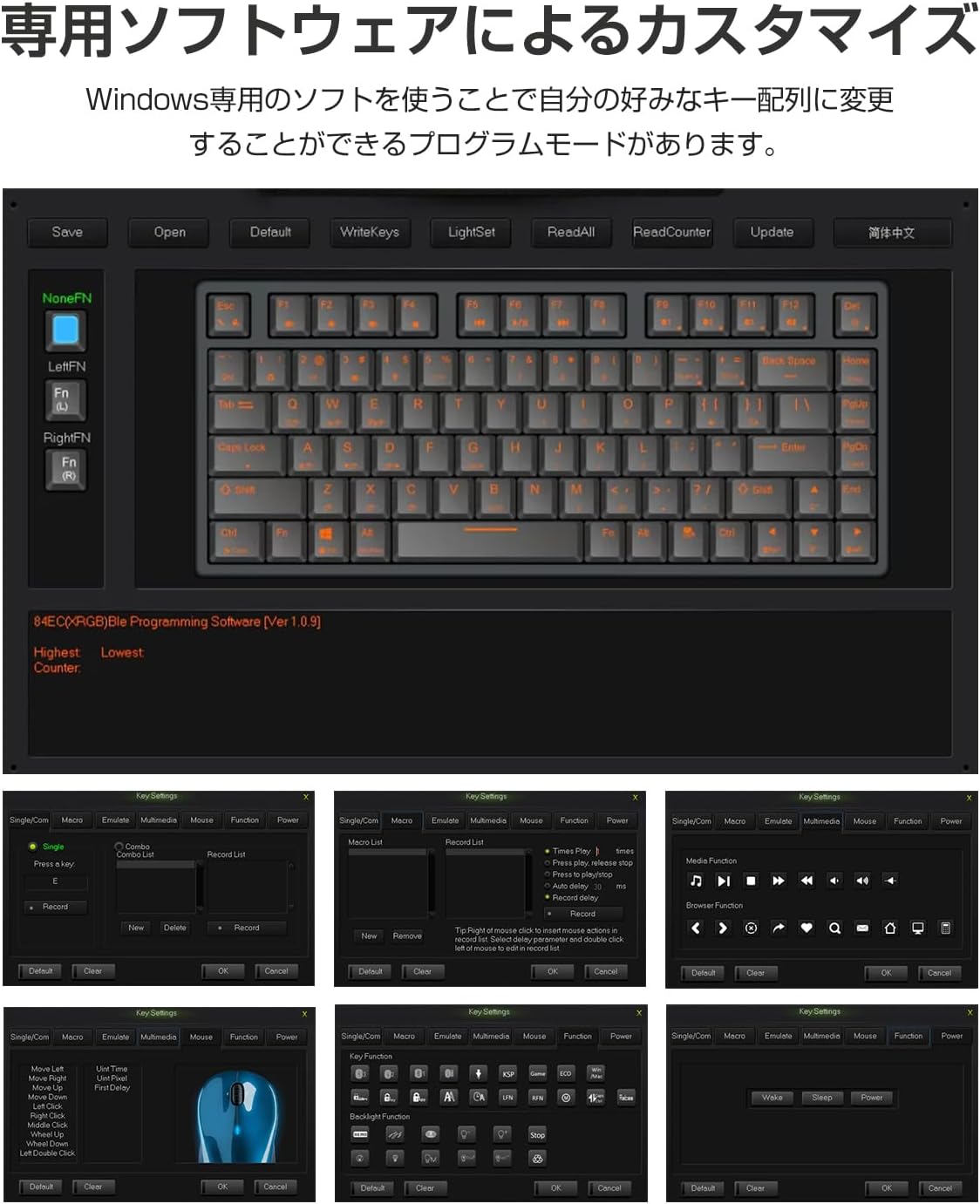
The keyboard offers high customization through its dedicated software (Windows only). This software allows you to:
- Change key assignments (key remapping).
- Create Combo functions.
- Set up Macro functions.
Once settings are saved using the Windows software, they will apply when using the keyboard with Mac devices as well.
3.3 APC (Actuation Point Change) Function
The APC function allows you to adjust the actuation point (the depth at which a key press is registered) for each key. This can be set to High (2mm), Medium (2.5mm), or Low (3mm) to suit your typing preference.

3.4 Key Weight Adjustment
The keyboard comes with a default key weight of 35g. For users who prefer a heavier key feel, additional springs are included to increase the key weight to 45g. To adjust, carefully remove the keycap using the provided keycap puller and insert the spring onto the switch stem before replacing the keycap.


4. నిర్వహణ
4.1 శుభ్రపరచడం
To clean your keyboard, power it off and disconnect it from any devices. Use a soft, lint-free cloth slightly dampened with water or a mild cleaning solution. Avoid spraying liquids directly onto the keyboard. For cleaning between keycaps, use a can of compressed air.
4.2 కీక్యాప్ భర్తీ
The PBT two-color molded keycaps are durable and resistant to wear. If you wish to replace keycaps, use the provided keycap puller to gently remove them. Ensure proper alignment when pressing new keycaps back onto the switches.

4.3 బ్యాటరీ సమాచారం
The keyboard features a built-in 3000mAh battery. When the battery is low, connect the keyboard via the USB Type-C cable to charge. The indicator light will show charging status.
5. ట్రబుల్షూటింగ్
- Keyboard not connecting via Bluetooth/2.4G: Ensure the keyboard is powered on and in the correct pairing mode (Fn+F9/F10 for Bluetooth, Fn+F11 for 2.4G). Check your device's Bluetooth settings or try re-inserting the 2.4G USB receiver.
- కీలు స్పందించడం లేదు: Check the connection (wired, Bluetooth, 2.4G). Ensure the keyboard is charged. If using wireless, try connecting via USB cable.
- Typing lag or intermittent connection: Ensure the keyboard is within range of your device. Avoid interference from other wireless devices. Try switching to a different connection mode or restarting the keyboard and your device.
- Keyboard feels unstable on a flat surface: The keyboard chassis may sometimes experience slight warping during shipping. Gently hold both ends of the keyboard and apply slight opposing pressure to straighten it.
- అనుకూలీకరణ సాఫ్ట్వేర్ పనిచేయడం లేదు: The dedicated software is for Windows only. Ensure you are running it on a Windows operating system.
6. స్పెసిఫికేషన్లు
| ఫీచర్ | వివరణ |
|---|---|
| బ్రాండ్ | AKEEYO (NiZ) |
| మోడల్ సంఖ్య | NIZ-Mini84-pro |
| కనెక్టివిటీ టెక్నాలజీ | Bluetooth 5.0, 2.4G Wireless, USB Type-C Wired |
| కీ కౌంట్ | 84 కీలు |
| స్విచ్ రకం | Electrostatic Capacitive (Cherry MX compatible) |
| Key Weight | 35g (Adjustable to 45g with included springs) |
| కీక్యాప్ మెటీరియల్ | PBT (Two-color molded) |
| లేఅవుట్ | English (QWERTY) |
| అనుకూల పరికరాలు | Windows, macOS, Android, Linux |
| కొలతలు (L x W x H) | 31.8 cm x 13.4 cm x 3.6 cm |
| శక్తి మూలం | 3000mAh పునర్వినియోగపరచదగిన బ్యాటరీ |
| ప్రత్యేక లక్షణాలు | Customizable Key Mapping, APC Function, Silent Operation |

7. వారంటీ మరియు మద్దతు
This product comes with a 1-year warranty from the date of purchase. If you encounter any issues or have questions, please contact customer support. For support inquiries, please refer to the contact information provided by AKEEYO, the seller.

