
Formuler Z11Pro
Formuler Z11Pro User Manual
4K Android 11 Streaming Media Player
1. పరిచయం
Welcome to the user manual for your Formuler Z11Pro 4K Android 11 Streaming Media Player. This guide provides essential information to help you set up, operate, maintain, and troubleshoot your device. The Formuler Z11Pro is designed to deliver a high-quality entertainment experience with its powerful hardware and user-friendly Android 11 operating system.
Please read this manual carefully before using your device to ensure optimal performance and longevity.
2. పెట్టెలో ఏముంది
Carefully unpack your Formuler Z11Pro and verify that all the following items are included:
- Formuler Z11 Pro With BT1 Edition Streaming Media Player
- Formuler BT1 Bluetooth Voice Remote Control
- Formuler Luminous Long Remote (IR Smart learning Remote)
- పవర్ అడాప్టర్
- Batteries (2AA for remote)
- Monster HDMI 2X Thicker Cable (6 feet long)
- వైర్లెస్ మినీ కీబోర్డ్
- Magnetic Car Air Vent Mount Cell Phone Holder
- Silicone Remote Cover

Figure 2.1: All included components of the Formuler Z11Pro package.
3. ఉత్పత్తి ముగిసిందిview
3.1 Formuler Z11Pro Main Unit
The Formuler Z11Pro is a compact and powerful streaming device. Its rear panel features various ports for connectivity.

Figure 3.1: Rear ports of the Formuler Z11Pro.
- LAN Port (Gigabit): వైర్డు ఇంటర్నెట్ కనెక్షన్ కోసం.
- HDMI పోర్ట్: Connects to your TV or display for audio and video output.
- USB 2.0 పోర్ట్లు: బాహ్య నిల్వ పరికరాలు లేదా పరిధీయ పరికరాలను కనెక్ట్ చేయడానికి.
- మైక్రో SD కార్డ్ స్లాట్: విస్తరించదగిన నిల్వ కోసం.
- IR Rec: Infrared receiver port for external IR extender.
- 12V/1A DC Power Input: Connects to the included power adaptor.
3.2 రిమోట్ కంట్రోల్స్
The package includes two remote controls for versatile navigation and control.

Figure 3.2: Formuler Z11Pro with BT1 Bluetooth Voice Remote Control.

Figure 3.3: Formuler Luminous Long Remote Control.
- BT1 Bluetooth Voice Remote: Offers Bluetooth connectivity for wider range and voice control capabilities.
- Luminous Long Remote: An IR-based remote with smart learning functions, providing traditional button navigation and TV control.
3.3 Wireless Mini Keyboard
A compact wireless keyboard with a touchpad for easy text input and navigation, especially useful for browsing and app usage.

Figure 3.4: Wireless Mini Keyboard (colors may vary).
3.4 Monster HDMI Cable
A high-quality 6-foot HDMI cable for connecting your Formuler Z11Pro to your display, supporting 4K HDR content.

Figure 3.5: Monster HDMI Cable (color of LED light may vary).
3.5 Magnetic Car Air Vent Mount
A convenient accessory for mounting your cell phone in a car, utilizing a magnetic attachment to the air vent.
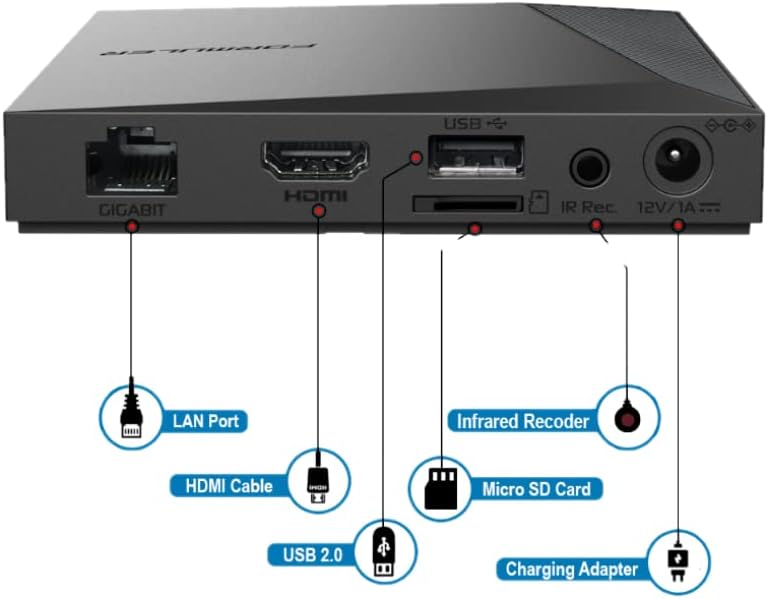
Figure 3.6: Magnetic Car Air Vent Mount.
4. సెటప్ గైడ్
4.1 పరికరాన్ని కనెక్ట్ చేస్తోంది
- HDMI కేబుల్ని కనెక్ట్ చేయండి: Insert one end of the Monster HDMI cable into the HDMI port on the back of the Formuler Z11Pro and the other end into an available HDMI input on your television or display.
- Connect Power Adaptor: Plug the power adaptor into the DC 12V/1A input port on the Formuler Z11Pro, then plug the adaptor into a wall outlet. The device will automatically power on.
- నెట్వర్క్ కనెక్షన్ (ఐచ్ఛికం):
- వైర్డ్: For a stable connection, connect an Ethernet cable from your router to the LAN port on the Formuler Z11Pro.
- వైర్లెస్: If using Wi-Fi, you will configure this during the initial setup process.
4.2 ప్రారంభ సెటప్ విజార్డ్
Upon first boot-up, the device will guide you through an initial setup wizard:
- భాష ఎంపిక: మీకు ఇష్టమైన భాషను ఎంచుకోండి.
- నెట్వర్క్ కాన్ఫిగరేషన్: Select your Wi-Fi network and enter the password, or confirm your wired connection.
- Google ఖాతా సైన్-ఇన్: Sign in with your Google account to access the Google Play Store and other Google services.
- తేదీ మరియు సమయం: Set the correct date and time zone.
- రిమోట్ జత చేయడం: Follow on-screen instructions to pair your Bluetooth Voice Remote. Typically, this involves holding specific buttons on the remote near the device.
4.3 Connecting Wireless Mini Keyboard
The wireless mini keyboard connects via a USB dongle. Locate the small USB receiver usually stored in the battery compartment of the keyboard. Plug this receiver into one of the USB ports on the Formuler Z11Pro. The keyboard should automatically connect and be ready for use.
5. ఆపరేటింగ్ సూచనలు
5.1 ప్రాథమిక నావిగేషన్
Use the directional pad (D-pad) and OK button on your remote control to navigate through the Android TV interface. The Back button returns to the previous screen, and the Home button takes you to the main home screen.
5.2 Using Voice Control (BT1 Remote)
Press the dedicated Voice button on your BT1 Bluetooth Voice Remote. Speak clearly into the remote to search for content, open apps, or control playback. For example, say "Open YouTube" or "కోసం వెతకండి action movies."
5.3 యాప్ నిర్వహణ
- యాప్లను ఇన్స్టాల్ చేస్తోంది: Access the Google Play Store from the home screen to download and install new applications.
- యాప్లను అన్ఇన్స్టాల్ చేయడం: Go to Settings > Apps, select the app you wish to uninstall, and choose "Uninstall."
- Accessing YouTube: The Formuler Z11Pro comes with YouTube pre-installed. You can find it on your home screen or by using voice control.
5.4 నెట్వర్క్ సెట్టింగ్లు
To change network settings after initial setup, go to Settings > Network & Internet. Here you can switch between Wi-Fi and Ethernet, connect to new Wi-Fi networks, or view నెట్వర్క్ స్థితి.
5.5 నిల్వ నిర్వహణ
The device has 16GB of internal storage. You can expand this using a Micro SD card or by connecting a USB storage device to the USB ports. To manage storage, go to Settings > Storage.
6. నిర్వహణ
- శుభ్రపరచడం: పరికరాన్ని శుభ్రం చేయడానికి మృదువైన, పొడి వస్త్రాన్ని ఉపయోగించండి. ద్రవ క్లీనర్లు లేదా ఏరోసోల్లను ఉపయోగించవద్దు.
- ఫర్మ్వేర్ నవీకరణలు: Periodically check for system updates to ensure your device has the latest features and security patches. Go to Settings > Device Preferences > About > System update.
- వెంటిలేషన్: Ensure the device is placed in a well-ventilated area to prevent overheating. Do not cover ventilation openings.
- పవర్ సైకిల్: If the device becomes unresponsive, disconnect the power adaptor for a few seconds and then reconnect it to perform a power cycle.
7. ట్రబుల్షూటింగ్
| సమస్య | సాధ్యమైన కారణం | పరిష్కారం |
|---|---|---|
| శక్తి లేదు | Power adaptor not connected or faulty outlet. | Ensure power adaptor is securely connected to the device and a working power outlet. |
| No signal on TV | Incorrect HDMI input selected on TV; loose HDMI cable. | Check that your TV is set to the correct HDMI input. Ensure the HDMI cable is securely connected at both ends. |
| రిమోట్ స్పందించడం లేదు | Low batteries; remote not paired (BT1); IR path blocked (Luminous). | Replace batteries. For BT1, re-pair the remote (refer to Setup Guide). For Luminous, ensure no obstructions between remote and device. |
| Wi-Fi కనెక్షన్ సమస్యలు | Incorrect password; router issues; device too far from router. | Verify Wi-Fi password. Restart your router. Move the device closer to the router or use a wired connection. |
| యాప్ క్రాష్ అవుతుంది లేదా స్తంభించిపోతుంది | App error; insufficient memory. | Close and reopen the app. Clear app cache (Settings > Apps > [App Name] > Clear cache). Restart the device. |
8. స్పెసిఫికేషన్లు
| ఫీచర్ | వివరాలు |
|---|---|
| మోడల్ పేరు | Z11Pro |
| ఆపరేటింగ్ సిస్టమ్ | ఆండ్రాయిడ్ 11 |
| RAM | 2GB |
| నిల్వ | 16GB |
| రిజల్యూషన్ | 4K |
| కనెక్టివిటీ | Bluetooth, HDMI, IR, Wi-Fi (Dual Band 2x2 Dual Antenna 6th Generation AX wireless), Gigabit LAN (1000M) |
| ప్రత్యేక లక్షణాలు | Universal Bluetooth Voice Remote Control, Bonus 3 Colour keyboard, YouTube support |
| ఉత్పత్తి కొలతలు | 6 x 4 x 8 అంగుళాలు |
| వస్తువు బరువు | 2.34 పౌండ్లు |
9. వారంటీ మరియు మద్దతు
For warranty information and technical support, please refer to the documentation provided with your purchase or visit the official Formuler webవారంటీ క్లెయిమ్ల కోసం మీ కొనుగోలు రుజువును ఉంచండి.
Online resources, FAQs, and contact information for customer support are typically available on the manufacturer's webసైట్.
Ask a question about this manual
Ask about setup, troubleshooting, compatibility, parts, safety, or missing instructions. Manuals+ will review the question and use this page’s manual context to help answer it.