
1. పరిచయం
This manual provides detailed instructions for the MUNBYN Upgraded Android 13 Bar Code Scanner, Model IPDA086. This device is a robust handheld mobile computer designed for efficient inventory and logistic management in various environments, including warehousing, manufacturing, and retail. It features an advanced Android 13 operating system, Wi-Fi 6 connectivity, and a durable design for reliable performance.
2. ఉత్పత్తి లక్షణాలు
- Android 13 Version: The device operates on Android 13, offering strengthened privacy protections, enhanced customization options, and superior compatibility. This ensures data security and optimal work outcomes throughout the scanner's lifespan.
- మెరుగైన వినియోగదారు అనుభవం: Equipped with Wi-Fi 6, this scanner provides data transfer speeds up to three times faster than Wi-Fi 5, facilitating seamless team collaboration and efficient training. This can significantly improve warehouse operations and increase work efficiency.
- Rugged & Compact Design: Featuring a Zebra SE4710 scanner engine, the device ensures swift and accurate barcode scanning, even for damaged or unclear codes. It comes with a pre-installed scanner application (infowedge) and boasts an IP65 rating for protection against water immersion and dust. A hand strap belt is included to prevent accidental drops, and it offers robust drop protection from heights up to 1.8 meters (5.91 feet).
- Durable and Clear Display: The scanner features a large 5.5-inch touch screen, providing clear visibility even outdoors due to excellent sunlight readability. The display is reinforced with impact-resistant Corning Gorilla Glass and includes an additional replaceable protector to extend the PDA's lifespan and maintain reliability.
- Excellent & Suitable Performance: This Android handheld scanner is powered by an exceptional CPU, the Qualcomm Snapdragon 6115 1.8GHz Octa-core, coupled with 3GB RAM and 32GB storage. It is compatible with inventory management software such as Odoo and Zoho Inventory.

చిత్రం 2.1: ముందు మరియు వెనుక view of the MUNBYN Upgraded Android 13 Bar Code Scanner, highlighting its robust design and integrated scanning capabilities.

Figure 2.2: Visual representation of the Android 13 system upgrade, emphasizing faster data transfer, low power consumption, and enhanced security and privacy protection.

Figure 2.3: Illustration of Wi-Fi 6 and Bluetooth 5.1 capabilities, demonstrating stable, barrier-free, and high-speed data loading for improved operational efficiency.
3. పెట్టెలో ఏముంది
Upon unboxing your MUNBYN Bar Code Scanner, verify that all components are present:
- MUNBYN Bar Code Scanner (IPDA086)
- వినియోగదారు మాన్యువల్ / త్వరిత ప్రారంభ గైడ్
- స్క్రీన్ ప్రొటెక్టర్
- USB ఛార్జింగ్ కేబుల్ (టైప్-సి)
- పవర్ అడాప్టర్
- Hand Strap Belt
- బ్యాటరీ (ముందే ఇన్స్టాల్ చేయబడింది లేదా విడిగా)
Video 3.1: An unboxing video demonstrating the contents included with the MUNBYN IPDA101 (similar to IPDA086) package, showing the device, manual, cables, and accessories.

Figure 3.2: A visual overview of the items typically found inside the product packaging, including the scanner, charging accessories, and documentation.
4. సెటప్
4.1. బ్యాటరీ ఇన్స్టాలేషన్
If the battery is not pre-installed, follow these steps:
- పరికరం వెనుక బ్యాటరీ కంపార్ట్మెంట్ను గుర్తించండి.
- బ్యాటరీ కవర్ను సున్నితంగా తొలగించండి.
- బ్యాటరీని చొప్పించండి, కాంటాక్ట్లు సరిగ్గా సమలేఖనం చేయబడ్డాయని నిర్ధారించుకోండి.
- బ్యాటరీ కవర్ను సురక్షితంగా మార్చండి.
4.2. ప్రారంభ ఛార్జింగ్
Before first use, fully charge the device:
- Connect the USB Type-C cable to the device's charging port.
- అందించిన పవర్ అడాప్టర్కు కేబుల్ యొక్క మరొక చివరను కనెక్ట్ చేయండి.
- పవర్ అడాప్టర్ను వాల్ అవుట్లెట్లోకి ప్లగ్ చేయండి.
- ఛార్జింగ్ ఇండికేటర్ వెలుగుతుంది. ఇండికేటర్ పూర్తిగా ఛార్జ్ అయ్యే వరకు పరికరాన్ని ఛార్జ్ చేయడానికి అనుమతించండి.
4.3. పవర్ చేయడం ఆన్/ఆఫ్
- పవర్ ఆన్ చేయడానికి: Press and hold the Power button until the MUNBYN logo appears on the screen.
- పవర్ ఆఫ్ చేయడానికి: Press and hold the Power button until the power options menu appears, then select 'Power Off'.
Figure 4.1: The device booting up, displaying the Android 13 interface, indicating successful power-on after battery installation.
5. ఆపరేటింగ్ సూచనలు
5.1. బార్కోడ్లను స్కాన్ చేస్తోంది
The device is equipped with a Zebra SE4710 scanner engine for efficient barcode reading.
- Open the pre-installed scanning application (e.g., Infowedge) or your preferred inventory management software.
- Point the scanner's red light beam at the barcode you wish to scan. Ensure the entire barcode is within the beam's range.
- Press the dedicated scan button (typically a yellow button on the side or back) to activate the scanner.
- A successful scan will usually be indicated by an audible beep and/or a visual confirmation on the screen.
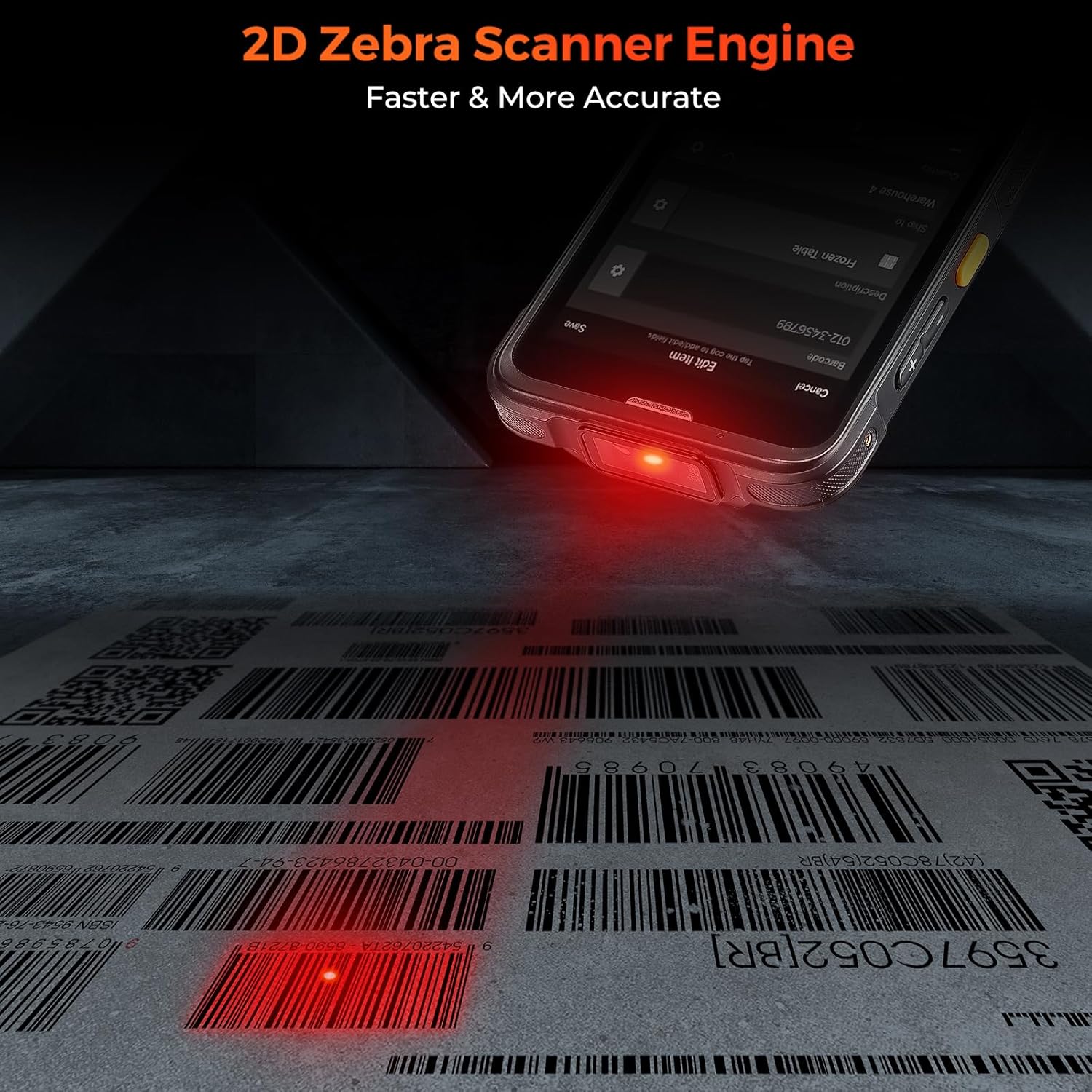
Figure 5.1: The device actively scanning a 2D barcode, demonstrating the red laser beam from the Zebra SE4710 scanner engine for fast and accurate data capture.
5.2. Wi-Fi మరియు బ్లూటూత్ కనెక్టివిటీ
To connect to Wi-Fi or Bluetooth networks:
- నావిగేట్ చేయండి సెట్టింగ్లు పరికరంలో.
- ఎంచుకోండి నెట్వర్క్ & ఇంటర్నెట్ Wi-Fi కోసం లేదా కనెక్ట్ చేయబడిన పరికరాలు బ్లూటూత్ కోసం.
- Toggle Wi-Fi or Bluetooth On.
- Select the desired network or device from the list and enter credentials if prompted.
5.3. Screen Casting Function
The device supports screen casting to synchronize data and manage information easily on a larger display.
- Ensure your external display (e.g., TV, monitor) supports screen mirroring or casting.
- On the scanner, go to సెట్టింగ్లు > కనెక్ట్ చేయబడిన పరికరాలు > కనెక్షన్ ప్రాధాన్యతలు > తారాగణం.
- Select your external display from the list of available devices.
- Follow any on-screen prompts to establish the connection.

Figure 5.2: A user demonstrating the screen casting feature, where the scanner's display is mirrored onto a laptop screen, facilitating data synchronization and management.
6. నిర్వహణ
6.1. పరికరాన్ని శుభ్రపరచడం
సరైన పనితీరు మరియు పరిశుభ్రతను నిర్వహించడానికి:
- కొద్దిగా మెత్తని, మెత్తని బట్టను ఉపయోగించండి dampనీరు లేదా తేలికపాటి, రాపిడి లేని క్లీనర్తో శుభ్రం చేయాలి.
- Wipe the screen and exterior surfaces gently.
- Avoid using harsh chemicals, aerosols, or abrasive materials.
- పోర్ట్లు లేదా ఓపెనింగ్లలోకి ఎటువంటి ద్రవం ప్రవేశించకుండా చూసుకోండి.
6.2. బ్యాటరీ సంరక్షణ
Proper battery care extends the device's lifespan:
- వేడిగానూ, చల్లగానూ ఉండే తీవ్రమైన ఉష్ణోగ్రతలను నివారించండి, ఎందుకంటే అవి బ్యాటరీ పనితీరును దిగజార్చేస్తాయి.
- Charge the battery regularly; avoid letting it fully discharge frequently.
- పరికరాన్ని ఎక్కువ కాలం నిల్వ ఉంచినట్లయితే, నిల్వ చేయడానికి ముందు బ్యాటరీని దాదాపు 50% వరకు ఛార్జ్ చేయండి.
6.3. Drop Protection and Durability
The device is designed for rugged use, but proper handling is still recommended:
- Always use the provided hand strap belt to secure the device during operation.
- While the device is drop-resistant up to 1.8 meters, avoid intentional drops or impacts.
- Ensure all port covers are securely closed to maintain IP65 water and dust resistance.

Figure 6.1: The device showcasing its upgraded quality features, including the wrist strap for secure handling, IP65 water and dust resistance, and robust 1.8m+ drop protection.
7. ట్రబుల్షూటింగ్
This section addresses common issues you might encounter with your MUNBYN Bar Code Scanner.
| సమస్య | సాధ్యమైన కారణం | పరిష్కారం |
|---|---|---|
| పరికరం పవర్ ఆన్ చేయదు. | Low battery; Battery not installed correctly; System crash. | Charge the device; Reinstall battery; Perform a forced restart (hold power button for 10-15 seconds). |
| బార్కోడ్లను స్కాన్ చేయలేరు. | Scanner engine not activated; Barcode damaged/unclear; Incorrect scanning application settings. | Ensure scanning app is open and active; Try scanning a different barcode; Check Infowedge or app settings. |
| Wi-Fi/బ్లూటూత్ కనెక్షన్ సమస్యలు. | Out of range; Incorrect password; Network interference. | Move closer to the access point/device; Re-enter password; Restart Wi-Fi/Bluetooth on both devices. |
| పరికరం నెమ్మదిగా ఉంది లేదా స్పందించడం లేదు. | Too many apps running; Low storage; Software glitch. | Close background apps; Clear cache/uninstall unused apps; Restart device. |
If the issue persists after attempting these solutions, please contact MUNBYN customer support for further assistance.
8. స్పెసిఫికేషన్లు
| ఫీచర్ | వివరాలు |
|---|---|
| మోడల్ సంఖ్య | IPDA086 |
| ఆపరేటింగ్ సిస్టమ్ | ఆండ్రాయిడ్ 13 |
| ప్రాసెసర్ | Qualcomm Snapdragon 6115 1.8GHz Octa-core |
| మెమరీ (RAM + నిల్వ) | 3GB RAM + 32GB స్టోరేజ్ |
| ప్రదర్శించు | 5.5-inch Touch Screen, Corning Gorilla Glass |
| Scanner Engine | Zebra SE4710 (1D/2D/QR) |
| కనెక్టివిటీ | Wi-Fi 6, Bluetooth 5.1, 4G LTE (Sim Card), NFC, USB Cable |
| మన్నిక రేటింగ్ | IP65 (Water & Dust Resistant), 1.8m Drop Protection |
| బ్యాటరీ | 1 లిథియం అయాన్ బ్యాటరీ అవసరం |
| వస్తువు బరువు | 10.1 ఔన్సులు |
| ప్యాకేజీ కొలతలు | 7.95 x 4.13 x 3.9 అంగుళాలు |
9. వారంటీ మరియు మద్దతు
MUNBYN is committed to providing reliable products and excellent customer service.
9.1. వారంటీ సమాచారం
The product is typically covered by a manufacturer's warranty. For specific warranty terms and conditions, please refer to the documentation included with your purchase or contact MUNBYN customer support directly. Protection plans may also be available for extended coverage.
9.2. కస్టమర్ మద్దతు
For any technical assistance, troubleshooting not covered in this manual, or repair services, please contact MUNBYN customer support. MUNBYN offers a local U.S. Repair Center for effortless, fast, and convenient service, often within 3 business days. They also provide 24/7/365 online support.
You can reach MUNBYN support through their official website or the contact information provided in your product packaging. They can also assist with testing your applications before bulk purchases.

Figure 9.1: Information regarding MUNBYN's local U.S. repair center, highlighting fast and convenient service for product maintenance and repairs.