
1. పరిచయం
This manual provides detailed instructions for the setup, operation, and maintenance of your UPERFECT 4K 15.6-inch Portable Monitor. Please read this manual thoroughly before using the product to ensure proper functionality and to prevent damage. Keep this manual for future reference.
2. ఉత్పత్తి ముగిసిందిview
2.1 ముఖ్య లక్షణాలు
- 4K UHD రిజల్యూషన్ (3840x2160): Delivers stunning, high-definition visuals.
- 100% AdobeRGB Color Gamut: Ensures accurate and vibrant color reproduction, suitable for professional use.
- High Contrast Ratio (1200:1) & Brightness (400 cd/m²): Provides deep blacks and bright whites for dynamic images.
- IPS ప్యానెల్: 178° వైడ్ ఆఫర్లు viewing కోణాలు.
- HDR మద్దతు: Enhances dynamic range for more detailed visuals.
- ఫ్రీసింక్ టెక్నాలజీ: Synchronizes refresh rates to reduce screen tearing and stuttering during gaming.
- Fast Response Time (3ms): Minimizes motion blur for smooth fast-paced content.
- బహుముఖ కనెక్టివిటీ: Features 2x USB Type-C ports and 1x Mini HDMI port.
- VESA మౌంట్ అనుకూలమైనది: Supports 75x75mm (M3*4mm) VESA standard for flexible mounting options.
- Lightweight Metal Body: మన్నికైన మరియు పోర్టబుల్ డిజైన్.
- స్మార్ట్ కవర్: Doubles as a protective cover and adjustable stand.
2.2 ప్యాకేజీ విషయాలు
ప్యాకేజీలో అన్ని అంశాలు ఉన్నాయని నిర్ధారించుకోండి:
- UPERFECT 4K 15.6-inch Portable Monitor
- Smart Protective Cover
- USB-C నుండి USB-C కేబుల్
- మినీ HDMI నుండి HDMI కేబుల్ వరకు
- పవర్ అడాప్టర్
- వినియోగదారు మాన్యువల్ (ఈ పత్రం)
3. సెటప్
3.1 స్మార్ట్ కవర్ను స్టాండ్గా ఉపయోగించడం
The included smart cover can be folded to act as a stand, allowing you to position the monitor at various viewing కోణాలు.
- Lay the monitor face down on a soft, clean surface.
- Fold the smart cover along its creases to form a triangular support.
- Place the monitor into the grooves of the folded cover to secure it in an upright position.
3.2 పవర్ సోర్స్కి కనెక్ట్ చేస్తోంది
The monitor requires external power for operation. Connect the provided power adapter to one of the USB Type-C ports on the monitor and then to a power outlet.
3.3 పరికరాలకు కనెక్ట్ చేస్తోంది
The monitor supports various devices via USB Type-C or Mini HDMI.
3.3.1 USB Type-C Connection (Full-Featured)
For devices with a full-featured USB Type-C port (supporting DisplayPort Alternate Mode and power delivery), a single USB-C to USB-C cable can transmit both video signal and power.
- Connect one end of the USB-C to USB-C cable to your device (e.g., laptop, smartphone).
- Connect the other end to either of the USB Type-C ports on the monitor.
- If the device cannot provide sufficient power, connect the monitor to an external power source using the provided power adapter.
3.3.2 Mini HDMI Connection
For devices with an HDMI output (e.g., PC, game console, Raspberry Pi), use the Mini HDMI port.
- మినీ HDMI నుండి HDMI కేబుల్ యొక్క ఒక చివరను మీ పరికరం యొక్క HDMI పోర్ట్కు కనెక్ట్ చేయండి.
- Connect the Mini HDMI end to the Mini HDMI port on the monitor.
- Ensure the monitor is connected to an external power source using the provided power adapter.

Image: Monitor connected to a laptop, demonstrating an extended display setup.
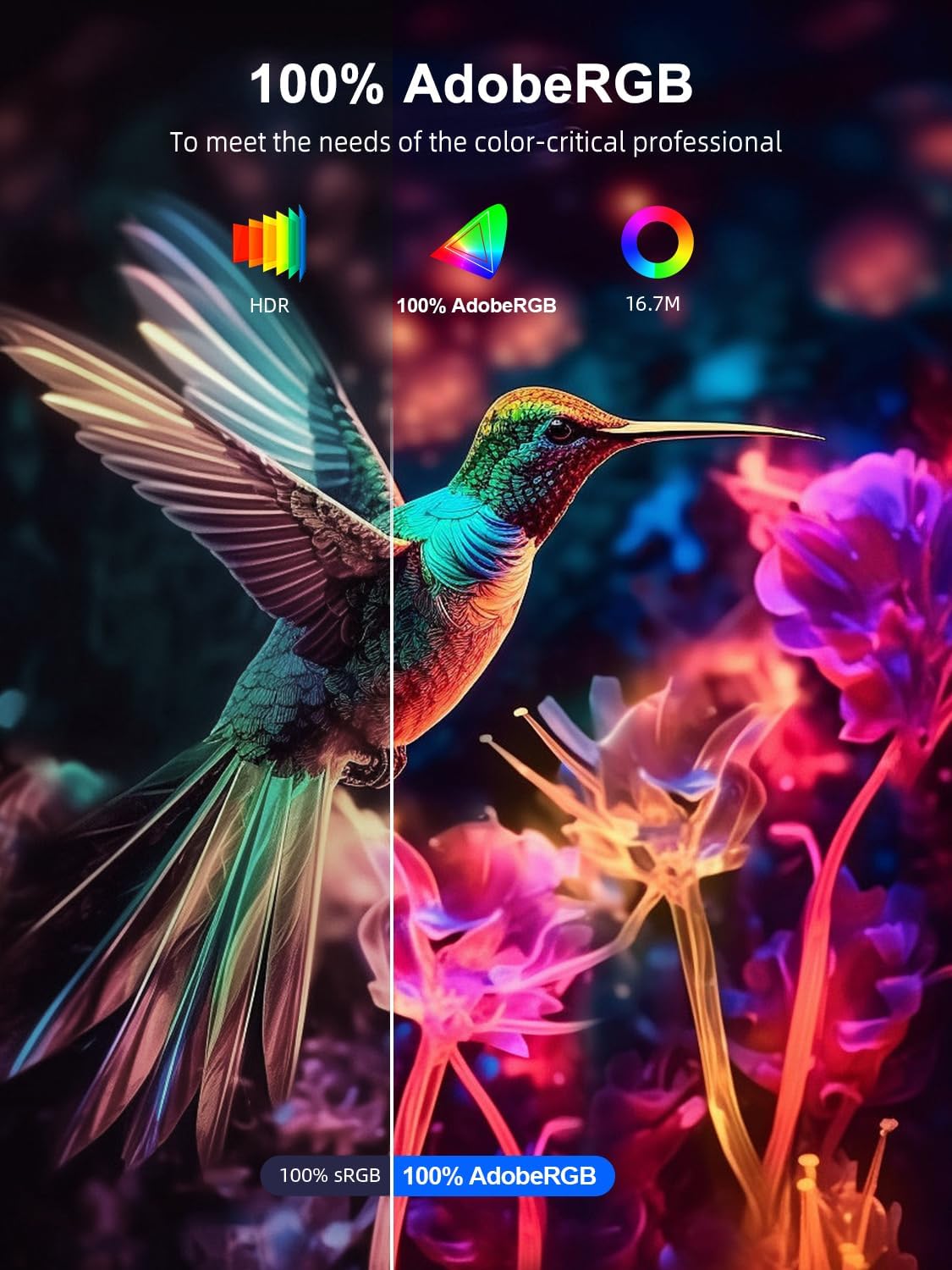
Image: Monitor displaying a video game, connected to a console, highlighting its use as a portable gaming display.
4. ఆపరేటింగ్ సూచనలు
4.1 పవర్ ఆన్/ఆఫ్
Press and hold the power button (usually located on the side or back of the monitor) for a few seconds to turn the monitor on or off. A short press typically activates or deactivates the On-Screen Display (OSD) menu.
4.2 ఆన్-స్క్రీన్ డిస్ప్లే (OSD) మెనూ
The OSD menu allows you to adjust various display settings. Use the control buttons (joystick or individual buttons) on the monitor to navigate the menu.
4.2.1 సాధారణ OSD సెట్టింగ్లు
- ప్రకాశం/కాంట్రాస్ట్: కాంతి మరియు చీకటి ప్రాంతాల మధ్య మొత్తం ప్రకాశం మరియు వ్యత్యాసాన్ని సర్దుబాటు చేయండి.
- రంగు సెట్టింగ్లు: రంగు ఉష్ణోగ్రత, రంగు మరియు సంతృప్తతను సవరించండి.
- ఇన్పుట్ మూలం: Manually select between USB Type-C and Mini HDMI inputs.
- కారక నిష్పత్తి: Choose between 16:9, 4:3, or other available options.
- HDR మోడ్: Enable or disable High Dynamic Range.
- FreeSync: Enable or disable adaptive sync technology.
- గేమ్ మోడ్: Activates optimized settings for gaming.
- వాల్యూమ్: Adjust audio output if using the monitor's built-in speakers or headphone jack.
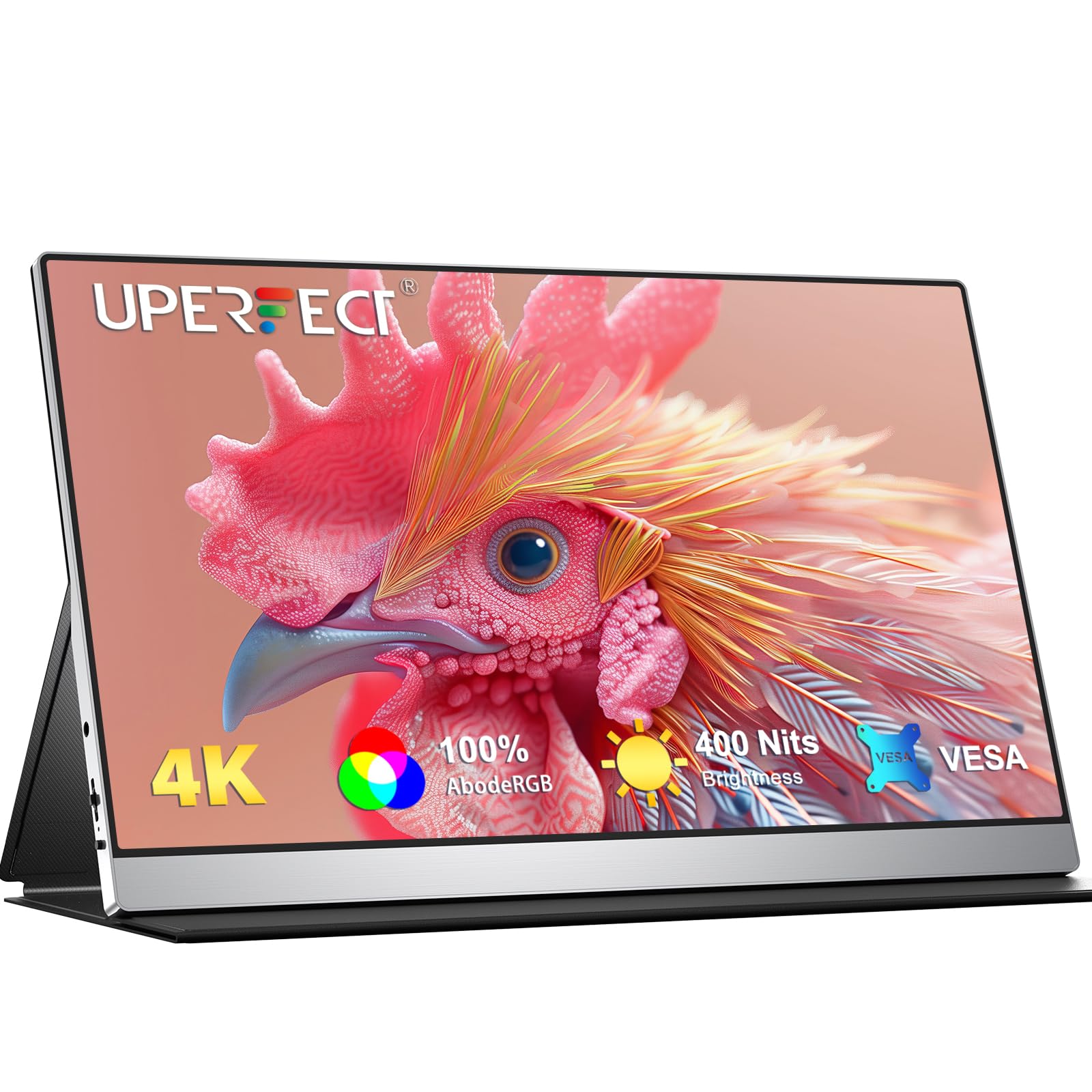
చిత్రం: మానిటర్ షోasing its 4K UHD resolution, IPS viewing angle, and contrast ratio capabilities.

Image: Visual representation of the monitor's 1200:1 contrast ratio and 400 nits brightness for dynamic image details.
Image: Illustrates the monitor's 100% AdobeRGB color accuracy, ideal for color-critical applications.
5. కనెక్షన్లు
The monitor is equipped with the following ports:
- 2 x USB టైప్-సి పోర్ట్లు: For video, audio, and power delivery (requires a full-featured USB-C port on the source device).
- 1 x మినీ HDMI పోర్ట్: For video and audio input from HDMI-enabled devices.
- 1 x 3.5mm Audio Jack: బాహ్య హెడ్ఫోన్లు లేదా స్పీకర్లను కనెక్ట్ చేయడానికి.

చిత్రం: క్లోజప్ view మానిటర్ కనెక్టివిటీ పోర్టులలో.
6. VESA మౌంటింగ్
The monitor features standard VESA mounting holes (75x75mm, M3*4mm screws) on the back, allowing it to be mounted on a compatible desk mount or wall mount.
- మానిటర్ పవర్ ఆఫ్ చేయబడిందని మరియు అన్ని కేబుల్స్ నుండి డిస్కనెక్ట్ చేయబడిందని నిర్ధారించుకోండి.
- Carefully remove the smart cover if it is attached.
- Align the VESA mount bracket with the mounting holes on the back of the monitor.
- Secure the monitor to the bracket using M3*4mm screws (not included with the monitor, typically provided with the VESA mount). Do not overtighten.
- Mount the monitor assembly to your desired desk or wall mount.

Image: Illustration of VESA compatibility and mounting process.
7. నిర్వహణ
7.1 స్క్రీన్ను శుభ్రపరచడం
మానిటర్ స్క్రీన్ను శుభ్రం చేయడానికి, దానిని మృదువైన, మెత్తటి బట్టతో సున్నితంగా తుడవండి. మొండి మరకల కోసం, తేలికగా dampen the cloth with water or a screen-cleaning solution. Avoid using harsh chemicals, alcohol, or abrasive materials.
7.2 సాధారణ సంరక్షణ
- మానిటర్పై భారీ వస్తువులను ఉంచడం మానుకోండి.
- మానిటర్ను తీవ్రమైన ఉష్ణోగ్రతలు, తేమ లేదా ప్రత్యక్ష సూర్యకాంతికి గురి చేయవద్దు.
- Use the smart cover to protect the screen during transport.
- Disconnect the power adapter during thunderstorms or when not in use for extended periods.
8. ట్రబుల్షూటింగ్
మీ మానిటర్తో మీకు సమస్యలు ఎదురైతే, ఈ క్రింది సాధారణ సమస్యలు మరియు పరిష్కారాలను చూడండి:
| సమస్య | సాధ్యమైన కారణం | పరిష్కారం |
|---|---|---|
| చిత్రం లేదు/సిగ్నల్ లేదు | Incorrect input source selected; Loose cable connection; Insufficient power; Device not outputting signal. | Check cable connections; Select correct input source via OSD; Ensure monitor is powered; Verify device output settings. |
| మినుకుమినుకుమనే స్క్రీన్ | Faulty cable; Graphics driver issue; Refresh rate mismatch. | Replace cable; Update graphics drivers; Adjust refresh rate in device settings. |
| మానిటర్ పవర్ ఆన్ అవ్వడం లేదు | No power; Faulty power adapter. | Ensure power adapter is securely connected to monitor and outlet; Try a different power outlet. |
| చిత్ర నాణ్యత తక్కువగా ఉంది | Incorrect resolution; OSD settings; Cable quality. | Set device resolution to 3840x2160; Adjust brightness, contrast, color in OSD; Use high-quality cables. |
9. స్పెసిఫికేషన్లు
| ఫీచర్ | స్పెసిఫికేషన్ |
|---|---|
| బ్రాండ్ | సరియైనది |
| మోడల్ సంఖ్య | B0D3LXB44S |
| స్క్రీన్ పరిమాణం | 15.6 అంగుళాలు |
| రిజల్యూషన్ | 3840 x 2160 (4K UHD) |
| కారక నిష్పత్తి | 1.77:1 (16:9) |
| కాంట్రాస్ట్ రేషియో | 1200:1 |
| ప్రతిస్పందన సమయం | 3 మిల్లీసెకన్లు |
| రిఫ్రెష్ రేట్ | 60 Hz |
| ప్రదర్శన రకం | IPS |
| ప్రకాశం | 400 cd/m² |
| రంగు స్వరసప్తకం | 100% AdobeRGB |
| కనెక్టివిటీ | 2x USB Type-C, 1x Mini HDMI |
| VESA అనుకూలత | 75x75mm (M3*4mm) |
| కొలతలు (DxWxH) | 22P x 36lx 1H సెం.మీ. |
| అనుకూల సమకాలీకరణ | FreeSync |

Image: Italian Product Information Sheet with detailed technical data.

Image: EU Energy Label for the monitor, indicating energy efficiency. For more details, visit eprel.ec.europa.eu/qr/1803782.
10. వారంటీ మరియు మద్దతు
10.1 వారంటీ సమాచారం
For specific warranty terms and conditions, please refer to the warranty card included with your product or contact the retailer where the product was purchased. Warranty coverage typically includes defects in materials and workmanship under normal use.
10.2 కస్టమర్ మద్దతు
If you require technical assistance, troubleshooting beyond this manual, or have questions about your product, please contact UPERFECT customer support. Contact details can usually be found on the official UPERFECT webసైట్ లేదా ఉత్పత్తి ప్యాకేజింగ్లో.