
1. పరిచయం
This manual provides comprehensive instructions for the setup, operation, and maintenance of your VEIKK VK1200 V3 Drawing Tablet with Screen. The VK1200 V3 is an 11.6-inch full-laminated graphics drawing monitor designed for digital art and design, featuring 8192 levels of pressure sensitivity and tilt support.

Image: The VEIKK VK1200 V3 Drawing Tablet with its accompanying pen and adjustable stand.
2. ప్యాకేజీ విషయాలు
క్రింద జాబితా చేయబడిన అన్ని వస్తువులు మీ ప్యాకేజీలో చేర్చబడ్డాయని ధృవీకరించండి:
- IPS పెన్ డిస్ప్లే x 1
- S100 స్టాండ్ x 1
- Pen x 2 (Battery-free)
- పెన్ పాకెట్ x 2
- Pen Nibs x 28 (Extra)
- నిబ్ రిమూవర్ x 1
- పెన్ హోల్డర్ x 1
- ఆర్టిస్ట్ గ్లోవ్ x 1
- క్లీనింగ్ క్లాత్ x 1
- HDMI కేబుల్ x 1
- USB Cable x 1 (USB-A to USB-C)
- USB-C to USB-C Cable x 1 (Full-Featured)
- త్వరిత ప్రారంభ గైడ్ x 1

Image: All components included in the VEIKK VK1200 V3 package, neatly arranged.
3. ఉత్పత్తి ముగిసిందిview
3.1 డిస్ప్లే ఫీచర్లు
The VK1200 V3 features an 11.6-inch full-laminated IPS display with a resolution of 1920x1080. Full lamination technology minimizes parallax, providing a more accurate cursor position. The anti-glare glass protects the screen and offers a paper-like drawing experience. The display supports 72% NTSC for precise color representation.

Image: Visual representation of the display's technical specifications, including resolution, color gamut, and anti-glare glass.
3.2 Pen Features
The tablet comes with two battery-free pens, eliminating the need for charging. Each pen offers 8192 levels of pressure sensitivity and supports up to 60 degrees of tilt function, allowing for natural shading and varied line strokes.

Image: Close-up of the two battery-free pens, highlighting their key features such as pressure sensitivity and tilt support.
3.3 డిజైన్ మరియు పోర్టబిలిటీ
The VK1200 V3 features a compact, frameless design with an all-metal body and an anti-slip back for stability during use. Its slim profile makes it easy to transport.
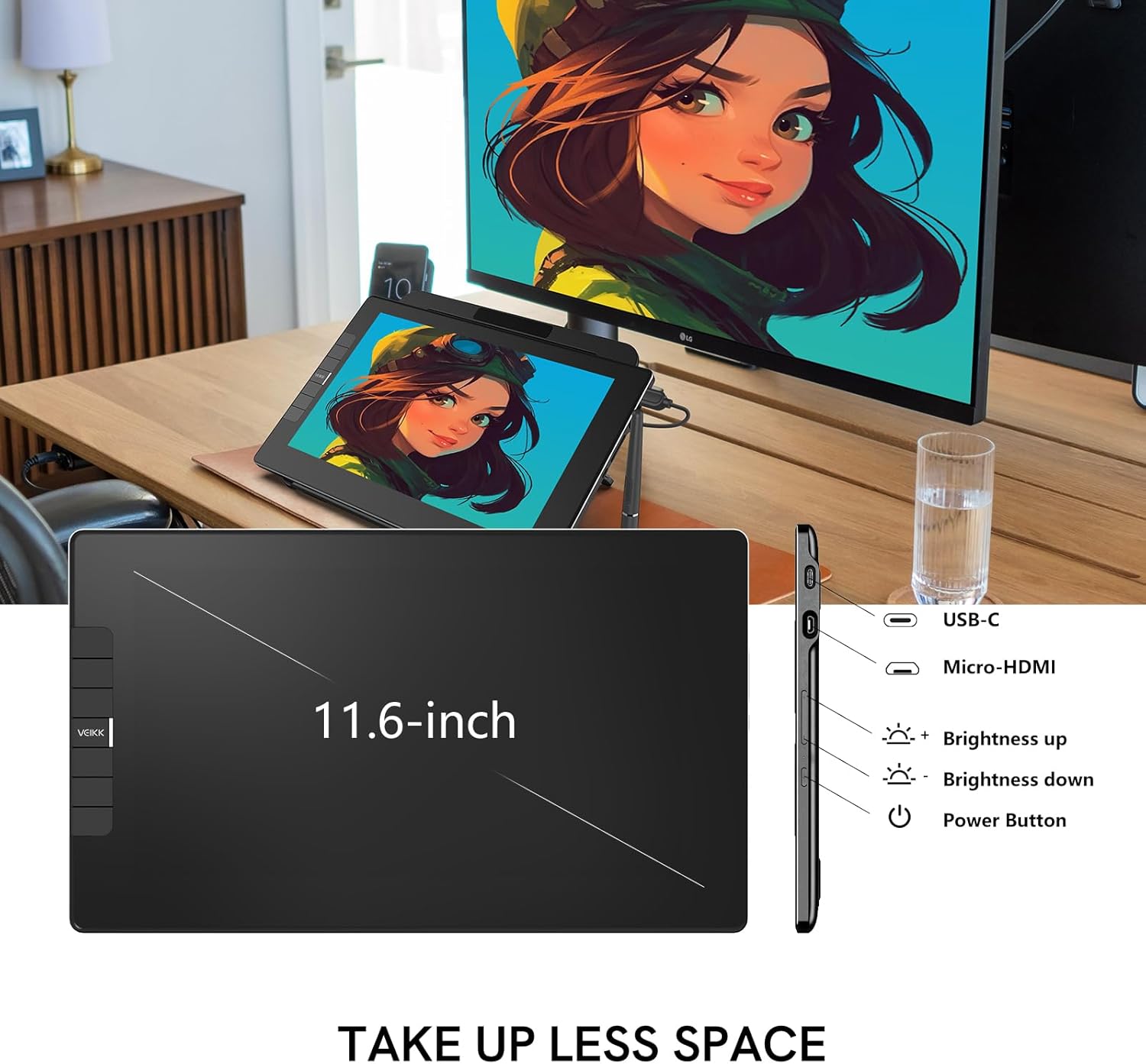
చిత్రం: సైడ్ ప్రోfile of the tablet, indicating the location of the USB-C port, Micro-HDMI port, brightness controls, and power button.
4. సెటప్
The VK1200 V3 can be connected to your computer using one of two methods:
4.1 Single USB-C to USB-C Connection
If your computer has a full-featured USB-C port (supporting data, power, and DP signal), you can connect the tablet using a single USB-C to USB-C cable. This provides a streamlined connection.

Image: A diagram illustrating how to connect the tablet to a laptop using a single full-featured USB-C cable.
4.2 HDMI and USB-A to USB-C Connection
If your computer does not support a full-featured USB-C connection, use both the HDMI cable for video and the USB-A to USB-C cable for data and power. Ensure both cables are securely connected.

Image: A diagram illustrating how to connect the tablet to a laptop using separate HDMI and USB-A to USB-C cables.
4.3 డ్రైవర్ ఇన్స్టాలేషన్
After connecting the tablet, download and install the latest drivers from the official VEIKK website. This is crucial for proper functionality, including pen pressure sensitivity and shortcut key customization. Follow the on-screen instructions during installation.
5. ఆపరేటింగ్ సూచనలు
5.1 ప్రాథమిక వినియోగం
Once connected and drivers are installed, the VK1200 V3 functions as an extended or mirrored display. Use the battery-free pen directly on the screen for drawing, writing, and navigation. The included stand allows for adjustable viewing angles to suit your preference.

Image: A user actively drawing on the VEIKK VK1200 V3, which is positioned on its adjustable stand for ergonomic use.
5.2 Pen Operation
The pen's pressure sensitivity allows for varying line thickness and opacity based on the force applied. The tilt function enables natural brush strokes and shading effects in compatible software. The two buttons on the pen can be customized via the driver settings for quick access to functions like right-click or undo.
6. అనుకూలీకరించదగిన షార్ట్కట్ కీలు
The VK1200 V3 features six customizable shortcut keys located on the side of the display. These keys can be programmed through the VEIKK driver software to perform various functions or shortcuts specific to your preferred drawing applications. This enhances workflow efficiency.

Image: The VEIKK VK1200 V3 tablet with its six shortcut keys clearly visible and labeled with common functions.
7. అనుకూలత
The VEIKK VK1200 V3 is compatible with a range of operating systems and software:
- ఆపరేటింగ్ సిస్టమ్స్: Windows 7 (or later), macOS X 10.12 (or later), and Linux (specific distributions may vary).
- సాఫ్ట్వేర్: Supports major creative applications such as Adobe Photoshop, Illustrator, Lightroom, Premiere, After Effects, Clip Studio Paint, Corel Painter, ZBrush, Blender, 3ds Max, Maya, and more.
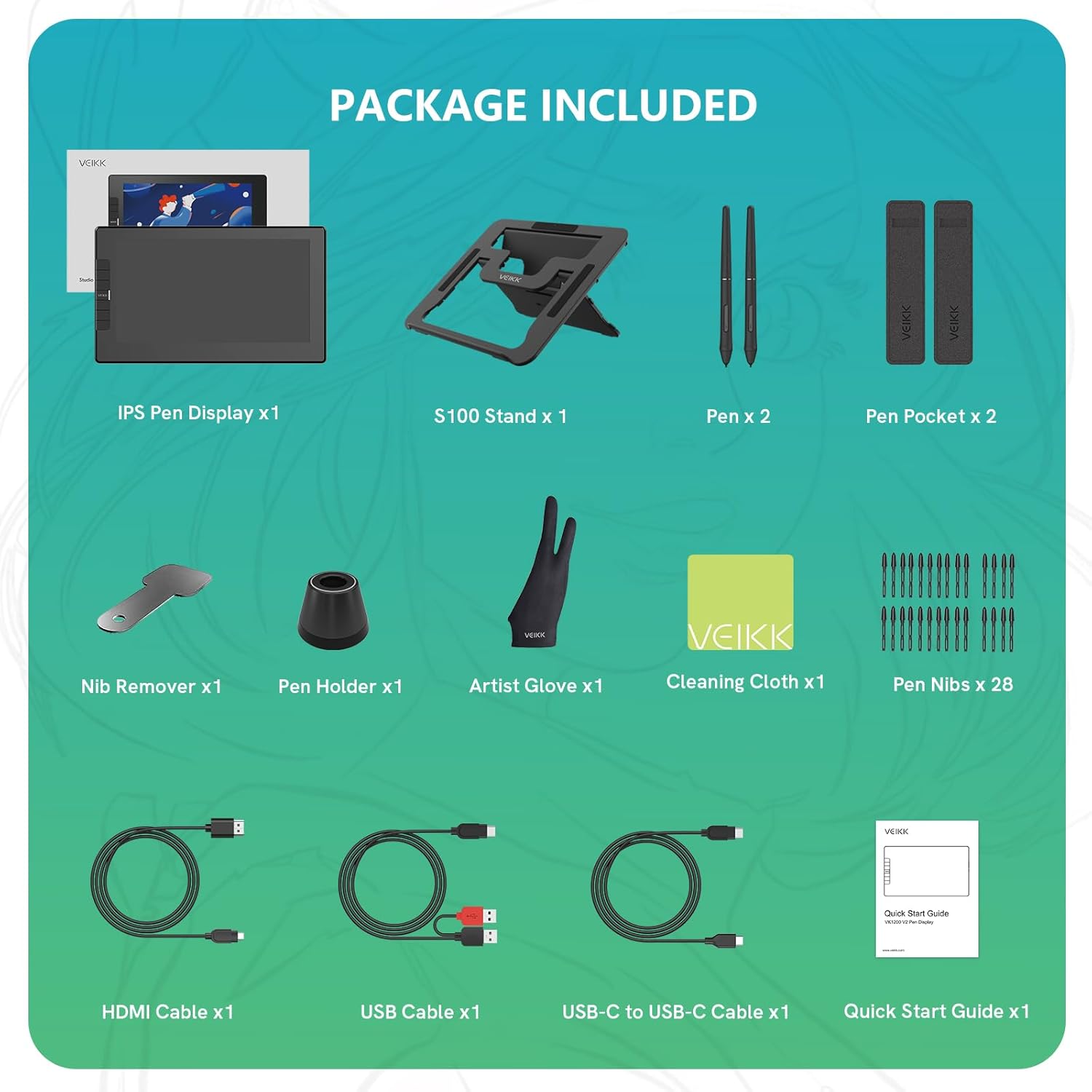
Image: Icons representing various compatible operating systems (Windows, macOS, Linux, Android) and creative software applications.
8. నిర్వహణ
- శుభ్రపరచడం: Use the provided cleaning cloth to gently wipe the screen and body of the tablet. Avoid harsh chemicals or abrasive materials.
- పెన్ నిబ్స్: Replace pen nibs when they show signs of wear to maintain optimal drawing performance. Use the nib remover tool for easy replacement.
- నిల్వ: Store the tablet in a dry, cool place, away from direct sunlight and extreme temperatures.
- కేబుల్ కేర్: Handle connection cables carefully to prevent damage. Avoid bending them sharply or pulling them forcefully.
9. ట్రబుల్షూటింగ్
9.1 No Display or Signal
- Ensure all cables (HDMI, USB-C) are securely connected to both the tablet and your computer.
- Verify that your computer's USB-C port supports video output if using a single USB-C cable.
- Check your computer's display settings to ensure the tablet is detected and configured as an extended or mirrored display.
- మీ కంప్యూటర్ మరియు టాబ్లెట్ను పునఃప్రారంభించండి.
9.2 Pen Not Responding or Inaccurate
- Ensure the VEIKK driver is correctly installed and up to date. Reinstalling the driver can resolve many pen-related issues.
- Check if the pen nib is worn out and replace it if necessary.
- VEIKK డ్రైవర్ సెట్టింగ్లలో పెన్ను కాలిబ్రేట్ చేయండి.
- Ensure no other tablet drivers are installed on your system, as they can conflict.
9.3 Shortcut Keys Not Working
- Verify that the VEIKK driver is running and the shortcut keys are configured in the driver settings.
- Ensure the application you are using supports the assigned shortcuts.
- Try resetting the shortcut key settings to default in the driver and reconfiguring them.
10. స్పెసిఫికేషన్లు
| ఫీచర్ | స్పెసిఫికేషన్ |
|---|---|
| మోడల్ సంఖ్య | VK1200V3 |
| ఉత్పత్తి కొలతలు | 12.99 x 9.06 x 0.04 అంగుళాలు |
| వస్తువు బరువు | 3.74 పౌండ్లు |
| స్క్రీన్ పరిమాణం | 11.6 అంగుళాలు |
| డిస్ప్లే రిజల్యూషన్ | 1920x1080 (FHD IPS) |
| రంగు స్వరసప్తకం | 72% NTSC |
| ఒత్తిడి సున్నితత్వం | 8192 స్థాయిలు |
| టిల్ట్ మద్దతు | 60° |
| కనెక్టివిటీ టెక్నాలజీ | HDMI, USB-C |
| ఆపరేటింగ్ సిస్టమ్ అనుకూలత | Windows 7+, macOS 10.12+, Linux |
| ప్రత్యేక లక్షణాలు | Full Lamination, Anti-Glare Glass, Extra-Slim |
11. వారంటీ మరియు మద్దతు
The VEIKK VK1200 V3 Drawing Tablet comes with a one-year hardware warranty and lifetime driver upgrade service. For technical support, driver downloads, or warranty claims, please visit the official VEIKK webసైట్ లేదా వారి కస్టమర్ సేవను సంప్రదించండి.
Official VEIKK Store: VEIKK Amazon Store