
ZYWELL ZM04
ZYWELL ZM04 Label Maker & Receipt Printer User Manual
మోడల్: ZM04
1. పరిచయం
The ZYWELL ZM04 is a versatile Bluetooth thermal label and receipt printer designed for various business and personal applications. This two-in-one device supports both 58mm and 80mm paper widths, offering efficient printing for logistics, retail, and other commercial needs. This manual provides comprehensive instructions for setting up, operating, maintaining, and troubleshooting your ZM04 printer.

Figure 1: ZYWELL ZM04 Label Maker and Receipt Printer
2. ప్యాకేజీ విషయాలు
క్రింద జాబితా చేయబడిన అన్ని వస్తువులు మీ ప్యాకేజీలో చేర్చబడ్డాయని దయచేసి ధృవీకరించండి:
- ZM04 Printer
- USB కేబుల్
- పవర్ ప్లగ్
- బ్యాటరీ
- వినియోగదారు మాన్యువల్
- U-DISK (USB Drive with drivers and software)
- Labels (Sampలే రోల్)
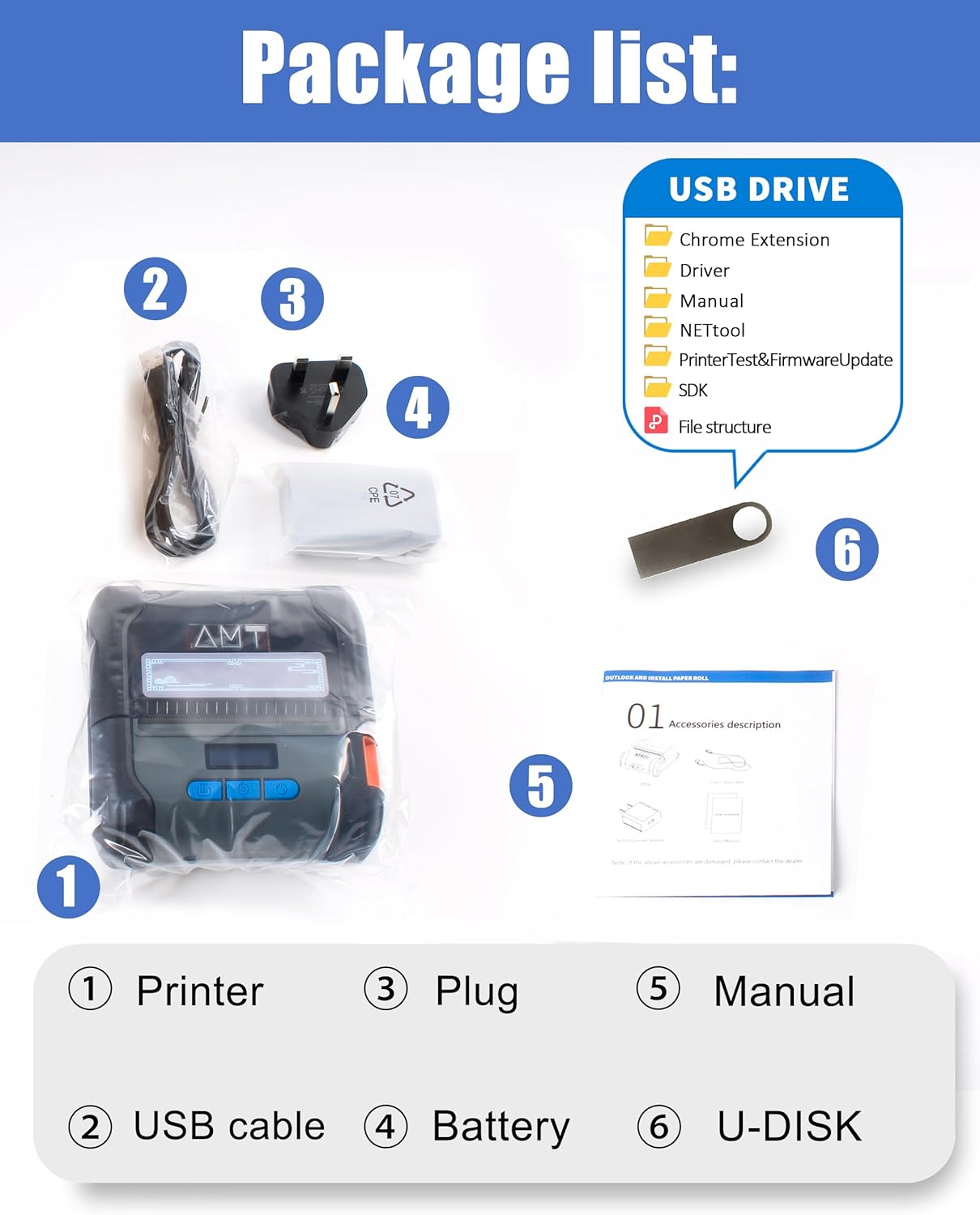
Figure 2: Contents included in the ZM04 printer package.
3. ఉత్పత్తి ముగిసిందిview
Familiarize yourself with the main components and controls of your ZM04 printer:
- స్క్రీన్: Displays current mode, battery status, and settings.
- ఓపెన్ కీ: Used to open the paper compartment.
- పవర్ బటన్: ప్రింటర్ను ఆన్/ఆఫ్ చేస్తుంది.
- సెట్ కీ: Navigates through settings and confirms selections.
- Feed Button/OK Key: Feeds paper or confirms actions.

Figure 3: Key operational components of the ZM04 printer.
Dimensions and Specifications Overview:
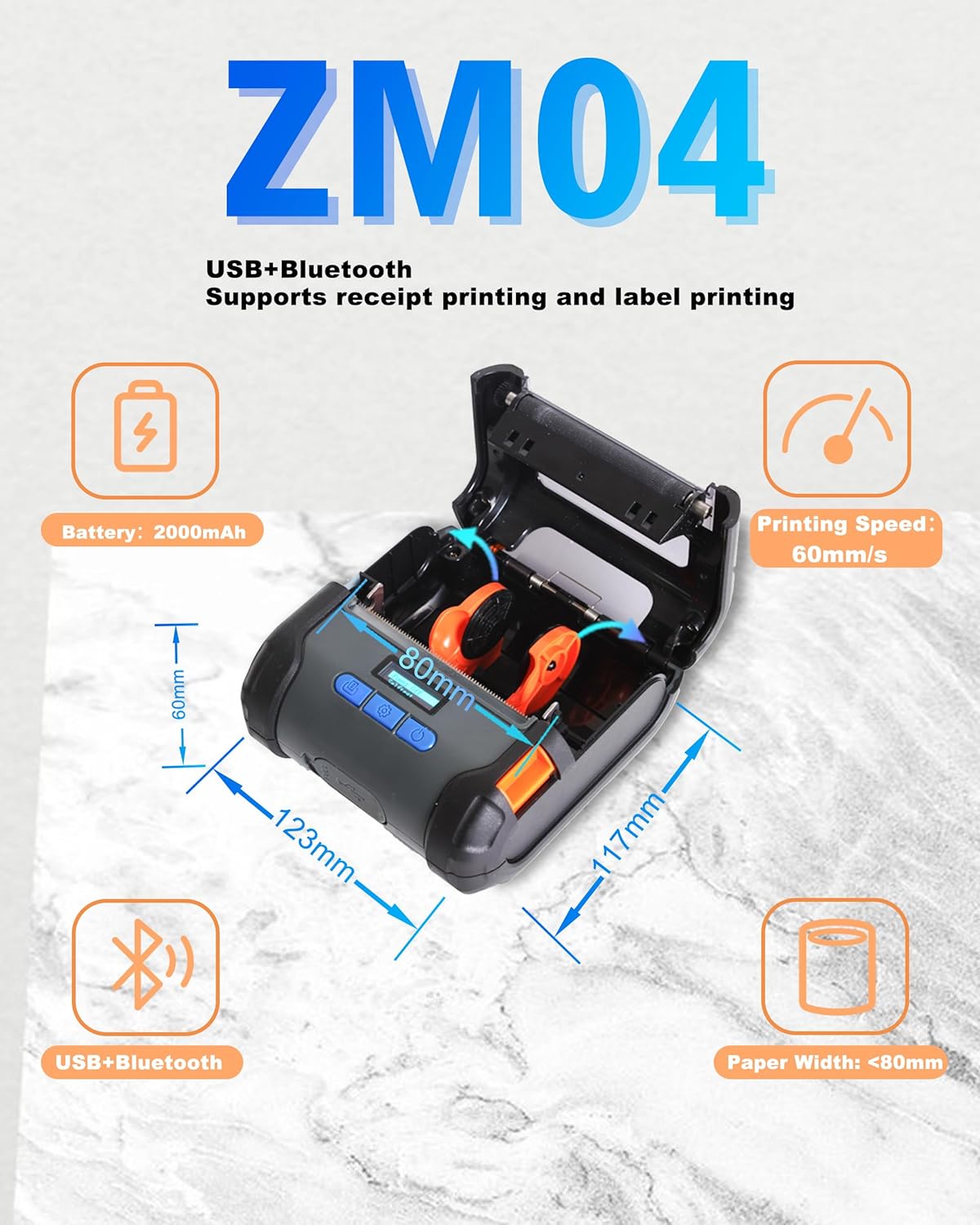
Figure 4: Physical dimensions and core specifications of the ZM04 printer.
4. సెటప్
4.1 ప్రింటర్ను ఛార్జ్ చేయడం
Before first use, ensure the printer is fully charged. Connect the provided USB cable to the printer and a power adapter. The battery indicator on the screen will show charging status. A full charge provides long hours of use.
4.2 పేపర్ లోడ్ అవుతోంది
The ZM04 supports both label and receipt paper rolls (58mm to 80mm width).
- Press the "Open Key" to open the paper compartment cover.
- Insert the paper roll with the printing side facing up, ensuring it feeds smoothly into the print head.
- ప్రింట్ హెడ్ దాటి కొంచెం పొడవు కాగితాన్ని బయటకు లాగండి.
- పేపర్ కంపార్ట్మెంట్ కవర్ సరిగ్గా సరిపోయే వరకు గట్టిగా మూసివేయండి.
Video 1: Demonstrates the process of loading paper into the ZM04 printer and switching between label and receipt printing modes.
5. ఆపరేటింగ్ సూచనలు
5.1 కనెక్టివిటీ
The ZM04 printer supports both Bluetooth and USB connectivity.
- బ్లూటూత్: Ideal for wireless printing from Android smartphones and tablets. iOS devices require specific apps (EMlabel, POSprinter) for connection.
- USB: Connects to Windows, ChromeOS, Linux, and Mac computers. Note: USB connection does not support iOS devices (iPhone, iPad).

చిత్రం 5: పైగాview of Bluetooth and USB connectivity for the ZM04 printer.
5.2 Mode Switching (Label vs. Receipt)
The ZM04 is a two-in-one printer. It is crucial to select the correct command mode for your printing task. The screen displays the current mode.
- Receipt Mode: Set to "ESC" (ESC/POS command mode).
- Label Mode: Set to "TCPL" (TSPL command mode).
- Face Sheet Mode: Set to "CPCL" (CPCL command mode).
To switch modes, use the "Set Key" to navigate through the options on the electronic display until the desired command mode is selected. Selecting the wrong command mode will prevent printing.

Figure 6: The ZM04 printer supports both receipt and label printing modes, indicated by the display.
5.3 Printing Steps (via App)
For mobile printing, use the "EMlabel" or "POSprinter" software.
- Open the "EMlabel" app and select your desired print mode (Label or Receipt).
- Go to "Settings" within the app, then "Printer connection," and select "BT" for Bluetooth.
- Choose the printer address (e.g., "printer001"), click "Connect," and enter the password "0000" if prompted.
- After successful connection, the status will change to "disconnect" (indicating it's ready to print).

Figure 7: Step-by-step guide for connecting and printing using the mobile application.
6. అనుకూలత
The ZM04 printer offers broad compatibility with various operating systems and applications, though some limitations apply.
- ఆపరేటింగ్ సిస్టమ్స్: Android, Windows, ChromeOS, Linux, Mac.
- iOS అనుకూలత: While USB and direct Bluetooth connection are not supported for iOS, the "EMlabel" and "POSprinter" software allows iOS devices to connect and print labels/receipts.
- Receipt Applications: Loyverse and W&O POS APP are supported for receipt printing.
- దీనికి అనుకూలం కాదు: Square, DoorDash, Shopify.

Figure 8: Detailed compatibility matrix for the ZM04 printer across various platforms and applications.
7. నిర్వహణ
To ensure optimal performance and longevity of your ZM04 printer, follow these maintenance guidelines:
- Regularly clean the print head with a soft, lint-free cloth moistened with isopropyl alcohol. Ensure the printer is off and cool before cleaning.
- Keep the paper compartment free of dust and paper debris.
- ప్రింటర్ను ప్రత్యక్ష సూర్యకాంతి మరియు తీవ్రమైన ఉష్ణోగ్రతలు లేకుండా చల్లని, పొడి ప్రదేశంలో నిల్వ చేయండి.
- Use only high-quality thermal paper to prevent damage to the print head.
8. ట్రబుల్షూటింగ్
This section addresses common issues you might encounter with your ZM04 printer.
Q1: Why cannot connect with iOS?
A1: The USB and direct Bluetooth connections of the ZM04 do not natively support iOS. To connect to iOS for printing, you must download and use our dedicated software, "EMlabel" or "POSprinter," which facilitates the connection and printing process.
Q2: Why cannot Print?
A2: Please check that the mode displayed at the top right of the printer's screen matches the one you need for printing.
- For receipt printing, the mode should be "ESC".
- For label printing, the mode should be "TCPL".
- For face sheet printing, the mode should be "CPCL".
9. స్పెసిఫికేషన్లు
| ఫీచర్ | వివరాలు |
|---|---|
| బ్రాండ్ | ZYWELL |
| మోడల్ పేరు | ZM04-UB-BK |
| అంశం మోడల్ సంఖ్య | ZM04 |
| కనెక్టివిటీ టెక్నాలజీ | బ్లూటూత్, USB |
| ప్రింటింగ్ టెక్నాలజీ | థర్మల్ |
| ప్రింటర్ అవుట్పుట్ | మోనోక్రోమ్ |
| గరిష్ట ముద్రణ వేగం (మోనోక్రోమ్) | 30 పిపిఎమ్ (60మిమీ/సె) |
| రిజల్యూషన్ | 203 x 203 dpi |
| గరిష్ట మీడియా పరిమాణం | A9 (Supports 58mm/80mm paper width) |
| ప్రింట్ మీడియా | Labels, Receipt Paper |
| అనుకూల పరికరాలు | Smartphones, Tablets (Android, iOS via app), Computers (Windows, ChromeOS, Linux, Mac) |
| బ్యాటరీ | 2000 mAh లిథియం అయాన్ (చేర్చబడింది) |
| ఉత్పత్తి కొలతలు | 4.6"D x 4.8"W x 2.3"H (117మిమీ x 123మిమీ x 60మిమీ) |
| వస్తువు బరువు | 1.37 పౌండ్లు |
| UPC | 765133353996 |
10. వారంటీ మరియు మద్దతు
The ZYWELL ZM04 printer comes with a limited warranty. For specific warranty terms and conditions, please refer to the warranty card included in your package or contact ZYWELL customer support. For technical assistance or further inquiries, please visit the official ZYWELL webసైట్ లేదా వారి కస్టమర్ సేవా బృందాన్ని సంప్రదించండి.
Ask a question about this manual
Ask about setup, troubleshooting, compatibility, parts, safety, or missing instructions. Manuals+ will review the question and use this page’s manual context to help answer it.