
1. పరిచయం
The SHREYANS SRS58-201 is a portable monochrome thermal printer designed for printing labels and receipts. It features Bluetooth and USB connectivity, an auto-cutter function, and is compatible with various mobile and desktop applications. This manual provides detailed instructions for setting up, operating, and maintaining your printer.
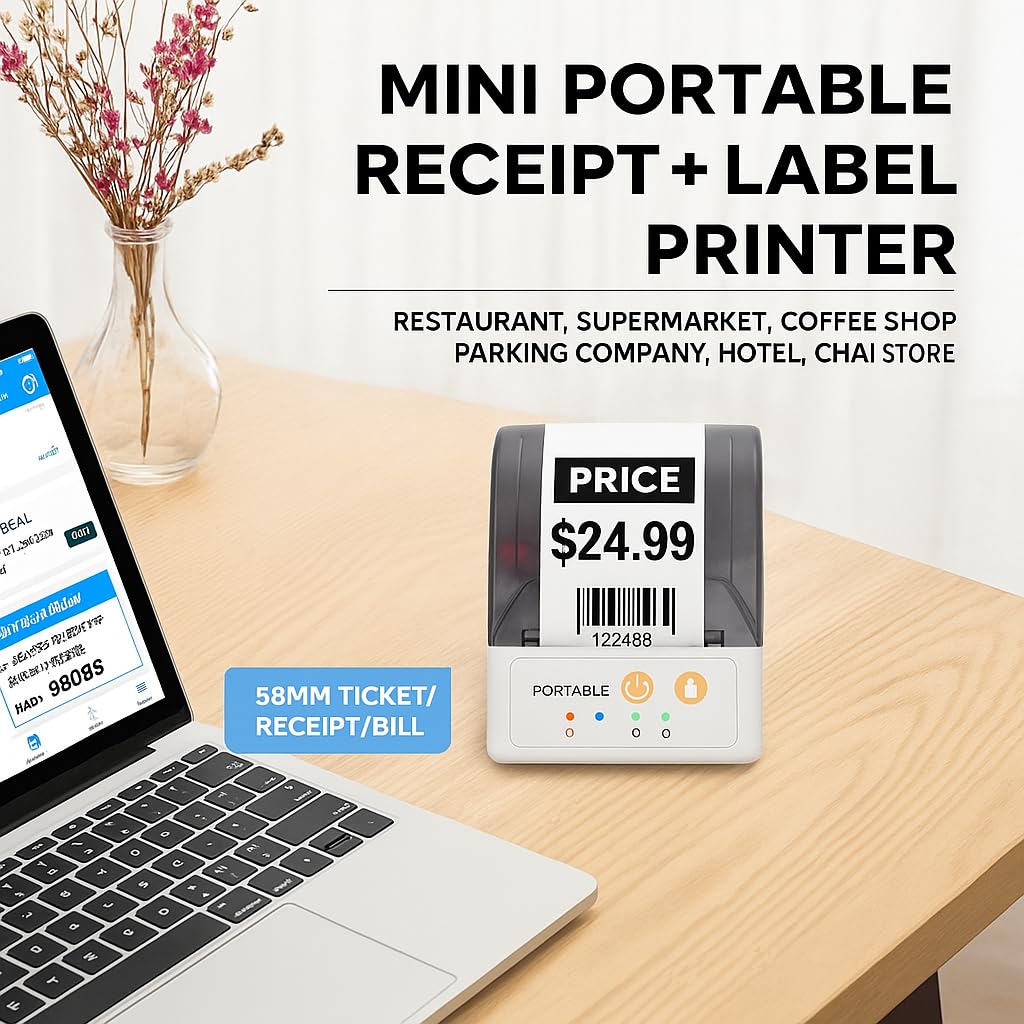
Image: The SHREYANS SRS58-201 printer on a desk, illustrating its compact size and versatility for various business environments like restaurants, supermarkets, and coffee shops.

Image: The SHREYANS SRS58-201 printer being carried in a pocket, highlighting its portability and ease of transport.

Image: The SHREYANS SRS58-201 printer held in a hand, demonstrating its lightweight and mini body design for convenient carrying.
2. భద్రతా సమాచారం
Please read all safety instructions before using the printer to ensure safe and proper operation.
- Do not disassemble or modify the printer. This may cause damage or electric shock.
- ప్రింటర్ను నీరు, తేమ మరియు ప్రత్యక్ష సూర్యకాంతి నుండి దూరంగా ఉంచండి.
- Use only the specified power adapter and battery.
- ప్రింటర్ను పడవేయడం లేదా బలమైన ప్రభావాలకు గురిచేయడం మానుకోండి.
- ప్రింట్ చేసిన వెంటనే ప్రింట్ హెడ్ను తాకవద్దు, ఎందుకంటే అది వేడిగా ఉండవచ్చు.
- Ensure proper ventilation when operating the printer.
3. ప్యాకేజీ విషయాలు
ప్యాకేజీలో అన్ని అంశాలు ఉన్నాయని నిర్ధారించుకోండి:
- SHREYANS SRS58-201 Printer
- USB కేబుల్
- థర్మల్ పేపర్ రోల్ (స్టార్టర్)
- వినియోగదారు మాన్యువల్
4. ఉత్పత్తి ముగిసిందిview
Familiarize yourself with the main components of the SHREYANS SRS58-201 printer.
4.1. Printer Components
- Paper Cover Release Button: Opens the paper compartment.
- పేపర్ కంపార్ట్మెంట్: Holds the thermal paper roll.
- పవర్ బటన్: ప్రింటర్ను ఆన్/ఆఫ్ చేస్తుంది.
- ఫీడ్ బటన్: కాగితాన్ని చేతితో తినిపిస్తుంది.
- స్థితి సూచికలు: LEDs indicating power, Bluetooth, and error status.
- USB పోర్ట్: For charging and data connection to a computer.
- ప్రింట్ హెడ్: Generates thermal prints.
- ఆటో-కట్టర్: Automatically cuts the paper after printing.
5. సెటప్
5.1 బ్యాటరీని ఛార్జ్ చేస్తోంది
The printer is equipped with a 1500mAh lithium battery. Before first use, fully charge the printer.
- Connect the USB cable to the printer's USB port and the other end to a power adapter (not included) or a computer's USB port.
- ఛార్జింగ్ ఇండికేటర్ లైట్ వెలుగుతుంది.
- A full charge typically takes 2-3 hours. The indicator light will change or turn off when charging is complete.

Image: The SHREYANS SRS58-201 printer next to a battery icon, detailing battery capacity (1500mAh), charging time (2-3 hrs), standby time (7 days), and continuous printing time (7 hrs).
5.2. Loading Paper/Labels
- Press the paper cover release button to open the paper compartment.
- Insert a 58mm thermal paper roll, ensuring the printing side faces the print head.
- కట్టర్ దాటి కొద్ది మొత్తంలో కాగితాన్ని బయటకు లాగండి.
- పేపర్ కవర్ సరిగ్గా తగిలే వరకు గట్టిగా మూసివేయండి.
5.3. Connecting via Bluetooth (Mobile Devices)
The printer connects to smartphones and tablets via Bluetooth using the "Shreyans Label Edit" app.
- Ensure the printer is powered on. The Bluetooth indicator light should be blinking.
- Download and install the "Shreyans Label Edit" app from your device's app store (Android/iOS).
- మీ మొబైల్ పరికరంలో బ్లూటూత్ని ప్రారంభించండి.
- Open the "Shreyans Label Edit" app and navigate to the printer connection settings.
- కోసం వెతకండి available Bluetooth devices and select "SRS58-201" or a similar name.
- If prompted, enter the pairing PIN (usually 0000 or 1234).
- Once connected, the Bluetooth indicator light on the printer will become solid.

Image: A smartphone displaying a label editing app connected via Bluetooth to the SHREYANS SRS58-201 printer, demonstrating wireless label editing capabilities.
5.4. Installing Drivers (Windows System PC)
To use the printer with a Windows computer, you need to install the printer driver.
- అందించిన USB కేబుల్ ఉపయోగించి ప్రింటర్ను మీ PC కి కనెక్ట్ చేయండి.
- Obtain the latest printer driver from the SHREYANS official website or the provided installation CD (if applicable).
- డ్రైవర్ ఇన్స్టాలేషన్ను పూర్తి చేయడానికి ఆన్-స్క్రీన్ సూచనలను అనుసరించండి.
- After installation, the printer should appear in your device manager.
6. ఆపరేటింగ్ సూచనలు
6.1. పవర్ చేయడం ఆన్/ఆఫ్
- పవర్ ఆన్ చేయడానికి: Press and hold the Power button until the power indicator light illuminates.
- పవర్ ఆఫ్ చేయడానికి: Press and hold the Power button until the power indicator light turns off.
6.2. Printing Labels/Receipts
- Ensure the printer is connected to your device (via Bluetooth or USB) and has paper loaded.
- Open your desired application (e.g., "Shreyans Label Edit" app, POS software, or a document editor on PC).
- Create or select the label/receipt you wish to print.
- Initiate the print command from the application. The printer will automatically print and cut the output.
6.3. Using the Auto-Cutter
The SRS58-201 features an integrated auto-cutter for clean and precise cuts.
- The auto-cutter activates automatically after each print job is completed.
- This feature enhances efficiency and provides a professional finish to your labels and receipts.
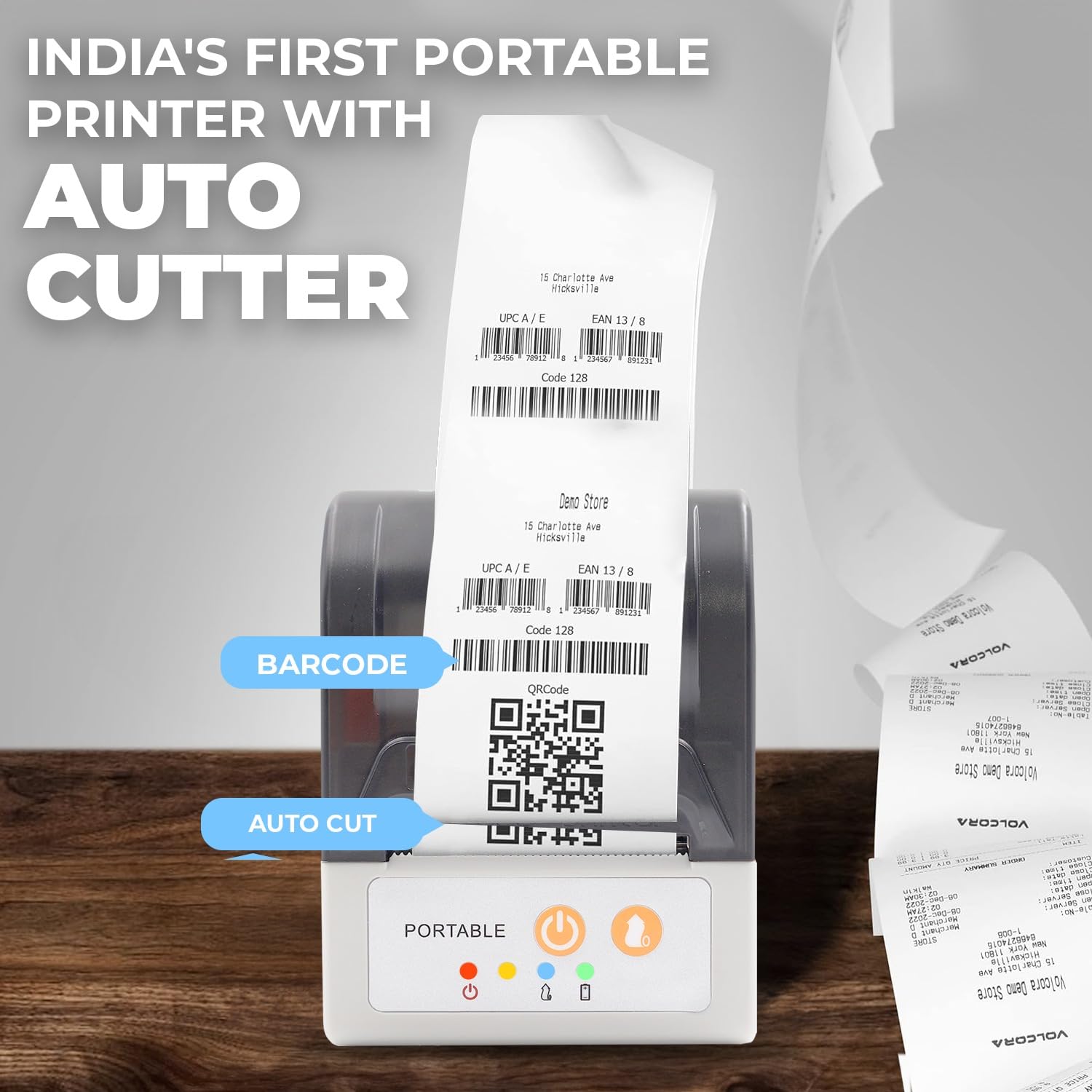
Image: The SHREYANS SRS58-201 printer showing a printed receipt with a barcode and QR code, highlighting the auto-cut feature for clean separation of documents. Example links: Volcora test QRcode, VolcoraTest128, 1234567891231, 0123456789128.
6.4. Compatible POS Software
The SHREYANS SRS58-201 supports various POS software for seamless integration:
- Vyappar
- మైబిల్బుక్
- జొమాటో
- స్విగ్గీ
- PayTM
- PhonePay
- జిపే
- And other custom applications.
7. నిర్వహణ
7.1 ప్రింటర్ను శుభ్రపరచడం
క్రమం తప్పకుండా శుభ్రపరచడం ముద్రణ నాణ్యతను కాపాడుకోవడానికి మరియు ప్రింటర్ జీవితకాలం పొడిగించడానికి సహాయపడుతుంది.
- Turn off the printer and disconnect it from power before cleaning.
- మెత్తని, మెత్తని బట్టను ఉపయోగించండి డిampened with isopropyl alcohol to gently wipe the print head.
- ఏదైనా కాగితపు దుమ్ము లేదా చెత్తను తొలగించడానికి కాగితపు మార్గం మరియు రోలర్లను శుభ్రం చేయండి.
- Allow all components to dry completely before re-using the printer.
7.2. బ్యాటరీ సంరక్షణ
- బ్యాటరీని తరచుగా పూర్తిగా డిశ్చార్జ్ చేయడాన్ని నివారించండి.
- Store the printer in a cool, dry place if not used for extended periods.
- Charge the battery periodically (e.g., every 3 months) to prevent deep discharge.
8. ట్రబుల్షూటింగ్
సాధారణ సమస్యలు మరియు వాటి పరిష్కారాల కోసం క్రింది పట్టికను చూడండి.
| సమస్య | సాధ్యమైన కారణం | పరిష్కారం |
|---|---|---|
| ప్రింటర్ పవర్ ఆన్ చేయడం లేదు | బ్యాటరీ తక్కువగా ఉంది; పవర్ బటన్ సరిగ్గా నొక్కబడలేదు. | Charge the printer; Press and hold the Power button for a few seconds. |
| బ్లూటూత్ ద్వారా కనెక్ట్ చేయడం సాధ్యపడదు | Bluetooth not enabled; Incorrect pairing; Printer out of range | Ensure Bluetooth is on; Re-pair the device; Move closer to the printer; Restart both devices. |
| పేలవమైన ముద్రణ నాణ్యత | Low battery; Dirty print head; Incorrect paper type | Charge the printer; Clean the print head; Ensure you are using thermal paper. |
| Paper jam or no paper feed | Paper incorrectly loaded; Paper compartment not closed; Obstruction | Re-load paper correctly; Ensure cover is latched; Remove any obstructions. |
| Printer auto-feeds excessively | Software setting; Firmware issue | Check print settings in your application; Update printer firmware if available; Contact customer support if issue persists. |
9. స్పెసిఫికేషన్లు
| ఫీచర్ | వివరాలు |
|---|---|
| మోడల్ పేరు | SRS58-201 |
| ప్రింటింగ్ టెక్నాలజీ | థర్మల్ |
| ప్రింటర్ అవుట్పుట్ | మోనోక్రోమ్ |
| కనెక్టివిటీ టెక్నాలజీ | బ్లూటూత్, USB |
| గరిష్ట మీడియా పరిమాణం | 58 మి.మీ |
| గరిష్ట ముద్రణ వేగం (మోనోక్రోమ్) | 30 ppm |
| గరిష్ట నలుపు మరియు తెలుపు ప్రింట్ రిజల్యూషన్ | 1200 dpi |
| ప్రత్యేక ఫీచర్ | ఆటో-కట్టర్ |
| బ్యాటరీ కెపాసిటీ | 1500mAh |
| ఛార్జింగ్ సమయం | 2-3 గంటలు |
| Continuous Printing Time | 7 గంటలు |
| స్టాండ్బై సమయం | 7 రోజులు |
| అనుకూల పరికరాలు | Smartphones (Android, iOS), Windows PC |
| ఉత్పత్తి కొలతలు | 4D x 8W x 11H సెంటీమీటర్లు |
| వస్తువు బరువు | 340 గ్రాములు |
| తయారీదారు | Shreyans Retail Solution |
| మూలం దేశం | భారతదేశం |
10. వారంటీ మరియు మద్దతు
For warranty information and technical support, please refer to the documentation provided with your purchase or visit the official SHREYANS website. Contact details for customer service are typically available on the product packaging or the brand's online portal.