
1. పరిచయం
The FIYAPOO Miracast Dongle M7-5G is a 4K wireless display adapter designed for seamless screen mirroring from your compatible devices to a larger display. It supports 4K (3840 x 2160) resolution with High Dynamic Range (HDR) for clear, vibrant, and realistic images. This device offers broad compatibility across multiple operating systems, including iOS, Android, Windows, and Mac OS, and integrates Miracast, AirPlay, and DLNA functionalities. Equipped with advanced 2.4G+5GHz dual-band technology (802.11AC protocol), it ensures stable and high-speed data transmission. Its compact and portable design makes it convenient for various environments, whether at home, in the office, or during travel.

Image 1: The FIYAPOO Miracast Dongle M7-5G, a compact wireless display adapter.
2. సెటప్ సూచనలు
Follow these steps to set up your FIYAPOO Miracast Dongle M7-5G:
- డిస్ప్లేకి కనెక్ట్ చేయండి: Insert the Miracast Dongle into an available HDMI port on your television, monitor, or projector.
- పవర్ ఆన్: Connect the integrated USB power cable from the dongle to a USB port on your display device or to a 5V/1.5A USB power adapter (not included). Ensure the dongle receives sufficient power.
- ఇన్పుట్ని ఎంచుకోండి: Use your display device's remote control to select the corresponding HDMI input source where the dongle is connected.
- ప్రారంభ కాన్ఫిగరేషన్: The dongle's setup screen will appear on your display. This screen will show the device's Wi-Fi SSID and password.
- మీ పరికరాన్ని కనెక్ట్ చేయండి: On your smartphone, tablet, or computer, go to your Wi-Fi settings and connect to the dongle's Wi-Fi network using the provided SSID and password.
- ఆకృతీకరణ పేజీని యాక్సెస్ చేయండి: తెరవండి a web browser on your connected device and enter the IP address displayed on the setup screen (e.g., http://192.168.203.1). This page allows you to connect the dongle to your home Wi-Fi network for internet access and firmware updates.

Image 2: Visual guide illustrating the connection and initial setup steps for the Miracast Dongle.
3. ఆపరేటింగ్ సూచనలు
3.1 Screen Mirroring Modes
The dongle supports two primary screen projection modes:
- Same Screen Mode (Mirroring): This mode synchronizes your device's screen directly to the large display, showing identical content. It is suitable for presentations, sharing photos, or watching videos with others.
- విస్తరించిన మోడ్: In this mode, your large display can show different content from your source device, allowing for multitasking. For example, you can work on your laptop while a video plays on the TV. This mode may require specific settings adjustments on your source device.
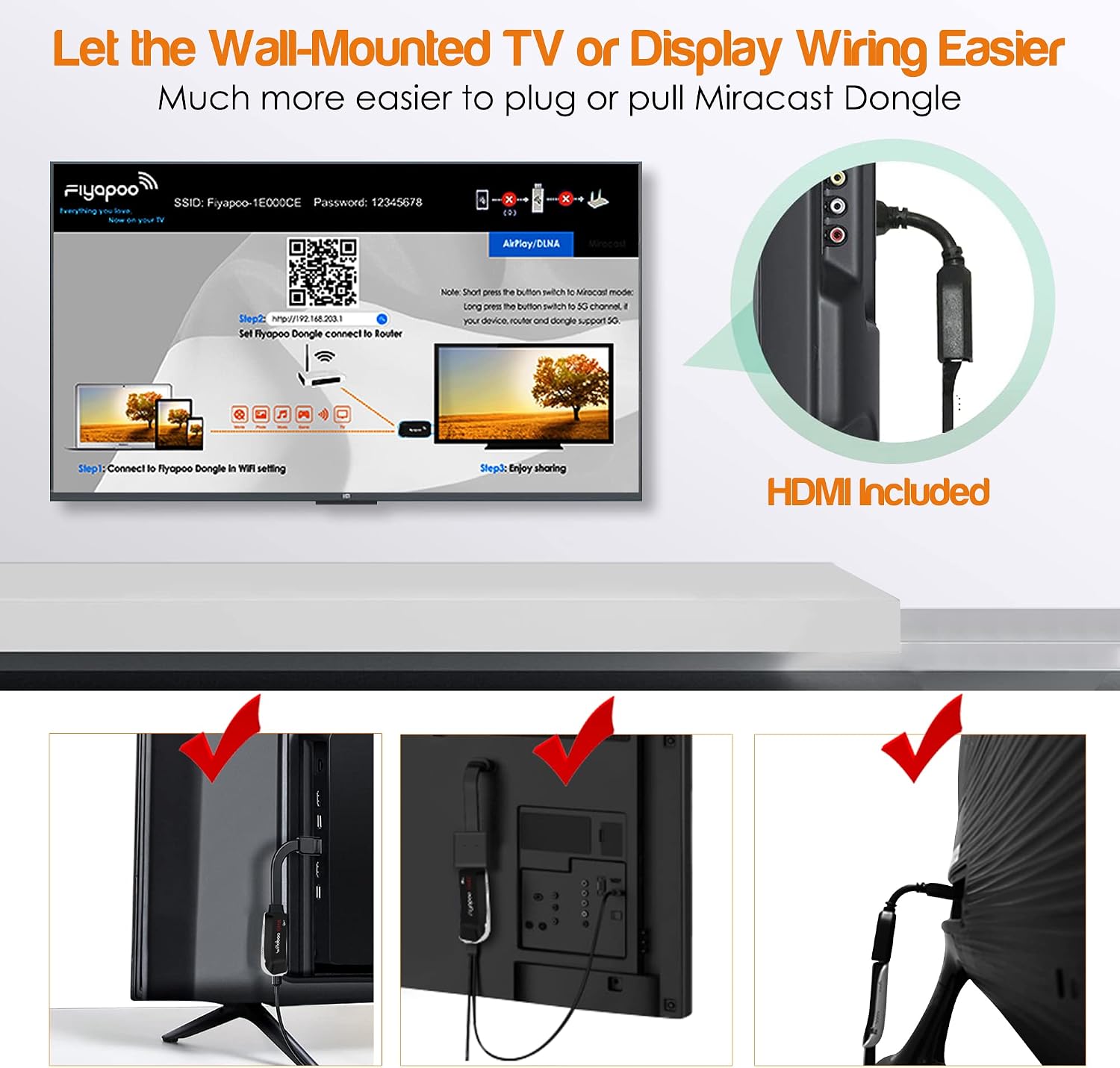
Image 3: Illustration of the 'Same Screen' and 'Extended Mode' functionalities.
3.2 Compatibility and Protocols
The FIYAPOO Miracast Dongle is compatible with a wide range of devices and supports various wireless display protocols:
- మద్దతు ఉన్న ఆపరేటింగ్ సిస్టమ్స్: iOS, Android, Windows, and Mac OS.
- మద్దతు ఉన్న ప్రోటోకాల్లు: Miracast, AirPlay, and DLNA.
- కంటెంట్ భాగస్వామ్యం: Easily transfer and display movies, images, music, documents, or games from your devices to a large screen.
3.3 Specific Application Notes
- నెట్ఫ్లిక్స్: Netflix is compatible with Android devices using Chromecast. It is not compatible with Apple AirPlay.
- Google Home: This feature is supported for Android devices only.
- కాపీరైట్ పరిమితులు: Please note that some video applications may not be compatible with screen mirroring due to digital rights management (DRM) or copyright restrictions.

Image 4: Collage demonstrating the dongle's versatility in various settings, including gaming, presentations, and home entertainment.
4. నిర్వహణ
To ensure the longevity and optimal performance of your FIYAPOO Miracast Dongle, follow these general maintenance guidelines:
- శుభ్రపరచడం: Use a soft, dry cloth to gently clean the device. Avoid using liquid cleaners or abrasive materials.
- నిల్వ: డాంగిల్ను ప్రత్యక్ష సూర్యకాంతి మరియు తీవ్రమైన ఉష్ణోగ్రతలకు దూరంగా చల్లని, పొడి ప్రదేశంలో నిల్వ చేయండి.
- నిర్వహణ: పరికరాన్ని జాగ్రత్తగా నిర్వహించండి. దానిని పడవేయడం లేదా బలమైన ప్రభావాలకు గురిచేయకుండా ఉండండి.
- ఫర్మ్వేర్ నవీకరణలు: Periodically check for firmware updates through the dongle's configuration page (http://192.168.203.1) to ensure optimal performance and compatibility.
5. ట్రబుల్షూటింగ్
If you encounter issues with your Miracast Dongle, refer to the following troubleshooting tips:
- డిస్ప్లే లేదా సిగ్నల్ లేదు:
- Ensure the dongle is securely connected to an HDMI port on your display.
- Verify that the dongle is receiving power via the USB cable.
- Confirm that your display device is set to the correct HDMI input source.
- Unstable Connection or Lag:
- Ensure your source device and the dongle are within close proximity to your Wi-Fi router.
- Minimize interference from other wireless devices or networks.
- The dongle supports both 2.4GHz and 5GHz Wi-Fi bands. If your router supports it, try connecting to the 5GHz band for better performance.
- Restart both the dongle and your source device.
- Unable to Connect to Dongle's Wi-Fi:
- Double-check the Wi-Fi SSID and password displayed on the setup screen.
- Ensure your device's Wi-Fi is enabled and scanning for networks.
- Streaming Service (e.g., Netflix) Issues:
- Remember that Netflix is not compatible with Apple AirPlay. For Android, ensure Chromecast is correctly configured.
- Some streaming applications may have content protection that prevents mirroring.
- Initial Choppiness or Delay:
- A slight delay or choppiness may occur during the initial connection or when starting a new stream. This typically resolves as the connection stabilizes.
6. స్పెసిఫికేషన్లు
| మోడల్ సంఖ్య | M7-5G |
| కొలతలు | 17 x 13.5 x 1.8 సెం.మీ |
| బరువు | 130 గ్రా |
| కనెక్టివిటీ టెక్నాలజీ | HDMI |
| కనెక్టర్ రకం | HDMI |
| ప్రత్యేక లక్షణాలు | 4K and HDR Support, Miracast, DLNA, Airplay, User-friendly design |
| రిజల్యూషన్ | 4K (3840 x 2160 పిక్సెల్స్) |
| Compatible Internet Services | Google TV |
| అనుకూల పరికరాలు | Smartphones, Tablets, Laptops, Android TVs |
| వీడియో కోడెక్ | హెచ్.264, హెచ్.265/హెచ్ఈవీసీ |
| వైర్లెస్ ట్రాన్స్మిషన్ | 2.4G+5GHz Dual Band (802.11AC protocol) |
| తయారీదారు | ఫియాపూ |
| మూలం దేశం | చైనా |
| పెట్టె యొక్క విషయాలు | Miracast Dongle |

Image 5: Diagram explaining the 2.4GHz and 5GHz dual-band technology and their respective transmission rates.

Image 6: Visual representation of 5GHz WiFi capabilities, emphasizing fast and delay-free streaming.
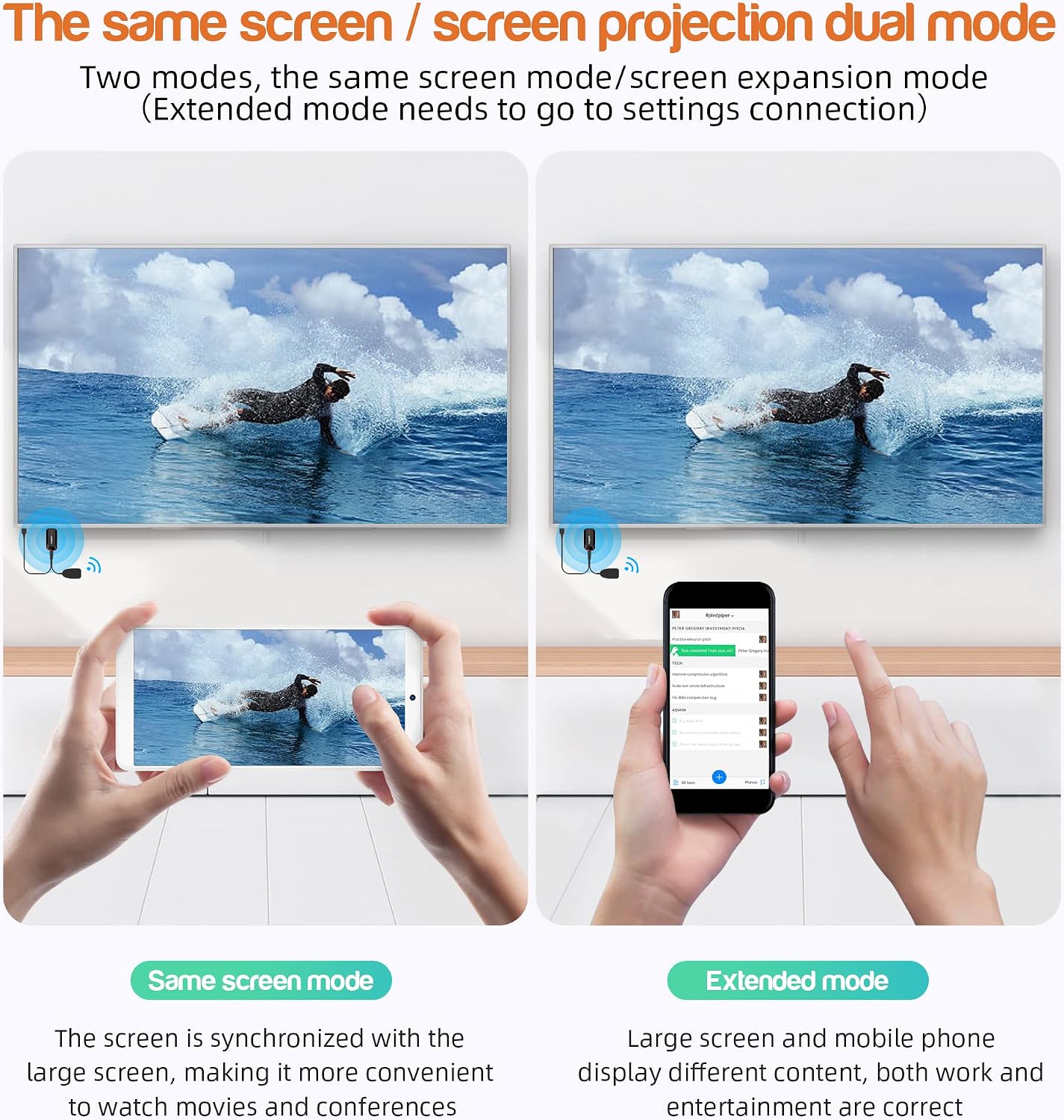
Image 7: Comparison showing the enhanced clarity and detail of 4K Ultra HD with HDR versus 1080P Full HD.
7. వారంటీ సమాచారం
The FIYAPOO Miracast Dongle M7-5G comes with a 1 సంవత్సరాల వారంటీ from the date of purchase. This warranty covers manufacturing defects and malfunctions under normal use. Please retain your proof of purchase for warranty claims. The warranty does not cover damage caused by misuse, accidents, unauthorized modifications, or improper installation.
8. కస్టమర్ మద్దతు
For further assistance, technical support, or warranty inquiries, please refer to the following resources:
- తయారీదారు యొక్క Webసైట్: Visit the official FIYAPOO website for FAQs, updated manuals, and support contact information.
- రిటైలర్ మద్దతు: సహాయం కోసం మీరు ఉత్పత్తిని కొనుగోలు చేసిన రిటైలర్ను సంప్రదించండి.
- ఆన్లైన్ వనరులు: కోసం వెతకండి community forums or online guides related to Miracast dongles for additional tips and solutions.