
1. పరిచయం
The Owon SDS210 is a high-performance 100 MHz, 2-channel digital oscilloscope designed for accurate signal analysis. With a real-time sampling rate of 1 GS/s and a 20M record length, it provides comprehensive waveform capture and analysis capabilities. This manual provides essential information for setting up, operating, and maintaining your SDS210 oscilloscope.
- 100 MHz బ్యాండ్విడ్త్: Capable of analyzing signals up to 100 MHz.
- 2 ఛానెల్లు: Allows simultaneous analysis of two signals.
- 1 GS/s Real-time Sampలింగ్ రేటు: Ensures detailed capture of transient events.
- 20M Record Length: Provides extensive waveform storage for in-depth analysis.
- 7-inch TFT LCD Display: Clear visualization of waveforms and measurement data.
- 30 Automatic Measurements: For quick and precise waveform parameter analysis.
- FFT Spectrum Analysis: Advanced signal analysis in the frequency domain.
- USB కనెక్టివిటీ: Supports USB Host and USB Device interfaces for data transfer and PC control.
2. భద్రతా సమాచారం
Please read and understand all safety instructions before operating the device. Failure to follow these instructions may result in injury or damage to the instrument.
- పరికరంతో పాటు సరఫరా చేయబడిన పవర్ అడాప్టర్ను మాత్రమే ఉపయోగించండి.
- తడి లేదా d ఉష్ణోగ్రత వద్ద ఓసిల్లోస్కోప్ను ఆపరేట్ చేయవద్దు.amp పరిస్థితులు.
- వేడెక్కడం నివారించడానికి సరైన వెంటిలేషన్ ఉండేలా చూసుకోండి.
- Do not attempt to repair or modify the instrument yourself. Refer all servicing to qualified personnel.
- Always connect the probe ground lead to earth ground before connecting the probe tip to the circuit under test.
- అన్ని వాల్యూమ్లను గమనించండిtage ratings and input limits specified for the oscilloscope and probes.
3. ఉత్పత్తి ముగిసిందిview
3.1 ఫ్రంట్ ప్యానెల్
The front panel features the main display, control buttons, and input connectors.

Figure 3.1: Front and Rear Panel Layout with Key Components. This image shows the Power Switch, Function Keys, Button and Knob Control Area, Oscilloscope Signal Input Ports (CH1, CH2), Probe Compensation Output, USB Host Interface, Foldable Handle, Ventilation Holes, Power Socket, and USB Device Interface.
- పవర్ స్విచ్: Turns the oscilloscope on or off.
- ఫంక్షన్ కీలు: Access various menus and settings.
- Button and Knob Control Area: Includes controls for vertical, horizontal, trigger, and menu navigation.
- Oscilloscope Signal Input Port (CH1, CH2): BNC connectors for connecting probes to input signals.
- Probe Compensation Output: 5V/1kHz signal output for probe calibration.
- USB Host Interface: For connecting USB storage devices to save or retrieve data.
3.2 వెనుక ప్యానెల్
The rear panel includes the power input and additional connectivity options.
- ఫోల్డబుల్ హ్యాండిల్: సులభమైన పోర్టబిలిటీ కోసం.
- వెంటిలేషన్ రంధ్రాలు: వేడి వెదజల్లడానికి అవసరం.
- పవర్ సాకెట్: AC విద్యుత్ సరఫరాకు కనెక్ట్ అవుతుంది.
- USB పరికర ఇంటర్ఫేస్: Used to connect the oscilloscope to a PC for data transmission and remote control.
4. సెటప్
4.1 అన్ప్యాకింగ్
Carefully remove the oscilloscope and all accessories from the packaging. Verify that all components listed in the packing list are present and undamaged. Keep the original packaging for future transport or storage.
4.2 పవర్ కనెక్షన్
- Connect the provided power cord to the power socket on the rear panel of the oscilloscope.
- పవర్ కార్డ్ యొక్క మరొక చివరను గ్రౌండెడ్ AC పవర్ అవుట్లెట్లోకి ప్లగ్ చేయండి.
4.3 ప్రోబ్ కనెక్షన్
Connect the oscilloscope probes to the CH1 and CH2 BNC input ports on the front panel. Ensure the connectors are securely twisted into place.
4.4 ప్రోబ్ పరిహారం
Before taking measurements, it is crucial to compensate your probes to ensure accurate readings. This process matches the probe's capacitance to the oscilloscope's input capacitance.
- Set the probe attenuation to 10X.
- Connect the probe tip to the Probe Compensation Output terminal (5V/1kHz) on the front panel.
- Connect the probe's ground clip to the ground terminal next to the compensation output.
- Press the AUTO button to automatically adjust the waveform.
- Observe the square wave displayed on the screen. Adjust the trimmer capacitor on the probe until the square wave corners are flat, without overshoot or undershoot.
4.5 PC Connection (USB Device Interface)
To connect the oscilloscope to a computer for remote control or data transfer:
- Use a standard USB cable to connect the USB Device Interface port on the rear panel of the oscilloscope to a USB port on your computer.
- Install the necessary drivers and software provided by OWON for your specific operating system.
5. ప్రాథమిక ఆపరేషన్
5.1 పవర్ చేయడం ఆన్/ఆఫ్
Press the Power Switch on the front panel to turn the oscilloscope on. Press it again to turn it off.
5.2 ప్రదర్శన ముగిసిందిview
The SDS210 features a 7-inch TFT LCD display that provides a clear view of waveforms, measurement results, and instrument settings.
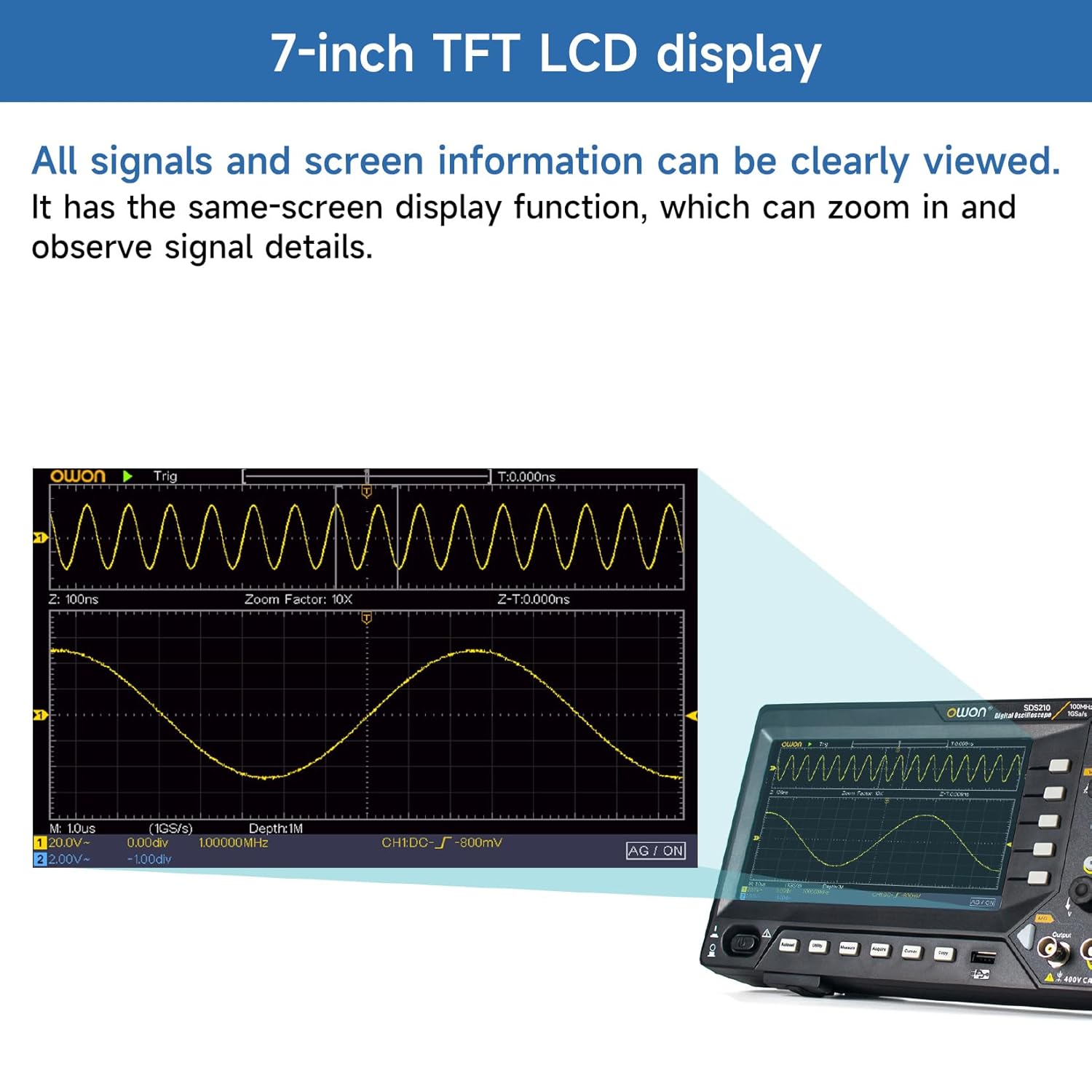
Figure 5.2: 7-inch TFT LCD Display. All signals and screen information can be clearly viewed. It has a same-screen display function, which can zoom in and observe signal details.
5.3 ప్రాథమిక తరంగ రూప ప్రదర్శన
After connecting a signal to an input channel, press the AUTO button. The oscilloscope will automatically adjust the vertical, horizontal, and trigger settings to display a stable waveform.
5.4 నిలువు నియంత్రణలు
The vertical controls adjust the amplitude and position of the waveform.
- Vertical Position Knob: Moves the waveform up or down on the screen.
- Vertical Scale Knob (V/div): Adjusts the vertical sensitivity (volts per division).
- CH1/CH2 బటన్లు: Selects the active channel for adjustments or turns channels on/off.
5.5 క్షితిజసమాంతర నియంత్రణలు
The horizontal controls adjust the time base and position of the waveform.
- Horizontal Position Knob: Moves the waveform left or right on the screen.
- Horizontal Scale Knob (s/div): Adjusts the time base (seconds per division).
5.6 ట్రిగ్గర్ నియంత్రణలు
The trigger controls stabilize repetitive waveforms and capture single-shot events.
- Trigger Level Knob: వాల్యూమ్ను సెట్ చేస్తుందిtage level at which the trigger occurs.
- Trigger Menu Button: Accesses trigger settings such as edge, pulse, video, and slope.
- Force Button: Forces a trigger event.
6. అధునాతన ఫీచర్లు
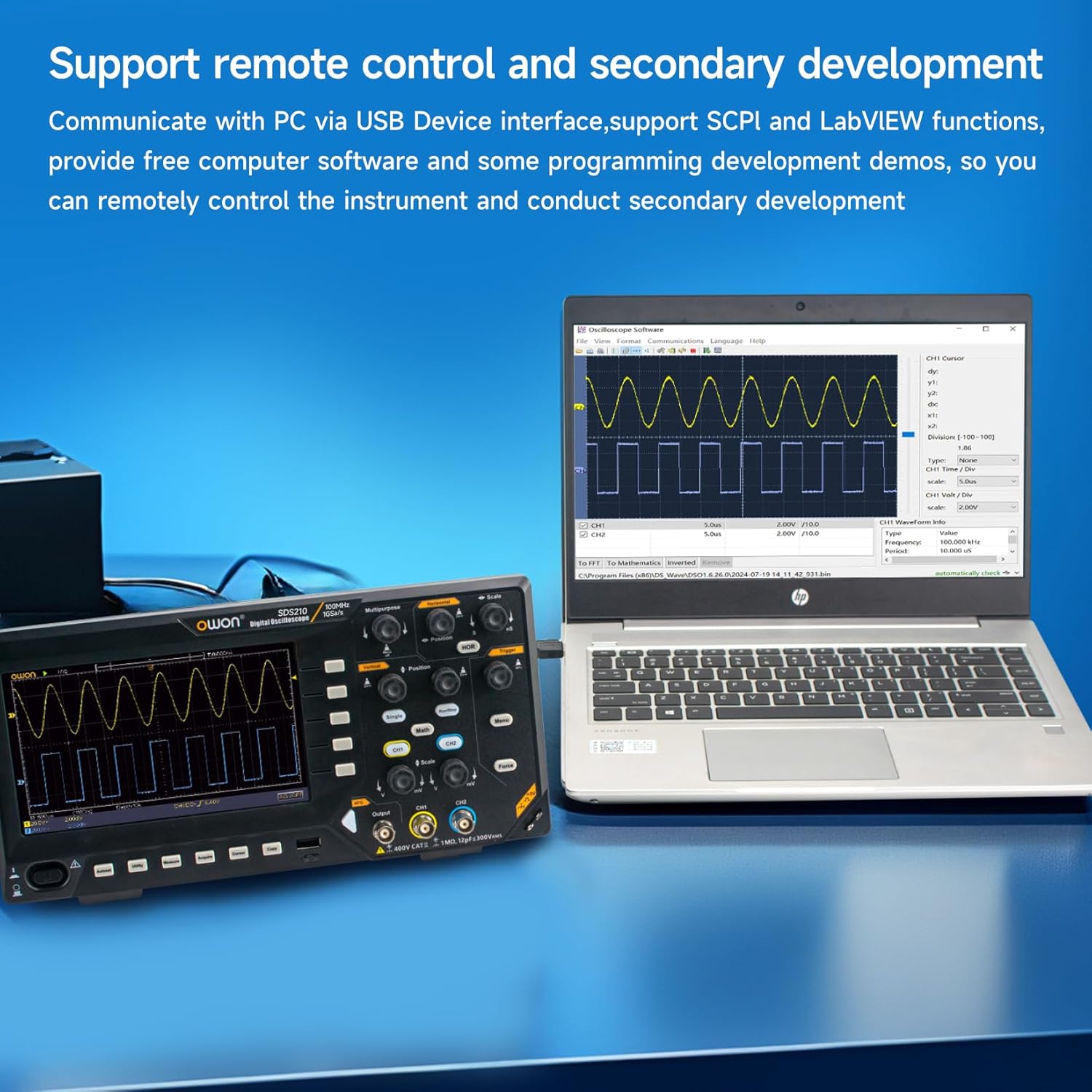
Figure 6.0: Advanced Measurement and Analysis Modes. This image illustrates the 6-digit High-precision Frequency counter, FFT Spectrum Analysis, Cursor Measurements, 30 Automatic Waveform Measurements, Save/Recall functions, and X-Y mode.
6.1 Automatic Measurements
The SDS210 offers 30 types of automatic waveform measurements for quick and accurate analysis of signal parameters. Press the MEASURE button to access the automatic measurement menu.
- Common measurements include Period, Frequency, Mean, Peak-PK, RMS, Max, Min, Top, Base, Amplitude, Overshoot, Preshoot, Rise Time, Fall Time, Pulse Width, Delay, Duty Cycle, and more.
6.2 FFT Spectrum Analysis
Perform Fast Fourier Transform (FFT) to analyze signals in the frequency domain. This is useful for identifying harmonics, distortion, and noise components.
- Press the MATH button.
- Select 'FFT' from the Math menu.
- Adjust the FFT settings such as source, window type, and display format.
6.3 Cursor Measurements
Use cursors to manually measure specific points on a waveform. Press the CURSOR button to activate and control the cursors.
- వాల్యూమ్tage Cursors: వాల్యూమ్ను కొలవండిtage differences (ΔV).
- Time Cursors: Measure time differences (ΔT).
6.4 Save/Recall Waveforms
The oscilloscope allows you to save and recall waveform data and instrument settings to internal memory or a connected USB drive.
- Press the SAVE button to access saving options.
- Select the desired save type (waveform, setup, image) and destination (internal, USB).
6.5 X-Y Mode
X-Y mode is used to display the relationship between two signals, often for phase comparison or Lissajous figures.
- Ensure signals are connected to CH1 and CH2.
- Access the Display menu and select X-Y mode.
6.6 Remote Control and Software
The SDS210 supports remote control and secondary development via its USB Device Interface, utilizing SCPI (Standard Commands for Programmable Instruments) and LabVIEW functions. Free computer software and programming development demos are available to facilitate remote instrument control.

Figure 6.6: Remote Control and Secondary Development. Communicate with a PC via the USB Device interface, supporting SCPI and LabVIEW functions. Free computer software and programming development demos are provided for remote control and secondary development.
7. నిర్వహణ
7.1 శుభ్రపరచడం
పరికరాన్ని శుభ్రం చేయడానికి, మృదువైన వస్త్రాన్ని ఉపయోగించండి dampened with a mild detergent. Do not use abrasive cleaners or solvents that could damage the casing or display. Ensure the instrument is powered off and disconnected from the power source before cleaning.
7.2 నిల్వ
When not in use for extended periods, store the oscilloscope in a dry, dust-free environment. Use the original packaging for protection during storage or transport.
7.3 వెంటిలేషన్
The oscilloscope is equipped with ventilation holes on the rear panel to prevent overheating. Ensure these holes are not obstructed during operation to allow for proper airflow.
8. ట్రబుల్షూటింగ్
ఈ విభాగం మీరు ఎదుర్కొనే సాధారణ సమస్యలకు పరిష్కారాలను అందిస్తుంది.
- శక్తి లేదు: Check the power cord connection and the power outlet. Ensure the power switch is in the 'ON' position.
- వేవ్ఫారమ్ డిస్ప్లే లేదు: Verify that a signal is connected to the input channel. Check probe connections and ensure the channel is enabled. Press the AUTO button to automatically adjust settings.
- అస్థిర తరంగ రూపం: Adjust the trigger level and trigger settings (e.g., edge, slope). Ensure the trigger source is correctly selected.
- సరికాని కొలతలు: Perform probe compensation as described in Section 4.4. Check the probe attenuation setting on both the probe and the oscilloscope.
- USB కనెక్షన్ సమస్యలు: Ensure the correct drivers are installed on your PC. Try a different USB cable or port.
If the problem persists, contact OWON customer support or your local distributor for assistance.
9. స్పెసిఫికేషన్లు
The following table details the technical specifications for the Owon SDS210 Digital Oscilloscope.

Figure 9.0: Owon SDS210 Series Oscilloscope Specifications. This table provides detailed specifications including Bandwidth, Sample Rate, Acquisition Mode, Input Coupling, Input Impedance, Probe Attenuation Factor, Record Length, Horizontal Scale, Vertical Sensitivity, Automatic Measurement types, Waveform Math functions, Waveform Storage, Lissajous Figures, Trigger Type, Communication Interface, Frequency Counter, and Waveform Generator Specifications (for SDS210S, SDS215S, SDS220S models).
| ఫీచర్ | Specification (SDS210) |
|---|---|
| తయారీదారు | స్వంతం |
| మోడల్ సంఖ్య | SDS210-OW |
| బ్యాండ్విడ్త్ | 100 MHz |
| ఛానెల్లు | 2 CH |
| Sampలే రేటు | 1 GS/s |
| రికార్డ్ పొడవు | 20M |
| సముపార్జన మోడ్ | Normal, Peak detect, Averaging |
| ఇన్పుట్ కలపడం | DC, AC, గ్రౌండ్ |
| ఇన్పుట్ ఇంపెడెన్స్ | 1MΩ±2%, in parallel with 20 pF±5 pF |
| ప్రోబ్ అటెన్యుయేషన్ ఫ్యాక్టర్ | 1X, 10X, 100X, 1000X |
| Horizontal Scale (s/div) | 2 ns/div-1000 s/div, step by 1-2-5 |
| నిలువు సున్నితత్వం | 2 mV/div-10 V/div |
| స్వయంచాలక కొలత | కాలం, ఫ్రీక్వెన్సీ, మీన్, PK-PK, RMS, గరిష్టం, కనిష్ట, టాప్, బేస్, Amplitude, Overshoot, Preshoot, Rise Time, Fall Time, +PulseWidth, -PulseWidth, +Duty Cycle, -Duty Cycle, Delay A→B↑, Delay A→B↓, Cycle RMS, Cursor RMS, Screen Duty, Phase, +PulseCount, -PulseCount, RiseEdgeCnt, FallEdgeCnt, Area, and Cycle Area. |
| Waveform Math | +, -, ×, ÷, FFT |
| Waveform Storage | 16 waveforms |
| Lissajous's Bandwidth | full bandwidth |
| Lissajous's Figure Phase Difference | ±3 డిగ్రీలు |
| ట్రిగ్గర్ రకం | Edge, Video |
| కమ్యూనికేషన్ ఇంటర్ఫేస్ | USB Host and Device |
| ఫ్రీక్వెన్సీ కౌంటర్ | అందుబాటులో |
| ఉత్పత్తి కొలతలు (L x W x H) | 29.97 x 7.01 x 15.24 సెం.మీ (11.8 x 2.76 x 6 అంగుళాలు) |
| ఉత్పత్తి బరువు | 1.1 కిలోగ్రాములు (38.8 ఔన్సులు) |
10. వారంటీ మరియు మద్దతు
10.1 వారంటీ సమాచారం
For detailed warranty information, please refer to the warranty card included with your product or contact your authorized OWON dealer or the manufacturer directly. Warranty terms and conditions may vary by region and retailer.
10.2 కస్టమర్ మద్దతు
If you require technical assistance, have questions about your product, or need to report an issue, please contact OWON customer support. Contact information can typically be found on the manufacturer's official webసైట్ లేదా మీ ఉత్పత్తి డాక్యుమెంటేషన్ ద్వారా.