
1. పరిచయం
This manual provides detailed instructions for the installation, operation, and maintenance of your VBESTLIFE Z490 GAMING PLUS ATX Motherboard. Designed for DIY computer enthusiasts, this motherboard supports 10th and 11th generation Intel Core, Pentium Gold, and Celeron processors with an LGA 1200 socket. Please read this manual thoroughly before proceeding with installation to ensure proper setup and optimal performance.

చిత్రం 1.1: ముగిసిందిview of the VBESTLIFE Z490 GAMING PLUS Motherboard.
2 కీ ఫీచర్లు
- ప్రాసెసర్ మద్దతు: Compatible with 10th and 11th Generation Intel Core, Pentium Gold, and Celeron processors for LGA 1200 sockets.
- మెమరీ: Features two DDR4 memory slots, supporting up to 64GB of dual-channel DDR4 RAM.
- నిల్వ: Includes a full-speed M.2 interface supporting 32GB/s data transfer for NVMe SSDs, and four Serial ATA 3.0 ports for traditional storage devices.
- గ్రాఫిక్స్ అవుట్పుట్: Integrated DP, HDMI, and VGA video ports for versatile display connectivity.
- విస్తరణ స్లాట్లు: One PCIe Gen 3.0 x16 slot for graphics cards and one PCIe X1 slot for other expansion cards.
- నెట్వర్కింగ్: Integrated 1000Mbps Gigabit LAN for high-speed network connectivity.
- ఆడియో: Utilizes an independent Realtek HiFi Sound card for enhanced audio experience.
- USB కనెక్టివిటీ: Multiple USB 3.2 Gen1 and USB 2.0 interfaces, including front panel headers.
- మన్నికైన డిజైన్: Features pre-installed I/O shielding and stable solid-state components for extended motherboard lifespan and protection against electrostatic discharge.
3. సెటప్ మరియు ఇన్స్టాలేషన్
Before beginning installation, ensure your system is powered off and disconnected from the power source. Handle the motherboard by its edges to avoid static discharge. It is recommended to wear an anti-static wrist strap.
3.1. Processor (CPU) Installation
- మదర్బోర్డుపై LGA 1200 CPU సాకెట్ను గుర్తించండి.
- Gently push down the load lever and pull it away from the socket to open the CPU socket cover.
- CPU పై ఉన్న త్రిభుజాకార గుర్తును సాకెట్ పై ఉన్న సంబంధిత గుర్తుతో సమలేఖనం చేయండి. బలవంతంగా లాగకుండా CPU ని సాకెట్ లో జాగ్రత్తగా ఉంచండి.
- Close the socket cover and push the load lever back into place until it clicks.

చిత్రం 3.1: క్లోజప్ view LGA 1200 CPU సాకెట్, ప్రాసెసర్ ఇన్స్టాలేషన్కు సిద్ధంగా ఉంది.
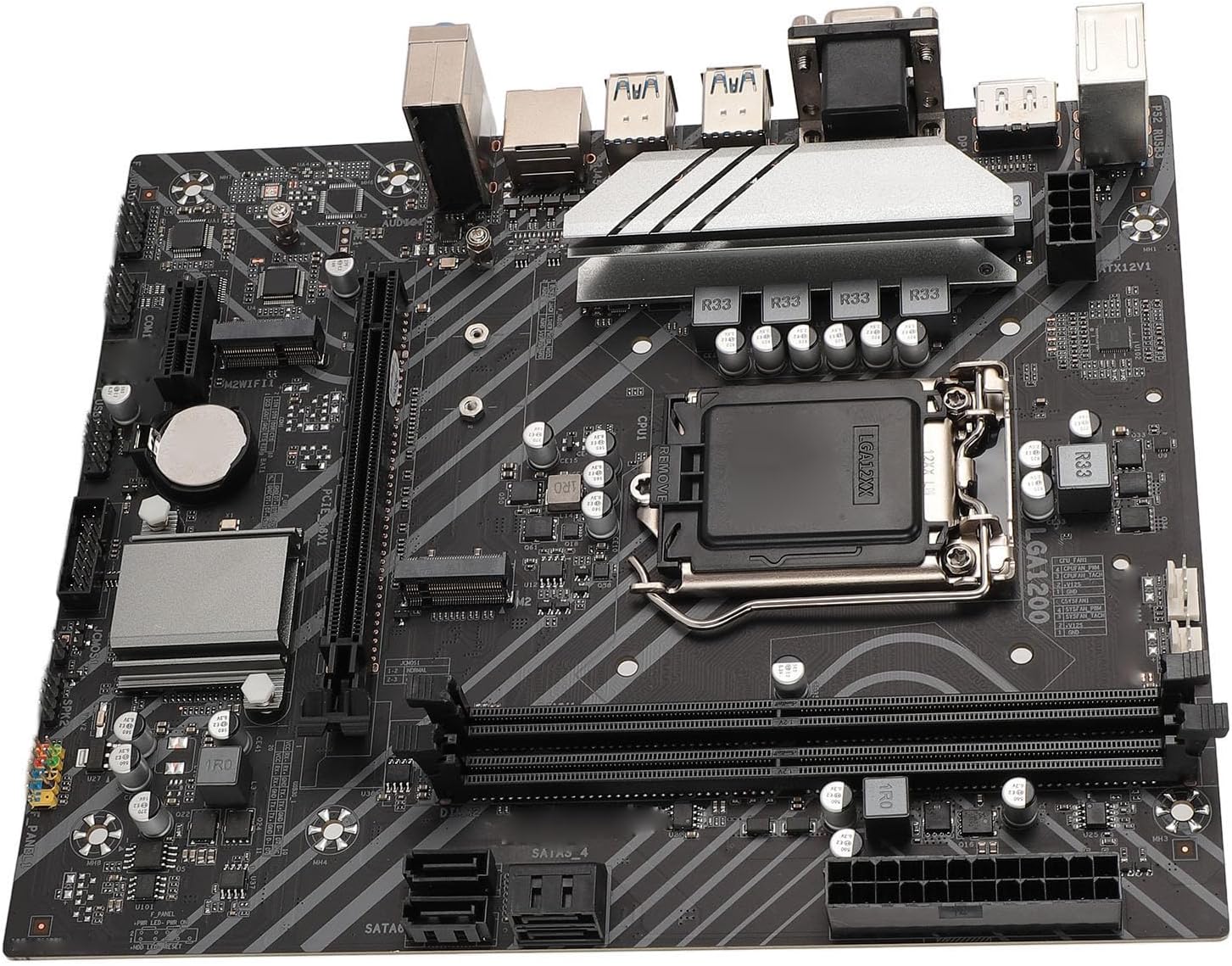
చిత్రం 3.2: వివరణాత్మకమైనది view of the CPU socket area, showing power delivery components.
3.2. మెమరీ (RAM) సంస్థాపన
- DDR4 మెమరీ స్లాట్ల రెండు చివర్లలోని క్లిప్లను తెరవండి.
- మెమరీ స్లాట్లోని కీతో DDR4 మెమరీ మాడ్యూల్లోని నాచ్ను సమలేఖనం చేయండి.
- Insert the memory module firmly into the slot until the clips snap into place. Ensure both clips are fully closed.
3.3. నిల్వ పరికర సంస్థాపన
3.3.1. M.2 SSD ఇన్స్టాలేషన్
- మదర్బోర్డుపై M.2 స్లాట్ను గుర్తించండి.
- M.2 స్టాండ్ఆఫ్ స్క్రూను తీసివేయండి.
- M.2 SSDని 30-డిగ్రీల కోణంలో స్లాట్లోకి చొప్పించండి.
- Gently push down the M.2 SSD and secure it with the standoff screw.

Image 3.3: The M.2 interface, designed for high-speed NVMe SSDs.

Image 3.4: Close-up of the M.2 slot and surrounding expansion slots and headers.
3.3.2. SATA Device Installation
- Connect one end of the SATA data cable to a SATA 3.0 port on the motherboard.
- SATA డేటా కేబుల్ యొక్క మరొక చివరను మీ SATA హార్డ్ డ్రైవ్ లేదా SSD కి కనెక్ట్ చేయండి.
- మీ పవర్ సప్లై యూనిట్ (PSU) నుండి SATA పవర్ కేబుల్ను నిల్వ పరికరానికి కనెక్ట్ చేయండి.

Image 3.5: The Serial ATA 3.0 ports for connecting traditional hard drives and SSDs.
3.4. విస్తరణ కార్డ్ సంస్థాపన (PCIe)
- Locate the PCIe x16 slot for your graphics card or PCIe x1 slot for other expansion cards.
- మీ PC కేసు నుండి సంబంధిత విస్తరణ స్లాట్ కవర్ను తీసివేయండి.
- Align the card with the slot and press down firmly until it is seated correctly.
- PC కేసుకు స్క్రూతో కార్డును భద్రపరచండి.
3.5. విద్యుత్ కనెక్షన్లు
- Connect the 24-pin ATX power connector from your PSU to the 24-pin ATXPWR socket on the motherboard.
- Connect the 8-pin ATX 12V power connector from your PSU to the 8-pin ATX12V socket on the motherboard.
3.6. I/O ప్యానెల్ కనెక్షన్లు
Connect your peripherals to the appropriate ports on the motherboard's rear I/O panel.
- ప్రదర్శన: Connect your monitor to the DP, HDMI, or VGA ports.
- USB పరికరాలు: Connect keyboards, mice, and other USB devices to the USB 3.2 Gen1 or USB 2.0 ports.
- నెట్వర్క్: Connect an Ethernet cable to the LAN port for internet access.
- ఆడియో: స్పీకర్లను లేదా హెడ్ఫోన్లను ఆడియో జాక్లకు కనెక్ట్ చేయండి.

Image 3.6: The rear I/O panel featuring DP, HDMI, VGA, USB, LAN, and audio ports.
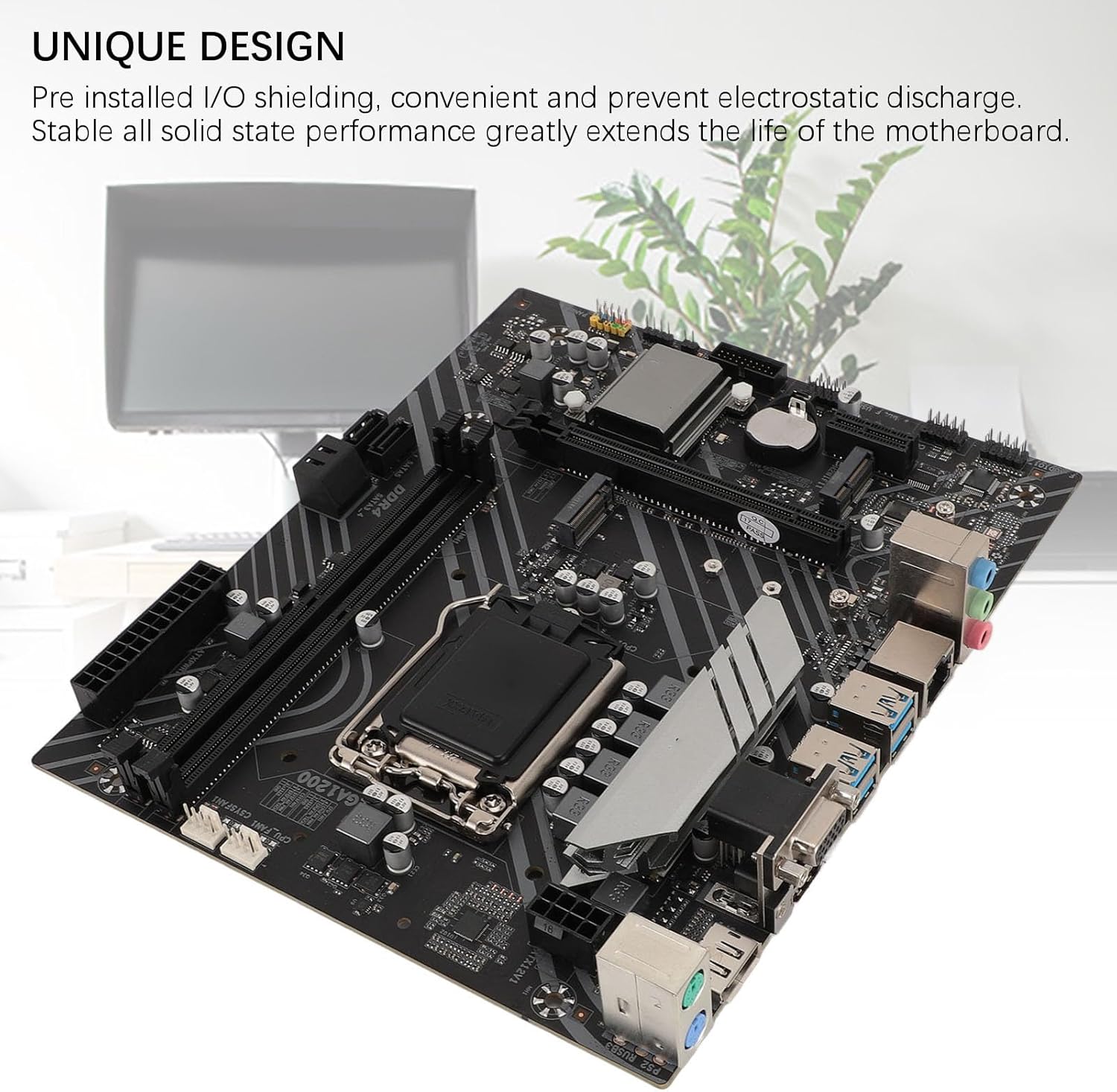
Image 3.7: The motherboard's unique design with pre-installed I/O shielding for convenience and protection.

చిత్రం 3.8: వివరణాత్మకమైనది view of the I/O ports and the CPU socket area.
4. ఆపరేటింగ్ సూచనలు
4.1. ప్రారంభ బూట్-అప్
After completing all hardware installations, connect your monitor, keyboard, and mouse. Power on your system. The motherboard will perform a Power-On Self-Test (POST). If all components are detected correctly, the system will proceed to boot from your installed operating system or prompt for OS installation.
4.2. BIOS/UEFI సెటప్
BIOS/UEFI సెటప్ యుటిలిటీని యాక్సెస్ చేయడానికి, నియమించబడిన కీని నొక్కండి (సాధారణంగా DEL or F2) repeatedly during the initial boot-up sequence. Within the BIOS/UEFI, you can configure system settings such as boot order, date/time, fan speeds, and other advanced options.
5. సాంకేతిక లక్షణాలు
| ఫీచర్ | స్పెసిఫికేషన్ |
|---|---|
| మోడల్ | Z490 GAMING PLUS |
| Motherboard Architecture | ATX |
| మదర్బోర్డ్ పరిమాణం | Approx. 225x190mm / 8.9x7.5in |
| CPU Socket Type | LGA 1200 (Supports 10th/11th Gen Intel Core, Pentium Gold, Celeron Processors) |
| చిప్సెట్ | ఇంటెల్ Z490 |
| నెట్వర్క్ కార్డ్ | 1000Mbps LAN |
| Integrated Sound Card | Realtek HiFi Sound |
| గ్రాఫిక్స్ కార్డ్ స్లాట్ | PCIE X16 Gen 3.0 |
| మద్దతు ఉన్న మెమరీ రకం | 2 x DDR4 DIMM స్లాట్లు |
| గరిష్ట మెమరీ సామర్థ్యం | 64 జీబీ (32 జీబీ x 2) |
| సీరియల్ ATA ఇంటర్ఫేస్ | Serial ATA3.0 x 4 |
| USB ఇంటర్ఫేస్ | USB3.2 Gen1 x 4, Front USB2.0 pin x 1, Front USB3.0 pin x 1 |
| విస్తరణ ఇంటర్ఫేస్లు | DP x 1, HDMI x 1, VGA x 1, M.2 Interface x 1 (Supports NGFF, NVME protocol), M.2 Wireless Fidelity Interface x 1, PCIE X1 x 1 |
| పవర్ ఇంటర్ఫేస్ | 1 x 24PIN ATXPWR, 1 x 8PIN ATX12V |
| బ్యాటరీ రకం | CR2032 button cell battery (240 mAh, integrated) |
| తయారీదారు | VBESTLIFE |
| మోడల్ సంఖ్య | VBESTLIFE60hydko52q |
| మూలం దేశం | చైనా |
6. నిర్వహణ
- శుభ్రపరచడం: కంప్రెస్డ్ ఎయిర్ ఉపయోగించి మదర్బోర్డ్ మరియు భాగాల నుండి దుమ్మును క్రమం తప్పకుండా శుభ్రం చేయండి. శుభ్రపరిచే ముందు సిస్టమ్ పవర్ ఆఫ్ చేయబడిందని మరియు అన్ప్లగ్ చేయబడిందని నిర్ధారించుకోండి.
- నిర్వహణ: Always handle the motherboard by its edges. Avoid touching components directly to prevent electrostatic discharge.
- పర్యావరణం: Operate the motherboard in a well-ventilated area to prevent overheating. Avoid extreme temperatures and humidity.
- BIOS నవీకరణలు: తయారీదారుని కాలానుగుణంగా తనిఖీ చేయండి website for BIOS/UEFI updates. Follow update instructions carefully to avoid system instability.
7. ట్రబుల్షూటింగ్
7.1. పవర్ లేదు / బూట్ లేదు
- Ensure all power cables (24-pin ATX, 8-pin ATX12V) are securely connected to the motherboard and PSU.
- Verify that the power supply unit (PSU) is switched on and functioning correctly.
- Check front panel connections (power button, reset button) to ensure they are correctly plugged into the motherboard headers.
- సమస్యను వేరు చేయడానికి కనీస భాగాలతో (CPU, ఒక RAM స్టిక్, ఇంటిగ్రేటెడ్ గ్రాఫిక్స్ లేకపోతే గ్రాఫిక్స్ కార్డ్) బూట్ చేయడానికి ప్రయత్నించండి.
7.2. డిస్ప్లే అవుట్పుట్ లేదు
- Ensure your monitor is connected to the correct display output port (DP, HDMI, or VGA) on the motherboard or dedicated graphics card.
- Verify that the graphics card (if installed) is properly seated in its PCIe slot and has adequate power connected.
- వీలైతే వేరే డిస్ప్లే కేబుల్ లేదా మానిటర్తో పరీక్షించండి.
7.3. సిస్టమ్ అస్థిరత / క్రాష్లు
- Check that all memory modules are correctly seated in their slots.
- Ensure CPU cooler is properly installed and making good contact with the CPU. Monitor CPU temperatures.
- Verify that your power supply unit (PSU) provides sufficient wattage for all installed components.
- తప్పు RAM కోసం తనిఖీ చేయడానికి మెమరీ డయాగ్నస్టిక్ సాధనాలను అమలు చేయండి.
8. వారంటీ మరియు మద్దతు
This VBESTLIFE Z490 GAMING PLUS Motherboard comes with a 2-సంవత్సరం తయారీదారు వారంటీ. This warranty covers defects in materials and workmanship under normal use. For warranty claims or technical support, please contact your retailer or the VBESTLIFE customer service directly. Please retain your proof of purchase for warranty validation.
For further assistance, please refer to the official VBESTLIFE webసైట్ లేదా వారి మద్దతు ఛానెల్లను సంప్రదించండి.