
Xiaomi G27Qi
Xiaomi 2K Gaming Monitor G27Qi User Manual
Model: G27Qi (P27QCA-RGGL)
పరిచయం
Thank you for choosing the Xiaomi 2K Gaming Monitor G27Qi. This monitor is designed to provide an immersive gaming experience with its QHD 2560x1440 resolution, Fast IPS panel, 180Hz refresh rate, and 1ms response time. It features AMD FreeSync technology, a wide 100% sRGB color gamut, and eye care functions for extended use. This manual provides essential information for setting up, operating, maintaining, and troubleshooting your monitor.
ప్యాకేజీ విషయాలు
సెటప్తో కొనసాగడానికి ముందు, దయచేసి ప్యాకేజీలో అన్ని భాగాలు ఉన్నాయని నిర్ధారించుకోండి:
- Xiaomi 2K Gaming Monitor G27Qi display panel
- మానిటర్ స్టాండ్ (బేస్ మరియు మెడ)
- పవర్ అడాప్టర్ మరియు పవర్ కేబుల్
- డిస్ప్లేపోర్ట్ (DP) కేబుల్
- HDMI Cable (Optional, may vary by region)
- వినియోగదారు మాన్యువల్ మరియు వారంటీ కార్డ్
సెటప్
1. స్టాండ్ అసెంబ్లింగ్
- ప్యాకేజింగ్ నుండి మానిటర్ మరియు స్టాండ్ భాగాలను జాగ్రత్తగా తొలగించండి.
- Attach the stand neck to the base, ensuring it clicks securely into place or is fastened with the provided screw.
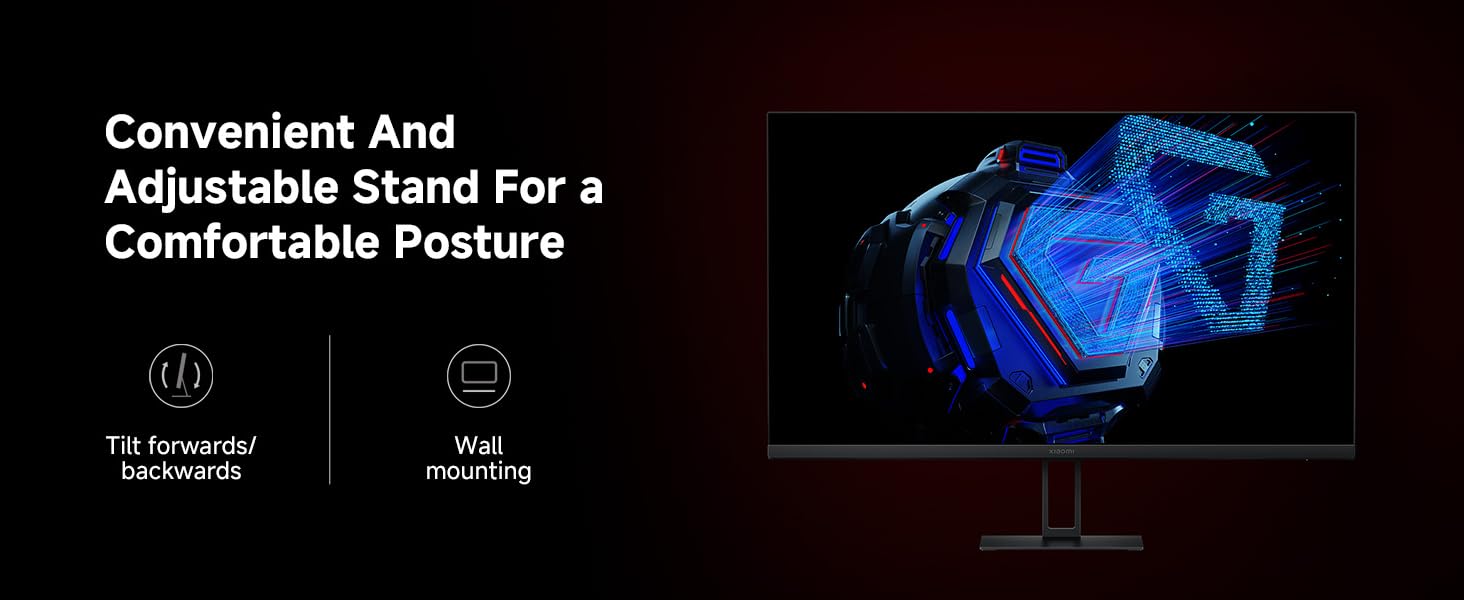
- Align the assembled stand with the mounting holes on the back of the monitor panel. Gently push until it locks into place. Ensure it is firmly attached.
 చిత్రం: వెనుక view of the Xiaomi G27Qi monitor showing the stand attachment points and various ports.
2. కంప్యూటర్కు కనెక్ట్ చేస్తోంది
The monitor supports DisplayPort (DP) and HDMI connections. For optimal performance, especially for gaming, DisplayPort is recommended.
- పవర్ కనెక్షన్: Connect the power adapter to the monitor's power input and then plug the power cable into a wall outlet.
- వీడియో కనెక్షన్:
- For DisplayPort: Connect one end of the DP cable to the monitor's DP 1.4 port and the other end to the DP output on your computer's graphics card.
- For HDMI: Connect one end of the HDMI cable to the monitor's HDMI 2.0 port and the other end to the HDMI output on your computer's graphics card.
 చిత్రం: క్లోజప్ view of the monitor's rear ports, including DisplayPort 1.4 and HDMI 2.0 inputs.
After connecting, power on the monitor and your computer. The monitor should automatically detect the input signal. If not, use the joystick control to manually select the input source.
మానిటర్ ఆపరేటింగ్
1. పవర్ ఆన్/ఆఫ్ మరియు OSD నావిగేషన్
The monitor features a single joystick control located on the back for power and On-Screen Display (OSD) navigation. Press the joystick to power on/off. Move the joystick up, down, left, or right to navigate the OSD menu.
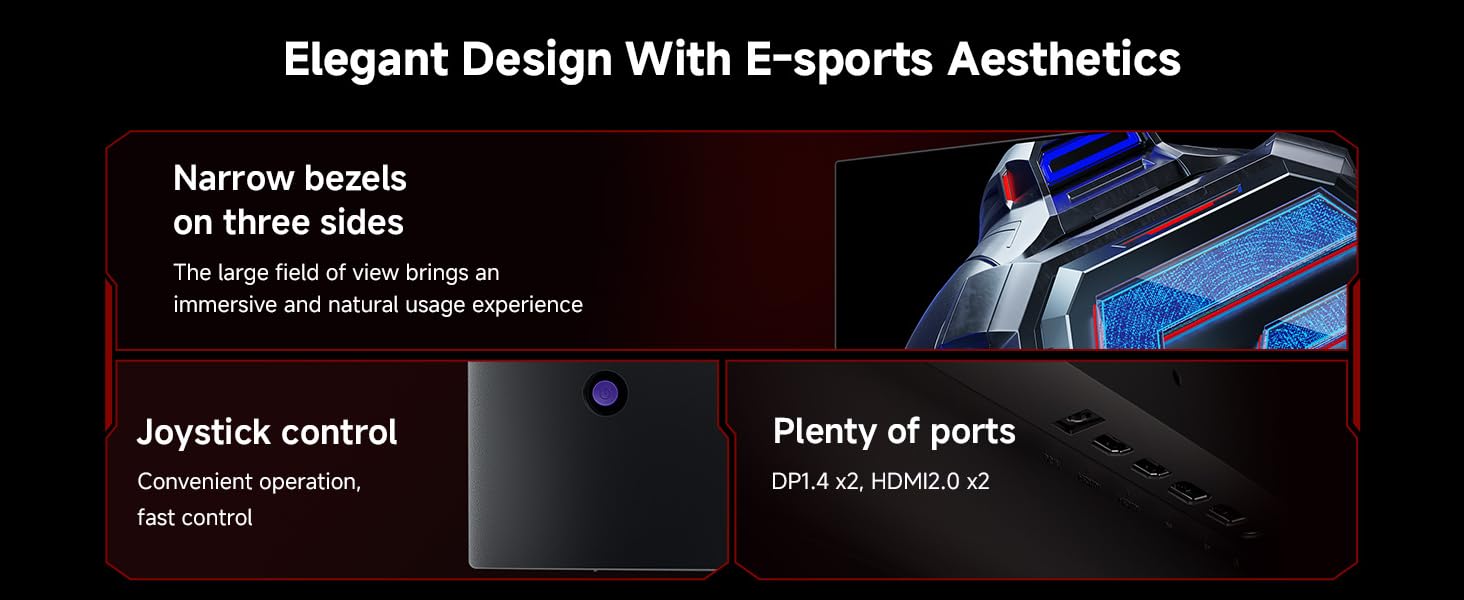 Image: Illustration showing the joystick control for OSD navigation and power, alongside the various input ports.
2. డిస్ప్లే సెట్టింగ్లను సర్దుబాటు చేయడం
వివిధ డిస్ప్లే సెట్టింగ్లను సర్దుబాటు చేయడానికి OSD మెనుని యాక్సెస్ చేయండి:
- రిఫ్రెష్ రేట్ (180Hz): The monitor supports a high refresh rate of 180Hz for smooth visuals. Ensure your graphics card and cable support this refresh rate. You may need to set this in your operating system's display settings.
- Response Time (1ms): The 1ms GTG rapid response time reduces motion blur. This setting is typically enabled by default for optimal gaming performance.
- AMD ఫ్రీసింక్ ప్రీమియం: This technology synchronizes the monitor's refresh rate with your AMD graphics card's frame rate to eliminate screen tearing and stuttering. Enable FreeSync in the monitor's OSD menu and your AMD Radeon Software.
- Color Gamut (100% sRGB): The monitor offers a 100% sRGB color gamut for accurate and vibrant colors. Color settings can be fine-tuned in the OSD.
- Low Blue Light & DC Dimming: For eye comfort during long usage, the monitor features TÜV Low Blue Light Certification and DC dimming to reduce flicker. These modes can be activated via the OSD menu.
- HDR (హై డైనమిక్ రేంజ్): The monitor supports HDR. When HDR is enabled, some image settings may be locked.
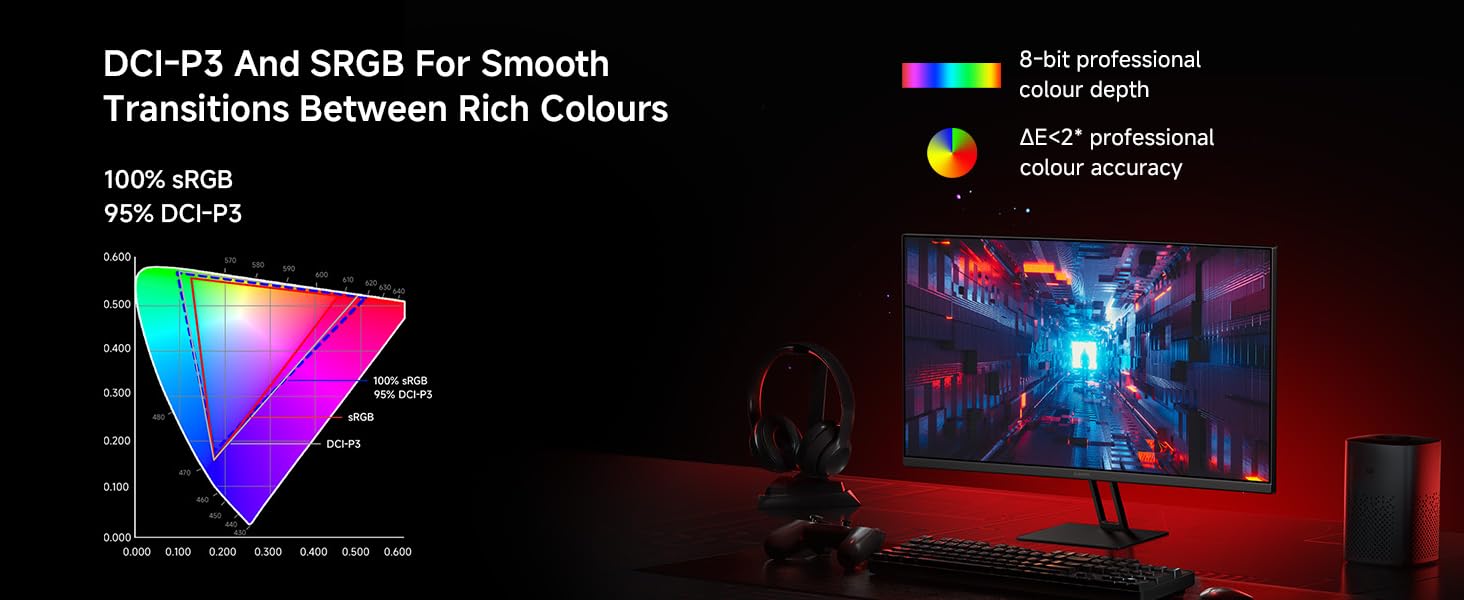 Image: Visual comparison demonstrating the smoothness of 180Hz refresh rate versus 60Hz.
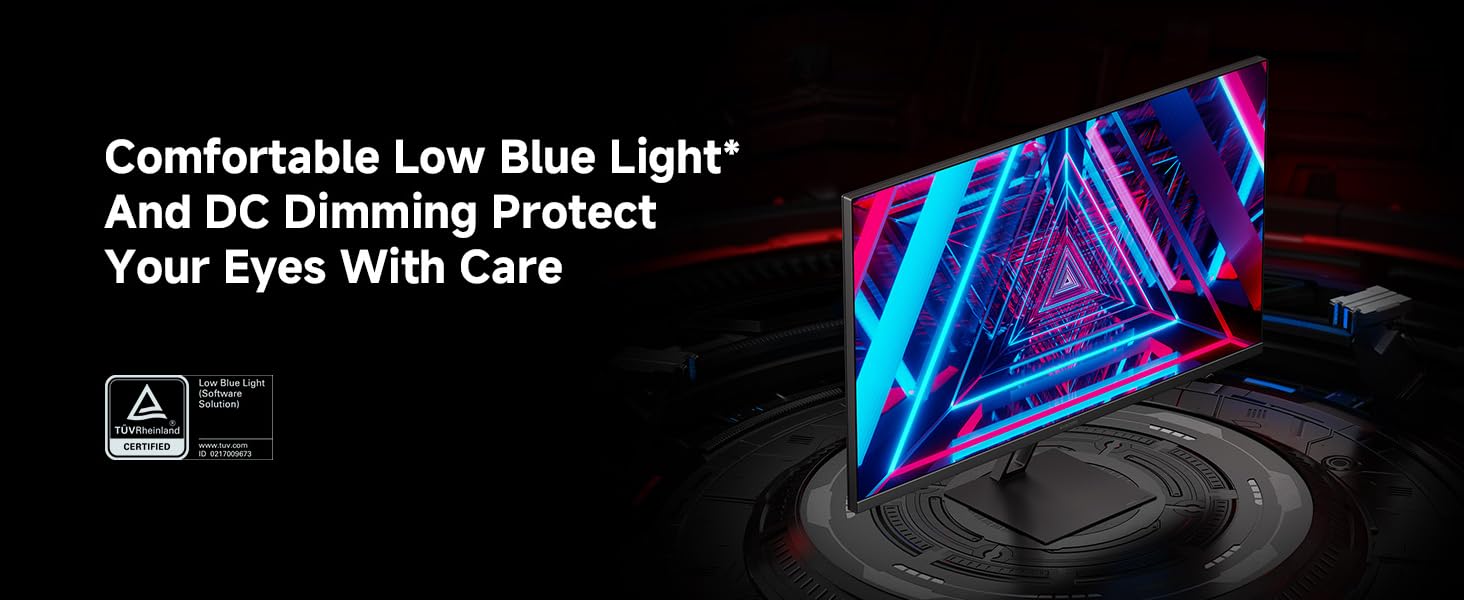 Image: A visual representation of FreeSync technology preventing screen tearing in fast-paced scenes.
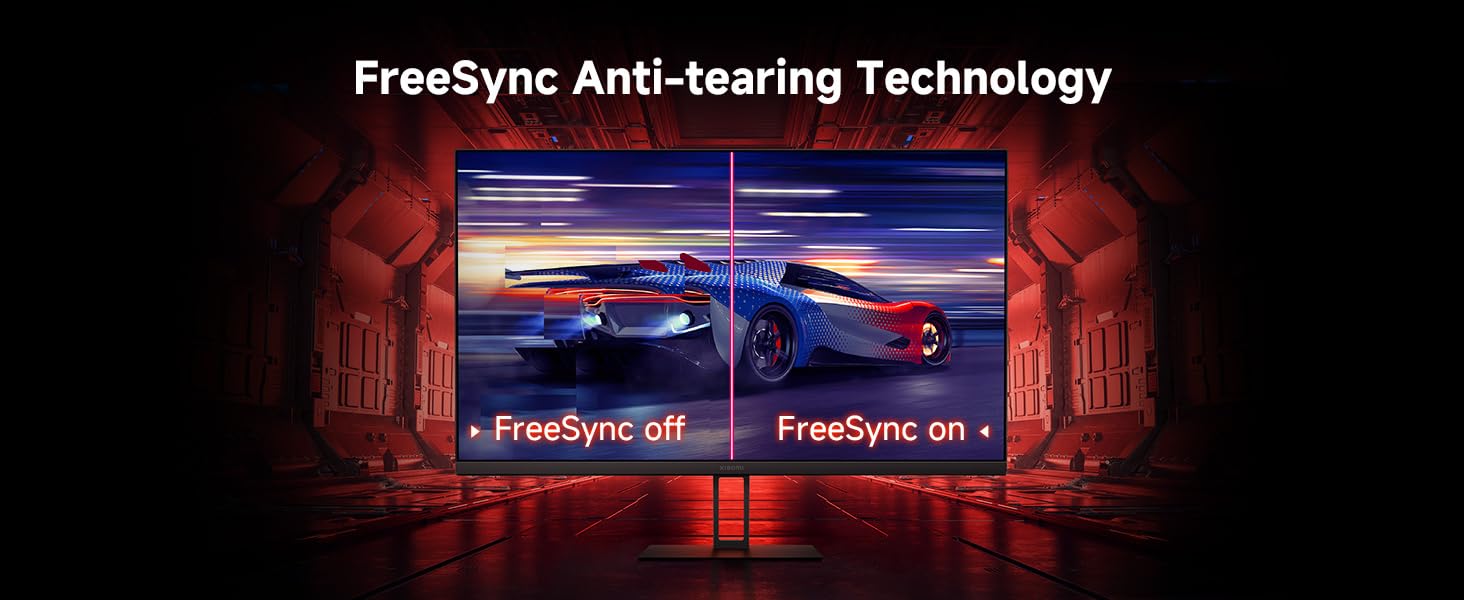 Image: The monitor screen showing the TÜV Low Blue Light Certification logo, indicating eye protection features.
నిర్వహణ
1. మానిటర్ శుభ్రపరచడం
- శుభ్రపరిచే ముందు ఎల్లప్పుడూ మానిటర్ను పవర్ ఆఫ్ చేసి, పవర్ కేబుల్ను అన్ప్లగ్ చేయండి.
- కొద్దిగా మెత్తని, మెత్తని బట్టను ఉపయోగించండి dampనీరు లేదా రాపిడి లేని స్క్రీన్ క్లీనర్తో శుభ్రం చేయండి.
- క్లీనర్ను నేరుగా స్క్రీన్పై పిచికారీ చేయవద్దు.
- బెంజీన్, థిన్నర్, అమ్మోనియా ఆధారిత క్లీనర్లు లేదా రాపిడి పదార్థాలను ఉపయోగించడం మానుకోండి, ఎందుకంటే ఇవి స్క్రీన్ లేదా సిని దెబ్బతీస్తాయి.asing.
2. సాధారణ సంరక్షణ
- ప్రత్యక్ష సూర్యకాంతిలో లేదా వేడి మూలాల దగ్గర మానిటర్ను ఉంచడం మానుకోండి.
- మానిటర్ చుట్టూ తగినంత వెంటిలేషన్ ఉండేలా చూసుకోండి.
- మానిటర్ లేదా దాని కేబుల్స్ పై బరువైన వస్తువులను ఉంచవద్దు.
- If moving the monitor, handle it carefully and avoid putting pressure on the screen.
ట్రబుల్షూటింగ్
| సమస్య | సాధ్యమైన కారణం | పరిష్కారం |
|---|---|---|
| తెరపై చిత్రం లేదు | పవర్ కేబుల్ డిస్కనెక్ట్ చేయబడింది; వీడియో కేబుల్ డిస్కనెక్ట్ చేయబడింది; తప్పు ఇన్పుట్ సోర్స్ ఎంచుకోబడింది. | Check power and video cable connections. Ensure the monitor is powered on. Use the OSD to select the correct input source (DP/HDMI). |
| స్క్రీన్ చిరిగిపోవడం లేదా నత్తిగా మాట్లాడటం | FreeSync not enabled; Graphics card driver issues; Low frame rate. | Ensure FreeSync is enabled in both monitor OSD and AMD Radeon Software. Update graphics card drivers. Lower in-game settings if frame rate is consistently low. |
| చిత్రం చాలా ముదురుగా/ప్రకాశవంతంగా ఉంది లేదా రంగులు తప్పుగా ఉన్నాయి | Brightness/Contrast settings incorrect; Color profile issues; HDR mode limitations. | Adjust brightness, contrast, and color settings via the OSD. If HDR is enabled, note that some settings may be locked. Disable HDR temporarily to adjust if needed. |
| Dead pixels or screen glitches | Manufacturing defect; Cable issue. | Check video cable for damage or loose connection. If persistent, contact customer support for warranty service. |
| Local Dimming artifacts (haloing/glow) | Inherent characteristic of local dimming technology with certain content (e.g., text, CAD interfaces). | This is expected behavior for mini-LED local dimming. If distracting, disable local dimming in the OSD for non-gaming/non-HDR content. |
స్పెసిఫికేషన్లు
| ఫీచర్ | వివరాలు |
|---|---|
| మోడల్ సంఖ్య | P27QCA-RGGL పరిచయం |
| స్క్రీన్ పరిమాణం | 27 అంగుళాలు |
| ప్యానెల్ రకం | Fast IPS LCD |
| రిజల్యూషన్ | 2560 x 1440 (QHD) |
| రిఫ్రెష్ రేట్ | 180Hz |
| ప్రతిస్పందన సమయం | 1 ఎంఎస్ (జిటిజి) |
| కారక నిష్పత్తి | 16:9 |
| రంగు స్వరసప్తకం | 100% sRGB |
| Viewing యాంగిల్ | 178° |
| ప్రకాశం | 300 నిట్స్ (సాధారణం) |
| కనెక్టివిటీ | 2x HDMI 2.0, 2x డిస్ప్లేపోర్ట్ 1.4 |
| కొలతలు (ఉత్పత్తి) | 6.67 x 24.15 x 20.73 అంగుళాలు |
| వస్తువు బరువు | 9 పౌండ్లు |
| కంటి సంరక్షణ లక్షణాలు | TÜV Low Blue Light Certification, DC Dimming |
| అనుకూల సమకాలీకరణ | AMD ఫ్రీసింక్ ప్రీమియం |
వారంటీ మరియు మద్దతు
Xiaomi products are manufactured to the highest quality standards. For information regarding your product's warranty, please refer to the warranty card included in your package or visit the official Xiaomi support website. If you encounter any issues not covered in this manual, please contact Xiaomi customer support for assistance.
For further support and product information, you may visit the official Xiaomi Store: Xiaomi Official Store on Amazon.
Ask a question about this manual
Ask about setup, troubleshooting, compatibility, parts, safety, or missing instructions. Manuals+ will review the question and use this page’s manual context to help answer it.