
పరిచయం
This manual provides essential information for the proper setup, operation, and maintenance of your Anmite Portable Monitor. Please read this guide thoroughly before using the product to ensure optimal performance and longevity.
ప్యాకేజీ విషయాలు
- Anmite Portable Monitor x 1
- Mini-HDMI to HDMI cable x 1
- టైప్-సి నుండి టైప్-సి కేబుల్ x 1
- Type-C to USB-A cable x 1
- వినియోగదారు గైడ్ x 1
స్పెసిఫికేషన్లు
| నికర బరువు | 0.7కిలోలు (1.54 పౌండ్లు) |
| కొలతలు | 360 x 225 x 5-10 mm (14.17 x 8.86 x 0.2-0.39 అంగుళాలు) |
| స్క్రీన్ పరిమాణం | 16 అంగుళాలు |
| ప్యానెల్ రకం | IPS |
| కారక నిష్పత్తి | 16:10 |
| రిజల్యూషన్ | 2560 x 1600 (2.5K QHD) |
| డిస్ప్లే రంగు | 16.7M |
| రంగు ఉష్ణోగ్రత | 6800K |
| విజువల్ యాంగిల్ | H:178° V:178° |
| విజువల్ ఏరియా | 344.16 x 194.59 మి.మీ |
| కాంట్రాస్ట్ రేషియో | 1000:1 |
| ప్రకాశం | 280cd/m² |
| రంగు స్వరసప్తకం | 100% sRGB |
| రిఫ్రెష్ రేట్ | 144Hz |
| ఇన్పుట్ ఇంటర్ఫేస్ | Mini-HDMI, Type-C (Full Function) x 2 |
| అవుట్పుట్ ఇంటర్ఫేస్ | 3.5mm ఆడియో ఇంటర్ఫేస్ |
| స్పీకర్ | Built-in speakers (1W*2) |
| విద్యుత్ వినియోగం | సుమారు 12 వాట్స్ |
ఉత్పత్తి ముగిసిందిview
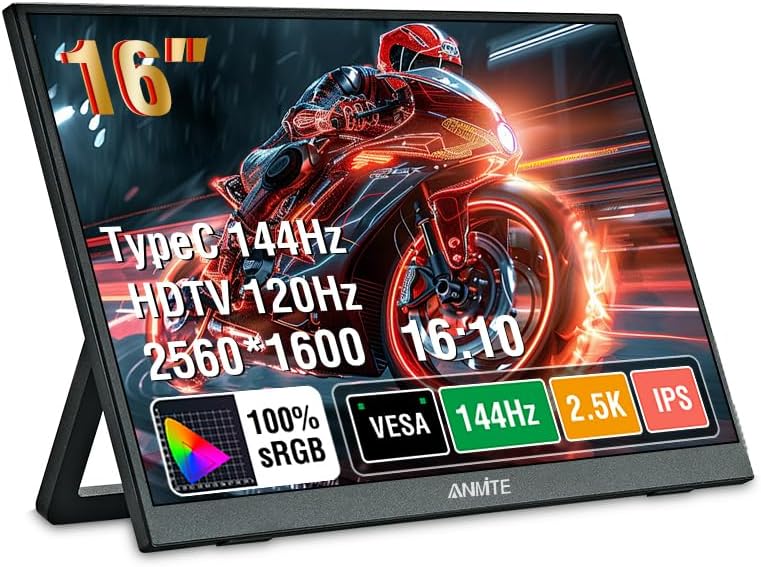
Image: Anmite Portable Monitor showcasing its display capabilities with vibrant gaming graphics.
The Anmite Portable Monitor is a compact and versatile display designed for various uses, including extending your laptop screen, gaming, or mobile entertainment. Its slim metal enclosure and lightweight design make it highly portable.
భౌతిక లక్షణాలు మరియు పోర్టులు
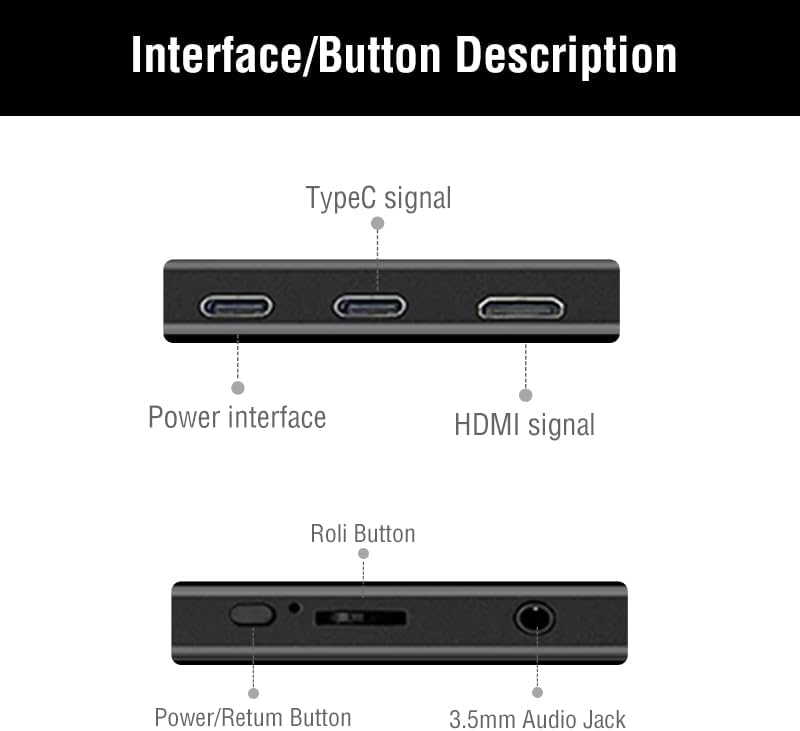
Image: Detailed diagram illustrating the monitor's interface ports and control buttons.
- ఇన్పుట్ ఇంటర్ఫేస్లు: Two full-function Type-C (USB-C) ports and one Mini-HDMI port for video signal transmission.
- అవుట్పుట్ ఇంటర్ఫేస్: A 3.5mm audio jack for connecting headphones or external speakers.
- నియంత్రణ బటన్లు: A toggle button for menu navigation, volume control, and power on/off.
- అంతర్నిర్మిత స్పీకర్లు: Dual 1W speakers provide audio output.
- అయస్కాంత కవర్: The included magnetic cover protects the screen and doubles as an adjustable stand.
- వెసా మౌంట్ అనుకూలత: Features wall mounting holes (7.5cm x 7.5cm spacing) on the rear for alternative installation.
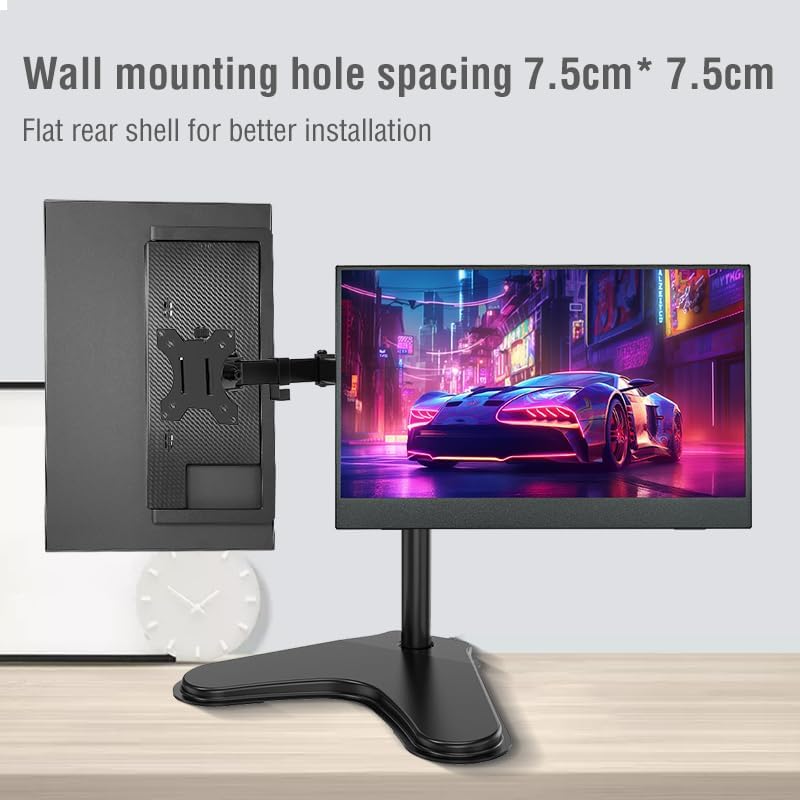
చిత్రం: వెనుక view of the monitor highlighting the 7.5cm x 7.5cm VESA wall mounting holes for secure installation.
సెటప్ గైడ్
Follow these steps to connect and set up your Anmite Portable Monitor.
1. పవర్ కనెక్షన్
- Connect the provided Type-C to USB-A cable to one of the monitor's Type-C ports and a compatible power adapter (not included) or a USB-A port on your host device for power.
- Alternatively, if your host device supports power delivery via Type-C, a single full-function Type-C cable can provide both power and video.

Image: The portable monitor demonstrating multiple power supply methods, including connection to a power bank and a laptop via USB-C.
2. Video Connection
కింది కనెక్షన్ పద్ధతుల్లో ఒకదాన్ని ఎంచుకోండి:
- Type-C (Full Function): Use the provided Type-C to Type-C cable to connect the monitor to a device with a full-featured USB-C port (supports video output and power delivery). This is the simplest connection for compatible devices.
- Mini-HDMI: Use the provided Mini-HDMI to HDMI cable to connect the monitor to a device with an HDMI output. Ensure the monitor is also powered via a separate Type-C to USB-A cable or a power adapter.
Note: Ensure your device's Type-C interface is full-featured for video output. If it is only for charging, it will not transmit video signals.
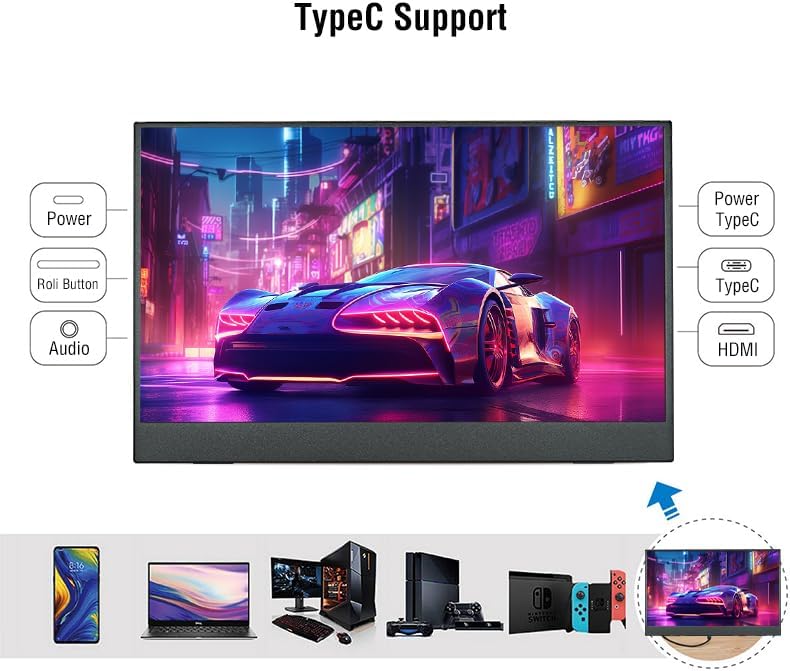
Image: The monitor displaying its compatibility with multiple devices, including smartphones, laptops, and gaming consoles, through Type-C and HDMI connections.
3. Display Settings (Windows/macOS)
After connecting, your operating system should detect the new display. You may need to adjust display settings:
- డిస్ప్లేను విస్తరించండి: To use the portable monitor as a secondary screen, allowing you to drag windows between displays.
- నకిలీ ప్రదర్శన: To mirror your primary screen's content onto the portable monitor.
- రిజల్యూషన్: Set the resolution to 2560x1600 for optimal clarity.
- రిఫ్రెష్ రేట్: Adjust to 144Hz for smoother visuals, especially for gaming.
ఆపరేటింగ్ సూచనలు
1. Using the Magnetic Cover/Stand
The included magnetic cover can be folded to create a stand, allowing you to position the monitor at various viewing angles. Simply fold the cover into a triangular shape and place the monitor into the grooves for stability.
2. ఆన్-స్క్రీన్ డిస్ప్లే (OSD) మెనూ
Use the toggle button on the side of the monitor to access and navigate the OSD menu. This menu allows you to adjust various display settings:
- ప్రకాశం/కాంట్రాస్ట్: Adjust screen luminance and contrast levels.
- రంగు సెట్టింగ్లు: రంగు ఉష్ణోగ్రత, రంగు మరియు సంతృప్తతను సవరించండి.
- ఆడియో: అంతర్నిర్మిత స్పీకర్లు లేదా కనెక్ట్ చేయబడిన హెడ్ఫోన్ల కోసం వాల్యూమ్ను నియంత్రించండి.
- ఇన్పుట్ మూలం: Manually select between Type-C and Mini-HDMI inputs.
- ఇతర సెట్టింగ్లు: Access advanced display options.
3. వినియోగ దృశ్యాలు

Image: The monitor adapts to different environments, including casual viewing, gaming, watching films, and professional office tasks.
- Extended Office: Enhance productivity by using the monitor as a second screen for your laptop, allowing for more workspace.
- గేమింగ్: Connect to gaming consoles (Xbox, PS4, Nintendo Switch) or gaming PCs for a high-refresh-rate, portable gaming experience.
- మొబైల్ వినోదం: Connect to smartphones (with full-function Type-C) for watching videos or browsing content on a larger display.
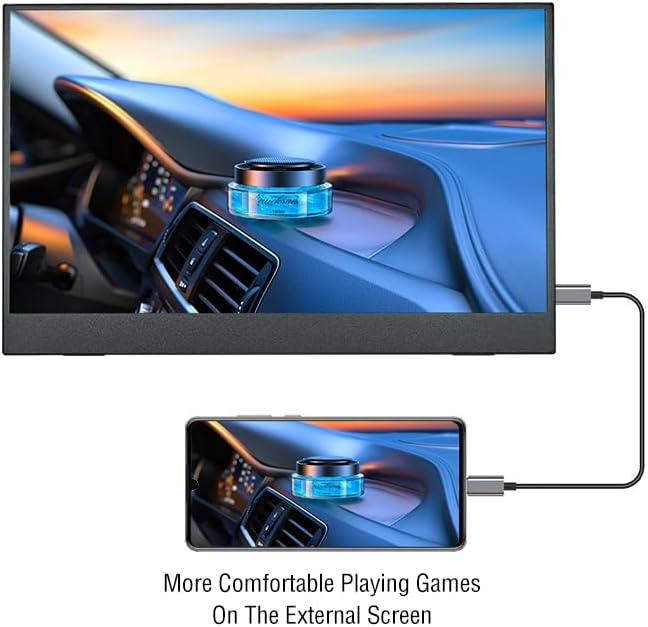
Image: A smartphone connected to the portable monitor, providing a larger display for an enhanced mobile gaming experience.
నిర్వహణ
- శుభ్రపరచడం: Use a soft, lint-free cloth to clean the screen. For stubborn marks, lightly dampనీటితో లేదా స్క్రీన్-క్లీనింగ్ ద్రావణంతో వస్త్రాన్ని తుడవండి. కఠినమైన రసాయనాలను నివారించండి.
- నిల్వ: When not in use, store the monitor in its magnetic cover to protect the screen from scratches and dust.
- నిర్వహణ: Handle the monitor with care to prevent drops or impacts, which could damage the screen or internal components.
ట్రబుల్షూటింగ్
- సంకేతం లేదు:
- అన్ని కేబుల్స్ సురక్షితంగా కనెక్ట్ అయ్యాయని నిర్ధారించుకోండి.
- Verify the monitor is receiving power.
- Check if your device's Type-C port supports video output.
- Try selecting the input source manually via the OSD menu.
- ఆడియో లేదు:
- Check the volume settings on both the monitor (via OSD) and your connected device.
- Ensure no headphones are plugged into the 3.5mm audio jack if you intend to use the built-in speakers.
- మినుకుమినుకుమనే ప్రదర్శన:
- Ensure the monitor is receiving sufficient power.
- వేరే కేబుల్ లేదా పోర్ట్ని ప్రయత్నించండి.
- Adjust the refresh rate in your device's display settings.
వారంటీ మరియు మద్దతు
For warranty information and technical support, please refer to the included User Guide or visit the official Anmite webసైట్. వారంటీ క్లెయిమ్ల కోసం మీ కొనుగోలు రసీదుని ఉంచండి.