
1. పరిచయం
Thank you for choosing the EMITEVER WiFi Bluetooth 5-in-1 LED Controller. This advanced controller is designed to provide flexible and intelligent control over various DC12-24V PWM LED strip lights. It supports Single Color, CCT (Correlated Color Temperature), RGB, RGBW, and RGB+CCT LED strips, offering a comprehensive solution for your lighting needs. Control is seamlessly integrated through the Tuya Smart or Smart Life mobile applications, and it is compatible with popular voice assistants like Amazon Alexa and Google Home.

Figure 1.1: EMITEVER 5-in-1 LED Controller and its mobile application interface.
ముఖ్య లక్షణాలు:
- 5-ఇన్-1 ఫంక్షనాలిటీ: Supports Single Color, CCT, RGB, RGBW, and RGB+CCT LED strips.
- APP నియంత్రణ: Cloud-based 2.4GHz WiFi control via Tuya Smart or Smart Life APP.
- వాయిస్ నియంత్రణ: అమెజాన్ అలెక్సా మరియు గూగుల్ హోమ్ అసిస్టెంట్తో అనుకూలమైనది.
- Group & Zonal Control: Manage multiple controllers simultaneously or in tailored zones.
- బహుళ రక్షణ మెకానిజమ్స్: Includes overcurrent, overheat, short circuit, and reverse polarity protection.
- Auto-Transmitting & Auto-Sync: Extends control distance through signal relay.
NOTE: This controller is APP-controlled and does not work with RF remote controls. Ensure your LED strip is compatible with this controller. For any issues, please contact customer support.
2. సెటప్ మరియు ఇన్స్టాలేషన్
2.1 వైరింగ్ రేఖాచిత్రాలు
The EMITEVER 5-in-1 LED Controller supports various LED strip configurations. Ensure correct wiring based on your LED strip type. The input voltage (DC12-24V) depends on your LED strip's requirements. The controller has two power interfaces for multiple power supply options.

చిత్రం 2.1: పైగాview of wiring connections for different LED strip types.
Single Color LED Strip Wiring
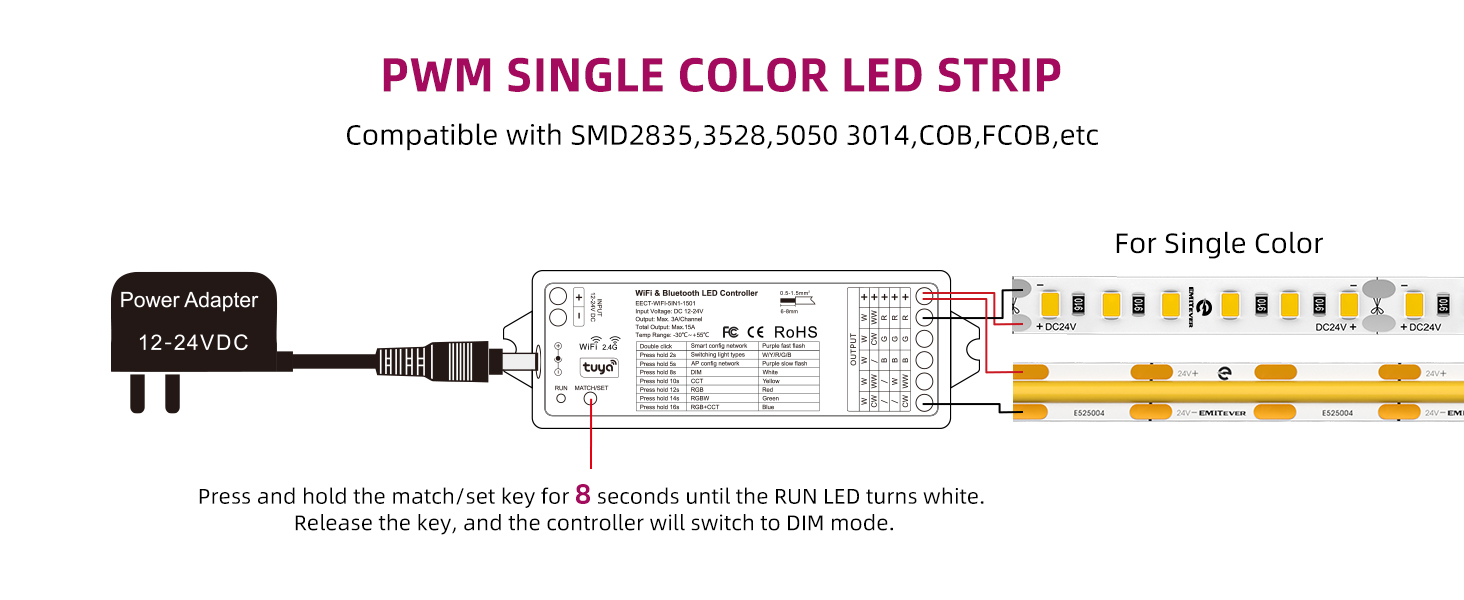
Figure 2.2: Connect the positive (+) and negative (W) terminals for single color strips. To switch to DIM mode, press and hold the match/set key for 8 seconds until the RUN LED turns white.
Dual Color CCT LED Strip Wiring
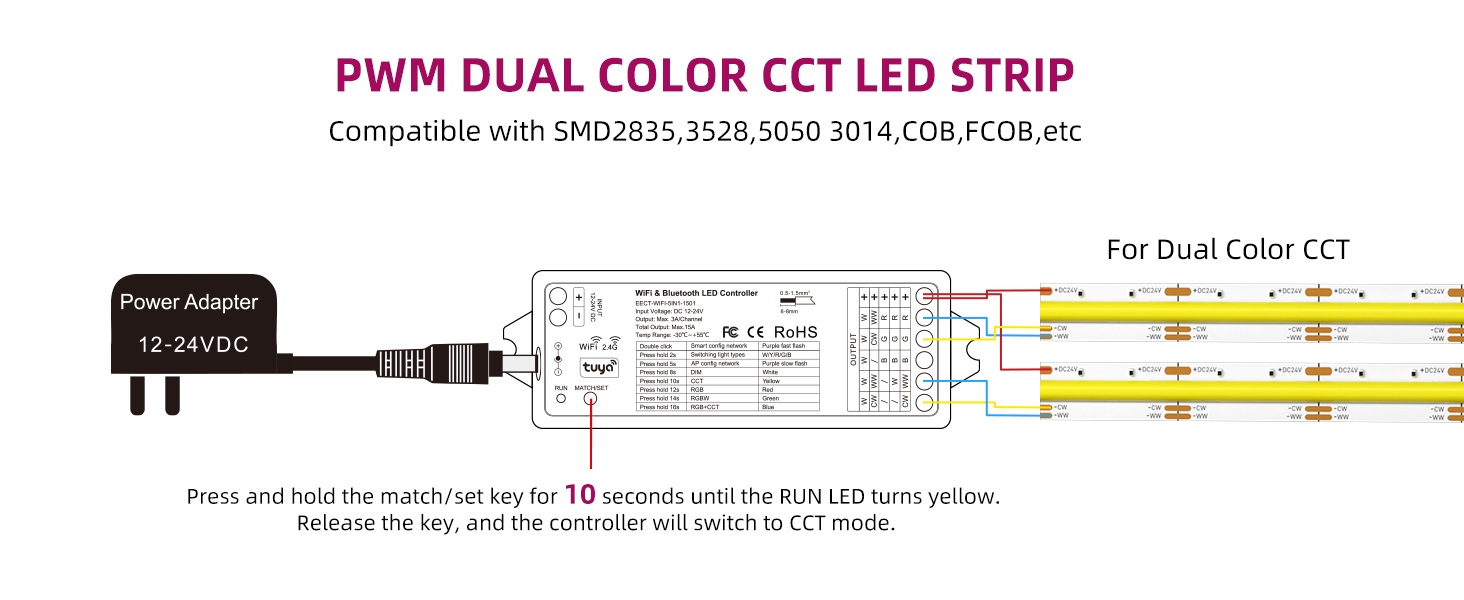
Figure 2.3: Connect the positive (+) and the Warm White (WW) and Cold White (CW) terminals for CCT strips. To switch to CCT mode, press and hold the match/set key for 10 seconds until the RUN LED turns yellow.
RGB LED Strip Wiring
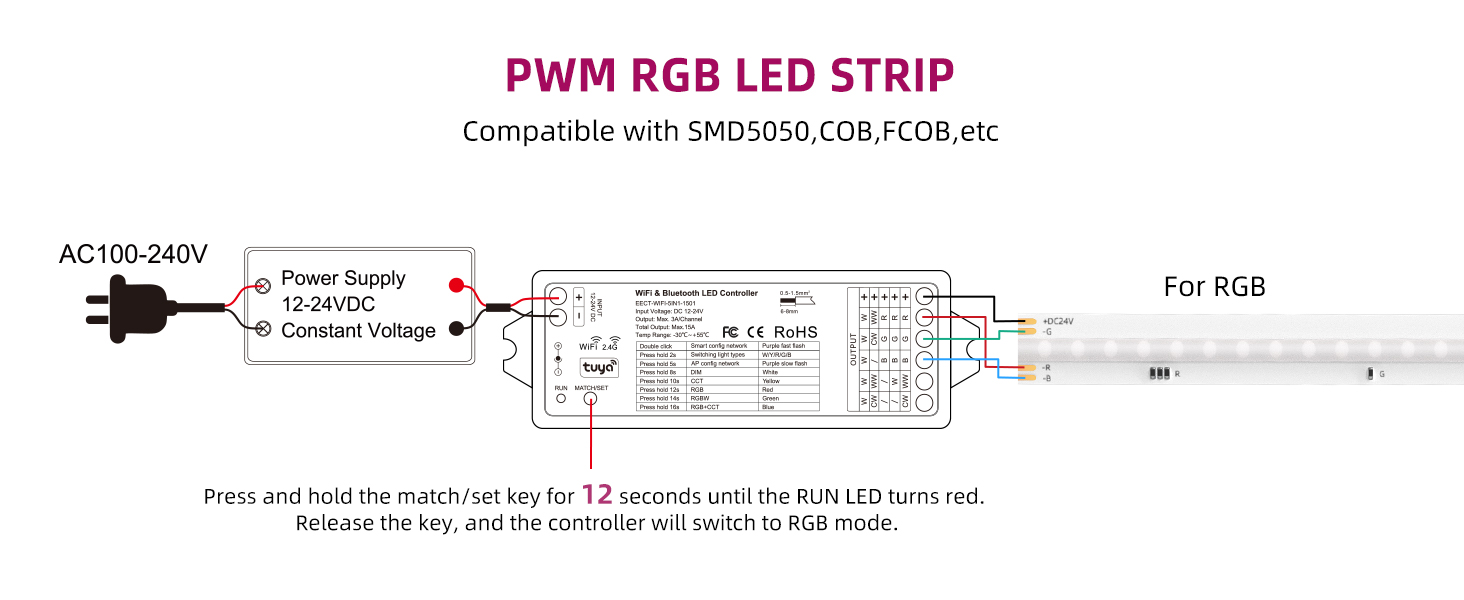
Figure 2.4: Connect the positive (+) and the Red (R), Green (G), and Blue (B) terminals for RGB strips. To switch to RGB mode, press and hold the match/set key for 12 seconds until the RUN LED turns red.
RGBW LED Strip Wiring
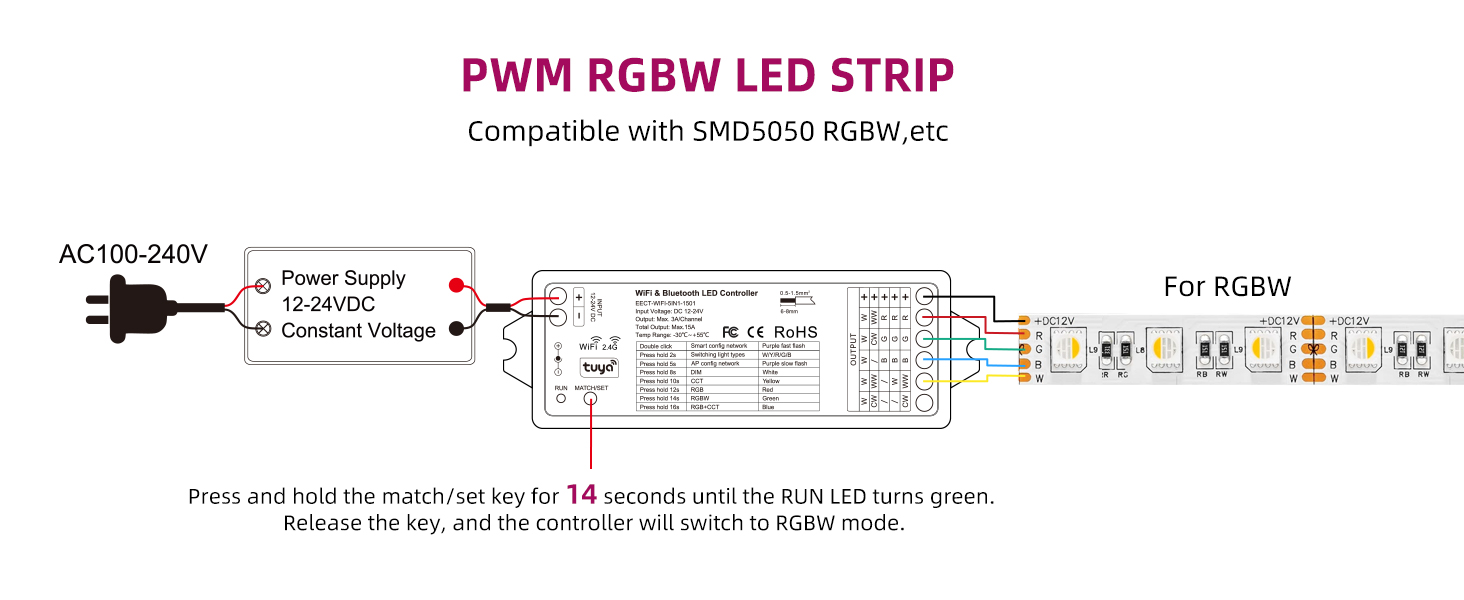
Figure 2.5: Connect the positive (+) and the Red (R), Green (G), Blue (B), and White (W) terminals for RGBW strips. To switch to RGBW mode, press and hold the match/set key for 14 seconds until the RUN LED turns green.
RGB+CCT LED Strip Wiring
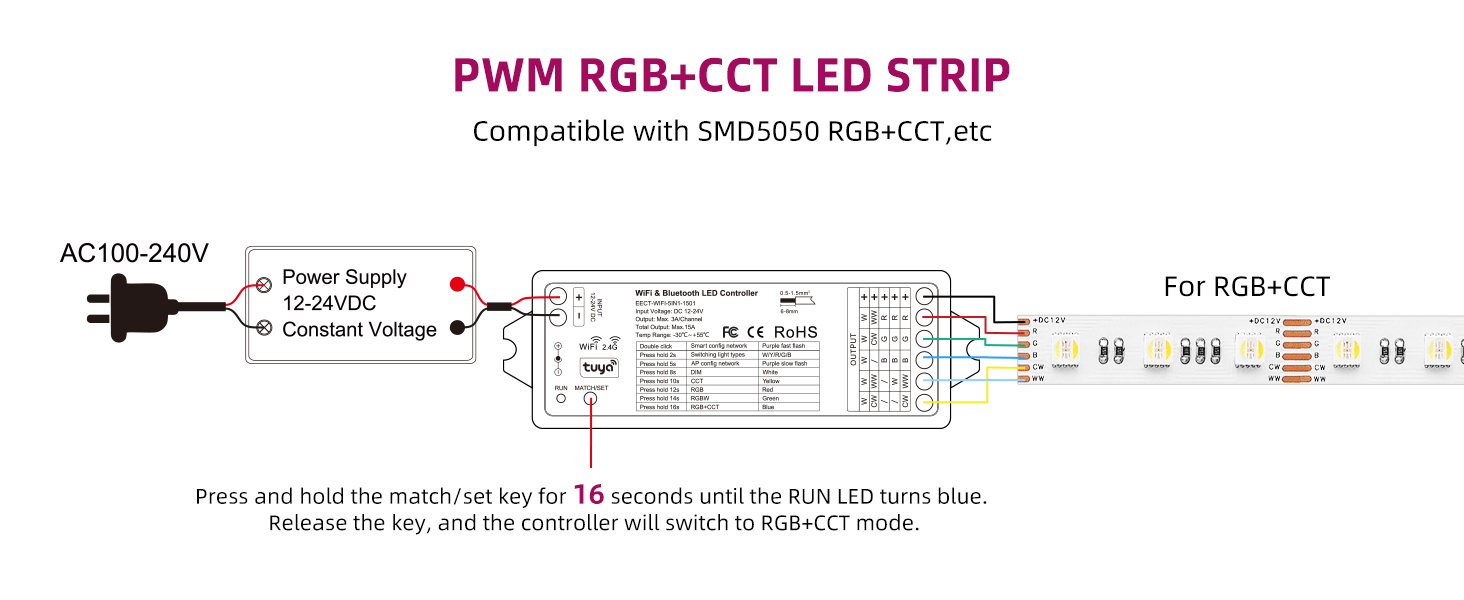
Figure 2.6: Connect the positive (+) and the Red (R), Green (G), Blue (B), Warm White (WW), and Cold White (CW) terminals for RGB+CCT strips. To switch to RGB+CCT mode, press and hold the match/set key for 16 seconds until the RUN LED turns blue.
2.2 పవర్ కనెక్షన్
The controller supports DC12-24V input voltage. Ensure your power supply matches the voltage requirements of your LED strip. The controller features both a 5.5x2.1mm DC Jack Plug and 16-24AWG wire terminals for power input, offering flexibility in connection.
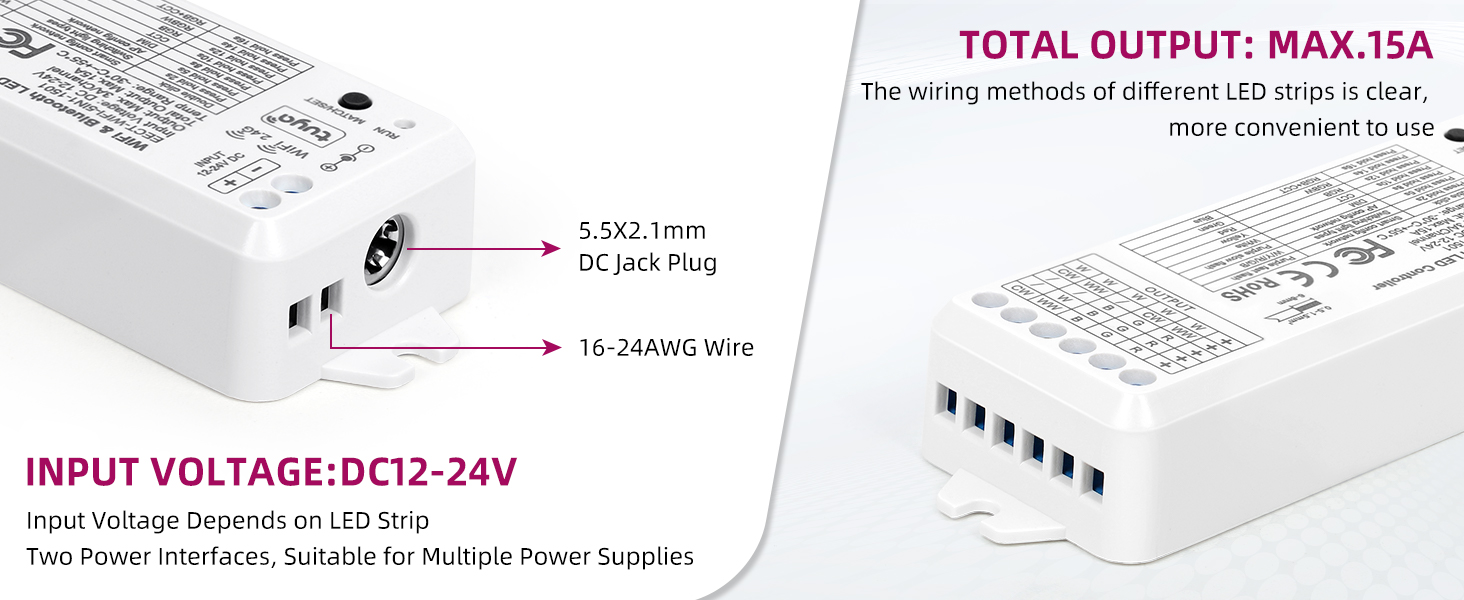
Figure 2.7: Power input options for the EMITEVER LED Controller.
2.3 APP Pairing (Tuya Smart / Smart Life)
- డౌన్లోడ్ చేయండి తుయా స్మార్ట్ or స్మార్ట్ లైఫ్ APP from your mobile app store.
- మీ ఖాతాకు నమోదు చేయండి లేదా లాగిన్ అవ్వండి.
- Power on the LED controller.
- Open the APP and follow the on-screen instructions to add a new device. The controller uses 2.4GHz WiFi for connection.
- Once connected, you can begin controlling your LED strips.
3. ఆపరేటింగ్ సూచనలు
3.1 APP నియంత్రణ
The Tuya Smart or Smart Life APP provides comprehensive control over your LED lighting. Functions include:
- RGB Color Adjustments: Select from 16 million colors.
- Color Temperature & Brightness Control: Adjust white light from warm to cool and dim/brighten as needed.
- Timer & Schedule Settings: Automate lighting on/off times.
- సీన్ ఎడిటింగ్: Create and customize lighting scenes for different moods or activities.
- సంగీతం సమకాలీకరణ: లైట్లు సంగీతానికి ప్రతిస్పందిస్తాయి.

Figure 3.1: Multifunctional control options available through the mobile application.
3.2 Third-Party Voice Control
Integrate your EMITEVER controller with Amazon Alexa or Google Home Assistant for convenient hands-free control. Simply link the Tuya Smart or Smart Life account within your voice assistant's app.

Figure 3.2: Voice control compatibility with Amazon Alexa and Google Home.
3.3 Group Setting and Zonal Control
Multiple controllers can be grouped together within the APP for simultaneous control. You can also establish multiple groups to enable zonal control, allowing tailored management of different areas in your space.

చిత్రం 3.3: ఉదాample of group setting and zonal control for multiple lighting areas.
3.4 Long Distance Control (Cloud Data)
With cloud data support, you can control your lights from anywhere, as long as you have an internet connection on your smartphone.

Figure 3.4: Cloud-based control allows managing your lights from any location.
3.5 Auto-Transmitting & Auto-Sync Function
Each controller can transmit signals to another within 30 meters. As long as there is a strip controller within 30 meters, the control distance can be limitless, creating a mesh network for extended range.
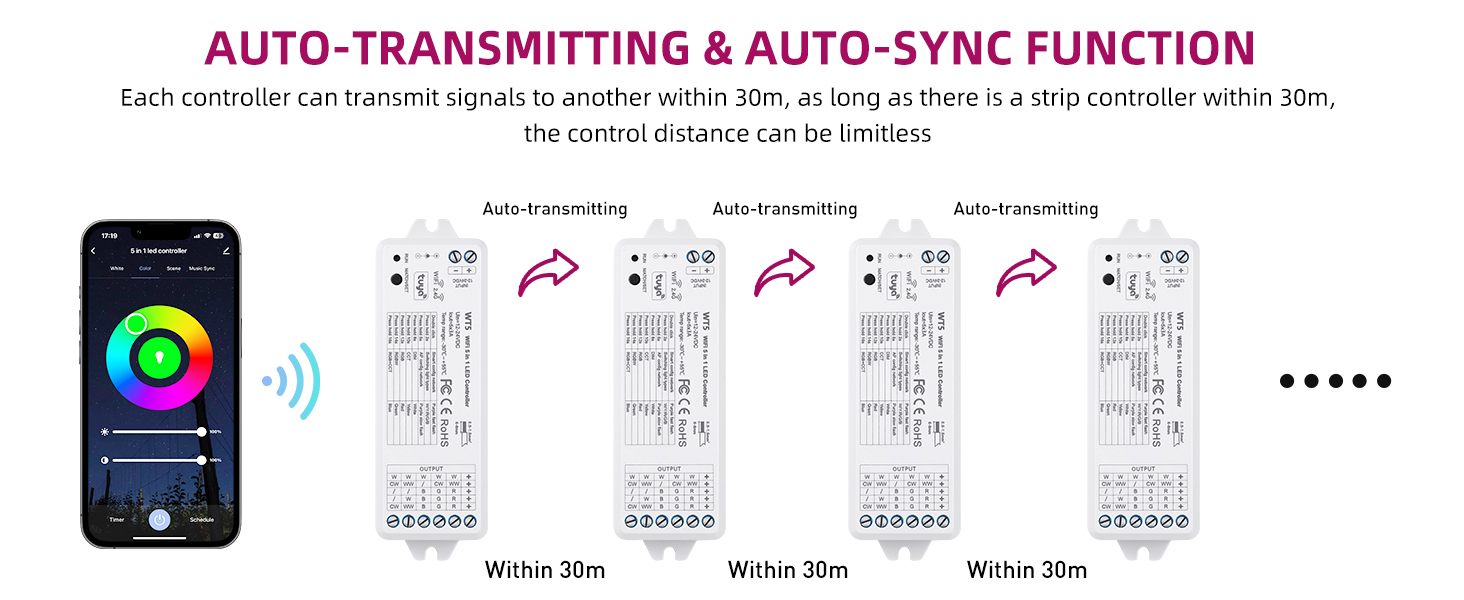
Figure 3.5: The auto-transmitting feature extends the effective control range.
3.6 టైమర్ మరియు షెడ్యూల్ ఫంక్షన్
Set up timers and schedules to automatically turn your lights on or off, creating a personalized lighting routine.

Figure 3.6: Automate your lighting with timer and schedule functions.
3.7 Scene Management
The APP includes multiple default scenes (e.g., Night, Read, Working, Leisure) that you can use or customize to fit your preferences for any special moment.
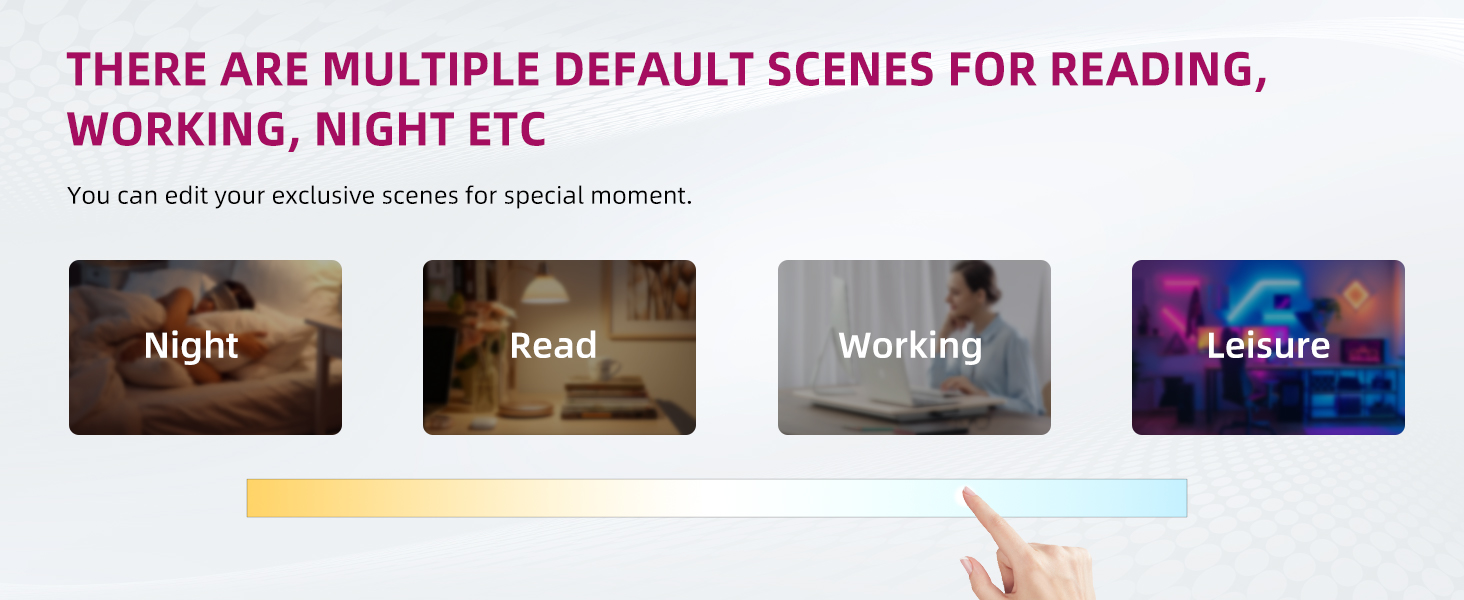
Figure 3.7: Pre-set and customizable lighting scenes.
3.8 పరికర భాగస్వామ్యం
All members in your family can share control of the devices, allowing multiple users to manage the lighting and perform scenes.

Figure 3.8: Device sharing feature for multi-user control.
4. నిర్వహణ
The EMITEVER 5-in-1 LED Controller is designed for long-term, reliable operation and requires no specific user maintenance. Keep the device in a dry environment and avoid exposure to extreme temperatures or direct moisture. Do not attempt to open or repair the device yourself, as this will void the warranty.
5. ట్రబుల్షూటింగ్
If you encounter any issues during use, please consider the following common troubleshooting steps:
- శక్తి లేదు: Ensure the power supply is correctly connected and providing the correct DC12-24V voltage. Check all wiring connections.
- లైట్లు స్పందించడం లేదు: Verify that the controller is properly paired with the Tuya Smart or Smart Life APP. Check your Wi-Fi connection (2.4GHz network required).
- Incorrect Color/Mode: Ensure the controller's mode is correctly set for your LED strip type (DIM, CCT, RGB, RGBW, RGB+CCT) by pressing and holding the match/set key for the specified duration (refer to Section 2.1).
- వాయిస్ నియంత్రణ సమస్యలు: Confirm that your Tuya Smart/Smart Life account is correctly linked to your Amazon Alexa or Google Home account. Check your internet connection.
- కనెక్షన్ సమస్యలు: If the controller frequently disconnects, ensure it is within range of your 2.4GHz Wi-Fi router.
If the problem persists after attempting these steps, please contact EMITEVER customer support for further assistance.
6. స్పెసిఫికేషన్లు
Detailed technical specifications for the EMITEVER 5-in-1 LED Controller:

Figure 6.1: Product dimensions of the EMITEVER 5-in-1 LED Controller.
| గుణం | విలువ |
|---|---|
| బ్రాండ్ | ఎమిటీవర్ |
| మోడల్ సంఖ్య | EECT-WIFI-5IN1-1501 |
| ఇన్పుట్ వాల్యూమ్tage | 12-24 వోల్ట్లు (DC) |
| మొత్తం అవుట్పుట్ కరెంట్ | గరిష్టంగా 15A |
| ఆపరేటింగ్ ఉష్ణోగ్రత పరిధి | -20°C నుండి +55°C |
| కనెక్టివిటీ | వైఫై (2.4GHz), బ్లూటూత్ |
| APPని నియంత్రించండి | తుయా స్మార్ట్ / స్మార్ట్ లైఫ్ |
| వాయిస్ అసిస్టెంట్ అనుకూలత | అమెజాన్ అలెక్సా, గూగుల్ హోమ్ |
| కొలతలు | 4.8 x 1.73 x 1.1 అంగుళాలు (సుమారుగా) |
| వస్తువు బరువు | 2.89 ఔన్సులు |
| మెటీరియల్ | ప్లాస్టిక్ |
| ధృవపత్రాలు | FCC, CE, RED, ROHS |
7. వారంటీ మరియు మద్దతు
7.1 వారంటీ సమాచారం
The EMITEVER 5-in-1 LED Controller comes with a 5 సంవత్సరాల అమ్మకాల తర్వాత సర్వీస్ వారంటీ. ఈ వారంటీ సాధారణ ఉపయోగంలో మెటీరియల్స్ మరియు పనితనంలో లోపాలను కవర్ చేస్తుంది. వారంటీ క్లెయిమ్ల కోసం దయచేసి మీ కొనుగోలు రుజువును ఉంచుకోండి.
7.2 కస్టమర్ మద్దతు
For technical assistance, troubleshooting, or warranty inquiries, please contact EMITEVER customer support. Refer to the product packaging or the official EMITEVER webఅత్యంత తాజా సంప్రదింపు సమాచారం కోసం సైట్.