
పరిచయం
This manual provides essential instructions for the setup, operation, and maintenance of your XIAOMI 34 inch 180Hz Curved Gaming Monitor. Please read this manual thoroughly before using the product to ensure proper function and safety. Keep this manual for future reference.
భద్రతా సమాచారం
మానిటర్ దెబ్బతినకుండా నిరోధించడానికి మరియు వినియోగదారు భద్రతను నిర్ధారించడానికి క్రింది భద్రతా జాగ్రత్తలను గమనించండి:
- మానిటర్ను వర్షం లేదా తేమకు గురి చేయవద్దు.
- మానిటర్ తెరవవద్దు casing. అన్ని సర్వీసింగ్లను అర్హత కలిగిన సిబ్బందికి సూచించండి.
- Ensure proper ventilation around the monitor. Maintain adequate space for airflow.
- Use only the power adapter supplied with the monitor. Using an incorrect adapter may cause damage.
- Avoid placing heavy objects on the power cord. Protect the power cord from being walked on or pinched.
- Disconnect the power plug during lightning storms or when the unit is unused for long periods.
- మానిటర్ను ప్రత్యక్ష సూర్యకాంతి, ఉష్ణ వనరులు మరియు తీవ్రమైన ఉష్ణోగ్రతల నుండి దూరంగా ఉంచండి.
ప్యాకేజీ విషయాలు
Before proceeding with the setup, please verify that all the following items are present in your product package:
- Display Monitor x1
- Base Suite x1
- Base Mount Suite x1
- DP కేబుల్ x1
- పవర్ అడాప్టర్ x1
- స్క్రూ కిట్ x1
- వినియోగదారు మాన్యువల్ x1
ఉత్పత్తి ముగిసిందిview మరియు ఫీచర్లు
The XIAOMI 34 inch Curved Gaming Monitor offers an immersive visual experience with advanced features designed for gaming and productivity.
ముఖ్య లక్షణాలు:
- 34-inch WQHD Ultrawide Curved Display: A 3440 x 1440 resolution with a 21:9 aspect ratio and 1500R curvature for an expansive and immersive view.
- High Refresh Rate & Response Time: Up to 180Hz refresh rate and 1ms GTG response time for smooth, fluid motion and reduced ghosting.
- FreeSync Premium Technology: Ensures tear-free and stutter-free gaming by synchronizing the monitor's refresh rate with your graphics card.
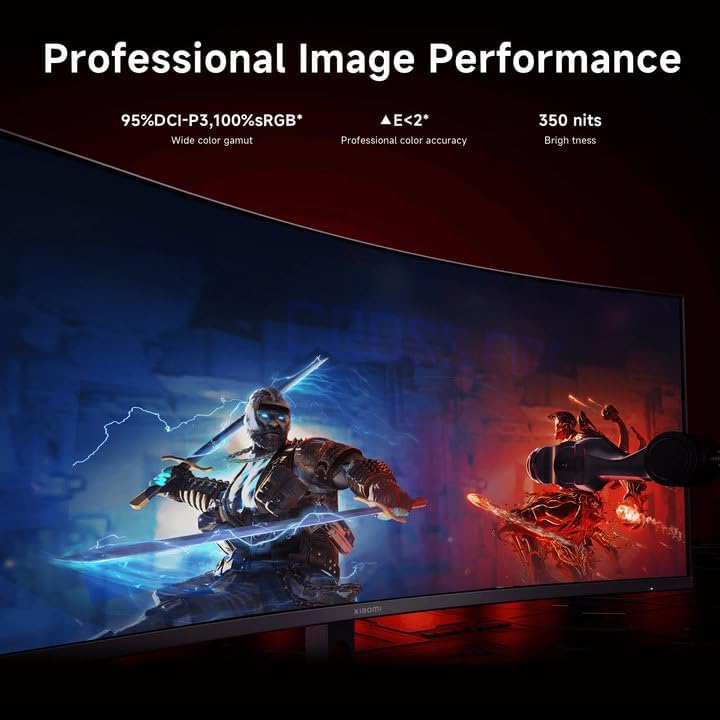
- రంగు ఖచ్చితత్వం: 95% DCI-P3 and 100% sRGB wide color gamut for vibrant and realistic colors.
- కంటి రక్షణ: TÜV Low Blue Light Certification and DC dimming to reduce eye strain and flicker.
- ఫ్లెక్సిబుల్ కనెక్టివిటీ: Multiple ports including DP1.4 x2 and HDMI2.0 x2.

ముందు view of the XIAOMI 34 inch Curved Gaming Monitor, highlighting its ultrawide display and key specifications like 180Hz refresh rate and FreeSync.

ఒక దృష్టాంత ప్రదర్శనasing the XIAOMI Curved Gaming Monitor G34WQi, emphasizing its immersive curved screen and 180Hz refresh rate for esports.

ఒక ఓవర్view of nine key features of the monitor, including wide color gamut, WQHD ultrawide screen, 1ms response, and 180Hz refresh rate.

Visual representation of the 1500R golden curvature, illustrating how it provides an immersive viewing experience by matching the human eye's natural curve.

Comparison showing the expanded view of a 21:9 ultrawide screen with WQHD resolution compared to a standard 16:9 display.

Demonstration of the monitor's professional image performance, highlighting 95% DCI-P3, 100% sRGB, professional color accuracy, and 350 nits brightness.

A visual emphasizing the 180Hz refresh rate and 1ms response time, crucial for smooth and responsive gaming.

An image illustrating the effect of FreeSync Premium Anti-tearing Technology, showing a smooth image with FreeSync ON versus a torn image with FreeSync OFF.

A visual demonstrating the Comfortable Low Blue Light feature and DC dimming for eye protection, showing the difference between normal and low blue light modes.

An image detailing the flexible connectivity options, including DP port x2, HDMI port x2, Audio port x1, and DC IN power port x1.
సెటప్
1. స్టాండ్ అసెంబ్లింగ్
- ప్యాకేజింగ్ నుండి మానిటర్ మరియు స్టాండ్ భాగాలను జాగ్రత్తగా తొలగించండి.
- అందించిన స్క్రూలను ఉపయోగించి స్టాండ్ బేస్ను స్టాండ్ మెడకు అటాచ్ చేయండి.
- అసెంబుల్ చేయబడిన స్టాండ్ను మానిటర్ వెనుక భాగంలో అది క్లిక్ అయ్యే వరకు లేదా గట్టిగా స్క్రూ అయ్యే వరకు భద్రపరచండి.
2. మానిటర్ను కనెక్ట్ చేస్తోంది
The monitor supports various input options. Ensure your computer's graphics card supports the desired resolution and refresh rate.
- డిస్ప్లేపోర్ట్ (DP): For optimal performance (up to 3440x1440 at 180Hz), connect the supplied DP cable from your computer's graphics card to one of the DP ports on the monitor.
- HDMI: Connect an HDMI cable from your computer or other device to one of the HDMI ports on the monitor. Note that HDMI 2.0 may have limitations on refresh rate at WQHD resolution.
- శక్తి: Connect the power adapter to the monitor's DC IN port, then plug the power adapter into a wall outlet.
- ఆడియో: Connect external speakers or headphones to the audio output port if desired.
ఒక క్లోజప్ view of the monitor's rear ports, including DisplayPort, HDMI, audio out, and power input.
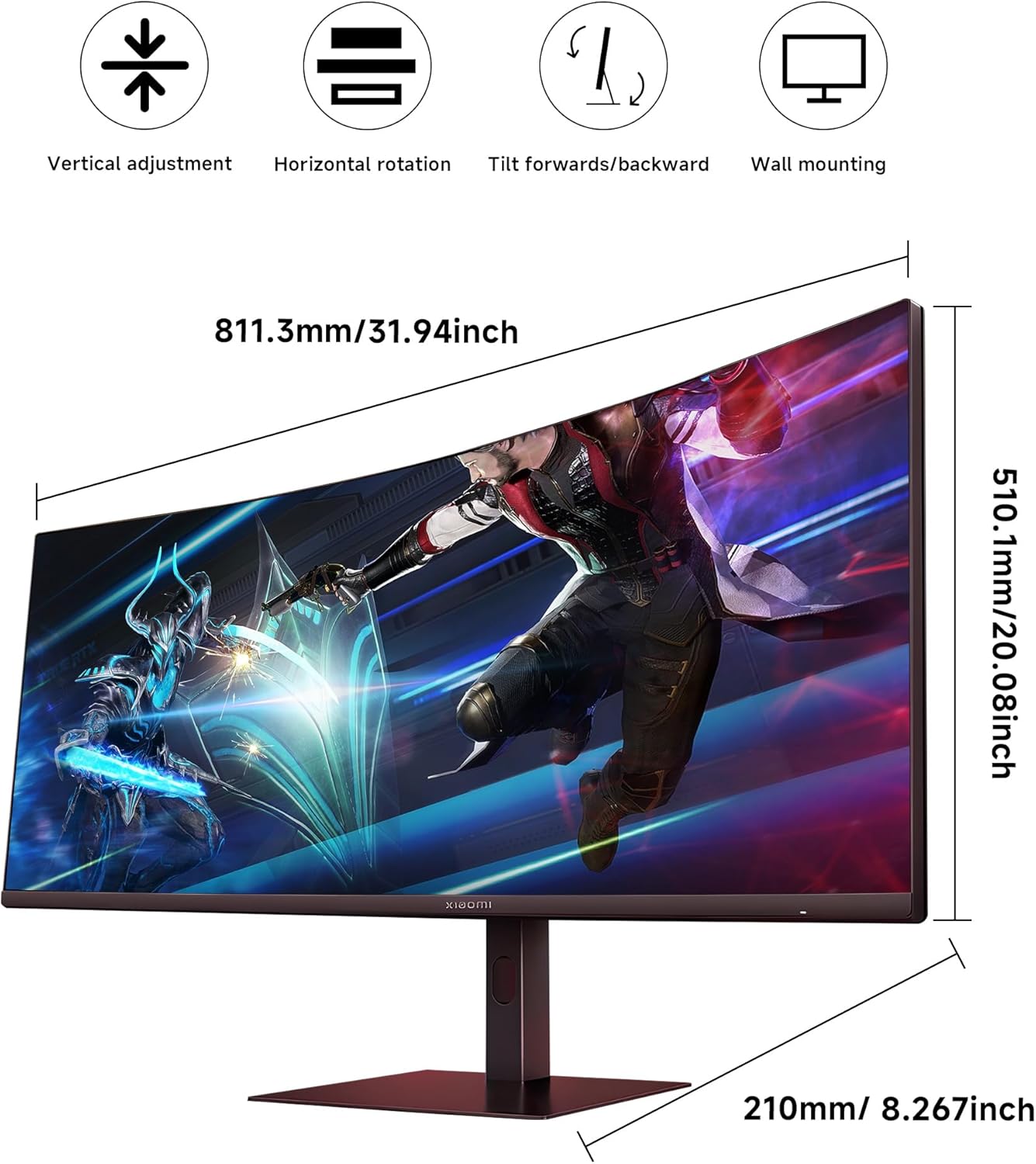
Diagram showing the physical dimensions of the monitor and its stand, along with icons indicating vertical adjustment, horizontal rotation, tilt, and wall mounting capabilities.

An image showing the monitor's VESA mount compatibility for easy wall mounting, offering flexibility in setup.
ఆపరేటింగ్ సూచనలు
1. పవర్ ఆన్/ఆఫ్
మానిటర్ను ఆన్ లేదా ఆఫ్ చేయడానికి సాధారణంగా వెనుక లేదా దిగువన ఉండే పవర్ బటన్ను నొక్కండి.

A close-up of the joystick control, indicating its function for convenient operation and fast control of the OSD menu.
2. ఆన్-స్క్రీన్ డిస్ప్లే (OSD) మెనూ
The OSD menu allows you to adjust various monitor settings. Access it using the joystick control.
సాధారణ OSD సెట్టింగ్లు:
- చిత్రం: Adjust Brightness, Contrast, Sharpness, and Color Temperature.
- ప్రదర్శన: Select the input source (DP1, DP2, HDMI1, HDMI2).
- గేమింగ్: Configure settings like Overdrive, FreeSync Premium (ensure this is enabled for compatible graphics cards), and Response Time.
- కంటి సంరక్షణ: Enable Low Blue Light mode for reduced eye strain.
- వ్యవస్థ: Set Language, OSD Timeout, or Reset to Factory Settings.
To enable Low Blue Light mode, navigate to the OSD menu, select "Image mode", then "Low blue light".
నిర్వహణ
మానిటర్ శుభ్రపరచడం
మానిటర్ యొక్క రూపాన్ని మరియు పనితీరును నిర్వహించడానికి, ఈ శుభ్రపరిచే మార్గదర్శకాలను అనుసరించండి:
- స్క్రీన్: మెత్తటి, మెత్తటి బట్టతో స్క్రీన్ను సున్నితంగా తుడవండి. మొండి మరకల కోసం, తేలికగా dampen the cloth with water or a non-ammonia, non-alcohol based screen cleaner. క్లీనర్ను నేరుగా స్క్రీన్పై పిచికారీ చేయవద్దు.
- Casing: మానిటర్ను తుడవడానికి మృదువైన, పొడి వస్త్రాన్ని ఉపయోగించండి casing. Avoid abrasive cleaners or solvents that could damage the finish.
నిల్వ
If storing the monitor for an extended period, disconnect it from power, pack it in its original packaging, and store it in a cool, dry place away from direct sunlight and extreme temperatures.
ట్రబుల్షూటింగ్
This section addresses common issues you might encounter with your monitor. If the problem persists, please contact customer support.
- శక్తి లేదు: Ensure the power cable is securely connected to both the monitor and the power outlet. Check if the power adapter is functioning correctly.
- సంకేతం లేదు: Verify that the video cable (DP or HDMI) is correctly connected to both the monitor and your computer. Ensure the correct input source is selected in the OSD menu.
- మినుకుమినుకుమనే తెర: Check the video cable connection. Ensure your graphics card drivers are up to date. Try adjusting the refresh rate in your computer's display settings.
- Image Tearing (in games): Ensure FreeSync Premium is enabled in both the monitor's OSD menu and your graphics card settings (if using an AMD GPU).
- తప్పు రిజల్యూషన్/రిఫ్రెష్ రేట్: Check your computer's display settings to ensure the desired resolution (3440x1440) and refresh rate (up to 180Hz) are selected. For 180Hz at WQHD, a DisplayPort connection is recommended.
- Pink Tint on Reds (without HDR): As noted by some users, a pink tint on reds might occur when HDR is not active. This is a known characteristic for some panels. Ensure HDR is enabled in your system settings and application if you wish to utilize it.
స్పెసిఫికేషన్లు
| ఫీచర్ | స్పెసిఫికేషన్ |
|---|---|
| మోడల్ సంఖ్య | P27FBB-RGGL-01 |
| స్క్రీన్ పరిమాణం | 34 అంగుళాలు |
| రిజల్యూషన్ | 3440 x 1440 Pixels (WQHD Ultrawide) |
| కారక నిష్పత్తి | 21:9 |
| వక్రత | 1500R |
| రిఫ్రెష్ రేట్ | 180Hz |
| ప్రతిస్పందన సమయం | 1ms GTG |
| రంగు స్వరసప్తకం | 95% DCI-P3, 100% sRGB |
| ప్రకాశం | 350 కాండేలా (నిట్స్) |
| కనెక్టివిటీ | 2x DisplayPort 1.4, 2x HDMI 2.0, 1x Audio Out |
| కంటి రక్షణ | TÜV Low Blue Light, DC Dimming |
| ఉత్పత్తి కొలతలు | 8.27 x 31.94 x 20.08 అంగుళాలు |
| వస్తువు బరువు | 20.5 పౌండ్లు |
వారంటీ మరియు మద్దతు
XIAOMI stands behind its products with a comprehensive warranty and dedicated customer support.
For any questions or suggestions regarding your monitor, please do not hesitate to contact customer support. We aim to reply within 24 hours to assist you.
For detailed warranty information, please refer to the warranty card included in your product packaging or visit the official XIAOMI support website for the most up-to-date terms and conditions.
Image representing customer support, showing a smiling representative with a headset ready to assist.