
పరిచయం
This manual provides comprehensive instructions for the Akko MG75 ABNT2 Mechanical Keyboard. Designed for efficiency and customization, this 75% layout keyboard features Akko Silver V3 Pro mechanical switches, full RGB backlighting, and hot-swappable switch sockets. Please read this manual carefully to ensure proper use and maintenance of your device.
1. సెటప్
1.1 ప్యాకేజీ విషయాలు
- Akko MG75 ABNT2 Mechanical Keyboard
- USB-C Cable (Removable)
- కీకాప్ పుల్లర్
- స్విచ్ పుల్లర్
- అదనపు స్విచ్లు
- వినియోగదారు మాన్యువల్ (ఈ పత్రం)
1.2 కీబోర్డ్ను కనెక్ట్ చేయడం
- కీబోర్డ్ వెనుక భాగంలో USB-C పోర్ట్ను గుర్తించండి.
- Connect the provided USB-C cable to the keyboard.
- USB-C కేబుల్ యొక్క మరొక చివరను మీ కంప్యూటర్లో అందుబాటులో ఉన్న USB పోర్ట్కు కనెక్ట్ చేయండి.
- మీ ఆపరేటింగ్ సిస్టమ్ ద్వారా కీబోర్డ్ స్వయంచాలకంగా గుర్తించబడుతుంది. ప్రాథమిక కార్యాచరణ కోసం సాధారణంగా అదనపు డ్రైవర్లు అవసరం లేదు.

Image: USB-C port for connecting the keyboard.
1.3 కీబోర్డ్ ఎత్తును సర్దుబాటు చేయడం
The Akko MG75 keyboard features three levels of adjustable height. Flip out the feet located on the underside of the keyboard to select your preferred typing angle.
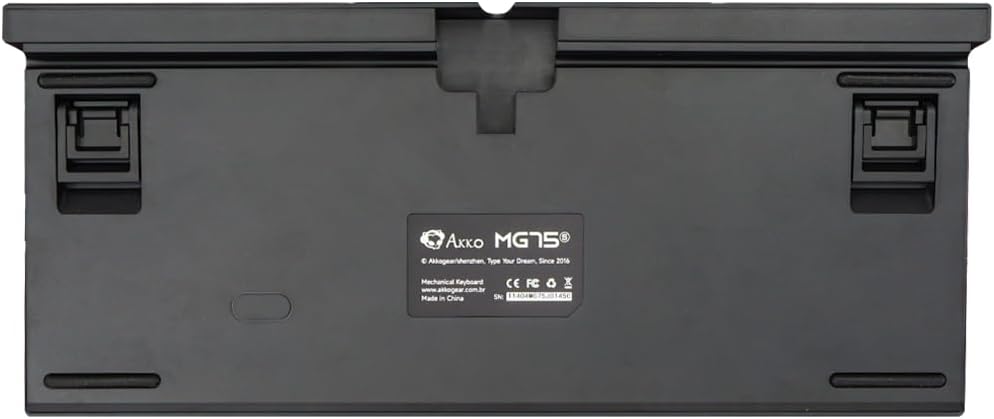
Image: Underside of the keyboard with adjustable feet.
2. ఆపరేటింగ్ సూచనలు
2.1 RGB లైటింగ్ నియంత్రణ
The Akko MG75 keyboard features full RGB backlighting with multiple effects and customization options. Refer to the included quick guide or the official Akko software for detailed instructions on changing lighting modes, colors, and brightness. Typically, lighting effects can be cycled using specific key combinations (e.g., Fn + certain keys).
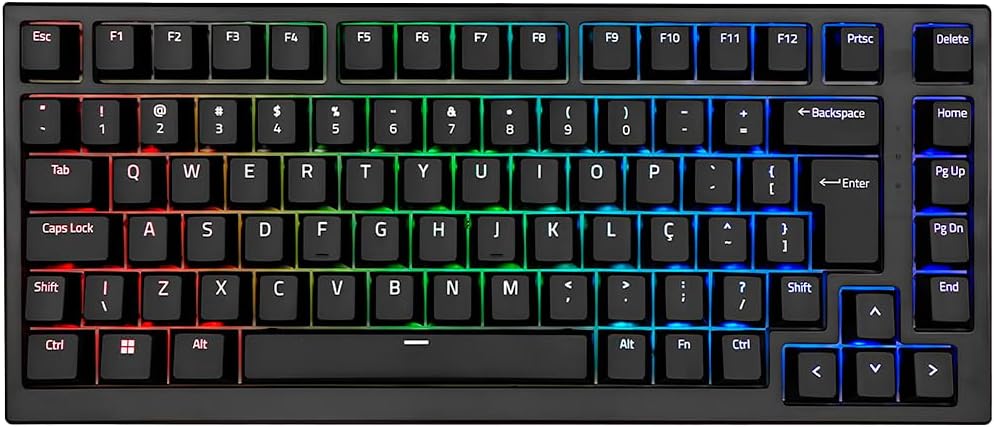
Image: Akko MG75 keyboard displaying RGB lighting.
2.2 హాట్-స్వాపబుల్ స్విచ్లు
The Akko MG75 supports hot-swappable mechanical switches, compatible with both 3-pin and 5-pin switches. This allows for easy customization of your typing experience without soldering.
Changing Switches:
- Use the provided switch puller to carefully remove the desired switch from the keyboard. Grip the switch firmly and pull straight up.
- కొత్త స్విచ్ యొక్క పిన్లను PCB లోని రంధ్రాలతో సమలేఖనం చేయండి. పిన్లు నేరుగా ఉన్నాయని నిర్ధారించుకోండి.
- Gently press the new switch into place until it clicks securely. Do not force the switch if it does not go in easily; check pin alignment.

Image: Akko mechanical switches, illustrating their design for hot-swapping.
2.3 ABNT2 Layout
This keyboard features the ABNT2 layout, which includes specific keys for Portuguese language characters and punctuation, such as 'Ç' and dedicated keys for accents. This layout is standard for Brazilian Portuguese users.

చిత్రం: పై నుండి క్రిందికి view of the Akko MG75 keyboard, highlighting the ABNT2 layout.
3. నిర్వహణ
3.1 కీబోర్డ్ను శుభ్రపరచడం
- శుభ్రం చేయడానికి ముందు మీ కంప్యూటర్ నుండి కీబోర్డ్ను డిస్కనెక్ట్ చేయండి.
- కీక్యాప్ల మధ్య నుండి దుమ్ము మరియు చెత్తను తొలగించడానికి మృదువైన బ్రష్ లేదా కంప్రెస్డ్ ఎయిర్ను ఉపయోగించండి.
- For stubborn dirt, gently wipe the keycaps and keyboard surface with a slightly damp cloth (water only). Avoid excessive moisture.
- కఠినమైన రసాయనాలు లేదా రాపిడి క్లీనర్లను ఉపయోగించవద్దు.
3.2 కీక్యాప్ భర్తీ
To replace keycaps, use the provided keycap puller. Gently hook the puller onto the keycap and pull straight up. To install a new keycap, align it with the switch stem and press down firmly until it is seated.
4. ట్రబుల్షూటింగ్
4.1 కీబోర్డ్ స్పందించడం లేదు
- USB-C కేబుల్ కీబోర్డ్ మరియు మీ కంప్యూటర్ రెండింటికీ సురక్షితంగా కనెక్ట్ చేయబడిందని నిర్ధారించుకోండి.
- Try disconnecting and reconnecting the USB-C cable multiple times. Some users have reported this resolves initial connection issues.
- Test the keyboard on a different USB port on your computer.
- If possible, test the keyboard on another computer to rule out system-specific issues.
- Check if the cable itself is damaged by trying a different USB-C cable if available.
4.2 RGB లైటింగ్ సరిగ్గా పనిచేయడం లేదు
- కీబోర్డ్ సరిగ్గా కనెక్ట్ చేయబడిందని మరియు విద్యుత్తు అందుతోందని నిర్ధారించుకోండి.
- Refer to the quick guide for key combinations to cycle through lighting modes and adjust brightness.
- If using Akko software, ensure it is up-to-date and correctly configured.
5. స్పెసిఫికేషన్లు
| ఫీచర్ | వివరాలు |
|---|---|
| బ్రాండ్ | అక్కో |
| మోడల్ | MG75 |
| లేఅవుట్ | 75% ABNT2 |
| స్విచ్లు | Akko Silver V3 Pro Mechanical |
| హాట్-స్వాప్ | అవును (3-పిన్ మరియు 5-పిన్ అనుకూలత) |
| కనెక్టివిటీ | USB-C (Removable Cable) |
| బ్యాక్లైటింగ్ | RGB |
| యాంటీ-గోస్టింగ్ | N-keys Rollover |
| కీకాప్స్ | ABS Laser |
| సర్దుబాటు ఎత్తు | అవును, 3 స్థాయిలు |
| అనుకూల పరికరాలు | PC |
| రంగు | నలుపు |
| కీల సంఖ్య | 84 |
| స్థూల బరువు | 1582 గ్రా |
| నికర బరువు | 1451 గ్రా |
| Package Dimensions (L x H x D) | 350mm x 250mm x 50mm |
6. వారంటీ మరియు మద్దతు
6.1 ఉత్పత్తి వారంటీ
The Akko MG75 Mechanical Keyboard comes with a 12 నెలల వారంటీ against manufacturing defects from the date of purchase. Please retain your proof of purchase for warranty claims. This warranty does not cover damage caused by misuse, accidents, unauthorized modifications, or normal wear and tear.
6.2 కస్టమర్ మద్దతు
For technical assistance, warranty claims, or further inquiries, please visit the official Akko website or contact your local retailer. You may find additional resources, FAQs, and software downloads on the manufacturer's support page.
అధికారిక అక్కో Webసైట్: www.akkogear.com