
Jacchozhi OS595
Jacchozhi Fingerprint Smart Lock with HD Camera
Model: OS595 - User Instruction Manual
1. పరిచయం
Thank you for choosing the Jacchozhi Fingerprint Smart Lock with HD Camera. This advanced keyless entry system offers multiple unlocking methods, integrated video doorbell functionality, and remote management via a mobile application. Designed for enhanced security and convenience, this manual provides detailed instructions for installation, setup, operation, and maintenance to ensure optimal performance and longevity of your smart lock.
2. భద్రతా సమాచారం
Please read all safety instructions carefully before installation and use. Failure to follow these instructions may result in damage to the product, property, or personal injury.
- Do not expose the lock to extreme temperatures or direct sunlight for prolonged periods.
- Use only specified AA alkaline batteries. Do not mix old and new batteries or different types of batteries.
- Keep physical keys in a secure location outside the property.
- Avoid using abrasive cleaners or solvents on the lock's surface.
- ప్రమాదవశాత్తు స్థానభ్రంశం చెందకుండా నిరోధించడానికి సంస్థాపన సమయంలో అన్ని భాగాలు సురక్షితంగా బిగించబడ్డాయని నిర్ధారించుకోండి.
- In case of a low battery alert, replace batteries promptly.
3. ప్యాకేజీ విషయాలు
ఇన్స్టాలేషన్ ప్రారంభించే ముందు అన్ని భాగాలు ఉన్నాయని నిర్ధారించుకోండి:
- Front Panel Assembly (with camera and keypad)
- Rear Panel Assembly (with battery compartment and handle)
- మోర్టైజ్ లాక్ బాడీ
- స్ట్రైక్ ప్లేట్ మరియు స్ట్రైక్ బాక్స్
- Mounting Screws and Hardware Kit
- Physical Keys (2)
- Fob Keycards (2)
- సంస్థాపన మూస
- వినియోగదారు మాన్యువల్ (ఈ పత్రం)

చిత్రం: పైగాview of Jacchozhi Smart Lock components, including the main unit, physical keys, and key fobs.
4. ఉత్పత్తి ముగిసిందిview
The Jacchozhi Smart Lock integrates multiple security and convenience features into a sleek design. Key features include:
- HD కెమెరా: Provides clear video feed for monitoring visitors.
- వీడియో డోర్బెల్: Alerts your phone when a visitor presses the doorbell, allowing remote communication.
- Multiple Keyless Access: Fingerprint, password, Fob keycard, and APP unlocking.
- అంతర్నిర్మిత Wi-Fi: Enables remote management without an additional gateway.
- రెండు-మార్గం ఆడియో: Communicate with visitors via the app.
- అత్యవసర శక్తి: Micro-USB port for temporary power in case of battery depletion.
- భౌతిక కీ బ్యాకప్: అత్యవసర పరిస్థితులకు సాంప్రదాయ కీ యాక్సెస్.
- తనంతట తానే తాళంవేసుకొను: Automatically locks the door when closed.
- Anti-Peeping Keypad: Allows entry of virtual digits before or after the actual password to prevent onlookers from guessing your code.

Image: Key features of the Jacchozhi Smart Lock, including HD camera, two-way audio, fingerprint recognition, app control, built-in WiFi, and voice prompts.
5. సంస్థాపన
సంస్థాపనకు ముందు, మీ తలుపు కింది అవసరాలను తీరుస్తుందని నిర్ధారించుకోండి:
- Door thickness: 1.49 - 1.89 inches (38mm - 48mm)
- Backset: 2.36 or 2.75 inches (60mm or 70mm)
- Hole diameter: 2.13 inches (54mm)
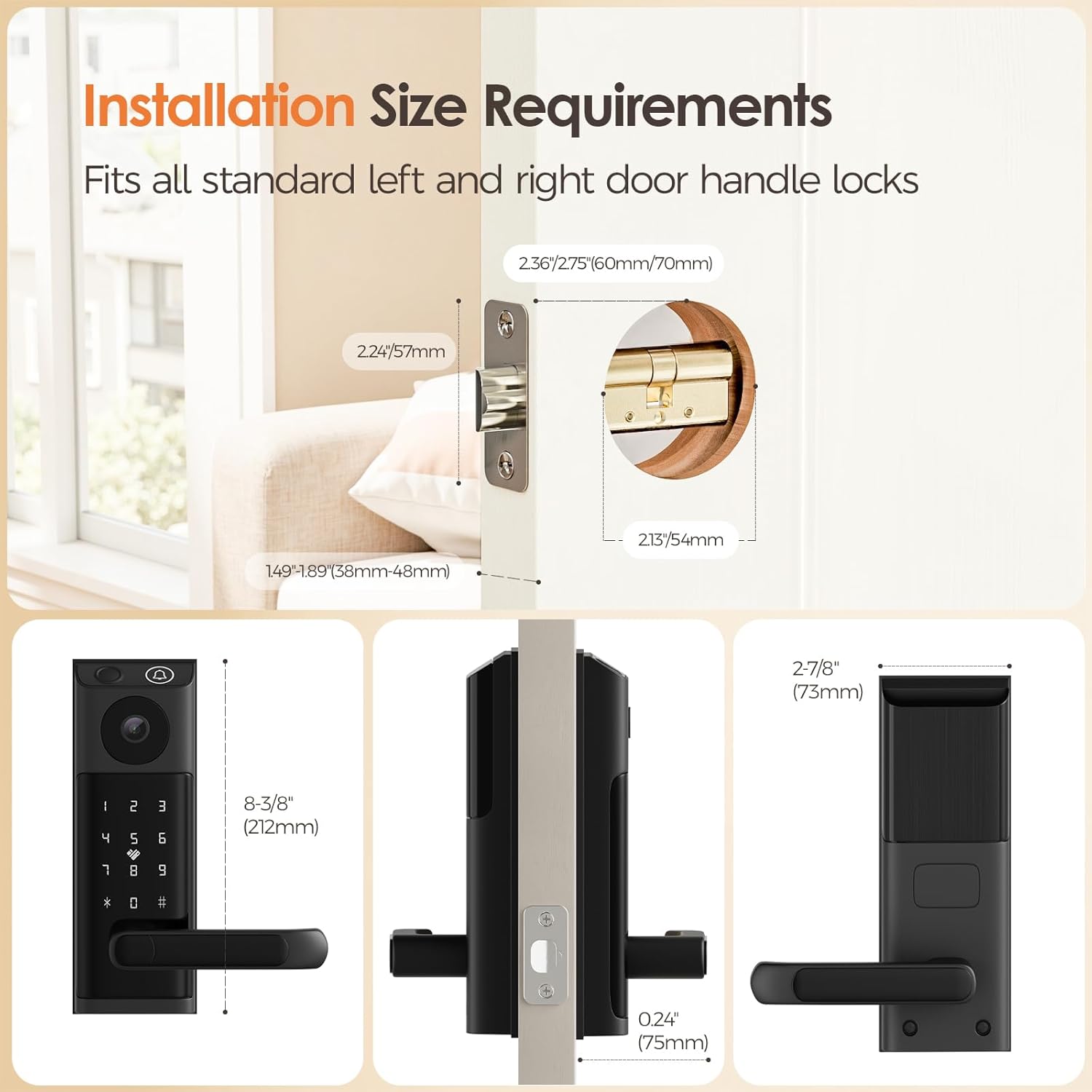
Image: Diagram illustrating the required door dimensions for smart lock installation.
5.1. తలుపు తయారీ
- Remove your existing lock and handle.
- Use the provided installation template to mark and drill any necessary holes on your door.
5.2. Installing the Mortise Lock Body
- Insert the mortise lock body into the edge of the door.
- Secure it with screws. Ensure the latch bolt is facing the correct direction for your door's swing.
5.3. Installing the Front and Rear Panels
- Connect the cable from the front panel to the rear panel.
- Align the spindle with the mortise lock body.
- Mount the front panel on the exterior side of the door.
- Mount the rear panel on the interior side, securing it with the provided screws.
- Ensure the handle operates smoothly and the lock engages properly.
6. సెటప్
6.1. బ్యాటరీ ఇన్స్టాలేషన్
- Open the battery compartment on the rear panel.
- Insert 4 AA alkaline batteries, ensuring correct polarity.
- Close the battery compartment. The lock will power on and may provide a voice prompt.
6.2. App Download and Pairing (Tuya App)
- డౌన్లోడ్ చేయండి తుయా స్మార్ట్ మీ స్మార్ట్ఫోన్ యాప్ స్టోర్ (iOS లేదా Android) నుండి యాప్.
- మీ తుయా స్మార్ట్ ఖాతాకు నమోదు చేసుకోండి లేదా లాగిన్ అవ్వండి.
- In the app, tap '+' to add a device. Select 'Security & Video Surveillance' then 'Smart Lock (Wi-Fi)'.
- Follow the on-screen instructions to put the lock into pairing mode (usually by pressing a button on the rear panel or keypad).
- Connect the lock to your home Wi-Fi network via the app.

Image: App control interface for the smart lock, showing remote unlocking and settings management.
6.3. Adding Users (Fingerprints, Passcodes, Key Fobs)
All user management is performed through the Tuya Smart app.
- వేలిముద్ర: Navigate to 'User Management' in the app, select 'Add Fingerprint', and follow the prompts to register fingerprints on the lock's sensor.
- పాస్కోడ్: Select 'Add Passcode' in the app. You can create permanent, temporary, or one-time passcodes.
- కీ ఫోబ్: Choose 'Add Card' or 'Add Fob' in the app, then present the key fob to the designated area on the lock to register it.
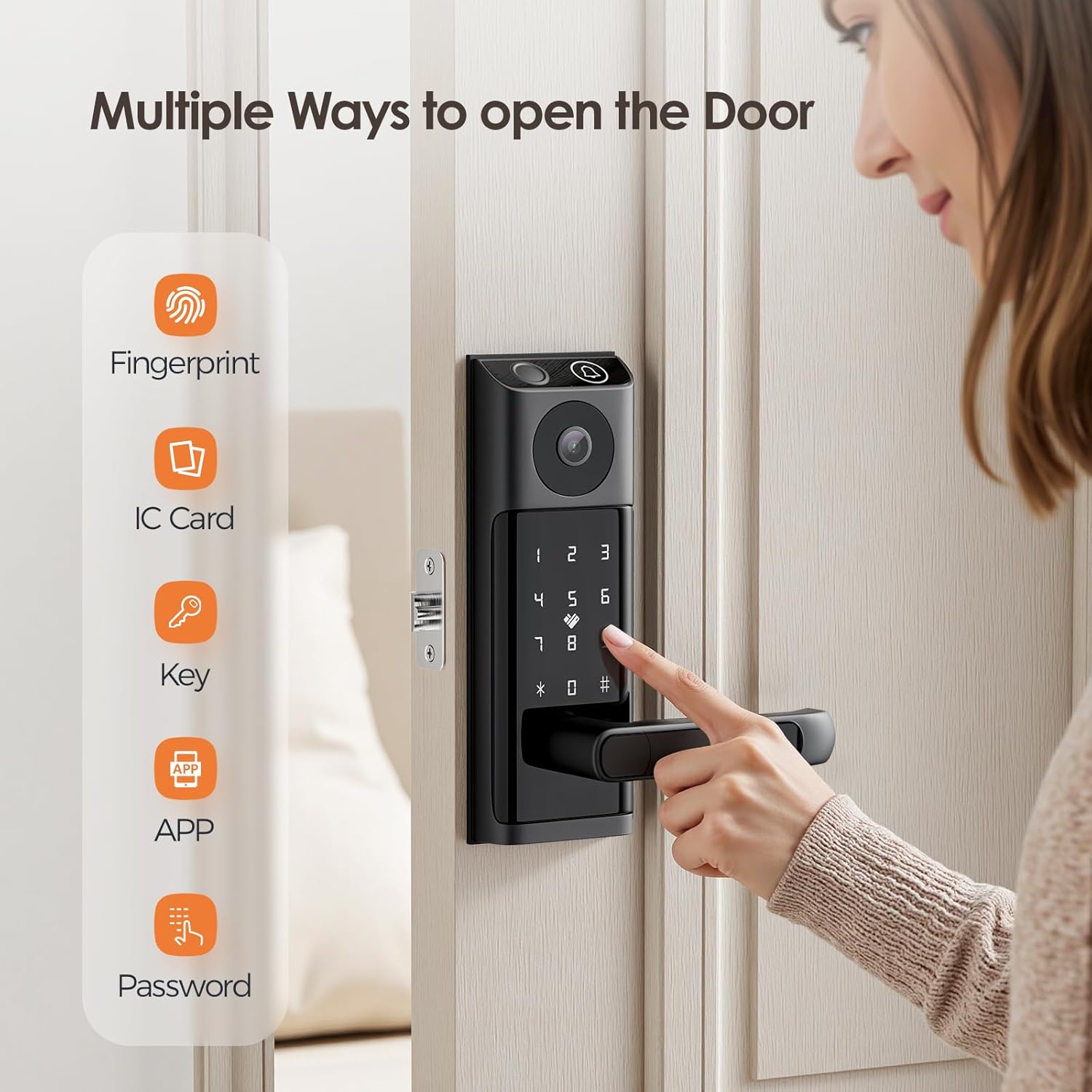
Image: Visual representation of the multiple unlocking methods available for the smart lock.
7. ఆపరేటింగ్ సూచనలు
7.1. అన్లాకింగ్ పద్ధతులు
- వేలిముద్ర అన్లాకింగ్: మీ నమోదిత వేలిని వేలిముద్ర సెన్సార్పై ఉంచండి. లాక్ దాదాపు 0.5 సెకన్లలో అన్లాక్ అవుతుంది.
- Passcode Unlocking: Enter your registered passcode on the touchscreen keypad, followed by '#'. For enhanced security, you can enter random digits before and after your actual passcode (anti-peeping function).
- Fob Keycard Unlocking: Present a registered key fob to the card reader area on the lock.
- APP Unlocking: Open the Tuya Smart app, select your lock, and tap the unlock icon.
- Physical Key Unlocking: Insert the physical key into the keyhole and turn to unlock. This method is primarily for emergency backup.

Image: Fingerprint unlocking in action, highlighting the speed and convenience.

Image: Password unlocking options, including permanent, temporary, and visitor codes.

Image: Physical key unlocking as a backup method for the smart lock.
7.2. Video Doorbell and Intercom
When a visitor presses the doorbell button on the smart lock:
- Your smartphone will receive a notification and a photo of the visitor.
- మీరు చెయ్యగలరు view the live video feed and engage in two-way audio communication with the visitor through the Tuya Smart app.
- You can remotely unlock the door for the visitor from the app.
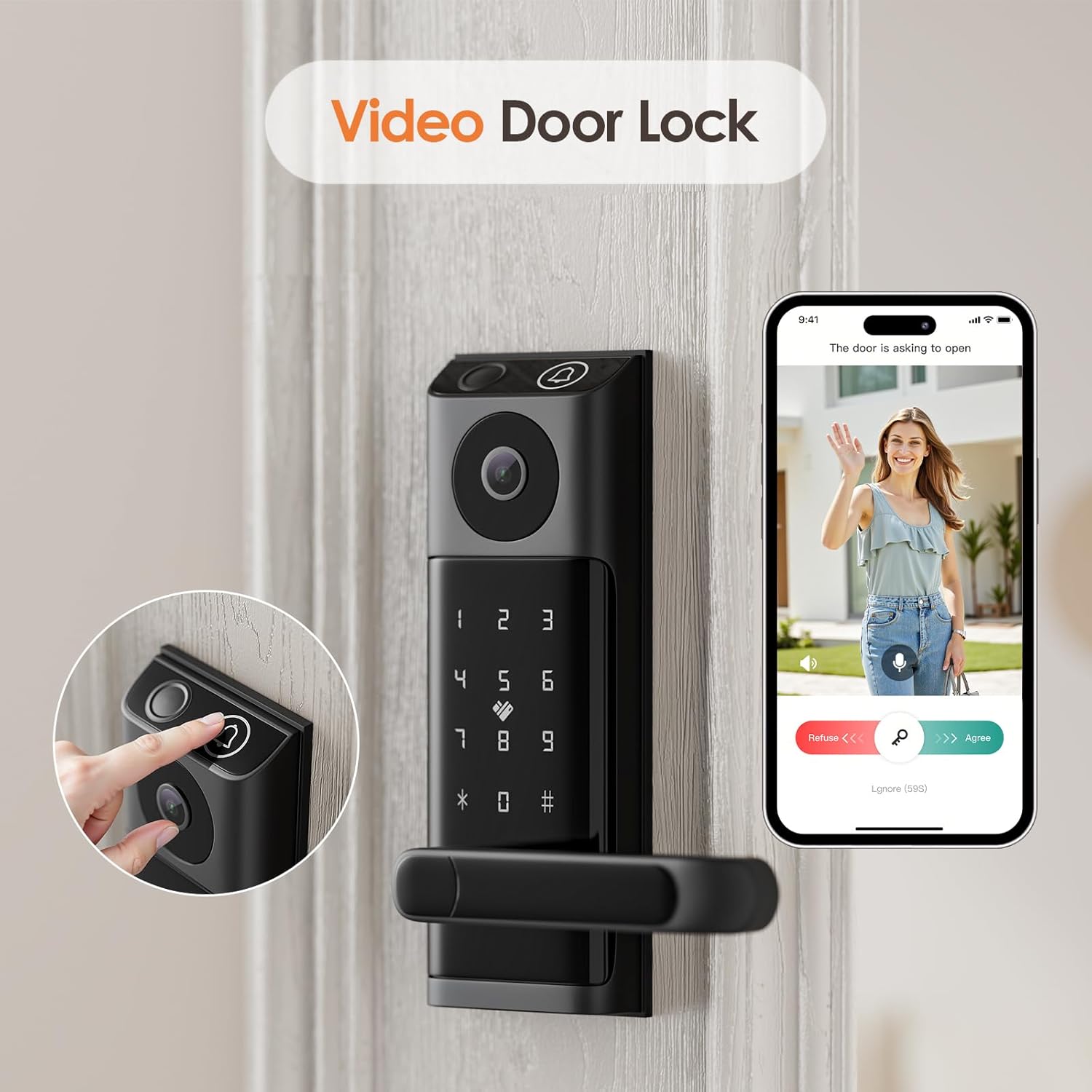
Image: The smart lock's video doorbell feature, showing a visitor on the screen.
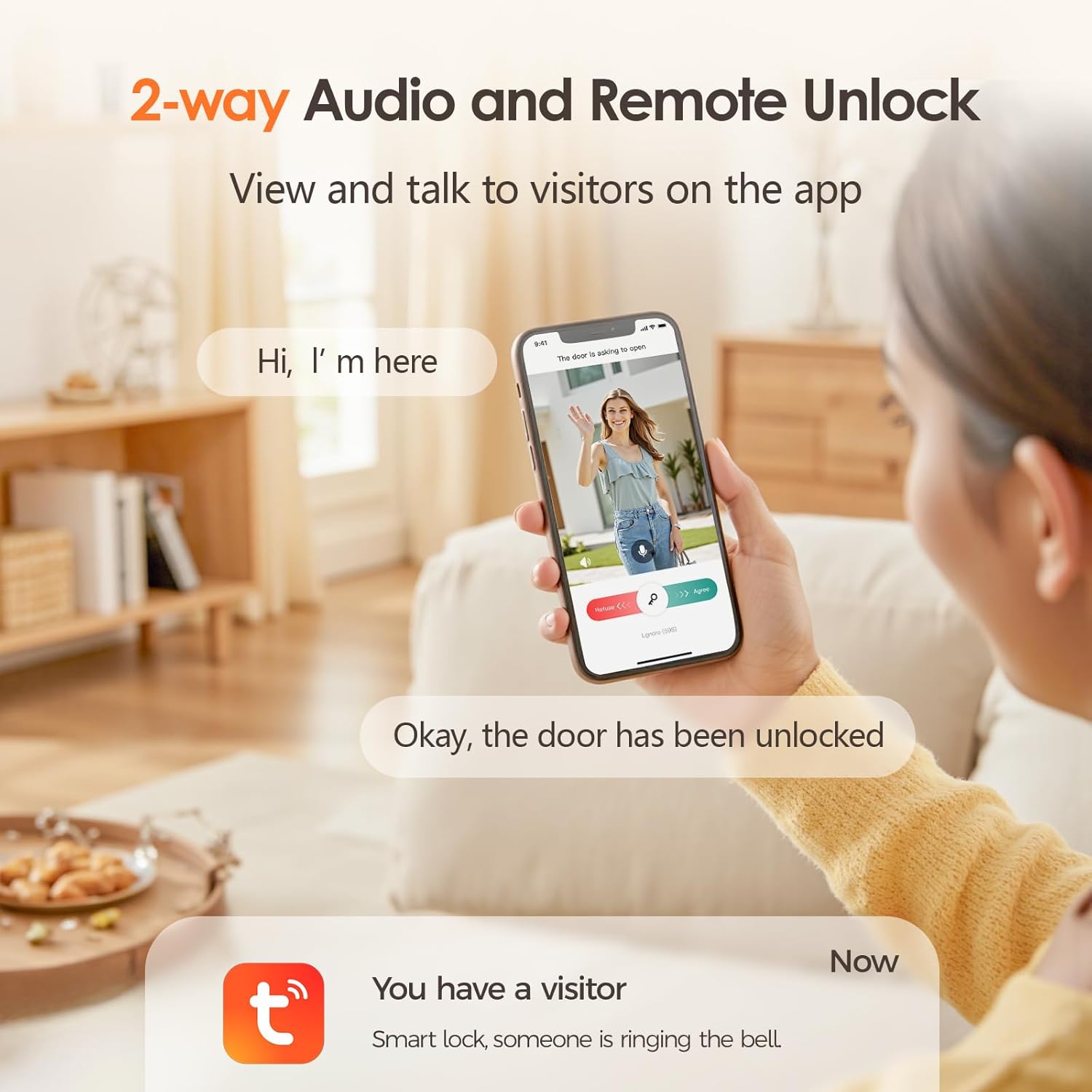
Image: Two-way audio and remote unlock functionality, allowing communication with visitors via the app.
7.3. రిమోట్ నిర్వహణ
With the built-in Wi-Fi module, you can manage your lock remotely via the Tuya Smart app:
- Unlock the door from anywhere.
- Add or delete users (fingerprints, passcodes, key fobs).
- Generate temporary passwords for guests or service personnel.
- View access logs to see who entered and when.
- Receive real-time alerts for password errors or forced entry attempts.
7.4. ఆటో-లాక్ ఫీచర్
The smart lock is designed to automatically lock itself after the door is closed, providing an added layer of security without manual intervention. This feature can typically be configured or disabled within the Tuya Smart app settings.
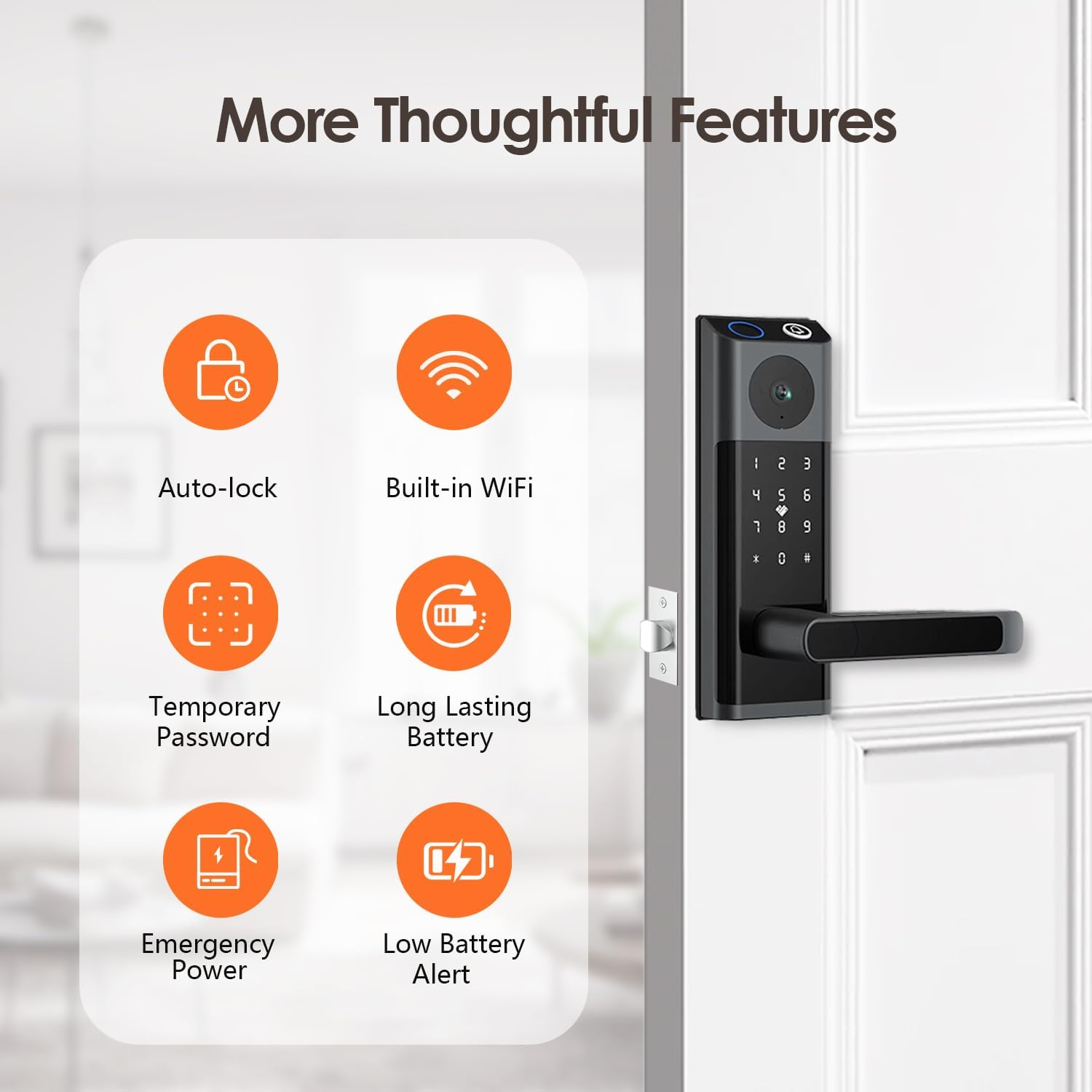
Image: Additional thoughtful features of the smart lock, including auto-lock and built-in WiFi.
8. నిర్వహణ
8.1. బ్యాటరీ భర్తీ
The lock operates on 4 AA batteries and can last up to 6 months. The lock will provide a low battery alert when replacement is needed. To replace batteries:
- Open the battery compartment cover on the interior panel.
- పాత బ్యాటరీలను తొలగించండి.
- సరైన ధ్రువణతను నిర్ధారిస్తూ, 4 కొత్త AA ఆల్కలీన్ బ్యాటరీలను చొప్పించండి.
- బ్యాటరీ కంపార్ట్మెంట్ కవర్ను మూసివేయండి.
In case of complete battery depletion, use the emergency power port (Micro-USB) on the exterior panel with a power bank to temporarily power the lock and gain access.
8.2. శుభ్రపరచడం
Clean the lock's surface with a soft, dry cloth. Do not use harsh chemicals, abrasive cleaners, or solvents, as these can damage the finish and electronic components. Regularly wipe the fingerprint sensor to ensure optimal performance.
9. ట్రబుల్షూటింగ్
| సమస్య | సాధ్యమైన కారణం | పరిష్కారం |
|---|---|---|
| లాక్ స్పందించడం లేదు | Dead batteries; loose cable connection. | Replace batteries; check cable connection between panels; use emergency power. |
| వేలిముద్ర గుర్తించబడలేదు | Finger wet/dirty; unregistered fingerprint; sensor dirty. | Ensure finger is clean and dry; re-register fingerprint; clean sensor. |
| పాస్కోడ్ పనిచేయడం లేదు | Incorrect passcode; keypad malfunction. | Verify passcode; try re-entering; check for keypad damage. |
| Wi-Fi/యాప్కి కనెక్ట్ చేయడం సాధ్యం కాలేదు | Incorrect Wi-Fi password; weak signal; router issues. | Verify Wi-Fi password; move router closer; restart router; re-pair lock with app. |
| Video doorbell not notifying | App notifications disabled; poor Wi-Fi connection. | Enable app notifications; check Wi-Fi signal strength. |
| Lock alarm triggers frequently | Forced entry attempt; sensitivity setting too high. | Check for tampering; adjust alarm sensitivity in app settings if available. |
10. స్పెసిఫికేషన్లు
| ఫీచర్ | వివరాలు |
|---|---|
| బ్రాండ్ | జచ్చోజీ |
| మోడల్ పేరు | Smart lock with camera and handle (OS595) |
| లాక్ రకం | బయోమెట్రిక్, కీప్యాడ్ |
| మెటీరియల్ | అల్యూమినియం |
| రంగు | నలుపు |
| అంశం కొలతలు (L x W x H) | 12 x 9 x 3.5 అంగుళాలు |
| వస్తువు బరువు | 4.2 పౌండ్లు |
| కనెక్టివిటీ ప్రోటోకాల్ | బ్లూటూత్, వై-ఫై |
| నియంత్రణ పద్ధతి | యాప్, రిమోట్, టచ్ |
| కంట్రోలర్ రకం | Android, iOS (Tuya Smart App) |
| శక్తి మూలం | 4 x AA ఆల్కలీన్ బ్యాటరీలు |
| బ్యాటరీ లైఫ్ | 6 నెలల వరకు (సుమారుగా) |
| ప్రత్యేక లక్షణాలు | Auto-Lock, Fingerprint, Fob Unlock, Touchscreen, HD Camera, Video Doorbell, 2-Way Audio |
| సిఫార్సు చేసిన ఉపయోగాలు | Home, Front Door |
| UPC | 730425956865 |
11. వారంటీ మరియు మద్దతు
Jacchozhi provides a standard manufacturer's warranty for this product. Please refer to the warranty card included in your package or visit the official Jacchozhi webవివరణాత్మక వారంటీ నిబంధనలు మరియు షరతుల కోసం సైట్.
For technical support, troubleshooting assistance, or any inquiries regarding your Jacchozhi Smart Lock, please contact Jacchozhi customer service through the contact information provided on their official website or within the Tuya Smart app's support section.
గమనిక: వారంటీ క్లెయిమ్ల కోసం కొనుగోలు రుజువుగా మీ కొనుగోలు రసీదును ఉంచండి.
Ask a question about this manual
Ask about setup, troubleshooting, compatibility, parts, safety, or missing instructions. Manuals+ will review the question and use this page’s manual context to help answer it.