
1. పరిచయం
The ADREAMER AireScreen13S is a detachable triple portable monitor designed to expand your laptop's display capabilities. It features three 13.3-inch 1920x1200 IPS 16:10 screens, allowing for a quad-screen workstation setup. This device is compatible with laptops ranging from 11.6 to 16 inches and supports Windows (10 and later) and MacOS (M1/M2/M3 chipsets). This manual provides detailed instructions for setup, operation, and maintenance to ensure optimal performance.
2. పెట్టెలో ఏముంది
- USB 3.0 Type C cable * 3
- 30W పవర్ అడాప్టర్ * 1
- USB Storage (with driver included) * 1
- Type C Converter * 1
- వినియోగదారు మాన్యువల్ * 1
3. సెటప్ మరియు ఇన్స్టాలేషన్
3.1 భౌతిక సంస్థాపన
To attach the ADREAMER AireScreen13S to your laptop, open your laptop screen. The monitor extender features a retractable design with a multi-function clip. Gently pull the movable pieces of the clip left or right to adjust it to the width of your laptop screen (11.6" to 16"). Securely clip the main unit to the top edge of your laptop screen. The integrated structural design ensures stability.
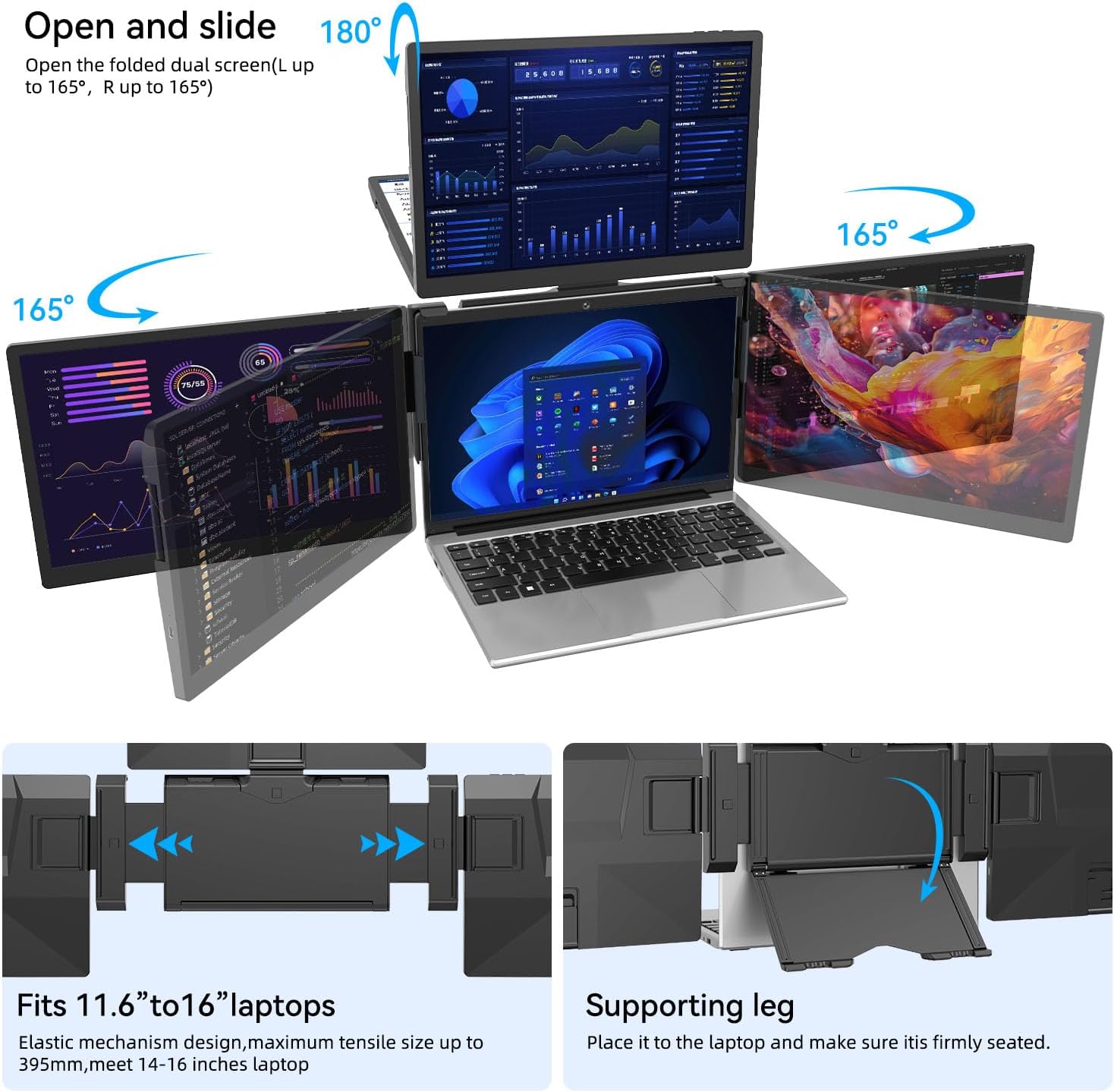
Image: The adjustable clip mechanism of the ADREAMER AireScreen13S, demonstrating how it fits onto a laptop screen.
Each of the three screens has three spindles, supporting opening and closing angles of up to 180 degrees. The main unit also features a supporting leg that can be opened to provide additional stability for the entire setup.

Image: A laptop with the ADREAMER AireScreen13S attached, displaying a quad-screen setup in an office environment.
3.2 కేబుల్ కనెక్షన్లు
The ADREAMER AireScreen13S features a multi-function clip with 4 USB 3.0 ports and 2 full-featured Type-C ports. Connect the three supplied USB 3.0 Type C cables from the individual screens into the USB 3.0 ports on the back clip. Then, connect the main Type-C cable from the back clip to a full-function Type-C port on your laptop. If your laptop does not have enough full-function Type-C ports, you may need to use the provided 30W power adapter to power the clip via one of its Type-C ports.

Image: A visual guide to connecting the three display cables and the main power/data cable from the monitor extender to a laptop.
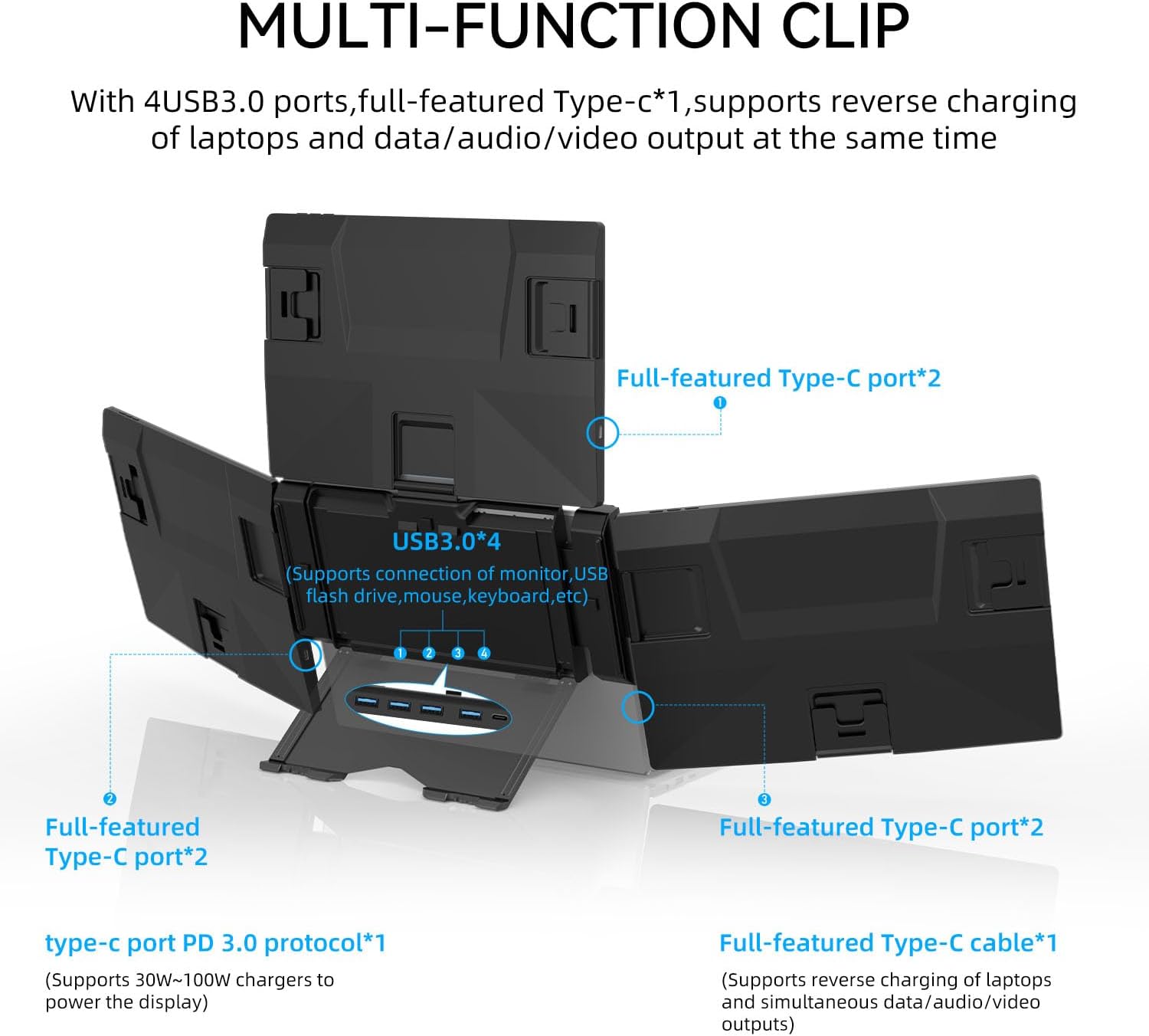
చిత్రం: వివరణాత్మకం view of the connectivity options on the multi-function clip, including USB 3.0 and Type-C ports for data, audio, video, and reverse charging.
3.3 డ్రైవర్ ఇన్స్టాలేషన్
For initial use, it is essential to install the corresponding driver program. The driver file is included on the USB storage provided in the packaging box. Please follow the instructions below for your operating system.
3.3.1 విండోస్ డ్రైవర్ ఇన్స్టాలేషన్
Insert the USB storage into your computer and locate the Windows driver. Follow the on-screen prompts to complete the installation. A restart of your computer may be required.
Video: A step-by-step guide on how to install the necessary driver files for the ADREAMER AireScreen13S on a Windows operating system.
3.3.2 Mac OS Driver Installation
Insert the USB storage into your Mac and locate the Mac OS driver. Follow the on-screen prompts to complete the installation. You may need to adjust security and privacy settings to allow the driver to function correctly. A restart of your computer may be required.
Video: A step-by-step guide on how to install the necessary driver files for the ADREAMER AireScreen13S on a Mac OS operating system.
4. ఆపరేటింగ్ సూచనలు
4.1 డిస్ప్లే మోడ్లు
The ADREAMER AireScreen13S supports both extended and mirrored display modes. You can configure these settings through your operating system's display settings. Extended mode allows you to spread your workspace across all four screens, while mirrored mode duplicates your main laptop display onto the external monitors.
4.2 Screen Rotation and Adjustment
The side and upper screens can be rotated up to 165 degrees, allowing for customizable viewing angles to suit various tasks and environments. This flexibility is ideal for multi-participant meetings, data analysis, programming, or remote teamwork. The independent support bracket ensures stability during adjustments.

Image: The ADREAMER AireScreen13S demonstrating its versatile screen rotation capabilities, allowing for various configurations.
5 కీ ఫీచర్లు
- Quad Screen Workstation: Easily transform your laptop into a quad-screen workstation with three 13.3-inch displays, significantly enhancing productivity for coding, designing, or spreadsheet work.
- విస్తృత అనుకూలత: Compatible with laptops from 11.6" to 16", supporting Windows (10 and later) and MacOS (M1/M2/M3 chipsets). Features USB-C ports for seamless connectivity.
- వేరు చేయగలిగిన డిజైన్: Ensures effortless portability, making it an ideal solution for remote work, business travel, or mobile presentations.
- వైబ్రెంట్ విజువల్స్: Enjoy enhanced clarity with 1920x1200 IPS monitors and a 16:10 aspect ratio, providing additional vertical space for professional tasks.
- Adjustable Back Bracket & Versatile Rotation: Durable back bracket rotates up to 165°, maintaining stability. Side and upper screens rotate up to 165° for customizable viewing angles. Supports extended and mirrored display modes.
6. స్పెసిఫికేషన్లు
| ఫీచర్ | వివరాలు |
|---|---|
| ఉత్పత్తి కొలతలు | 0.54 x 12 x 8 అంగుళాలు |
| వస్తువు బరువు | 5 పౌండ్లు |
| అంశం మోడల్ సంఖ్య | AireScreen13S |
| స్టాండింగ్ స్క్రీన్ డిస్ప్లే సైజు | 13.3 అంగుళాలు (ఒక్కొక్కటి) |
| కారక నిష్పత్తి | 16:10 |
| రిజల్యూషన్ | 1920 x 1200 పిక్సెల్లు |
| చిత్రం ప్రకాశం | 300 cd/m² |
| మొత్తం USB పోర్ట్లు | 4 (USB 3.0 on clip) |
| స్క్రీన్ ఉపరితల వివరణ | నిగనిగలాడే |
7. నిర్వహణ
To ensure the longevity and optimal performance of your ADREAMER AireScreen13S, follow these maintenance guidelines:
- శుభ్రపరచడం: కొద్దిగా మెత్తని, మెత్తని బట్టను ఉపయోగించండి dampened with water or a screen cleaner to wipe the display surfaces. Avoid harsh chemicals or abrasive materials.
- నిల్వ: When not in use, fold the screens carefully and store the unit in a protective case to prevent scratches and damage.
- నిర్వహణ: Always handle the monitor extender with care, avoiding excessive force when attaching, detaching, or adjusting the screens.
- కేబుల్ నిర్వహణ: Ensure cables are not kinked or strained to prevent damage to the connectors and ports.
8. ట్రబుల్షూటింగ్
8.1 No Display on External Screens
- కనెక్షన్లను తనిఖీ చేయండి: Ensure all USB-C cables are securely connected to both the monitor extender and your laptop.
- విద్యుత్ సరఫరా: Verify that the monitor extender is receiving adequate power. If your laptop's Type-C port does not provide sufficient power, connect the 30W power adapter to the clip.
- డ్రైవర్ ఇన్స్టాలేషన్: Confirm that the correct drivers for your operating system (Windows or Mac) are installed. Refer to Section 3.3 for driver installation instructions.
- ల్యాప్టాప్ అనుకూలత: Ensure your laptop's Type-C ports support video output (DisplayPort Alternate Mode) and power delivery.
- డిస్ ప్లే సెట్టింగులు: Check your operating system's display settings to ensure the external monitors are detected and configured for extended or mirrored display.
8.2 Incorrect Display Orientation or Resolution
- డిస్ ప్లే సెట్టింగులు: Access your operating system's display settings. Adjust the resolution to 1920x1200 and the orientation (e.g., Landscape, Portrait) as desired for each screen.
- డ్రైవర్ నవీకరణ: Ensure your display drivers are up to date.
8.3 Screens Not Detaching Smoothly
- అడ్డంకుల కోసం తనిఖీ చేయండి: Ensure no debris or foreign objects are hindering the movement of the retractable mechanism.
- సున్నితమైన శక్తి: Apply gentle, even pressure when sliding the screens. Avoid forcing them.
9. వారంటీ మరియు మద్దతు
All ADREAMER products are covered by a one-year warranty from the date of purchase. This warranty covers manufacturing defects and malfunctions under normal use. For any inquiries, technical assistance, or warranty claims, please contact ADREAMER customer support. Our 24/7 support team is available to provide assistance.
Contact information can typically be found on the product packaging or the official ADREAMER webసైట్.


