
1. పరిచయం
Thank you for choosing the QDVOPHZA 4K 8MP PTZ Outdoor WiFi Security Camera. This manual provides detailed instructions for the installation, operation, and maintenance of your security camera. Please read this manual thoroughly before use to ensure proper functionality and to maximize the camera's performance.
This camera is designed for outdoor surveillance, offering advanced features such as 4K Ultra HD resolution, 10X optical zoom, automatic tracking, and color night vision, all within a durable, weatherproof design.

Image: The QDVOPHZA PTZ camera highlighting its key features including automatic tracking, multi-lens design, and dual-screen preview capability, alongside a mobile app interface.
2. ఉత్పత్తి లక్షణాలు
- 4K 8MP Ultra HD Resolution: Provides clear and detailed images for comprehensive surveillance.
- 10X ఆప్టికల్ జూమ్: Allows for clear magnification of distant objects without loss of image quality.
- ఆటోమేటిక్ ట్రాకింగ్: Intelligently tracks moving objects, keeping them within the monitoring field.
- కలర్ నైట్ విజన్: Delivers clear, colorful images even in low-light or complete darkness.
- IP66 వాతావరణ నిరోధక రేటింగ్: Ensures stable operation in various weather conditions, including heavy rain and snow.
- పాన్ మరియు టిల్ట్ కార్యాచరణ: Offers a 355° horizontal pan and 90° vertical tilt for wide area coverage, controllable via mobile app.
- Dual-lens Dual-screen Preview: Enables simultaneous monitoring of a fixed wide view and a zoomed-in PTZ view.
- Humanoid Detection Alarm: Advanced detection capabilities to identify human figures and trigger alarms.
- రెండు-మార్గం ఆడియో: కెమెరా ద్వారా కమ్యూనికేషన్ కోసం అనుమతిస్తుంది.
- బహుళ నిల్వ ఎంపికలు: Supports TF card storage (up to 128G) and cloud storage (if applicable).
3. ప్యాకేజీ విషయాలు
అన్బాక్సింగ్ తర్వాత ప్యాకేజీ కంటెంట్లను తనిఖీ చేయండి. ఏవైనా వస్తువులు తప్పిపోయినా లేదా దెబ్బతిన్నా, కస్టమర్ సపోర్ట్ను సంప్రదించండి.
- QDVOPHZA 4K 8MP PTZ Outdoor WiFi Security Camera
- పవర్ అడాప్టర్ (DC 12V)
- మౌంటు స్క్రూలు మరియు వాల్ ప్లగ్లు
- వినియోగదారు మాన్యువల్ (ఈ పత్రం)
- నెట్వర్క్ కేబుల్ కోసం వాటర్ప్రూఫ్ కిట్ (వర్తిస్తే)
4. సెటప్ గైడ్
4.1 భౌతిక సంస్థాపన
Choose a suitable outdoor location for installation, ensuring a clear line of sight and access to a power source. The camera can be mounted on a wall or pole.
- డ్రిల్లింగ్ స్థానాలను గుర్తించండి: కావలసిన ఉపరితలంపై స్క్రూ రంధ్రాలను గుర్తించడానికి మౌంటు టెంప్లేట్ (అందించినట్లయితే) లేదా కెమెరా బేస్ను ఉపయోగించండి.
- డ్రిల్ రంధ్రాలు: గుర్తించబడిన స్థానాల్లో రంధ్రాలు వేయండి. తాపీపనిపై అమర్చినట్లయితే గోడ ప్లగ్లను చొప్పించండి.
- సురక్షిత కెమెరా: Attach the camera base to the surface using the provided screws. Ensure it is securely fastened.
- పవర్ కనెక్ట్ చేయండి: Connect the DC 12V power adapter to the camera's power input and plug it into an outdoor-rated power outlet.

Image: The QDVOPHZA PTZ camera mounted on a tree, illustrating its 355° pan and 90° tilt capabilities for wide area coverage.
4.2 Mobile App Installation and Pairing
Download the compatible mobile application (e.g., "iCSee" or similar, refer to packaging for specific app name) from your device's app store (iOS App Store or Google Play Store).
- అనువర్తనాన్ని డౌన్లోడ్ చేయండి: కోసం వెతకండి the recommended app and install it on your smartphone.
- ఖాతా నమోదు: కొత్త ఖాతాను నమోదు చేసుకోవడానికి లేదా మీకు ఇప్పటికే ఒకటి ఉంటే లాగిన్ అవ్వడానికి యాప్ను తెరిచి, స్క్రీన్పై ఉన్న సూచనలను అనుసరించండి.
- పరికరాన్ని జోడించండి: యాప్లోని "+" చిహ్నం లేదా "పరికరాన్ని జోడించు" ఎంపికను నొక్కండి.
- కెమెరా రకాన్ని ఎంచుకోండి: Choose "WiFi Camera" or "Smart Camera" and follow the prompts for network configuration.
- WiFiకి కనెక్ట్ చేయండి: Ensure your phone is connected to a 2.4GHz WiFi network. The camera supports 2.4GHz WiFi.
- QR కోడ్ని స్కాన్ చేయండి: The app will guide you to scan a QR code on the camera or generate a QR code on your phone for the camera to scan. Hold your phone's screen towards the camera lens until you hear a confirmation sound.
- పూర్తి సెటప్: Once connected, name your camera and set a password.
4.3 మైక్రో SD కార్డ్ ఇన్స్టాలేషన్ (ఐచ్ఛికం)
For local video storage, install a Micro SD card (up to 128GB, not included unless specified in your purchase).
- పవర్ ఆఫ్: Disconnect the camera from the power supply before installing or removing the SD card.
- స్లాట్ను గుర్తించండి: Find the SD card slot, usually under a protective cover on the camera body.
- కార్డ్ని చొప్పించండి: Gently insert the Micro SD card into the slot with the contacts facing the correct direction until it clicks into place.
- పవర్ ఆన్: Reconnect the power. Format the SD card via the mobile app settings if prompted.
5. ఆపరేటింగ్ సూచనలు
5.1 ప్రత్యక్ష ప్రసారం View మరియు PTZ నియంత్రణ
Open the mobile app and select your camera to access the live view.
- పాన్/టిల్ట్: Use the directional controls (arrows or joystick) on the app interface to rotate the camera horizontally (pan) and vertically (tilt).
- జూమ్: Use the pinch-to-zoom gesture on the live view or dedicated zoom buttons to activate the 10X optical zoom.

Image: The camera's 10X optical zoom capability, illustrating how distant objects like a camel in a snowy landscape can be clearly magnified.
5.2 Automatic Tracking
Enable the automatic tracking feature in the camera settings within the app. When activated, the camera will automatically follow detected moving objects.
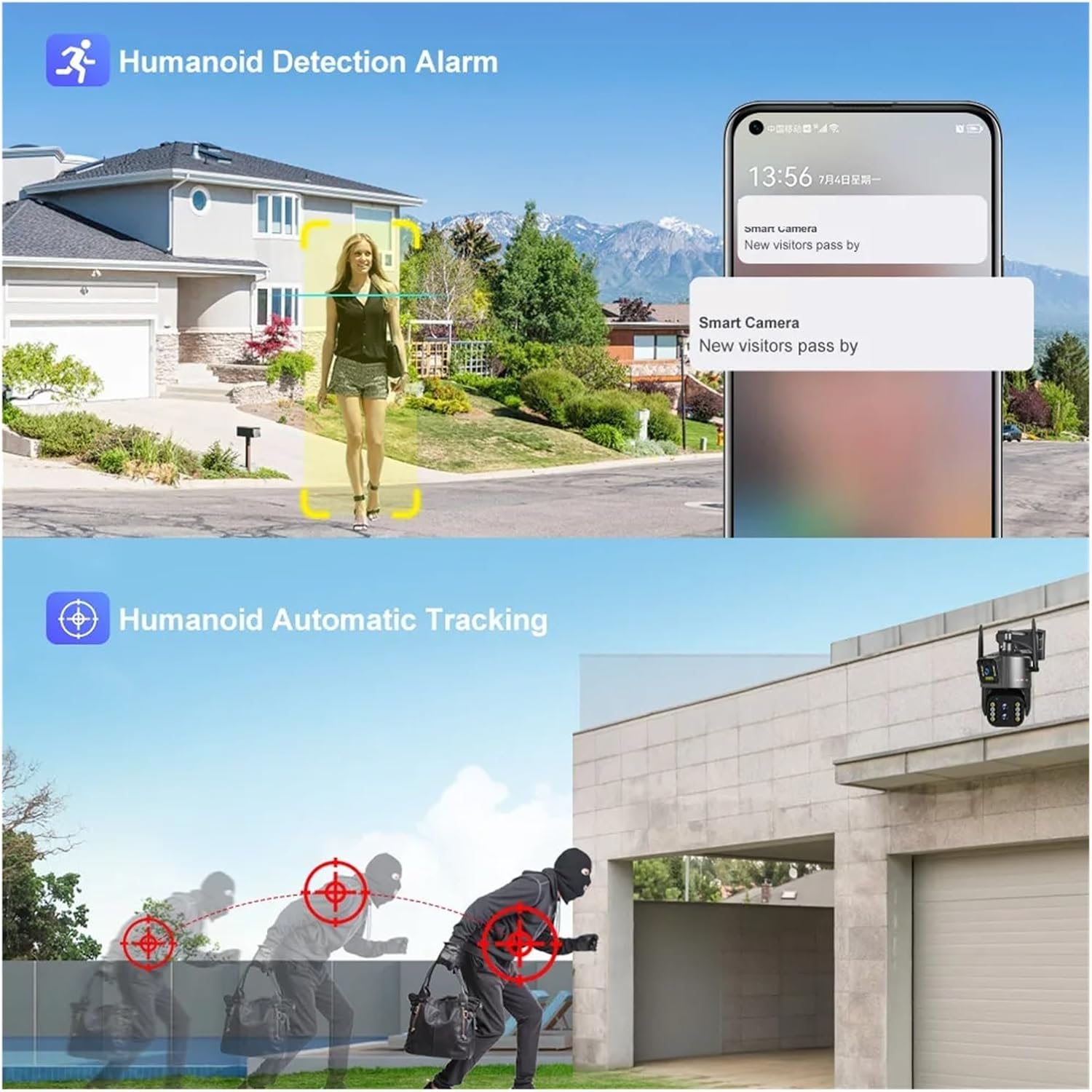
Image: Illustration of the camera's humanoid detection and automatic tracking, showing how it follows a person and a potential intruder.
5.3 నైట్ విజన్ మోడ్లు
The camera supports both infrared (black and white) and full-color night vision. You can switch between modes or set it to automatic in the app settings.
- పరారుణ మోడ్: Provides clear black and white images in complete darkness.
- Full Color Night Vision Mode: Utilizes built-in spotlights to illuminate the area, providing color images at night.

Image: A comparison demonstrating the clarity of infrared night vision versus the vibrant detail of full-color night vision provided by the camera.
5.4 Dual-lens Dual-screen Preview
ఈ ఫీచర్ మిమ్మల్ని అనుమతిస్తుంది view two video streams simultaneously: one from the fixed wide-angle lens and another from the PTZ (pan-tilt-zoom) lens. This enables comprehensive monitoring with both a general overview మరియు వివరణాత్మక క్లోజప్లు.

Image: The dual-lens dual-screen preview feature, displaying both a wide-angle fixed view and a zoomed-in PTZ view concurrently on a single screen.
5.5 రికార్డింగ్ మరియు ప్లేబ్యాక్
Recordings are stored on the Micro SD card or cloud storage (if subscribed). Access playback through the app's "Playback" or "History" section.
- ఈవెంట్ రికార్డింగ్: Records automatically when motion or humanoid detection is triggered.
- నిరంతర రికార్డింగ్: Can be enabled in settings for 24/7 recording (requires sufficient storage).
- ప్లేబ్యాక్: Select a date and time in the app to review రికార్డ్ చేసిన footage.
6. నిర్వహణ
- శుభ్రపరచడం: Periodically clean the camera lens with a soft, dry cloth to ensure clear image quality. Do not use harsh chemicals.
- ఫర్మ్వేర్ నవీకరణలు: Check the mobile app regularly for firmware updates. Keeping the firmware updated ensures optimal performance and security.
- విద్యుత్ సరఫరా: పవర్ అడాప్టర్ మరియు కేబుల్ దెబ్బతినకుండా చూసుకోండి. అవసరమైతే మార్చండి.
- SD కార్డ్ నిర్వహణ: If using an SD card, periodically check its status in the app. Consider formatting it every few months to maintain performance.
7. ట్రబుల్షూటింగ్
7.1 కెమెరా ఆఫ్లైన్
- శక్తిని తనిఖీ చేయండి: Ensure the camera is properly connected to a power source and the outlet is working.
- Check WiFi: Verify your WiFi router is functioning and the camera is within range. Restart the router if necessary.
- Re-pair Camera: If the issue persists, try re-pairing the camera with the app.
7.2 పేలవమైన చిత్ర నాణ్యత
- క్లీన్ లెన్స్: కెమెరా లెన్స్లో ఏదైనా మురికి లేదా మరకలు ఉన్నాయా అని శుభ్రం చేయండి.
- నెట్వర్క్ స్థిరత్వం: Ensure a stable WiFi connection. Poor signal can affect streaming quality.
- రిజల్యూషన్ సెట్టింగ్లు: Check the resolution settings in the app; ensure it's set to 4K or 8MP for best quality.
7.3 Automatic Tracking Not Working
- Enable Feature: Confirm that automatic tracking is enabled in the app settings.
- క్లియర్ View: కెమెరాను అడ్డుకునే అడ్డంకులు లేవని నిర్ధారించుకోండి view.
- సున్నితత్వం: యాప్లో మోషన్ డిటెక్షన్ సెన్సిటివిటీని సర్దుబాటు చేయండి.
7.4 SD Card Not Recording
- సరిగ్గా చొప్పించండి: SD కార్డ్ సరిగ్గా చొప్పించబడిందని నిర్ధారించుకోండి.
- ఫార్మాట్ కార్డ్: యాప్ ద్వారా SD కార్డ్ని ఫార్మాట్ చేయండి.
- కార్డ్ సామర్థ్యం/ఆరోగ్యం: Check if the SD card is full or damaged. Replace if necessary.
- రికార్డింగ్ సెట్టింగ్లు: Verify that recording options (event or continuous) are enabled in the app.
8. స్పెసిఫికేషన్లు
| ఫీచర్ | వివరాలు |
|---|---|
| మోడల్ సంఖ్య | w0u5903wei (LS-WL341) |
| రిజల్యూషన్ | 4K 8MP (4.0 Megapixels) |
| ఆప్టికల్ జూమ్ | 10X |
| లెన్స్ | 2.8-12మి.మీ |
| పాన్ రేంజ్ | 0°-360° (typically 355° controllable) |
| టిల్ట్ పరిధి | Other (typically 90° controllable) |
| నైట్ విజన్ | Color Night Vision, Infrared Mode |
| కనెక్టివిటీ | వైఫై (2.4GHz) |
| నిల్వ | TF Card (up to 128GB), Cloud Storage (optional) |
| ఆడియో | టూ వే ఆడియో |
| IP రేటింగ్ | IP66 (జలనిరోధిత / వాతావరణ నిరోధకత) |
| విద్యుత్ సరఫరా | DC 12V |
| ఆపరేటింగ్ ఉష్ణోగ్రత | -10°C నుండి 60°C (14°F నుండి 140°F) |
| కొలతలు (L x W x D) | 25x20x18cm (approx. 9.8 x 7.9 x 7.1 inches) |
| మద్దతు ఉన్న మొబైల్ సిస్టమ్స్ | ఆండ్రాయిడ్, iOS |
| వీడియో కంప్రెషన్ | H.264, H.265 |
9. వారంటీ మరియు మద్దతు
For warranty information and technical support, please refer to the documentation included with your purchase or visit the official QDVOPHZA website. You may also contact the seller directly through the platform where the product was purchased.
ఏవైనా వారంటీ క్లెయిమ్ల కోసం దయచేసి మీ కొనుగోలు రుజువును ఉంచుకోండి.