
DCHK PTWM-02
Haribo Wireless Mouse User Manual
Model: PTWM-02
ఉత్పత్తి ముగిసిందిview
The Haribo Wireless Mouse (Model: PTWM-02) is a compact and versatile peripheral designed for seamless connectivity across multiple devices. Featuring both Bluetooth 3.0/5.0 and 2.4GHz wireless options, adjustable DPI settings, and a silent click design, it offers a comfortable and efficient user experience. Its unique gummy bear style adds a touch of fun to your workspace.

Figure 1: Haribo Wireless Mouse (Pink) with its USB receiver.
పెట్టెలో ఏముంది:
- Haribo Wireless Mouse
- USB Nano Receiver (Dongle)
- వినియోగదారు మాన్యువల్
Note: 1 AA battery is required and not included.
కీ ఫీచర్లు
- విశ్వసనీయ వైర్లెస్ కనెక్టివిటీ: Supports both Bluetooth 5.0 and 3.0 revisions for compatibility with a wide range of devices, from new laptops and smartphones to older computers. Also includes a 2.4GHz wireless option via the nano receiver.
- బహుళ-పరికర జత చేయడం: Easily switch between up to three paired devices. An LED indicator on the bottom of the mouse shows the currently selected channel and pairing status.
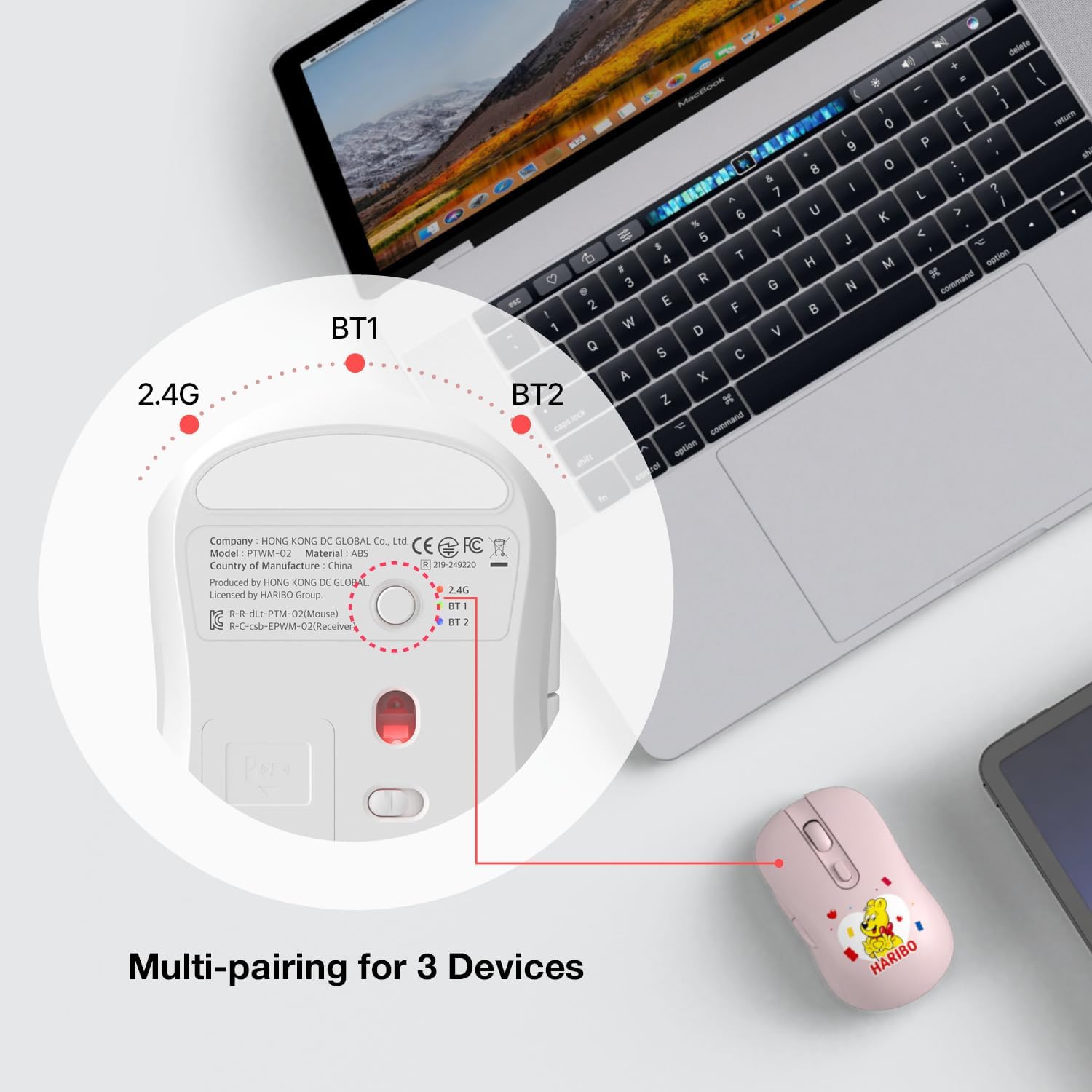
Figure 2: Multi-pairing switch on the bottom of the mouse for seamless device switching.
- సర్దుబాటు చేయగల DPI సెట్టింగ్లు: Customize cursor sensitivity with three DPI levels: 800, 1200, and 1600 DPI. Adjust easily with the dedicated DPI button to suit your environment and task.
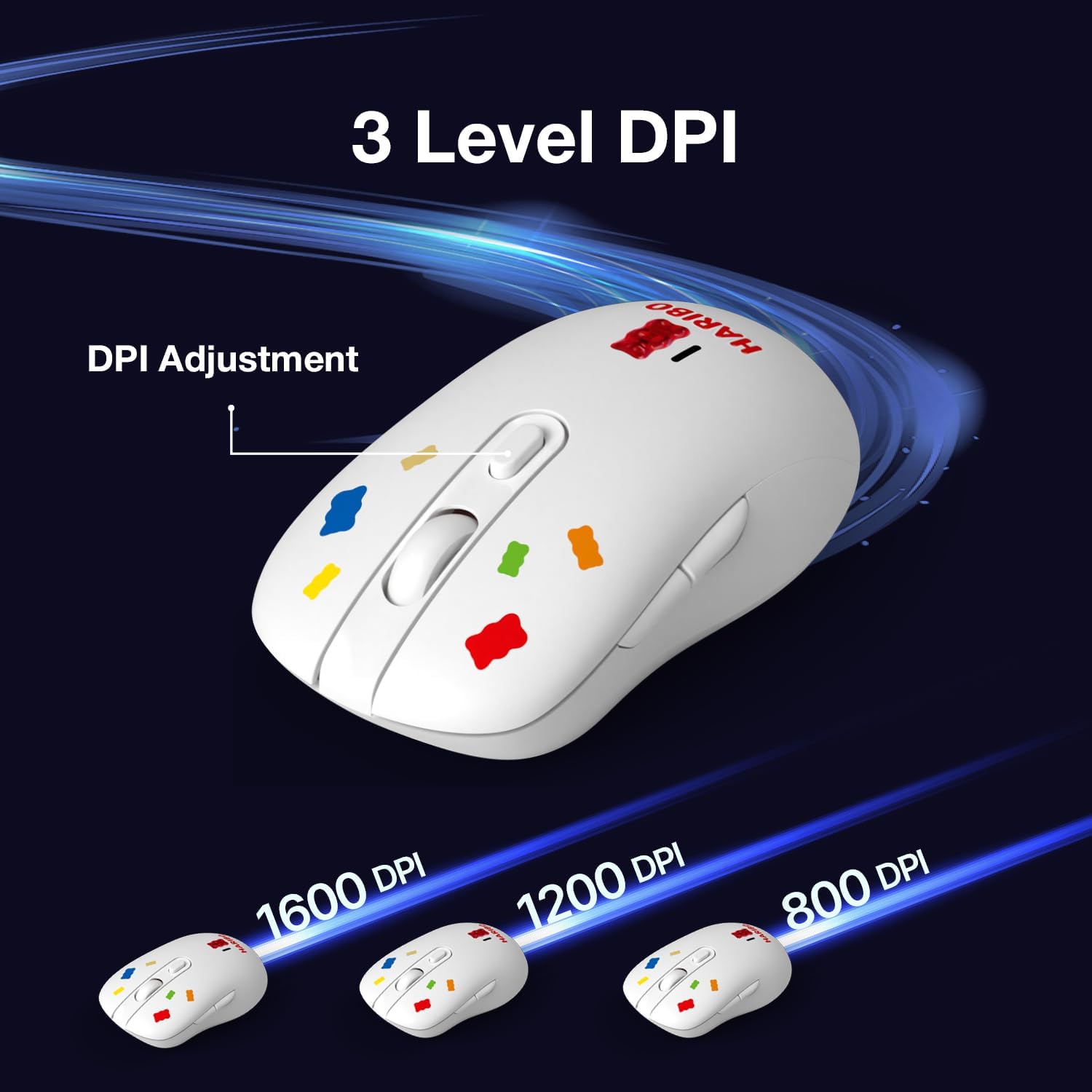
Figure 3: DPI adjustment button and visual representation of different DPI settings.
- ఆటో స్లీప్ మోడ్: To conserve battery life, the mouse automatically enters sleep mode when not in use, minimizing power consumption and extending battery longevity.
- సైలెంట్ క్లిక్ డిజైన్: Enjoy a quiet working environment with silent left and right click buttons, ideal for use in quiet spaces like libraries or offices.
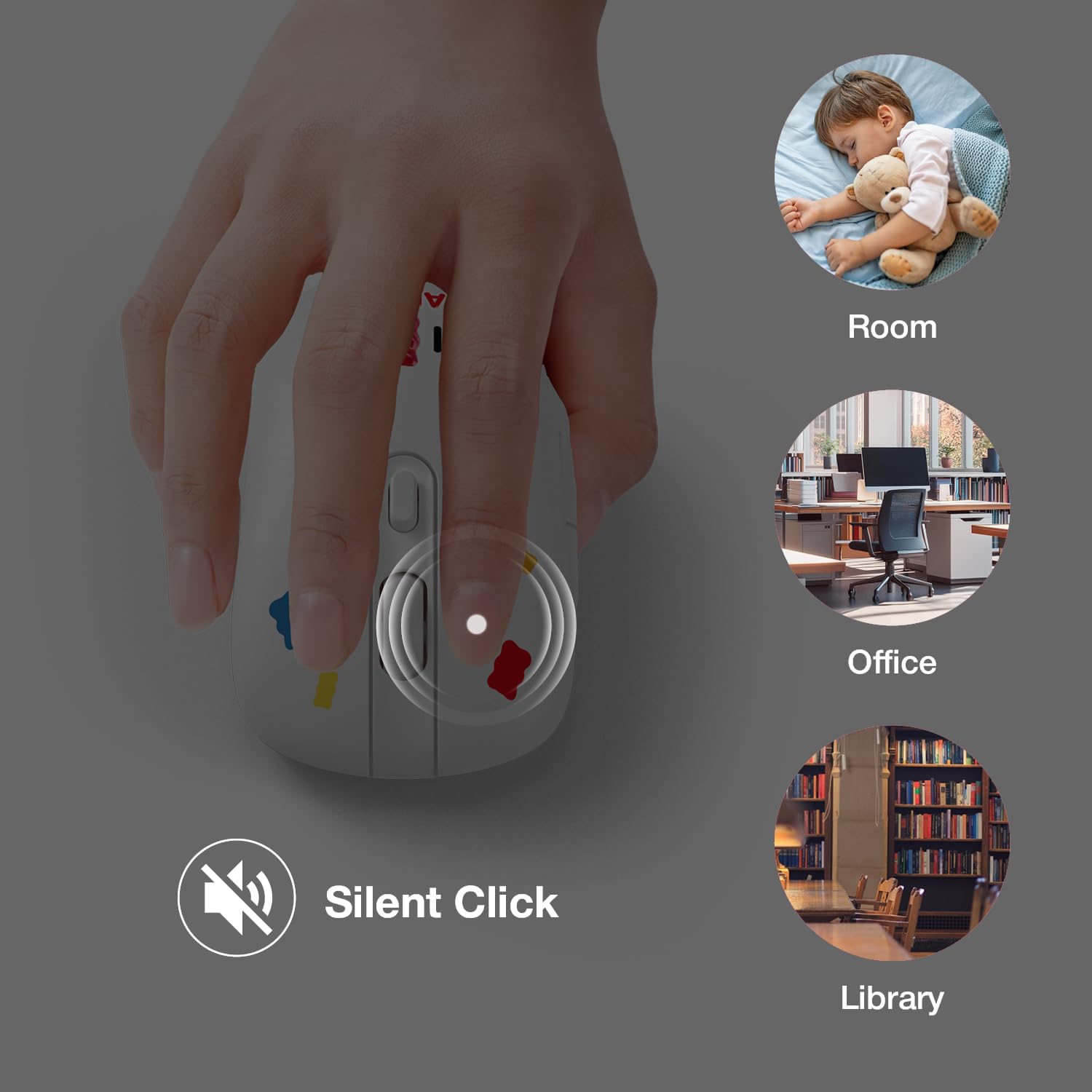
Figure 4: Silent click feature for quiet operation in various settings.
- Plug & Play Nano Receiver: The included nano dongle is stored conveniently in the back of the mouse. It allows for automatic recognition and use without the need for software installation.
సెటప్ గైడ్
1. బ్యాటరీని ఇన్స్టాల్ చేయడం:
- మౌస్ దిగువ భాగంలో బ్యాటరీ కంపార్ట్మెంట్ను గుర్తించండి.
- బ్యాటరీ కవర్ తెరవండి.
- సరైన ధ్రువణతను (+/-) నిర్ధారించుకుని, ఒక AA బ్యాటరీని చొప్పించండి.
- బ్యాటరీ కవర్ను సురక్షితంగా మూసివేయండి.
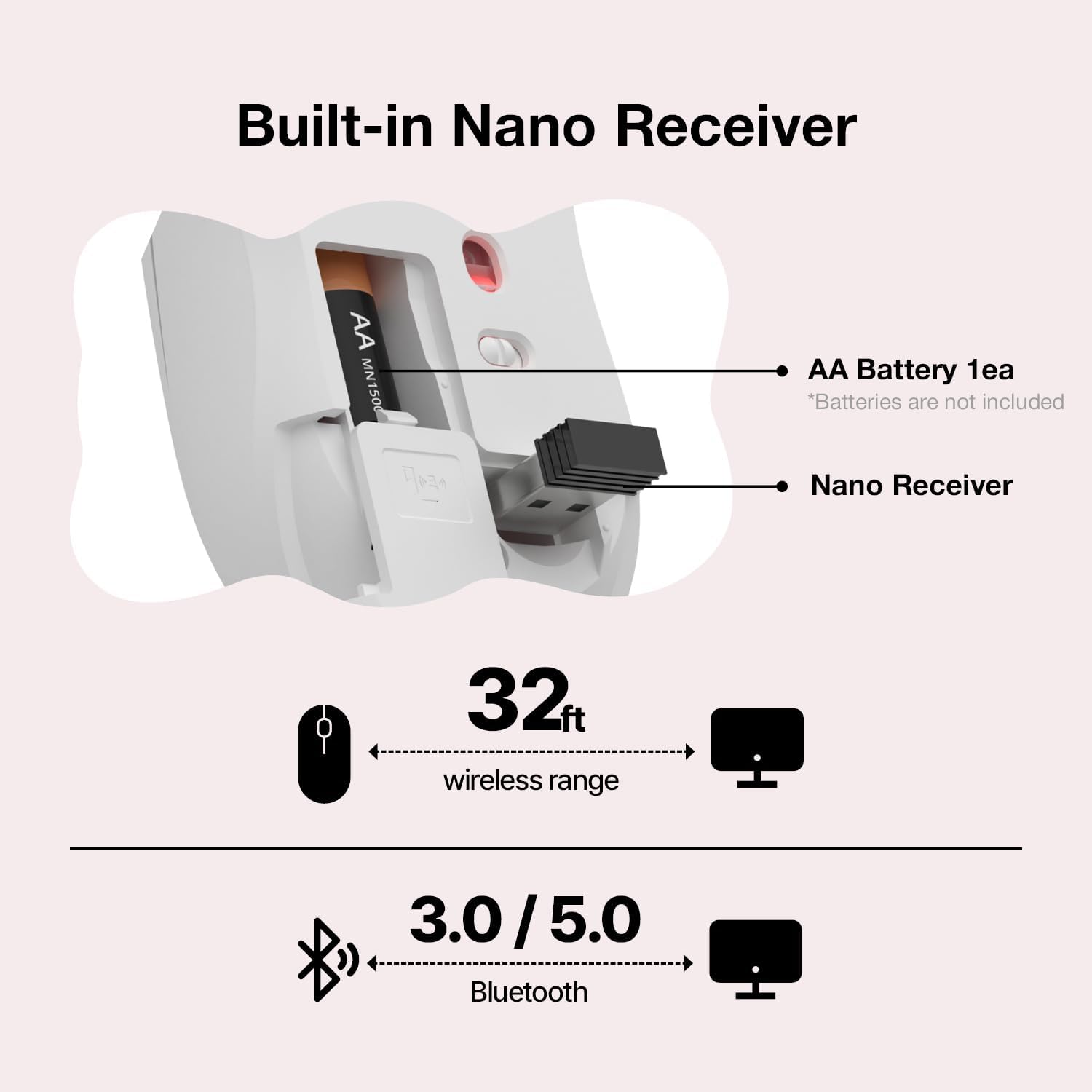
Figure 5: Battery and nano receiver placement.
2. మౌస్ని కనెక్ట్ చేయడం:
The Haribo Wireless Mouse offers two connection methods: 2.4GHz wireless via USB receiver and Bluetooth.
2.1. 2.4GHz వైర్లెస్ కనెక్షన్:
- Remove the USB nano receiver from its storage slot on the bottom of the mouse.
- Plug the USB nano receiver into an available USB port on your computer or device.
- దిగువన ఉన్న పవర్ స్విచ్ని ఉపయోగించి మౌస్ను ఆన్ చేయండి.
- Set the switch on the bottom of the mouse to the "2.4G" position. The mouse should automatically connect.
2.2 బ్లూటూత్ కనెక్షన్:
- దిగువన ఉన్న పవర్ స్విచ్ని ఉపయోగించి మౌస్ను ఆన్ చేయండి.
- Set the switch on the bottom of the mouse to either "BT1" or "BT2" position.
- మీ పరికరంలో (ల్యాప్టాప్, టాబ్లెట్, మొదలైనవి), బ్లూటూత్ సెట్టింగ్లకు వెళ్లండి.
- కోసం వెతకండి new devices and select "Haribo Mouse" (or similar name) from the list.
- Follow any on-screen prompts to complete the pairing process. The LED indicator will confirm successful pairing.
ఆపరేటింగ్ సూచనలు
Mouse Buttons and Functions:

Figure 6: Haribo Wireless Mouse button layout.
| నం. | బటన్ | ఫంక్షన్ |
|---|---|---|
| 01 | ఎడమ బటన్ | Primary click function. Silent operation. |
| 02 | కుడి బటన్ | Secondary click function (context menu). Silent operation. |
| 03 | స్క్రోల్ వీల్ | కంటెంట్ను నిలువుగా స్క్రోల్ చేస్తుంది. మిడిల్-క్లిక్ కార్యాచరణ కోసం కూడా నొక్కవచ్చు. |
| 04 | DPI సర్దుబాటు | Cycles through DPI settings (800, 1200, 1600 DPI). |
| 05 | ఫార్వర్డ్ బటన్ | ముందుకు నావిగేట్ చేస్తుంది web బ్రౌజర్లు లేదా file అన్వేషకులు. |
| 06 | వెనుకకు బటన్ | వెనుకకు నావిగేట్ చేస్తుంది web బ్రౌజర్లు లేదా file అన్వేషకులు. |
బహుళ-పరికర మార్పిడి:
To switch between paired devices (2.4G, BT1, BT2), simply move the switch on the bottom of the mouse to the desired channel. The mouse will automatically connect to the last paired device on that channel.
నిర్వహణ మరియు సంరక్షణ
- శుభ్రపరచడం: మౌస్ను శుభ్రం చేయడానికి మృదువైన, పొడి వస్త్రాన్ని ఉపయోగించండి. మొండి ధూళి కోసం, కొద్దిగా డి.amp cloth with mild soap can be used, but ensure no liquid enters the mouse.
- బ్యాటరీ భర్తీ: When the mouse performance degrades or the LED indicator flashes, replace the AA battery. Always use a fresh, high-quality AA battery.
- నిల్వ: When not in use for extended periods, turn off the mouse to conserve battery life. Store the USB nano receiver inside the mouse's dedicated slot to prevent loss.
- విపరీతమైన పరిస్థితులను నివారించండి: Do not expose the mouse to extreme temperatures, direct sunlight, or high humidity. Avoid dropping or subjecting the mouse to strong impacts.
ట్రబుల్షూటింగ్
| సమస్య | సాధ్యమైన కారణం | పరిష్కారం |
|---|---|---|
| మౌస్ స్పందించడం లేదు. | Low battery; Mouse is off; Incorrect connection mode; Receiver not plugged in (2.4G); Not paired (Bluetooth). | Replace battery; Turn on mouse; Switch to correct mode (2.4G/BT1/BT2); Plug in receiver; Re-pair Bluetooth. |
| కర్సర్ కదలిక అస్తవ్యస్తంగా లేదా నెమ్మదిగా ఉంది. | Low DPI setting; Dirty optical sensor; Unsuitable surface; Interference. | Increase DPI; Clean sensor; Use a mouse pad; Move closer to receiver/device; Reduce other wireless interference. |
| బ్లూటూత్ ద్వారా జత చేయడం సాధ్యం కాదు. | Mouse not in pairing mode; Device's Bluetooth is off; Already paired to max devices. | Ensure mouse is in BT1/BT2 mode and discoverable; Turn on device's Bluetooth; Disconnect from another device if necessary. |
| Side buttons not working. | Application specific; Driver issue (rare). | Some applications may not support forward/backward buttons. No specific driver is usually needed for this plug-and-play mouse. |
స్పెసిఫికేషన్లు
| ఫీచర్ | వివరాలు |
|---|---|
| మోడల్ సంఖ్య | PTWM-02 |
| బ్రాండ్ | DCHK |
| కనెక్టివిటీ టెక్నాలజీ | Bluetooth 3.0/5.0, 2.4GHz USB Wireless |
| కదలిక గుర్తింపు | ఆప్టికల్ |
| DPI సెట్టింగులు | 800, 1200, 1600 DPI (Adjustable) |
| ఉత్పత్తి కొలతలు | 4.1 x 2.4 x 0.1 అంగుళాలు |
| వస్తువు బరువు | 2.3 ఔన్సులు |
| బ్యాటరీ రకం | 1 x AA బ్యాటరీ (చేర్చబడలేదు) |
| ప్రత్యేక లక్షణాలు | Compact Design, Lightweight, Portable, Soundless, Multi-Device Pairing |
వారంటీ మరియు మద్దతు
For warranty information and technical support, please refer to the contact details provided on the product packaging or visit the official DCHK webసైట్. వారంటీ క్లెయిమ్ల కోసం మీ కొనుగోలు రసీదుని ఉంచండి.
మరింత సహాయం కోసం, మీరు ఉత్పత్తిని కొనుగోలు చేసిన ప్లాట్ఫామ్ ద్వారా నేరుగా విక్రేతను కూడా సంప్రదించవచ్చు.
తయారీదారు: DCHK
మొదటి తేదీ అందుబాటులో ఉంది: డిసెంబర్ 6, 2024
Ask a question about this manual
Ask about setup, troubleshooting, compatibility, parts, safety, or missing instructions. Manuals+ will review the question and use this page’s manual context to help answer it.