
1. పరిచయం
Thank you for choosing the Docooler Desktop Barcode Scanner. This manual provides essential information for the proper setup, operation, and maintenance of your device. Please read these instructions carefully to ensure optimal performance and longevity of your scanner.

చిత్రం 1.1: ముందు view of the Docooler Desktop Barcode Scanner. This device is designed for efficient and hands-free barcode scanning.
2. ఉత్పత్తి ముగిసిందిview
The Docooler Desktop Barcode Scanner is an automatic, omnidirectional 1D and 2D barcode reader designed for various retail and warehouse environments. Its advanced features ensure fast and accurate data capture.
ముఖ్య లక్షణాలు:
- Global Exposure Technology: Equipped with a 300,000 pixel global exposure scan engine, capturing entire barcode frames simultaneously for fast and accurate scanning.
- Super Fast Scanning: Achieves a scanning rate of 120 frames per second, ideal for high-throughput requirements. Features an infrared induction trigger for auto-sensing mode.
- Wide Scanning Angle: Offers a wide scanning range of ±60° left-right, ±54° front-back, and 360° omnidirectional rotation, allowing flexible barcode positioning.
- Advanced Decoding Capabilities: Supports a broad range of 1D and 2D barcodes, including QR Code, Data Matrix, PDF417, Micro QR Code, and Aztec Code. Capable of reading codes from mobile phone screens.
- ప్లగ్ మరియు ప్లే: Connects easily via USB cable to laptops, desktops, and POS systems without requiring additional software or drivers.

చిత్రం 2.1: The scanner demonstrating its ultra-fast scanning capability by reading a barcode from a mobile phone screen.

చిత్రం 2.2: Illustration of the scanner's ability to decode various 1D and 2D barcode formats, such as QR Code, Data Matrix, and PDF417.

చిత్రం 2.3: The scanner's wide scanning angles are depicted, showing its capability to read barcodes from various orientations.
3. సెటప్
The Docooler Desktop Barcode Scanner is designed for simple plug-and-play installation.
- Unpack the scanner and its USB cable from the packaging.
- Connect the USB Type-B end of the cable to the port on the back of the scanner.
- Connect the USB Type-A end of the cable to an available USB port on your computer or Point-of-Sale (POS) system.
- The operating system should automatically detect and install the necessary drivers. No additional software installation is typically required.
- Once connected, the scanner is ready for use.
4. ఆపరేటింగ్ సూచనలు
The scanner operates in an automatic, hands-free mode, making barcode reading efficient.
- Ensure the scanner is properly connected to your computer or POS system and powered on.
- Position the item with the barcode in front of the scanner's window. The scanner's infrared induction trigger will automatically detect the presence of an item.
- The scanner will emit a red light to read the barcode.
- Upon a successful scan, the scanner will emit a short beep (buzzer) and an LED indicator light will confirm the read.
- The decoded barcode data will be transmitted to your connected system as keyboard input.
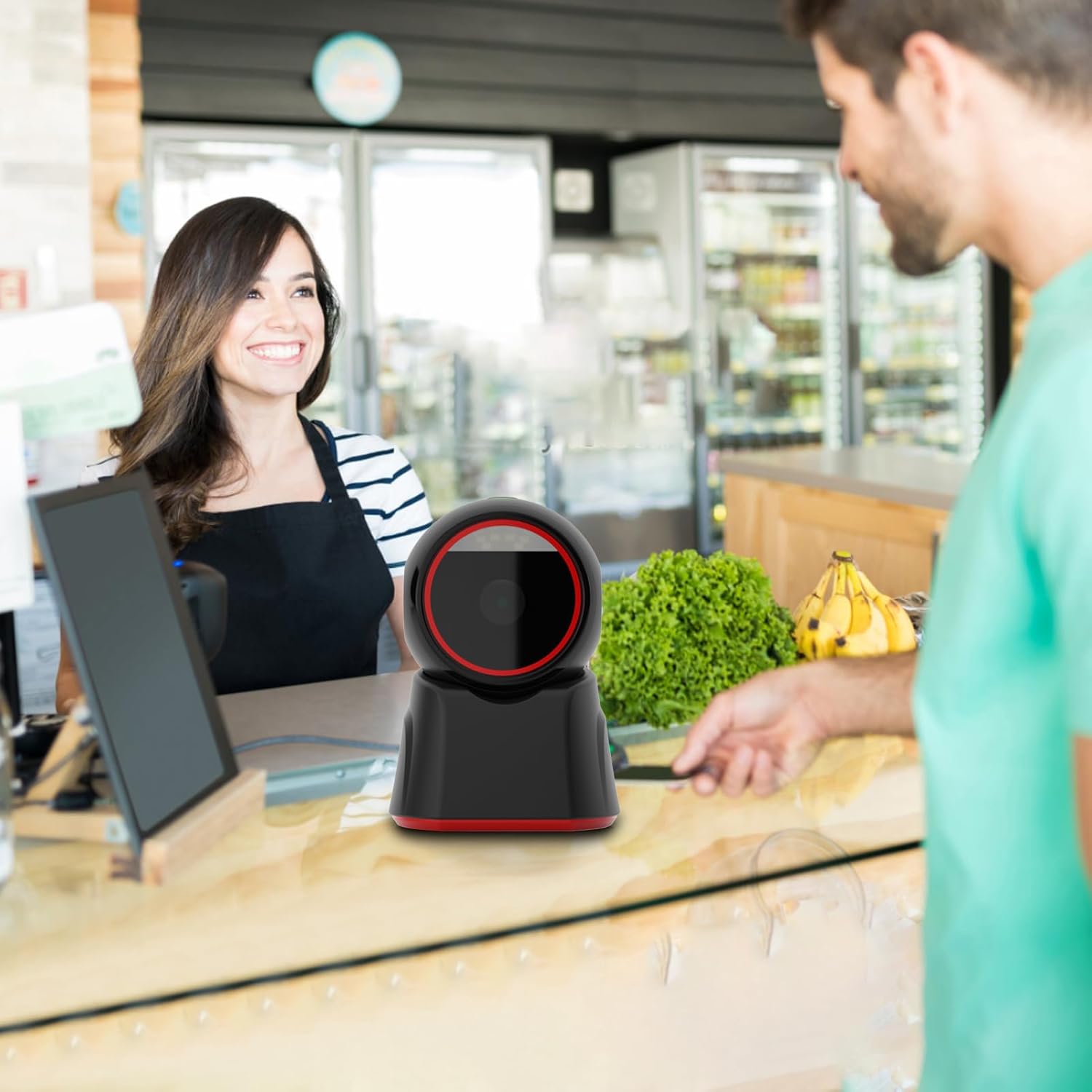
చిత్రం 4.1: The Docooler Desktop Barcode Scanner in operation at a retail counter, efficiently scanning an item for a customer.

చిత్రం 4.2: The scanner facilitating a mobile payment by reading a QR code displayed on a smartphone at a coffee shop counter.
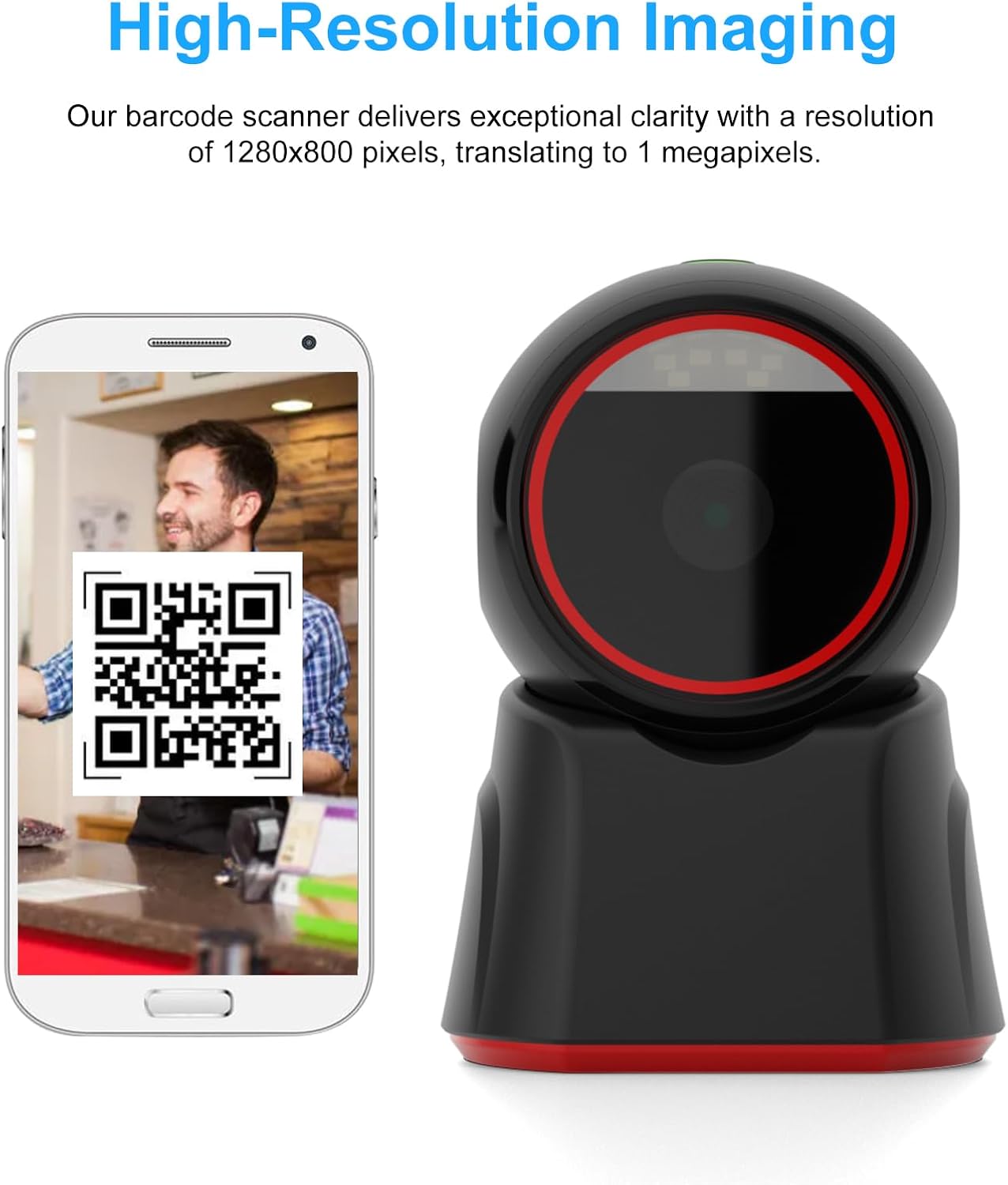
చిత్రం 4.3: ఒక క్లోజప్ view emphasizing the scanner's high-resolution imaging capability as it reads a QR code from a smartphone.
5. నిర్వహణ
Regular maintenance helps ensure the scanner's optimal performance and extends its lifespan.
- స్కానింగ్ విండోను శుభ్రపరచడం: మృదువైన, మెత్తటి బట్టను ఉపయోగించండి, కొద్దిగా dampened with water or a mild, non-abrasive cleaner, to gently wipe the scanning window. Avoid using harsh chemicals, solvents, or abrasive materials, as these can scratch or damage the window.
- సాధారణ శుభ్రపరచడం: Wipe the exterior of the scanner with a soft, dry cloth to remove dust and debris.
- కేబుల్ కేర్: Ensure the USB cable is not bent, twisted, or subjected to excessive strain, which could damage the internal wires.
- నిల్వ: When not in use for extended periods, store the scanner in a clean, dry environment away from direct sunlight and extreme temperatures.
6. ట్రబుల్షూటింగ్
If you encounter issues with your Docooler Desktop Barcode Scanner, refer to the following common problems and solutions:
- స్కానర్ బార్కోడ్లను చదవడం లేదు:
- USB కేబుల్ స్కానర్ మరియు హోస్ట్ పరికరం రెండింటికీ సురక్షితంగా కనెక్ట్ చేయబడిందని నిర్ధారించుకోండి.
- బార్కోడ్ శుభ్రంగా, పాడవకుండా మరియు స్పష్టంగా ముద్రించబడి ఉందని ధృవీకరించండి.
- Confirm that the barcode type (1D or 2D) is supported by the scanner (refer to Specifications).
- Ensure there is adequate lighting for the scanner to read the barcode.
- Try scanning a different, known-good barcode to rule out an issue with the specific barcode.
- No indicator light or buzzer sound:
- Check the USB connection to ensure it is firm and the scanner is receiving power.
- Try connecting the scanner to a different USB port or another computer to diagnose power issues.
- నెమ్మదిగా లేదా అస్థిరంగా స్కానింగ్:
- Clean the scanning window as described in the Maintenance section.
- Ensure there are no obstructions between the barcode and the scanner's window.
- Check for any background interference or reflections that might affect scanning performance.
7. స్పెసిఫికేషన్లు
| స్కానింగ్ మోడ్ | Auto-sensing / Continuous scanning |
| ఇంటర్ఫేస్ రకం | USB TYPE-B |
| సూచిక | Buzzer, LED light |
| స్కానింగ్ రకం | CMOS global exposure |
| రిజల్యూషన్ | 640*480 పిక్సెల్లు |
| కాంతి మూలం | 617nm red light LED |
| స్కానింగ్ కోణం | ±60° (left-right), ±54° (front-rear), 360° (rotation) |
| స్కానింగ్ రేటు | 120 ఫ్రేమ్లు/సెకను |
| ఫీల్డ్ View కోణం | 48° (H) x 30° (V) |
| Printing Contrast | కనిష్టంగా 20% |
| Decoding Types (1D) | EAN13, EAN 8, UPC-A, UPC-E0, UPC-E1, Code128, Code39, Code93, Interleaved 2 of 5, Industrial 25, Matrix 2 of 5, Code11, CodeBar, MSI, RSS-14, RSS-Ltd, RSS-Exp, Plessey |
| Decoding Types (2D) | QR Code, Data Matrix (DM), PDF417, Micro QRCode, Aztec Code (supports mobile phone screen reading) |
| కనిష్ట రిజల్యూషన్ | 1D 5mil, 2D 7mil |
| ఫీల్డ్ యొక్క లోతు | QR (20mil): 0~230mm QR Payment Code (Mobile): 0~290mm Data Matrix (10mil): 0~45mm PDF 417 (7mil): 0~130mm EAN-13 (13mil): 0~270mm Code 39 (8mil): 0~180mm Code 128 (7mil): 0~140mm |
| ఇన్పుట్ వాల్యూమ్tage | DC 5V±10% |
| ప్రస్తుత | Working: 240mA; Standby: 190mA |
| ఆపరేటింగ్ ఉష్ణోగ్రత | 0°C - 50°C |
| నిల్వ ఉష్ణోగ్రత | -20°C - +70°C |
| తేమ | 5% -95% (సంక్షేపణం లేకుండా) |
| షెల్ మెటీరియల్ | ABS+PC |
| రంగు | నలుపు |
| కేబుల్ పొడవు | 1.35m straight line |
| అంశం పరిమాణం | 156 x 112 x 103 మిమీ (6.14 x 4.41 x 4.05 అంగుళాలు) |
| వస్తువు బరువు | 270గ్రా (9.52oz) |

చిత్రం 7.1: ముందు view of the scanner with its primary dimensions indicated.
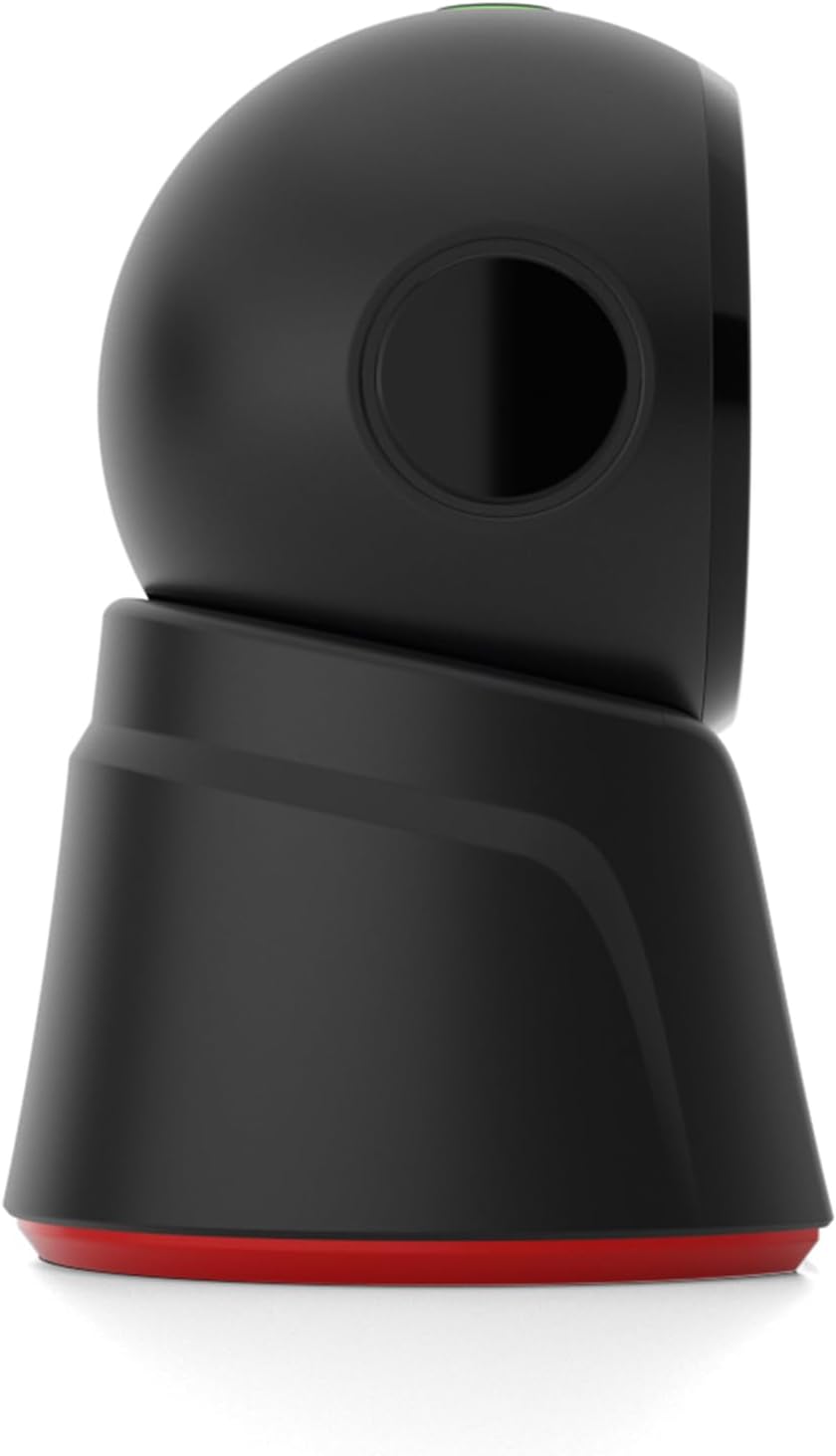
చిత్రం 7.2: వైపు view of the Docooler Desktop Barcode Scanner.
8. వారంటీ మరియు మద్దతు
For product support, technical assistance, or warranty inquiries, please contact Docooler customer service through the official channels. You can find more information and contact details by visiting the Docooler Store: