
1. పరిచయం
The Sharkoon AK2 Black is an ATX PC case designed for a wide range of computer builds, including gaming, work, and multimedia stations. It offers a discreet aesthetic combined with extensive compatibility for modern hardware and efficient cooling solutions. This manual provides essential information for the proper setup, operation, and maintenance of your AK2 PC case.
ముఖ్య లక్షణాలు ఉన్నాయి:
- Support for Mini-ITX, Micro-ATX, ATX, and BTF motherboards.
- Spacious interior for large graphics cards (up to 41 cm).
- CPU cooler height clearance up to 17 cm.
- Power supply unit (PSU) length up to 23.5 cm.
- Pre-installed 120mm fans (one front, one rear), with support for up to eleven fans total.
- Compatibility with up to two 360mm radiators for liquid cooling.
- Front panel with modern TRRS and USB-C ports.
- Storage options for up to two 3.5" HDDs or four 2.5" SSDs.
2. భద్రతా సమాచారం
Please read and understand the following safety guidelines before installing components into your PC case:
- Always disconnect the power supply from the wall outlet before opening the PC case or installing/removing components.
- Handle all components with care to avoid damage. Static electricity can harm sensitive electronic parts. Consider using an anti-static wrist strap.
- PC కేసు వేడెక్కకుండా నిరోధించడానికి చుట్టూ సరైన వెంటిలేషన్ ఉండేలా చూసుకోండి.
- చిన్న భాగాలు మరియు ఉపకరణాలను పిల్లలకు దూరంగా ఉంచండి.
- Do not attempt to modify the case structure, as this may compromise its integrity and void your warranty.
- Refer to the manuals of your individual components (motherboard, GPU, PSU, etc.) for specific installation instructions.
3. సెటప్ మరియు కాంపోనెంట్ ఇన్స్టాలేషన్
This section outlines the general steps for installing your computer components into the Sharkoon AK2 Black PC case.
3.1. కేసును సిద్ధం చేయడం
Carefully remove the side panels of the case. The AK2 features a spacious interior designed for ease of access during component installation.

చిత్రం 1: అంతర్గత view of the main compartment, ready for component installation.
3.2. మదర్బోర్డు సంస్థాపన
The AK2 supports Mini-ITX, Micro-ATX, ATX, and BTF motherboards. Install the necessary standoffs for your motherboard form factor. Carefully place your motherboard onto the standoffs and secure it with screws.

Figure 2: Motherboard tray cutout for easy CPU cooler installation/removal.
3.3. విద్యుత్ సరఫరా యూనిట్ (PSU) సంస్థాపన
Install your PSU into the dedicated compartment at the bottom of the case. The AK2 accommodates PSUs up to 23.5 cm in length. Secure the PSU with screws from the rear of the case.
3.4. స్టోరేజ్ డ్రైవ్ ఇన్స్టాలేషన్
The case provides bays for up to two 3.5" HDDs or four 2.5" SSDs. Locate the drive cages and mounting points, typically behind the motherboard tray or within the PSU shroud area. Secure your drives using the provided screws or tool-less mechanisms.

Figure 3: Rear internal view showing cable management space and drive mounting options.
3.5. గ్రాఫిక్స్ కార్డ్ (GPU) మరియు ఎక్స్పాన్షన్ కార్డ్ ఇన్స్టాలేషన్
Install your graphics card into the appropriate PCIe slot on your motherboard. The AK2 supports large graphics cards up to 41 cm in length. Remove the necessary expansion slot covers from the rear of the case and secure your card.
3.6. Cooling System Installation (Fans and Radiators)
The AK2 comes with two pre-installed 120mm fans (one in the front, one in the rear). The case supports up to eleven fans in total for optimal airflow. For liquid cooling, it can accommodate up to two 360mm radiators. Install additional fans or radiators in the designated mounting positions (front, top, rear) as needed.

చిత్రం 4: అంతర్గత view showing fan and radiator mounting locations.
3.7. Connecting Front Panel I/O
Connect the front panel cables (USB-C, TRRS audio, power button, reset button, LED indicators) to the corresponding headers on your motherboard. Refer to your motherboard manual for exact header locations.

మూర్తి 5: ముందు view of the AK2 case, featuring the front panel I/O.
4. మీ PC కేసును ఆపరేట్ చేయడం
Once all components are installed and connected, replace the side panels. Connect your peripherals, monitor, and power cable. Press the power button on the front panel to start your computer.
The AK2's design prioritizes airflow to ensure efficient cooling for your components. Ensure that the pre-installed fans are spinning and consider adding more fans if your system generates significant heat, especially during demanding tasks like gaming.
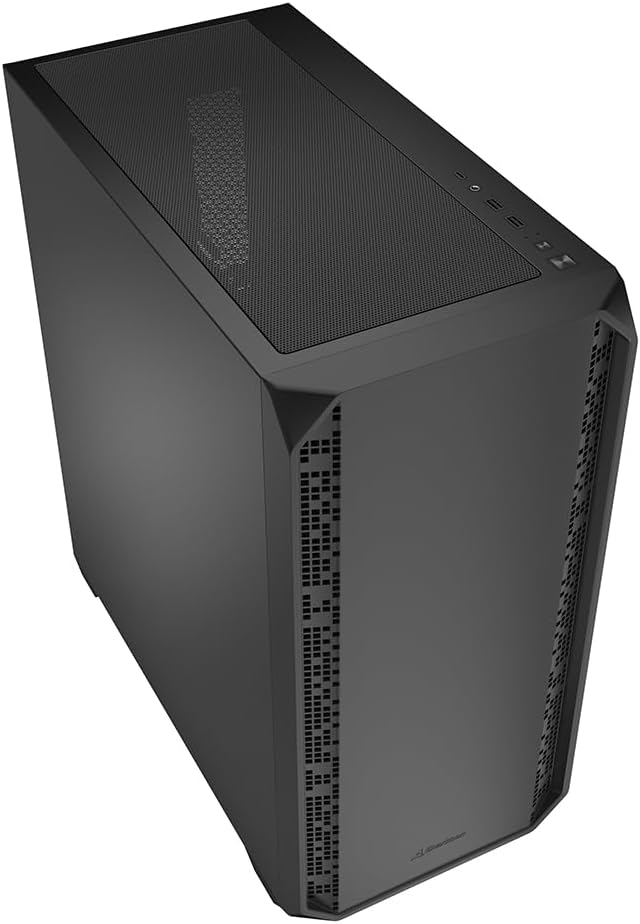
చిత్రం 6: కోణీయ view of the AK2 case, showcasing దాని మొత్తం డిజైన్.
5. నిర్వహణ
క్రమం తప్పకుండా నిర్వహణ మీ PC భాగాల యొక్క ఉత్తమ పనితీరు మరియు దీర్ఘాయువును నిర్ధారించడంలో సహాయపడుతుంది.
- డస్ట్ ఫిల్టర్లు: The AK2 likely includes removable dust filters (e.g., on the top, front, and/or bottom). Regularly clean these filters by gently brushing or washing them to prevent dust buildup inside the case, which can impede airflow and cause overheating.
- ఇంటీరియర్ క్లీనింగ్: Periodically open the case (after disconnecting power) and use compressed air to remove dust from fans, heatsinks, and other components.
- కేబుల్ నిర్వహణ: Ensure cables are neatly routed to avoid obstructing airflow. The AK2 offers ample space behind the motherboard tray for effective cable management.
6. ట్రబుల్షూటింగ్
If you encounter issues during or after building your PC, consider the following common troubleshooting steps:
- శక్తి లేదు: Double-check all power connections, including the 24-pin ATX, 8-pin CPU, and PCIe power cables. Ensure the PSU switch is in the 'ON' position.
- ప్రదర్శన లేదు: Verify that your monitor is connected to the graphics card (not the motherboard's integrated graphics, unless you are using it) and that the monitor is powered on and set to the correct input. Reseat your graphics card and RAM modules.
- వేడెక్కడం: Ensure all case fans and CPU cooler fans are spinning correctly. Check for dust buildup on heatsinks and dust filters. Verify proper thermal paste application on the CPU.
- ఫ్రంట్ ప్యానెల్ I/O సమస్యలు: Confirm that all front panel headers (USB, audio, power/reset switches) are correctly connected to the motherboard.
For more complex issues, consult the manuals for your individual components or seek assistance from a qualified technician.
7. స్పెసిఫికేషన్లు
Below are the technical specifications for the Sharkoon AK2 Black ATX PC Case:
| బ్రాండ్ | షార్కూన్ |
| మోడల్ పేరు | AK2 నలుపు |
| కేసు రకం | టవర్ |
| రంగు | నలుపు |
| మెటీరియల్ | మిశ్రమం ఉక్కు |
| వస్తువు బరువు | 6.46 కిలోలు |
| ఉత్పత్తి కొలతలు (D x W x H) | 46D x 22.5W x 48.5H సెంటీమీటర్లు |
| Total Internal Bays | 6 (for 3.5" HDDs or 2.5" SSDs) |
| మదర్బోర్డు మద్దతు | Mini-ITX, Micro-ATX, ATX, BTF |
| Max. GPU Length | 41 సెం.మీ |
| గరిష్టంగా CPU కూలర్ ఎత్తు | 17 సెం.మీ |
| గరిష్టంగా PSU పొడవు | 23.5 సెం.మీ |
| అభిమానుల మద్దతు | Up to 11 (2 x 120mm pre-installed) |
| రేడియేటర్ మద్దతు | Up to two 360mm radiators |
| ముందు I/O | TRRS, USB-C |

Figure 7: Product dimensions of the AK2 Black PC case.
8. వారంటీ మరియు మద్దతు
వారంటీ సమాచారం మరియు సాంకేతిక మద్దతు కోసం, దయచేసి అధికారిక షార్కూన్ను చూడండి. webసైట్ లేదా వారి కస్టమర్ సర్వీస్ను నేరుగా సంప్రదించండి. వారంటీ క్లెయిమ్ల కోసం మీ కొనుగోలు రుజువును ఉంచండి.
మరిన్ని సహాయం కోసం, మీరు సందర్శించవచ్చు Sharkoon official webసైట్.


