
1. పరిచయం
Welcome to the NINGMEI Soul Gaming PC Desktop user manual. This document provides essential information for the proper setup, operation, maintenance, and troubleshooting of your new computer. The NINGMEI Soul Gaming PC Desktop is designed for performance, featuring an AMD Ryzen 5 5600G processor (often marketed as 5600GT), 16GB DDR4 RAM, and a 1TB NVME SSD, running on Windows 11 Home.
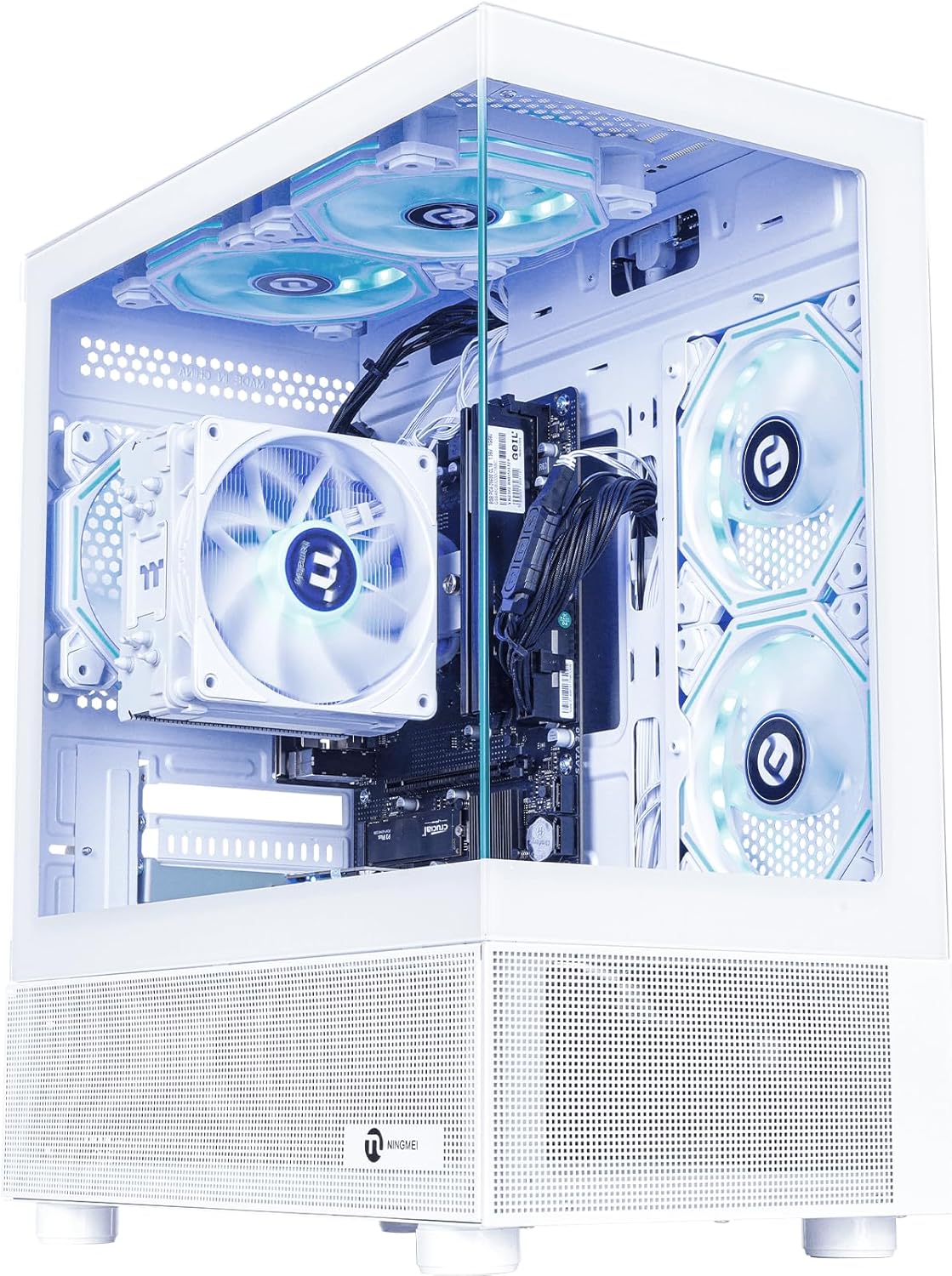
Figure 1: NINGMEI Soul Gaming PC Desktop (White)
2. ప్యాకేజీ విషయాలు
Please verify that all items are present in your package. If any components are missing or damaged, contact NINGMEI customer support immediately.
- NINGMEI Soul Gaming PC Desktop (Model 5600G-WXK)
- పవర్ కేబుల్
- మౌస్ ప్యాడ్
- డాక్యుమెంటేషన్ (త్వరిత ప్రారంభ మార్గదర్శి, వారంటీ సమాచారం)
- Remote control for RGB fans
3. సెటప్ సూచనలు
3.1 అన్ప్యాకింగ్ మరియు ప్లేస్మెంట్
- PC ని దాని ప్యాకేజింగ్ నుండి జాగ్రత్తగా తొలగించండి.
- తగినంత వెంటిలేషన్ ఉన్న స్థిరమైన, చదునైన ఉపరితలంపై PC ని ఉంచండి. ఏ వెంట్లలో అడ్డంకులు లేవని నిర్ధారించుకోండి.
3.2 కనెక్ట్ పెరిఫెరల్స్
Connect your monitor, keyboard, mouse, and other peripherals to the appropriate ports on the back and top of the PC.
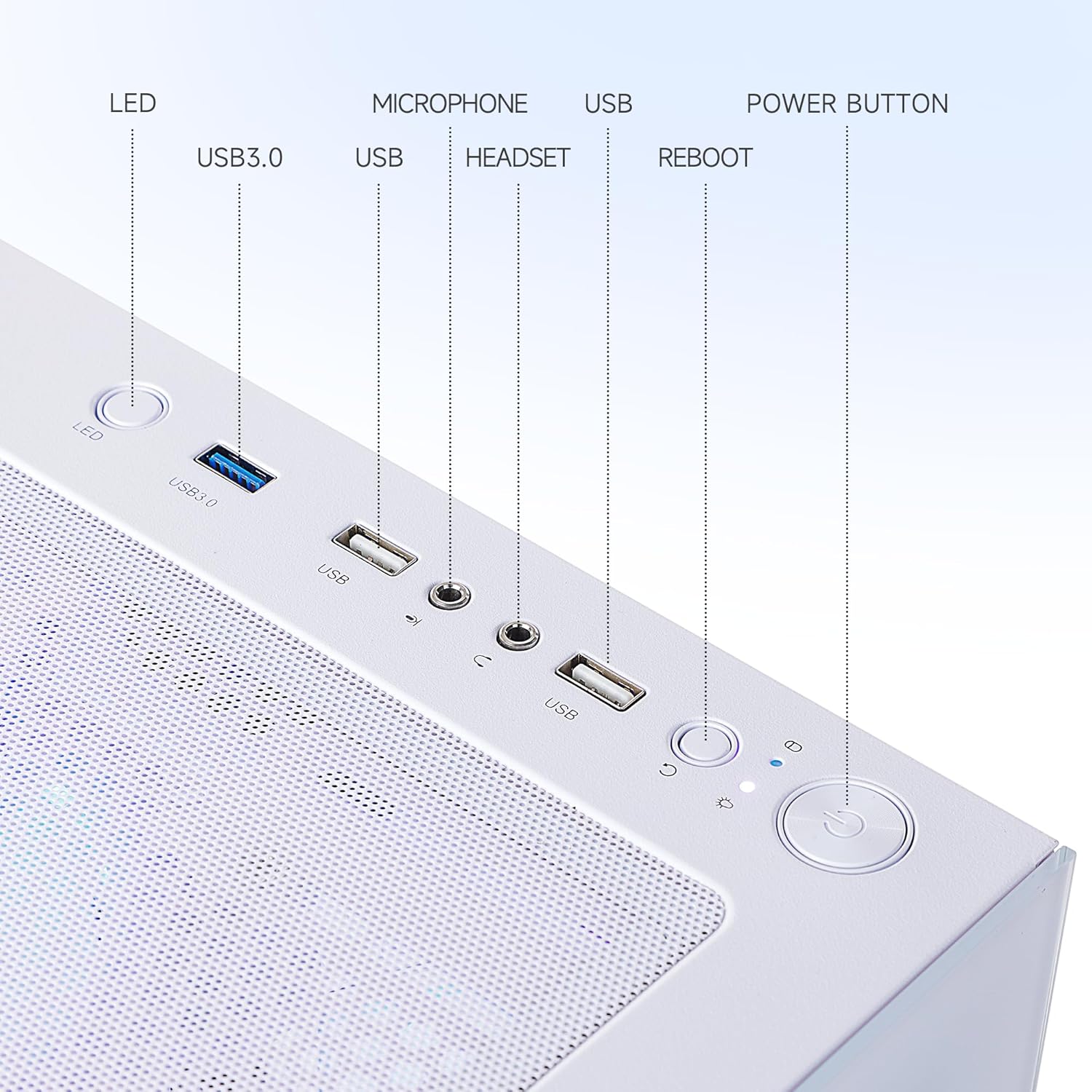
Figure 2: Top Panel Ports and Buttons
- మానిటర్: Connect your monitor using an HDMI cable to the integrated graphics port. Note that this model uses integrated AMD Radeon Vega 7 Graphics.
- కీబోర్డ్ మరియు మౌస్: మీ USB కీబోర్డ్ మరియు మౌస్ని అందుబాటులో ఉన్న ఏవైనా USB పోర్ట్లకు కనెక్ట్ చేయండి.
- ఆడియో: Connect headphones or speakers to the audio output port.
- శక్తి: Connect the power cable to the PC's power input and then to a wall outlet.
- నెట్వర్క్: For internet access, connect an Ethernet cable to the LAN port or ensure your Wi-Fi adapter is properly installed and configured. (Note: A customer review indicated that a good Wi-Fi adapter might be needed for optimal performance.)
3.3 ప్రారంభ పవర్ ఆన్
- Press the Power Button located on the top panel (refer to Figure 2).
- The system will boot into Windows 11 Home. Follow the on-screen instructions to complete the initial setup, including language, region, network connection, and user account creation.
4. ఆపరేటింగ్ సూచనలు
4.1 పవర్ ఆన్/ఆఫ్
- పవర్ ఆన్ చేయడానికి: పవర్ బటన్ నొక్కండి.
- షట్ డౌన్ చేయడానికి: Windows 11లో స్టార్ట్ బటన్ను క్లిక్ చేసి, ఆపై పవర్ > షట్ డౌన్ ఎంచుకోండి.
- పునఃప్రారంభించడానికి: స్టార్ట్ బటన్ను క్లిక్ చేసి, ఆపై పవర్ > రీస్టార్ట్ ఎంచుకోండి.
- నిద్రించడానికి: ప్రారంభ బటన్ను క్లిక్ చేసి, ఆపై పవర్ > స్లీప్ ఎంచుకోండి.
4.2 RGB Fan Control
The internal RGB fans can be controlled using the included remote control. Refer to the remote's instructions for specific lighting modes and speed adjustments.
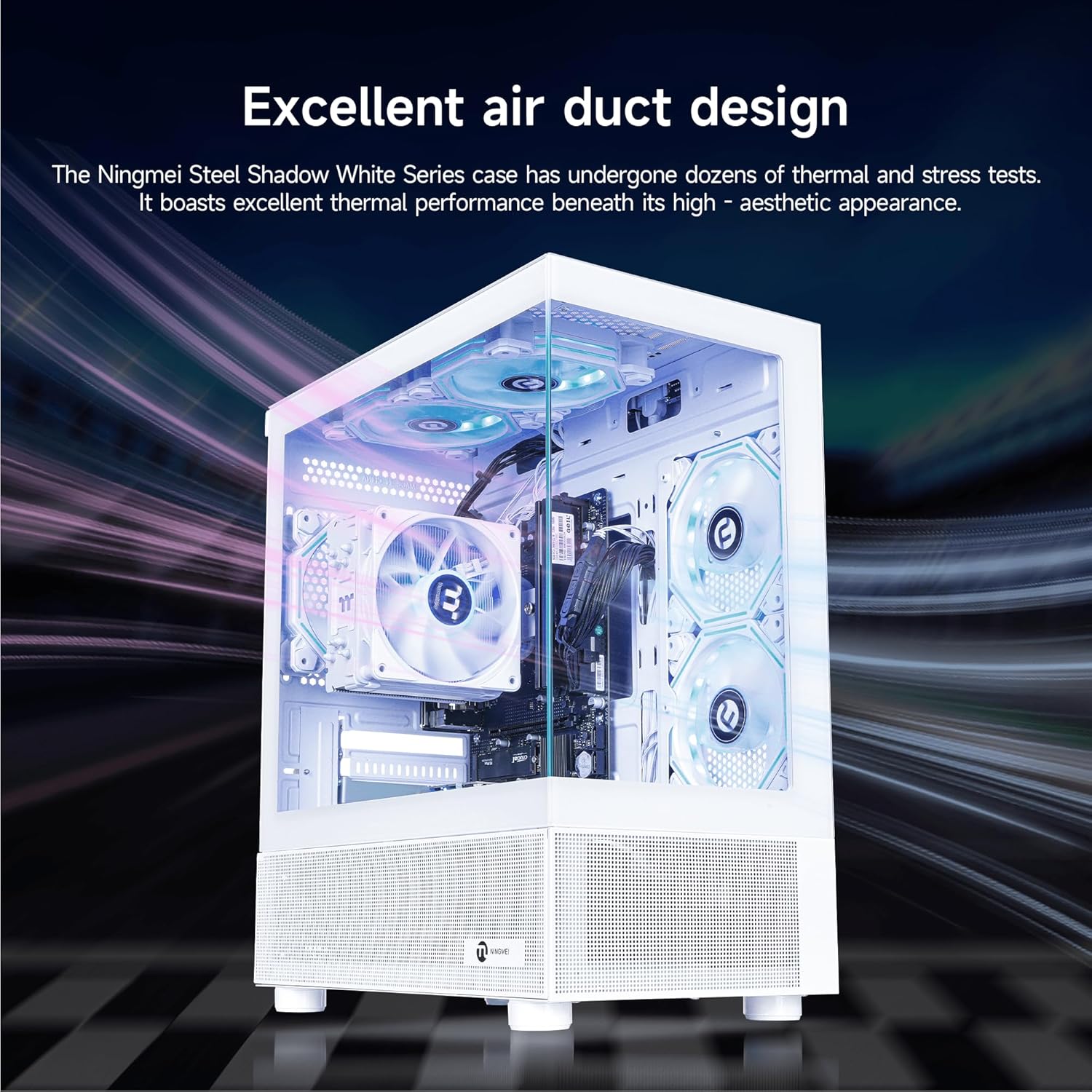
Figure 3: Illuminated RGB Fans for Enhanced Airflow and Aesthetics
4.3 విండోస్ 11 హోమ్
Your PC comes pre-installed with Windows 11 Home. For detailed information on using Windows 11, please refer to Microsoft's official documentation and support resources.
5. నిర్వహణ
5.1 డస్ట్ ఫిల్టర్ క్లీనింగ్
The NINGMEI Soul Series case features an independent and removable magnetic dust screen on the top. Regularly clean this filter to prevent dust buildup, which can affect cooling performance and system longevity.
- Gently lift the magnetic dust screen from the top of the chassis.
- Clean the filter using compressed air or a soft brush to remove accumulated dust.
- ఫిల్టర్ని మళ్లీ అటాచ్ చేసే ముందు పూర్తిగా పొడిగా ఉందని నిర్ధారించుకోండి.

Figure 4: Removable Magnetic Dust Filter
5.2 Internal Cleaning and Component Access
For more thorough internal cleaning or component upgrades, the side panels of the case can be removed.
- Ensure the PC is powered off and unplugged from the wall outlet.
- Locate the tab on the top left of both the right and left side panels.
- Gently pull outward on the tab to release the panel.
- Use compressed air to clean dust from internal components, such as fans, heatsinks, and graphics card (if installed).
- When finished, align the panel and push it back into place until it clicks securely.

చిత్రం 5: అంతర్గత View of PC Components
5.3 సాధారణ సంరక్షణ
- Keep the PC away from direct sunlight, heat sources, and excessive moisture.
- Avoid placing heavy objects on top of the PC.
- Use a soft, dry cloth for exterior cleaning.
6. ట్రబుల్షూటింగ్
This section addresses common issues you might encounter. For more complex problems, please contact NINGMEI technical support.
6.1 శక్తి లేదు
- పవర్ కేబుల్ PC మరియు వాల్ అవుట్లెట్ రెండింటికీ సురక్షితంగా కనెక్ట్ చేయబడిందని నిర్ధారించుకోండి.
- మరొక పరికరాన్ని ప్లగ్ చేయడం ద్వారా వాల్ అవుట్లెట్ పనిచేస్తుందో లేదో ధృవీకరించండి.
- Check the power supply switch on the back of the PC (if present) is in the 'ON' position.
6.2 మానిటర్లో డిస్ప్లే లేదు
- Confirm the monitor is powered on and connected correctly to the PC's video output port (HDMI).
- మీ మానిటర్లో సరైన ఇన్పుట్ సోర్స్ ఎంచుకోబడిందని నిర్ధారించుకోండి.
- If you have a dedicated graphics card installed, ensure the monitor is connected to the graphics card's output, not the motherboard's integrated graphics port. (Note: This model uses integrated graphics, so connect to the motherboard's video output).
6.3 Wi-Fi కనెక్టివిటీ సమస్యలు
- Ensure your Wi-Fi adapter is properly installed and its drivers are up to date.
- Check if the Wi-Fi function is enabled in Windows settings.
- మీ రౌటర్ మరియు మోడెమ్ను పునఃప్రారంభించండి.
- Consider using a dedicated Wi-Fi adapter if experiencing slow or unstable connections, as noted by some users.
6.4 సిస్టమ్ పనితీరు సమస్యలు
- Ensure Windows 11 and all drivers are updated to the latest versions.
- Check for excessive background processes using Task Manager.
- Perform regular disk cleanup and defragmentation (for HDDs, not necessary for SSDs).
- Ensure adequate airflow by cleaning dust filters and internal components.
7. స్పెసిఫికేషన్లు
Detailed technical specifications for the NINGMEI Soul Gaming PC Desktop (Model 5600G-WXK).
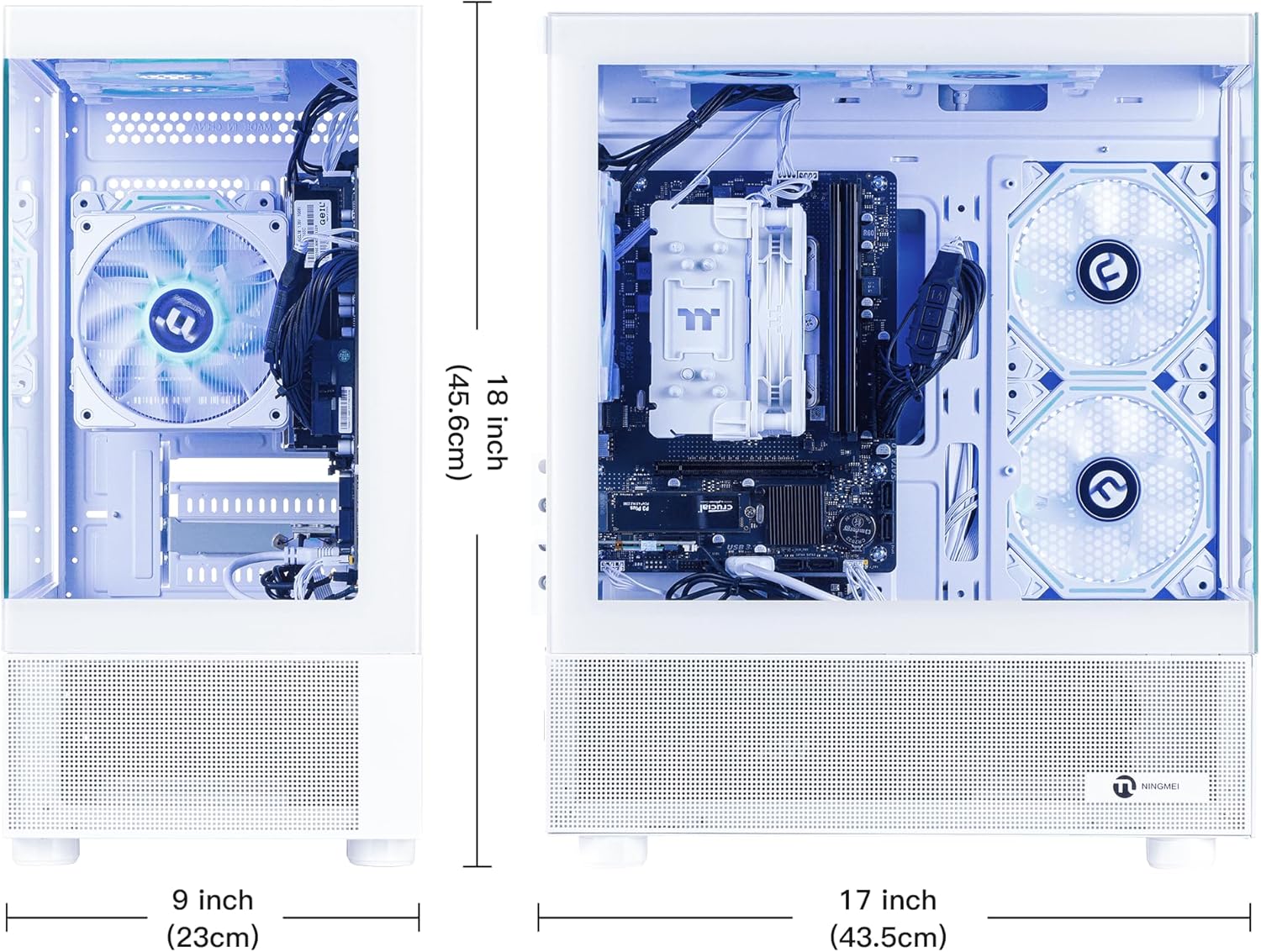
Figure 6: PC Dimensions
| ఫీచర్ | స్పెసిఫికేషన్ |
|---|---|
| బ్రాండ్ | NINGMEI |
| మోడల్ సంఖ్య | 5600G-WXK |
| ఆపరేటింగ్ సిస్టమ్ | Windows 11 హోమ్ |
| ప్రాసెసర్ | AMD Ryzen 5 5600G (6 Cores, 3.6GHz base, up to 4.6GHz boost) |
| గ్రాఫిక్స్ కోప్రాసెసర్ | AMD రేడియన్ వేగా 7 గ్రాఫిక్స్ (ఇంటిగ్రేటెడ్) |
| RAM | 16GB DDR4 3200MHz |
| నిల్వ | 1TB NVME SSD (PCIE x 4 interface) |
| విద్యుత్ సరఫరా | 550W PSU (Native ATX 3.0) |
| USB 2.0 పోర్ట్లు | 3 |
| USB 3.0 పోర్ట్లు | 2 |
| వైర్లెస్ రకం | 802.11ac (వై-ఫై) |
| రంగు | తెలుపు |
| కొలతలు (సుమారుగా) | 18 అంగుళాలు (ఎత్తు) x 9 అంగుళాలు (వెడల్పు) x 17 అంగుళాలు (లోతు) |
8. వారంటీ మరియు మద్దతు
8.1 వారంటీ సమాచారం
NINGMEI offers a free one-year warranty for the NINGMEI Soul Gaming PC Desktop from the date of purchase. This warranty covers manufacturing defects and hardware malfunctions under normal use. Please retain your proof of purchase for warranty claims.
8.2 సాంకేతిక మద్దతు
Free lifetime technical support is provided for your NINGMEI Soul Gaming PC Desktop. For assistance with setup, operation, troubleshooting, or any other technical inquiries, please contact NINGMEI customer support.
Contact information can typically be found on the NINGMEI official website or through the seller's contact details on the platform where the product was purchased.