
పరిచయం
This manual provides comprehensive instructions for the XBG B15 Tri-Mode Wireless Mouse. It covers setup, operation, maintenance, and troubleshooting to ensure optimal performance and user experience. Please read this manual thoroughly before using the device.

చిత్రం: పై నుండి క్రిందికి view of the XBG B15 Tri-Mode Wireless Mouse, showcasing its ergonomic design and central DPI button.
ప్యాకేజీ విషయాలు
ప్యాకేజీలో అన్ని అంశాలు ఉన్నాయని నిర్ధారించుకోండి:
- 1 x XBG B15 Tri-Mode Wireless Mouse
- 1 x USB ఛార్జింగ్ కేబుల్
- 1 x యూజర్ మాన్యువల్ (ఈ పత్రం)
ఉత్పత్తి ముగిసిందిview
Familiarize yourself with the components of your XBG B15 Wireless Mouse.

Image: Diagram illustrating the various parts of the XBG B15 mouse, including the left button, right button, scroll wheel, forward button, backward button, DPI button, ON/OFF switch, mode switch, and USB receiver.
The mouse features an ergonomic design that conforms to the natural curvature of the human palm, providing a comfortable grip for extended use. Its soft, durable, skin-like surface resists fingerprints.

చిత్రం: క్లోజప్ view of the XBG B15 mouse highlighting its ergonomic shape and textured grip for comfortable handling.
The mouse is compatible with various desktop surfaces, including resin, wood, fabric, paper, and metal.
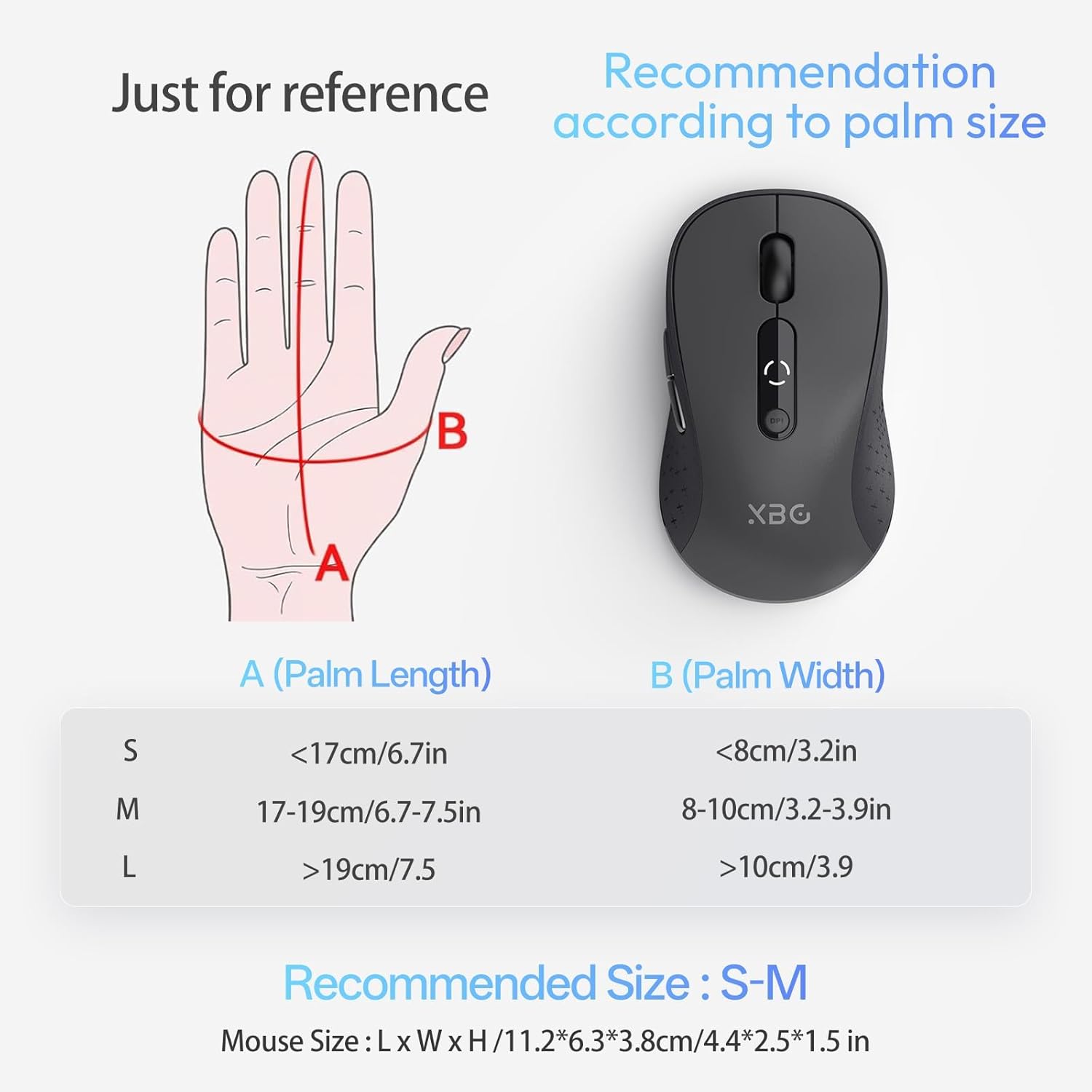
Image: The XBG B15 mouse shown on different surface types (resin, wood, fabric, paper, metal) to demonstrate its versatility.
సెటప్
The XBG B15 mouse offers three connection modes: 2.4GHz Wireless, Bluetooth 5.0, and Bluetooth 4.0. You can switch between these modes using the 'Mode Switch' button located on the underside of the mouse.

Image: Illustration showing the XBG B15 mouse connecting to a desktop PC via 2.4G wireless and to a laptop and tablet via Bluetooth (BT1 and BT2), indicating its tri-mode capability.
A mode switch indicator light on the bottom of the mouse will show the current connection mode:
- రెడ్ లైట్: 2.4G వైర్లెస్ మోడ్
- బ్లూ లైట్: Bluetooth 1 (BT1) Mode
- గ్రీన్ లైట్: Bluetooth 2 (BT2) Mode

Image: Close-up of the underside of the XBG B15 mouse, showing the mode switch and the corresponding indicator lights (Red for 2.4G, Blue for BT1, Green for BT2).
2.4GHz వైర్లెస్ కనెక్షన్
- Turn on the mouse using the ON/OFF switch on the bottom.
- Switch the mode to 2.4G (Red Light).
- మీ కంప్యూటర్లో అందుబాటులో ఉన్న USB పోర్ట్లో USB రిసీవర్ని చొప్పించండి.
- The computer should automatically detect and install the mouse.
Bluetooth Connection (BT1/BT2)
- Turn on the mouse using the ON/OFF switch on the bottom.
- Switch the mode to either BT1 (Blue Light) or BT2 (Green Light).
- Press and hold the 'Mode Switch' button for 3-5 seconds until the indicator light starts flashing rapidly. This indicates the mouse is in pairing mode.
- On your device (laptop, tablet, PC), go to Bluetooth settings.
- కోసం వెతకండి new devices and select "XBG B15" from the list.
- జత చేసిన తర్వాత, సూచిక లైట్ మెరుస్తూ ఆగిపోతుంది మరియు ఆపివేయడానికి ముందు కొన్ని సెకన్ల పాటు దృఢంగా ఉంటుంది.
- To connect to a second Bluetooth device, switch to the other Bluetooth mode (BT2 if you used BT1, or vice versa) and repeat steps 3-6.
ఆపరేటింగ్ సూచనలు
DPI సర్దుబాటు
The mouse features 5 adjustable DPI levels (800/1000/1200/1600/2400) to suit various tasks such as office work, graphic design, or gaming. Press the DPI button located below the scroll wheel to cycle through the DPI settings. The current DPI level will be displayed on the mouse's built-in indicator.
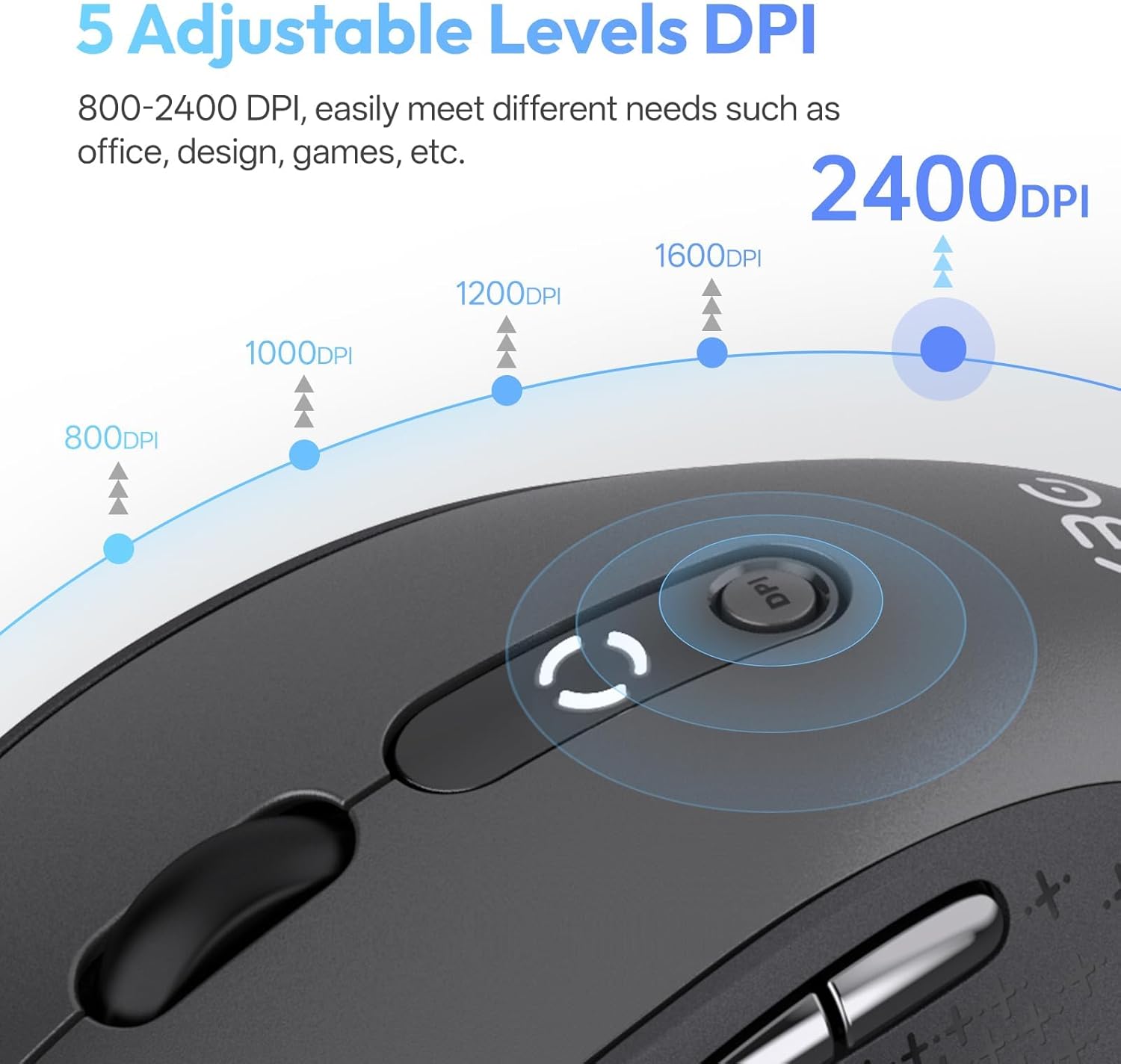
Image: Diagram illustrating the 5 adjustable DPI levels (800, 1000, 1200, 1600, 2400) and how to change them using the DPI button on the XBG B15 mouse.
సైలెంట్ క్లిక్ ఫీచర్
The XBG B15 mouse is designed with silent buttons, providing a tactile click feel without producing audible noise. This feature is beneficial in quiet environments such as libraries, offices, or during late-night use.

Image: A person using the XBG B15 mouse silently in an office environment, with a baby sleeping in the background, demonstrating the noiseless click feature.
ఆటోమేటిక్ స్లీప్ మోడ్
To conserve battery life, the mouse will automatically enter sleep mode after 5 minutes of inactivity. To wake the mouse, simply move it or click any button.
నిర్వహణ
మౌస్ ఛార్జింగ్
The XBG B15 mouse is equipped with a built-in 500 mAh rechargeable battery and a Type-C charging port. Connect the provided USB charging cable to the mouse's Type-C port and to a USB power source (e.g., computer USB port, wall adapter). A full charge takes approximately 2 hours and can provide months of use.

Image: The XBG B15 mouse connected to a charging cable via its Type-C port, illustrating the recharging process and highlighting its 500mAh battery capacity.
బ్యాటరీ సూచిక
The mouse features a 3-level battery indicator to monitor the remaining power:
- 3 lights on: బ్యాటరీ 100%-75%
- 2 lights on: బ్యాటరీ 75%-50%
- 1 light on: 50% కంటే తక్కువ బ్యాటరీ

Image: Close-up of the XBG B15 mouse's display, showing the 3-level battery indicator and its corresponding battery percentagఇ పరిధులు.
క్లీనింగ్
మౌస్ను శుభ్రం చేయడానికి, దాని ఉపరితలాన్ని మృదువైన, డి-ప్యాక్తో సున్నితంగా తుడవండి.amp వస్త్రం. కఠినమైన రసాయనాలు లేదా రాపిడి పదార్థాలను ఉపయోగించడం మానుకోండి, ఎందుకంటే ఇవి ముగింపును దెబ్బతీస్తాయి.
ట్రబుల్షూటింగ్
- మౌస్ స్పందించడం లేదు:
- మౌస్ ఆన్ చేయబడిందని నిర్ధారించుకోండి.
- బ్యాటరీ స్థాయిని తనిఖీ చేయండి మరియు అవసరమైతే ఛార్జ్ చేయండి.
- For 2.4G connection, ensure the USB receiver is securely plugged into the computer. Try a different USB port.
- For Bluetooth connection, ensure the mouse is in the correct Bluetooth mode (BT1 or BT2) and is paired with your device. Re-pair if necessary.
- మీ కంప్యూటర్ లేదా పరికరాన్ని పునఃప్రారంభించడానికి ప్రయత్నించండి.
- అడపాదడపా కనెక్షన్:
- మౌస్ను రిసీవర్ లేదా బ్లూటూత్-ప్రారంభించబడిన పరికరానికి దగ్గరగా తరలించండి.
- Avoid using the mouse on metal surfaces, which can interfere with wireless signals.
- Ensure there are no other strong wireless interference sources nearby.
- DPI సెట్టింగ్ మారడం లేదు:
- Ensure you are pressing the dedicated DPI button.
- Check if the mouse is fully charged.
స్పెసిఫికేషన్లు
| ఫీచర్ | వివరాలు |
|---|---|
| మోడల్ | B15-నలుపు |
| కనెక్టివిటీ టెక్నాలజీ | Bluetooth 5.0/4.0, 2.4GHz Wireless (USB) |
| DPI స్థాయిలు | 800, 1000, 1200, 1600, 2400 (సర్దుబాటు) |
| బ్యాటరీ రకం | పునర్వినియోగపరచదగిన లిథియం పాలిమర్ |
| బ్యాటరీ కెపాసిటీ | 500 mAh |
| ఛార్జింగ్ పోర్ట్ | టైప్-సి |
| ఉత్పత్తి కొలతలు | 4.4 x 2.5 x 0.04 అంగుళాలు |
| వస్తువు బరువు | 2.65 ఔన్సులు |
| ప్రత్యేక లక్షణాలు | Ergonomic Design, Portable, Silent Click, 3-Level Battery Indicator, Automatic Sleep |
| అనుకూలత | Windows, Mac, Linux, Android |
వారంటీ మరియు మద్దతు
The XBG B15 Tri-Mode Wireless Mouse comes with a manufacturer's warranty. For specific warranty details, please refer to the documentation included with your purchase or contact XBG customer support. If you encounter any issues not covered in this manual, please reach out to our support team for assistance.
మరింత సహాయం కోసం, దయచేసి సందర్శించండి XBG Store on Amazon.