
1. సెటప్
This section guides you through the initial setup of your Lenovo ThinkPad P1 Gen 3 Workstation Laptop.
1.1 అన్ప్యాకింగ్ మరియు ప్రారంభ తనిఖీ
Carefully remove the laptop and all accessories from the packaging. Inspect for any signs of damage during transit. Retain the packaging for future transport or service needs.
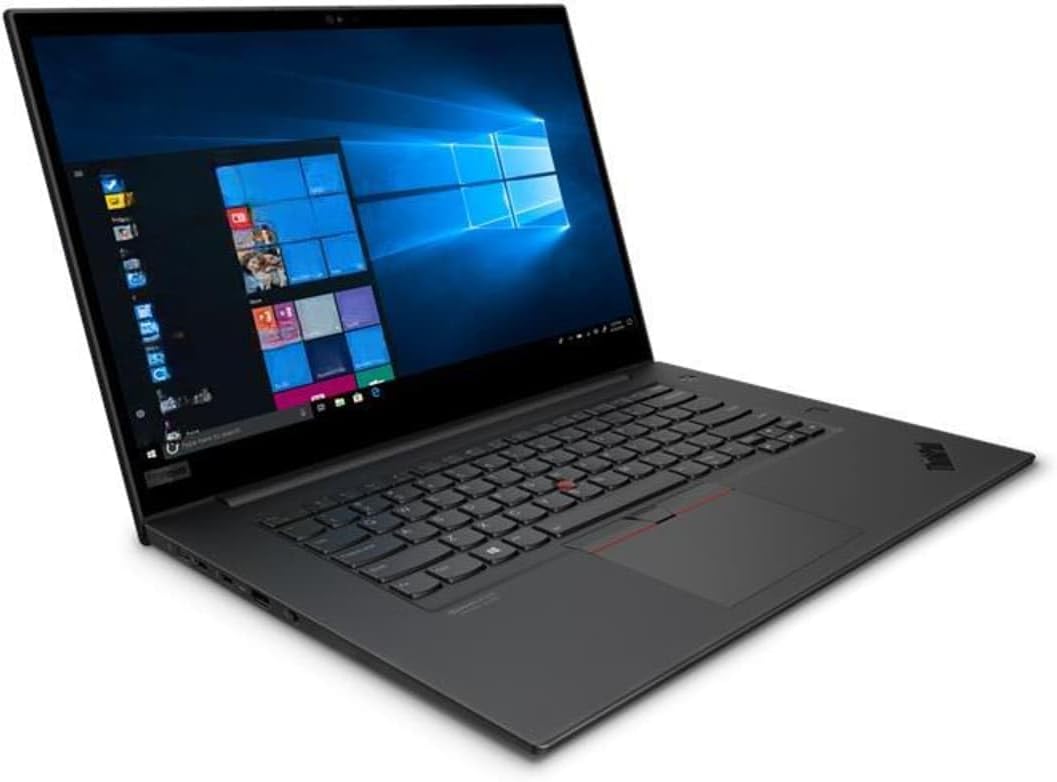
Image: The Lenovo ThinkPad P1 Gen 3 Workstation Laptop, showcasing its display and keyboard. The screen displays a Windows operating system interface.
1.2 పవర్కు కనెక్ట్ చేస్తోంది
- పవర్ అడాప్టర్ను ల్యాప్టాప్ పవర్ ఇన్పుట్ పోర్ట్కు కనెక్ట్ చేయండి.
- పవర్ కార్డ్ను గ్రౌన్దేడ్ ఎలక్ట్రికల్ అవుట్లెట్లోకి ప్లగ్ చేయండి.
- ప్రారంభ వినియోగానికి ముందు కనీసం 30 నిమిషాలు లేదా బ్యాటరీ సూచిక తగినంత ఛార్జ్ చూపించే వరకు బ్యాటరీని ఛార్జ్ చేయడానికి అనుమతించండి.
1.3 First Boot and Operating System Configuration
- ల్యాప్టాప్ను ఆన్ చేయడానికి పవర్ బటన్ను నొక్కండి.
- Follow the on-screen instructions to complete the Windows 11 Pro setup. This includes selecting your region, language, accepting license agreements, and creating a user account.
- Connect to a Wi-Fi network when prompted to ensure the operating system can download necessary updates.
2. ఆపరేటింగ్ సూచనలు
This section provides guidance on using your ThinkPad P1 Gen 3 Workstation Laptop.
2.1 పవర్ మేనేజ్మెంట్
- ఆన్ చేస్తోంది: కీబోర్డ్ యొక్క కుడి ఎగువన ఉన్న పవర్ బటన్ను నొక్కండి.
- షట్ డౌన్: స్టార్ట్ బటన్ పై క్లిక్ చేసి, ఆపై పవర్ పై క్లిక్ చేసి, "షట్ డౌన్" ఎంచుకోండి.
- స్లీప్ మోడ్: మూత మూసివేయండి లేదా స్టార్ట్ బటన్ పై క్లిక్ చేసి, ఆపై పవర్ పై క్లిక్ చేసి, "స్లీప్" ఎంచుకోండి.
- పునartప్రారంభం: ప్రారంభ బటన్ను క్లిక్ చేసి, ఆపై పవర్ను క్లిక్ చేసి, "పునఃప్రారంభించు" ఎంచుకోండి.
2.2 Keyboard and TrackPoint/Touchpad Usage
The laptop features a full-size keyboard, a TrackPoint pointing device, and a multi-touch touchpad.
- ట్రాక్పాయింట్: Use the red cap in the center of the keyboard for precise cursor control. The three buttons below the spacebar function as left-click, scroll, and right-click for the TrackPoint.
- టచ్ప్యాడ్: Use the multi-touch surface for navigation. Tap to click, use two fingers to scroll, and pinch to zoom.
2.3 బాహ్య పరికరాలను కనెక్ట్ చేయడం
Your ThinkPad P1 Gen 3 includes various ports for connecting peripherals:
- USB పోర్ట్లు: For connecting USB drives, mice, keyboards, and other USB accessories.
- HDMI పోర్ట్: బాహ్య డిస్ప్లేలు లేదా ప్రొజెక్టర్లకు కనెక్ట్ చేయడానికి.
- ఆడియో జాక్: హెడ్ఫోన్లు లేదా బాహ్య స్పీకర్లను కనెక్ట్ చేయడానికి.
- థండర్బోల్ట్ పోర్ట్లు: హై-స్పీడ్ డేటా బదిలీ, బాహ్య డిస్ప్లేలు మరియు ఛార్జింగ్ కోసం.
3. నిర్వహణ
సరైన నిర్వహణ మీ ల్యాప్టాప్ యొక్క దీర్ఘాయువు మరియు సరైన పనితీరును నిర్ధారిస్తుంది.
3.1 ల్యాప్టాప్ను శుభ్రపరచడం
- స్క్రీన్: మెత్తని, మెత్తని బట్టను తేలికగా ఉపయోగించండి డిampనీటితో లేదా స్క్రీన్-క్లీనింగ్ ద్రావణంతో కలిపిన తర్వాత. స్క్రీన్పై నేరుగా ద్రవాన్ని పిచికారీ చేయవద్దు.
- కీబోర్డ్ మరియు చాసిస్: మృదువైన, పొడి వస్త్రాన్ని ఉపయోగించండి. మొండి ధూళి కోసం, కొద్దిగా damp తేలికపాటి సబ్బు ద్రావణం ఉన్న వస్త్రాన్ని ఉపయోగించవచ్చు, తద్వారా ఎటువంటి ద్రవం రంధ్రాలలోకి ప్రవేశించదు.
- వెంటిలేషన్ గ్రిల్స్: Use compressed air to remove dust from the ventilation grilles to prevent overheating.
3.2 సాఫ్ట్వేర్ నవీకరణలు
భద్రత మరియు పనితీరును నిర్ధారించడానికి మీ ఆపరేటింగ్ సిస్టమ్ మరియు డ్రైవర్లను క్రమం తప్పకుండా నవీకరించండి.
- విండోస్ నవీకరణలు: సెట్టింగ్లు > విండోస్ అప్డేట్కి వెళ్లి అప్డేట్ల కోసం తనిఖీ చేయండి.
- డ్రైవర్ నవీకరణలు: Lenovo మద్దతును సందర్శించండి website for your specific model to download the latest drivers for graphics, chipset, and other components.
3.3 బ్యాటరీ సంరక్షణ
- బ్యాటరీని తరచుగా పూర్తిగా డిశ్చార్జ్ చేయడాన్ని నివారించండి.
- ల్యాప్టాప్ను ఎక్కువ సేపు ఉపయోగించకపోతే చల్లని, పొడి ప్రదేశంలో నిల్వ చేయండి.
- బ్యాటరీ యొక్క సరైన ఆరోగ్యం కోసం, తీవ్రమైన ఉష్ణోగ్రతలకు ఎక్కువసేపు గురికాకుండా ఉండండి.
4. ట్రబుల్షూటింగ్
ఈ విభాగం మీ థింక్ప్యాడ్ P1 Gen 3 తో మీరు ఎదుర్కొనే సాధారణ సమస్యలను పరిష్కరిస్తుంది.
| సమస్య | సాధ్యమైన కారణం | పరిష్కారం |
|---|---|---|
| ల్యాప్టాప్ పవర్ ఆన్ చేయడం లేదు. | పవర్ లేదు, బ్యాటరీ డిస్చార్జ్ అయింది, పవర్ అడాప్టర్ తప్పుగా ఉంది. | Ensure power adapter is securely connected and outlet is functional. Charge battery. Try a different power adapter if available. |
| స్క్రీన్ నల్లగా ఉంటుంది. | Display issue, external monitor connected, sleep mode. | Press any key or move the mouse to wake from sleep. Disconnect external monitors. Try adjusting screen brightness. |
| Wi-Fi కనెక్షన్ సమస్యలు. | తప్పు పాస్వర్డ్, రౌటర్ సమస్య, డ్రైవర్ సమస్య. | Verify Wi-Fi password. Restart router. Update Wi-Fi drivers from Lenovo support webసైట్. |
| సిస్టమ్ నెమ్మదిగా ఉంది లేదా స్పందించడం లేదు. | చాలా అప్లికేషన్లు తెరిచి ఉన్నాయి, తక్కువ డిస్క్ స్థలం, మాల్వేర్. | Close unnecessary applications. Free up disk space. Run a system scan for malware. Restart the laptop. |
5. స్పెసిఫికేషన్లు
Detailed technical specifications for the Lenovo ThinkPad P1 Gen 3 Workstation Laptop.
- బ్రాండ్: లెనోవో
- మోడల్ పేరు: థింక్ప్యాడ్ P1 Gen 3 ల్యాప్టాప్
- ప్రాసెసర్: Intel Core i7-10850H (6-core, up to 5.1GHz)
- RAM: 16GB DDR4 @ 3200MHz
- నిల్వ: 512GB PCIe NVMe M.2 సాలిడ్ స్టేట్ డ్రైవ్
- ప్రదర్శన: 16-inch Non-Touch Screen, FHD (1920x1080) resolution
- గ్రాఫిక్స్: Dedicated Nvidia Quadro T1000 with 4GB GDDR6
- ఆపరేటింగ్ సిస్టమ్: Windows 11 ప్రో
- కనెక్టివిటీ: Wi-Fi, బ్లూటూత్
- ప్రత్యేక లక్షణాలు: ఇంటిగ్రేటెడ్ Webcam, Keyboard
6. వారంటీ & సపోర్ట్
ఉత్పత్తి వారంటీ మరియు సాంకేతిక మద్దతును ఎలా పొందాలో సంబంధించిన సమాచారం.
6.1 వారంటీ సమాచారం
This product is sold as "Renewed". Please refer to the specific warranty terms provided by the seller (VR Laptops) or the Amazon Renewed program for details on coverage and duration. Typically, renewed products come with a limited warranty.
For details on the Amazon Renewed program, visit: అమెజాన్ పునరుద్ధరించబడిన స్టోర్
6.2 సాంకేతిక మద్దతు
For technical assistance, please contact the seller directly or refer to the official Lenovo support website for driver downloads and general product information.
- విక్రేత మద్దతు: Contact VR Laptops through your Amazon order history.
- లెనోవా మద్దతు: సందర్శించండి support.lenovo.com డ్రైవర్లు, మాన్యువల్లు మరియు ట్రబుల్షూటింగ్ గైడ్ల కోసం.