
INFINMIND D1091E7Z
INFINMIND వైర్లెస్ మౌస్ యూజర్ మాన్యువల్
Model: D1091E7Z
Brand: INFINMIND
పరిచయం
ధన్యవాదాలు, ధన్యవాదాలు.asing the INFINMIND Wireless Mouse. This manual provides detailed instructions on how to set up, operate, and maintain your mouse to ensure optimal performance and longevity. Please read this manual thoroughly before using the product.
This multi-functional mouse is designed for efficiency and comfort, featuring multi-device connectivity, adjustable DPI, and an ergonomic design to reduce hand fatigue during extended use.
ప్యాకేజీ విషయాలు
- INFINMIND Wireless Mouse (Model: D1091E7Z)
- USB-A Receiver (stored inside the mouse)
- AA బ్యాటరీలు (x2)
- వినియోగదారు మాన్యువల్ (ఇంగ్లీష్)
సెటప్
1. బ్యాటరీ ఇన్స్టాలేషన్
The mouse requires two AA batteries for operation. The package includes two AA batteries. You can choose to insert one or two batteries based on your preference for mouse weight (1 battery: 125g, 2 batteries: 150g).
- మౌస్ దిగువ భాగంలో బ్యాటరీ కంపార్ట్మెంట్ను గుర్తించండి.
- బ్యాటరీ కంపార్ట్మెంట్ కవర్ తెరవండి.
- సరైన ధ్రువణతను (+/-) నిర్ధారించుకుని, AA బ్యాటరీలను చొప్పించండి.
- బ్యాటరీ కంపార్ట్మెంట్ కవర్ను సురక్షితంగా మూసివేయండి.
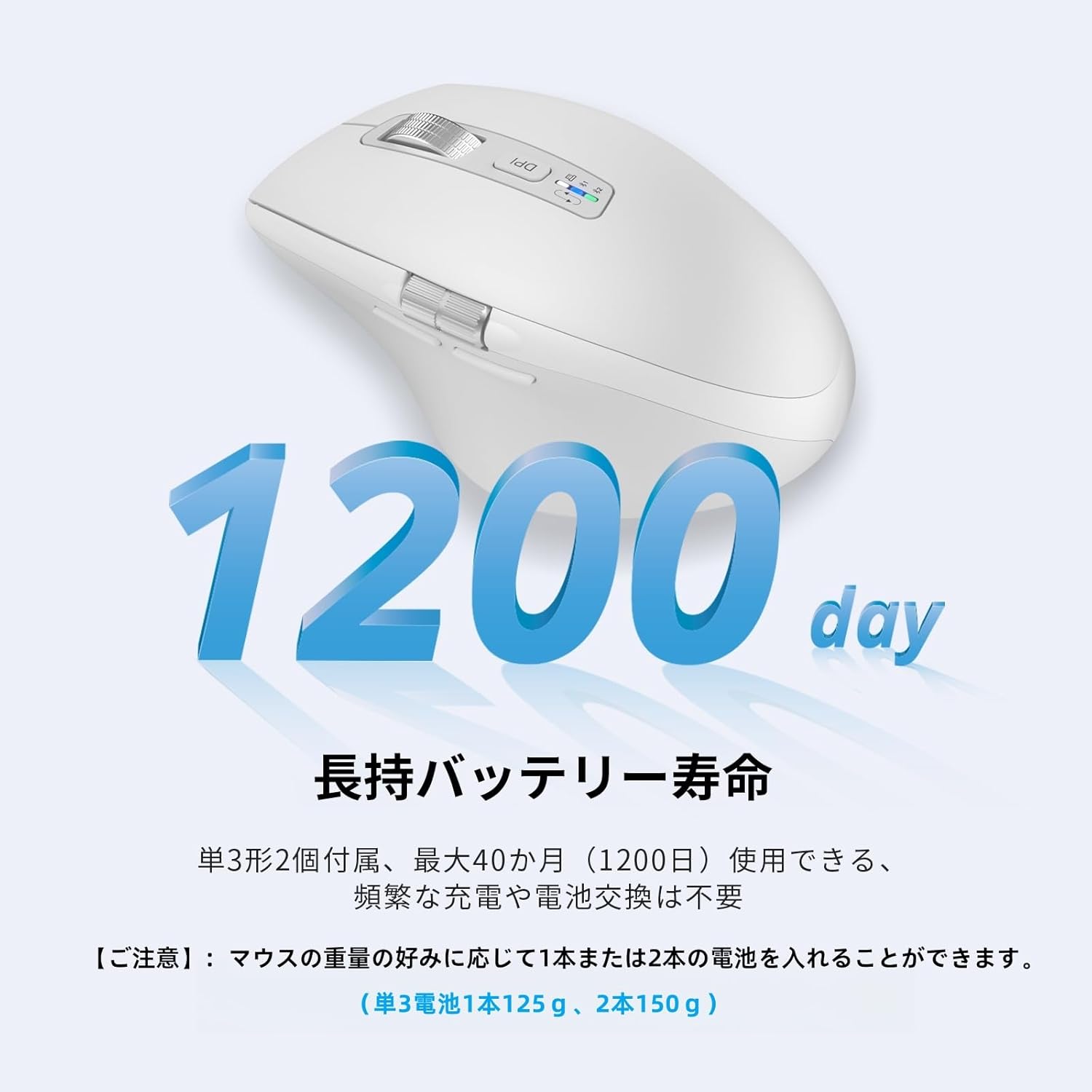
Image: The mouse is shown with a graphic indicating "1200 days" and "Long-lasting battery life," emphasizing the extended battery performance. The text below the image explains that two AA batteries are included and can be used for up to 40 months, with the option to use one or two batteries to adjust mouse weight.
2. మౌస్ను కనెక్ట్ చేయడం
The INFINMIND Wireless Mouse supports three connection modes: 2.4G Wireless (via USB-A receiver) and two Bluetooth 5.0 connections (BT Mouse1, BT Mouse2). You can connect to up to three devices simultaneously and switch between them easily.
2.1. 2.4G Wireless Connection (USB-A Receiver)
- Locate the USB-A receiver, which is stored inside the battery compartment of the mouse.
- Remove the USB-A receiver.
- USB-A రిసీవర్ను మీ కంప్యూటర్లో అందుబాటులో ఉన్న USB-A పోర్ట్లోకి ప్లగ్ చేయండి.
- Press the connection button on the front of the mouse until the white LED indicator lights up, indicating 2.4G mode.
- The mouse will automatically connect to your computer. No additional pairing is required.
This connection method offers stable communication and is plug-and-play, requiring no complex setup.
2.2. Bluetooth Connection (BT Mouse1 / BT Mouse2)
The mouse supports two independent Bluetooth connections (BT Mouse1 and BT Mouse2).
- Press the connection button on the front of the mouse to cycle through connection modes.
- For BT Mouse1: Press the button until the blue LED indicator lights up.
- For BT Mouse2: Press the button until the green LED indicator lights up.
- To initiate pairing for a new device, press and hold the connection indicator button for 3 seconds until the corresponding blue or green lamp రెప్పవేయడం మొదలవుతుంది.
- On your device (computer, tablet, smartphone), go to Bluetooth settings and search for available devices.
- Select "BT Mouse1" or "BT Mouse2" from the list and complete the pairing process.
The mouse is compatible with Windows, Mac OS, Linux, iOS, Android, and Chrome OS. You can switch between connected devices by simply pressing the connection button on the mouse.

Image: The mouse is centrally placed, wirelessly connected to a desktop monitor, a laptop, and a tablet, illustrating its multi-device and multi-OS compatibility (Windows, Mac OS, iOS, Android). The image highlights the ability to connect to three devices simultaneously and switch between them with a button click.
ఆపరేటింగ్ సూచనలు
1. DPI సర్దుబాటు
The mouse features 4 adjustable DPI levels (1000/1600/2400/3000) to suit various tasks, from precise graphic design to fast-paced gaming.
- నొక్కండి DPI బటన్ (located near the scroll wheel) to cycle through the DPI settings.
- Each press will switch to the next DPI level.

Image: A close-up of the mouse's top, showing the DPI button and a graphic illustrating four DPI levels (1000 for image processing, 1600 for study, 2400 for work, 3000 for gaming). This highlights the mouse's versatility for different user needs.
2. Scrolling Functions
The mouse is equipped with both a high-speed vertical scroll wheel and a side scroll wheel for enhanced navigation.
- High-Speed Vertical Scroll: The metal scroll wheel allows for rapid vertical scrolling through long documents or web pages with minimal effort and near-silent operation.
- సైడ్ స్క్రోల్ వీల్: Use the side scroll wheel for horizontal scrolling, which is particularly useful for navigating wide spreadsheets or large images.

Image: The mouse is shown next to a computer screen displaying multiple windows, demonstrating the high-speed vertical scroll and side scroll capabilities. Text labels point to the scroll wheel for high-speed scrolling and the side scroll wheel for horizontal movement, with a note that forward/back buttons are not compatible with Mac OS.
3. ఫార్వర్డ్/బ్యాక్ బటన్లు
Conveniently located on the side of the mouse, the forward and back buttons allow for quick navigation in web బ్రౌజర్లు మరియు file అన్వేషకులు.
- నొక్కండి ఫార్వర్డ్ బటన్ తదుపరి పేజీకి వెళ్లడానికి.
- నొక్కండి వెనుక బటన్ మునుపటి పేజీకి తిరిగి రావడానికి.
గమనిక: The forward/back buttons are not compatible with Mac OS.
ఫీచర్లు మరియు ప్రయోజనాలు
ఎర్గోనామిక్ డిజైన్
The INFINMIND Wireless Mouse is designed with human ergonomics in mind, featuring a curved shape and soft rubber grip that fits comfortably in your hand. This design helps to reduce wrist and hand fatigue, making it ideal for long hours of work.

Image: A hand is shown hovering above the mouse, with a blue arc indicating the natural curve and support provided by the ergonomic design. The text emphasizes that the mouse is designed to reduce hand fatigue and maintain a natural wrist position.
Silent Click Design
The left and right buttons of the mouse feature a silent click design, significantly reducing clicking noise. This creates a quiet working environment, making it suitable for use in libraries, offices, cafes, or any shared space without disturbing others.
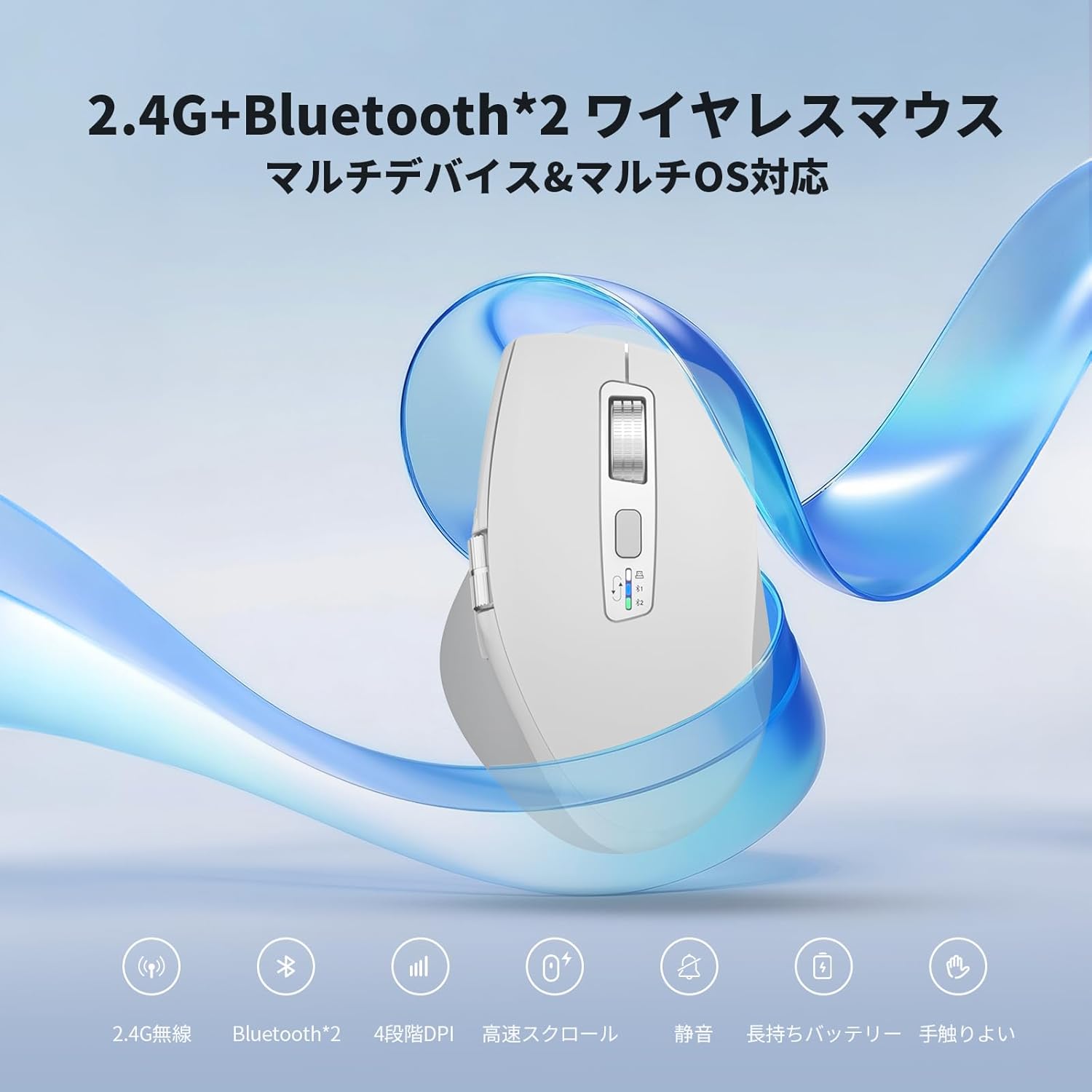
Image: The mouse is shown centrally, surrounded by four scenes: a library, a bedroom, a cafe, and an office, illustrating how its silent click design allows for quiet work in various environments without disturbing others.
లాంగ్ బ్యాటరీ లైఫ్
With an intelligent power-saving system, the INFINMIND Wireless Mouse offers an extended battery life. Using two AA batteries, the mouse can last for up to 40 months (approximately 1200 days), reducing the need for frequent battery replacements or recharging.
నిర్వహణ
- శుభ్రపరచడం: మౌస్ను శుభ్రం చేయడానికి మృదువైన, పొడి వస్త్రాన్ని ఉపయోగించండి. మొండి ధూళి కోసం, కొద్దిగా dampనీటితో లేదా తేలికపాటి శుభ్రపరిచే ద్రావణంతో గుడ్డను తుడవండి. కఠినమైన రసాయనాలు లేదా రాపిడి పదార్థాలను ఉపయోగించకుండా ఉండండి.
- బ్యాటరీ భర్తీ: Replace batteries when the mouse performance degrades or the indicator light signals low power. Ensure correct polarity when inserting new batteries.
- నిల్వ: When not in use for extended periods, remove the batteries to prevent leakage. Store the mouse in a cool, dry place away from direct sunlight and extreme temperatures.
ట్రబుల్షూటింగ్
| సమస్య | సాధ్యమైన కారణం | పరిష్కారం |
|---|---|---|
| మౌస్ స్పందించడం లేదు (2.4G) |
|
|
| మౌస్ స్పందించడం లేదు (బ్లూటూత్) |
|
|
| కర్సర్ కదలిక అస్తవ్యస్తంగా లేదా దూకుతూ ఉంది |
|
|
| Forward/Back buttons not working on Mac OS | Incompatibility with Mac OS. | This is a known limitation. These buttons are not supported on Mac OS. |
స్పెసిఫికేషన్లు
| ఫీచర్ | వివరాలు |
|---|---|
| మోడల్ సంఖ్య | D1091E7Z |
| కనెక్టివిటీ | 2.4G Wireless (USB-A Receiver), Bluetooth 5.0 (BT Mouse1, BT Mouse2) |
| DPI స్థాయిలు | 1000 / 1600 / 2400 / 3000 |
| స్క్రోల్ వీల్ | High-speed vertical scroll, Side scroll |
| బటన్లు | Left, Right, Middle (Scroll Wheel), DPI, Forward, Back, Connection Mode Switch |
| బ్యాటరీ రకం | AA batteries (x2 included) |
| బ్యాటరీ లైఫ్ | Up to 40 months (with 2 batteries, may vary with usage) |
| కొలతలు | 11.2 x 7.6 x 0.1 cm (Product Size) |
| బరువు | 150g (with 2 batteries), 125g (with 1 battery) |
| మెటీరియల్ | ప్లాస్టిక్ |
| రంగు | తెలుపు |
| అనుకూల OS | Windows, Mac OS, Linux, iOS, Android, Chrome OS |
వారంటీ మరియు మద్దతు
This product comes with a standard manufacturer's warranty. For any issues, questions, or to inquire about warranty details, please contact our customer support team through your order history on Amazon. We are committed to providing prompt assistance and ensuring your satisfaction.
Important Note on Technical Compliance: This product has officially obtained technical compliance certification based on Japan's Radio Law. Certification documents and technical data have been submitted to Amazon and have passed strict review. There are absolutely no issues with safety or legal compliance. If you require confirmation of certification details, please contact our support, and we will promptly provide the relevant documents.
Ask a question about this manual
Ask about setup, troubleshooting, compatibility, parts, safety, or missing instructions. Manuals+ will review the question and use this page’s manual context to help answer it.