
1. పరిచయం
This manual provides detailed instructions for the setup, operation, maintenance, and troubleshooting of your OMOTON Bluetooth Keyboard. Please read this manual thoroughly before using the product to ensure proper functionality and longevity.
2. ప్యాకేజీ విషయాలు
ప్యాకేజీలో అన్ని అంశాలు ఉన్నాయని నిర్ధారించుకోండి:
- 1 x OMOTON బ్లూటూత్ కీబోర్డ్
- 1 x టైప్-సి ఛార్జ్ కేబుల్
- 1 x యూజర్ మాన్యువల్ (ఈ పత్రం)
3. ఉత్పత్తి లక్షణాలు
- బహుళ-వ్యవస్థ అనుకూలత: Supports iOS, Windows, and Android operating systems.
- కాంపాక్ట్ మరియు పోర్టబుల్: Ultra-thin design (6.6mm thickness) and lightweight (0.42 pounds) for easy transport. Dimensions: 9.7"L x 5.9"W x 0.2"H.
- మెరుగైన టైపింగ్ అనుభవం: Features large keycaps for comfortable and precise typing.
- పునర్వినియోగపరచదగిన బ్యాటరీ: Built-in 500mAh lithium battery provides up to 200 hours of working time on a 2-3 hour charge.
- 7-రంగుల బ్యాక్లైట్: Adjustable backlight with 7 color options and 3 brightness levels for typing in various lighting conditions.
- ఆటోమేటిక్ స్లీప్ మోడ్: Conserves battery by entering sleep mode after 30 minutes of inactivity.
4. సెటప్ సూచనలు
4.1 కీబోర్డ్ను ఛార్జ్ చేయడం
Before initial use, fully charge the keyboard. Connect the provided Type-C charge cable to the keyboard's charging port and to a USB power source. The charge indicator light will illuminate during charging and turn off when fully charged.
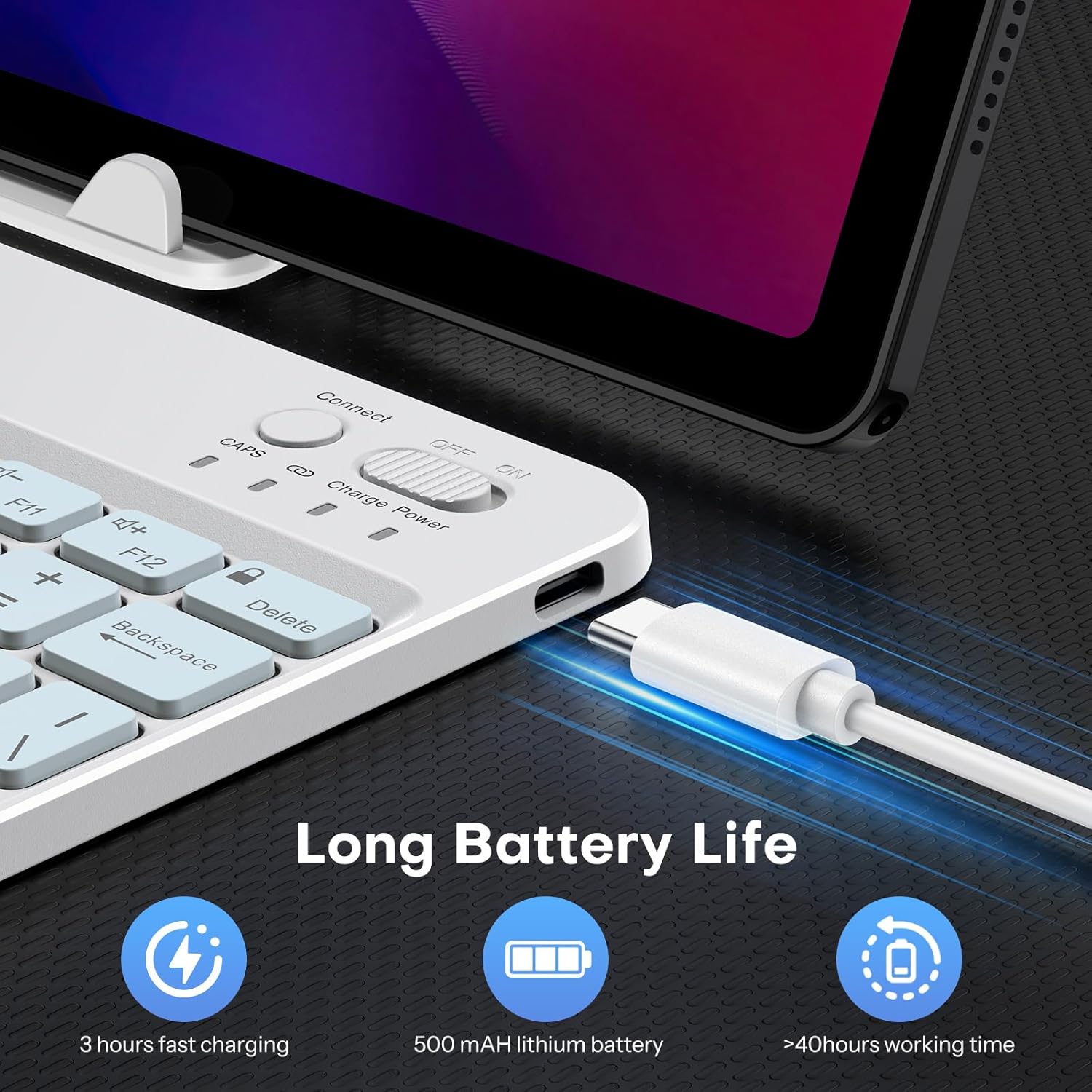
Image: Close-up of the keyboard showing the Type-C charging port and cable connected. The image highlights the charging process and the port location.
4.2 బ్లూటూత్ జత చేయడం
- Turn on the keyboard by sliding the power switch to the 'ON' position. The power indicator light will briefly illuminate.
- Press the 'Connect' button (usually located near the power switch) to enter pairing mode. The Bluetooth indicator light will flash, indicating it is ready to pair.
- On your device (tablet, phone, computer), enable Bluetooth and search for available devices.
- Select 'OMOTON Keyboard' (or similar name) from the list of found devices.
- ప్రాంప్ట్ చేయబడితే, OMOTON కీబోర్డ్ ఉపయోగించి మీ పరికరంలో ప్రదర్శించబడే జత చేసే కోడ్ను నమోదు చేసి, ఎంటర్ నొక్కండి.
- Once paired, the Bluetooth indicator light on the keyboard will stop flashing and remain solid for a few seconds, then turn off. The keyboard is now connected.

చిత్రం: ఒక ఓవర్ హెడ్ view of the OMOTON Bluetooth Keyboard, highlighting the power switch and the 'Connect' button, which are essential for initiating Bluetooth pairing.
4.3 ఆపరేటింగ్ సిస్టమ్లను మార్చడం
The keyboard is compatible with multiple operating systems. It is crucial to switch to the correct system mode for optimal functionality. Press the following key combinations:
- FN + A: For iOS / iPadOS / macOS devices
- FN + S: Windows పరికరాల కోసం
- FN + D: Android పరికరాల కోసం

Image: A visual guide on the keyboard showing the FN key combined with A, S, or D keys to switch between iOS, Windows, and Android operating system modes.
5. ఆపరేటింగ్ సూచనలు
5.1 బ్యాక్లైట్ నియంత్రణ
The keyboard features a 7-color adjustable backlight with 3 brightness levels.
- To turn the backlight on/off or adjust brightness, press the Fn కీతో పాటు lightbulb icon key (usually located near the right Ctrl key). Repeated presses will cycle through brightness levels or turn off the backlight.
- బ్యాక్లైట్ రంగులను మార్చడానికి, Fn కీతో పాటు color palette icon key (usually located next to the lightbulb icon key). Repeated presses will cycle through the 7 available colors.

Image: The OMOTON Bluetooth Keyboard displaying various backlight colors, illustrating the 7-color and 3-brightness level adjustment feature.
5.2 ఆటోమేటిక్ స్లీప్ మోడ్
To conserve battery life, the keyboard will automatically enter sleep mode after 30 minutes of inactivity. To wake the keyboard, press any key. There may be a slight delay as the keyboard reconnects to your device.
5.3 ఫంక్షన్ కీలు
The top row of keys (F1-F12) can be used as standard function keys or as multimedia/shortcut keys. To access the secondary function (e.g., volume control, media playback), press the Fn కావలసిన ఫంక్షన్ కీతో ఏకకాలంలో కీని నొక్కండి.
6. నిర్వహణ
మీ OMOTON బ్లూటూత్ కీబోర్డ్ యొక్క దీర్ఘాయువు మరియు సరైన పనితీరును నిర్ధారించడానికి, ఈ నిర్వహణ మార్గదర్శకాలను అనుసరించండి:
- శుభ్రపరచడం: కీబోర్డ్ ఉపరితలాన్ని శుభ్రం చేయడానికి మృదువైన, పొడి, మెత్తటి బట్టను ఉపయోగించండి. మొండి ధూళి కోసం, కొద్దిగా dampనీరు లేదా తేలికపాటి శుభ్రపరిచే ద్రావణంతో గుడ్డను తుడవండి. అధిక తేమను నివారించండి.
- నిల్వ: ఉపయోగంలో లేనప్పుడు, కీబోర్డ్ను ప్రత్యక్ష సూర్యకాంతి మరియు తీవ్రమైన ఉష్ణోగ్రతలు లేకుండా చల్లని, పొడి ప్రదేశంలో నిల్వ చేయండి.
- ద్రవాలను నివారించండి: కీబోర్డ్ను ద్రవాలకు బహిర్గతం చేయవద్దు. చిందటం వలన శాశ్వత నష్టం జరగవచ్చు.
- జాగ్రత్తగా నిర్వహించండి: Avoid dropping the keyboard or subjecting it to strong impacts, as this can damage internal components.
7. ట్రబుల్షూటింగ్
7.1 Keyboard Keys Not Working or Responding
- Confirm Device's Operating System: Ensure you have selected the correct operating system mode on the keyboard. Press FN+A iOS కోసం, FN+S విండోస్ కోసం, లేదా FN+D Android కోసం.
- బ్లూటూత్ కనెక్షన్ని తనిఖీ చేయండి: Verify that the keyboard is properly paired and connected to your device. If not, re-initiate the pairing process (Section 4.2).
- బ్యాటరీ స్థాయి: Ensure the keyboard has sufficient battery charge. Recharge if necessary.
- పరికరాలను పునఃప్రారంభించండి: Try turning off and on both the keyboard and your device, then attempt to reconnect.

Image: A troubleshooting graphic explaining how to fix issues with keyboard keys not working, emphasizing confirming the device's operating system and switching modes.
7.2 బ్లూటూత్ కనెక్షన్ సమస్యలు
- దూరం: Ensure the keyboard is within the effective range of your device's Bluetooth signal (typically up to 10 meters).
- జోక్యం: జోక్యాన్ని కలిగించే ఇతర వైర్లెస్ పరికరాల నుండి దూరంగా వెళ్లండి.
- పరికరాన్ని మర్చిపో: On your device, 'forget' or 'remove' the keyboard from your Bluetooth device list, then attempt to pair again.
8. స్పెసిఫికేషన్లు
| బ్రాండ్ | ఓమోటన్ |
| మోడల్ | B0F65RJ45J |
| కనెక్టివిటీ టెక్నాలజీ | బ్లూటూత్ |
| అనుకూల పరికరాలు | Tablet, Android, Windows, iOS |
| కీబోర్డ్ లేఅవుట్ | QWERTY |
| ప్రత్యేక లక్షణాలు | Backlit (7 colors, 3 brightness levels), Ergonomic, Lightweight |
| బ్యాటరీ కెపాసిటీ | 500mAh లిథియం బ్యాటరీ |
| ఛార్జింగ్ సమయం | 2-3 గంటలు |
| పని సమయం | 200 గంటల వరకు |
| ఉత్పత్తి కొలతలు (L x W x H) | 9.7" x 5.9" x 0.2" (247మిమీ x 150మిమీ x 6.6మిమీ) |
| బరువు | 0.42 పౌండ్లు |
| మెటీరియల్ | ప్లాస్టిక్ |

Image: A visual comparison of the OMOTON Bluetooth Keyboard's dimensions against a smartphone and a tablet, illustrating its compact and portable size.
9. వారంటీ సమాచారం
The OMOTON Bluetooth Keyboard comes with a 12 నెలల వారంటీ from the date of purchase. This warranty covers manufacturing defects and malfunctions under normal use. It does not cover damage caused by misuse, accidents, unauthorized modifications, or external factors.
వారంటీ క్లెయిమ్ల కోసం దయచేసి మీ కొనుగోలు రుజువును ఉంచుకోండి.
10. కస్టమర్ మద్దతు
If you encounter any issues or have questions regarding your OMOTON Bluetooth Keyboard that are not addressed in this manual, please contact OMOTON customer support through the retailer's platform or the official OMOTON webసైట్. మీకు సహాయం చేయడానికి మా మద్దతు బృందం అందుబాటులో ఉంది.
మరింత సమాచారం కోసం, సందర్శించండి OMOTON Store on Amazon.