
పరిచయం
Thank you for choosing the INFINMIND K618 Wireless Bluetooth TouchPad Keyboard. This manual provides essential information for the proper setup, operation, and maintenance of your new device. Please read it thoroughly before use to ensure optimal performance and longevity.

Image: The INFINMIND K618 Wireless TouchPad Keyboard, showcasing its sleek design and wireless capabilities.

Image: The INFINMIND K618 keyboard being used in various scenarios including home, office, travel, and meetings, highlighting its portability and versatility.
ప్యాకేజీ విషయాలు
- INFINMIND K618 Wireless Bluetooth TouchPad Keyboard
- 2.4G USB రిసీవర్
- వినియోగదారు మాన్యువల్
- (Batteries not included, requires 2x AAA batteries)
ఉత్పత్తి ముగిసిందిview
Familiarize yourself with the key components of your INFINMIND K618 keyboard.

చిత్రం: పై నుండి క్రిందికి view of the INFINMIND K618 keyboard, highlighting the integrated touchpad and the included 2.4G USB receiver.
- కీబోర్డ్ లేఅవుట్: Standard QWERTY layout with function keys.
- ఇంటిగ్రేటెడ్ టచ్ప్యాడ్: Located on the right side for navigation.
- Connection Mode Indicators: Lights for 2.4G, Bluetooth 1 (BT1), and Bluetooth 2 (BT2).
- పవర్ స్విచ్: On/Off switch (usually on the back or side).
- బ్యాటరీ కంపార్ట్మెంట్: For AAA batteries (on the back).
- USB రిసీవర్ నిల్వ: Compartment for the 2.4G USB receiver (on the back).
సెటప్
1. పవర్ చేయడం ఆన్/ఆఫ్
- Insert 2x AAA batteries into the battery compartment on the back of the keyboard, ensuring correct polarity.
- Slide the power switch to the "ON" position. The keyboard will power on.
- పవర్ ఆఫ్ చేయడానికి, పవర్ స్విచ్ను "ఆఫ్" స్థానానికి స్లయిడ్ చేయండి.
2. 2.4G వైర్లెస్ కనెక్షన్
- Locate the 2.4G USB receiver in the battery compartment or a dedicated slot on the keyboard.
- Plug the USB receiver into an available USB port on your computer, laptop, or smart TV.
- నొక్కండి 2.4G connection button on the keyboard (often labeled with a USB icon or 'A'). The indicator light for 2.4G will illuminate.
- The device should automatically recognize the keyboard. No additional drivers are typically required.
3. Bluetooth Connection (BT1 & BT2)
The K618 supports two independent Bluetooth connections, allowing you to switch between two Bluetooth-enabled devices.

Image: Diagram illustrating the multi-device connection capability of the INFINMIND K618 keyboard, showing connections to a laptop, monitor (via 2.4G), and tablet (via Bluetooth).
- Enable Bluetooth on your device: Ensure Bluetooth is turned on for your laptop, tablet, smartphone, or smart TV.
- బ్లూటూత్ ఛానెల్ని ఎంచుకోండి: నొక్కండి మరియు పట్టుకోండి BT1 or BT2 connection button on the keyboard for 3-5 seconds until the corresponding indicator light starts blinking rapidly. This indicates pairing mode.
- మీ పరికరంతో జత చేయండి: On your device, search for Bluetooth devices. You should see "INFINMIND K618" or a similar name appear in the list. Select it to pair.
- కనెక్షన్ను నిర్ధారించండి: Once paired, the indicator light on the keyboard will stop blinking and remain solid for a few seconds, then turn off to save power. Your keyboard is now connected.
- Repeat these steps for the second Bluetooth channel (BT2) if you wish to connect another device.
ఆపరేటింగ్ సూచనలు
1. బహుళ-పరికర మార్పిడి
కనెక్ట్ చేయబడిన పరికరాల మధ్య మారడానికి:
- నొక్కండి 2.4G button to switch to the device connected via the USB receiver.
- నొక్కండి BT1 button to switch to the device connected via Bluetooth channel 1.
- నొక్కండి BT2 button to switch to the device connected via Bluetooth channel 2.

Image: Visual representation of the INFINMIND K618 keyboard's ability to switch between three devices (2.4G, BT1, BT2) with a single click.
2. Touchpad Gestures
The integrated touchpad supports multi-touch gestures for enhanced navigation:
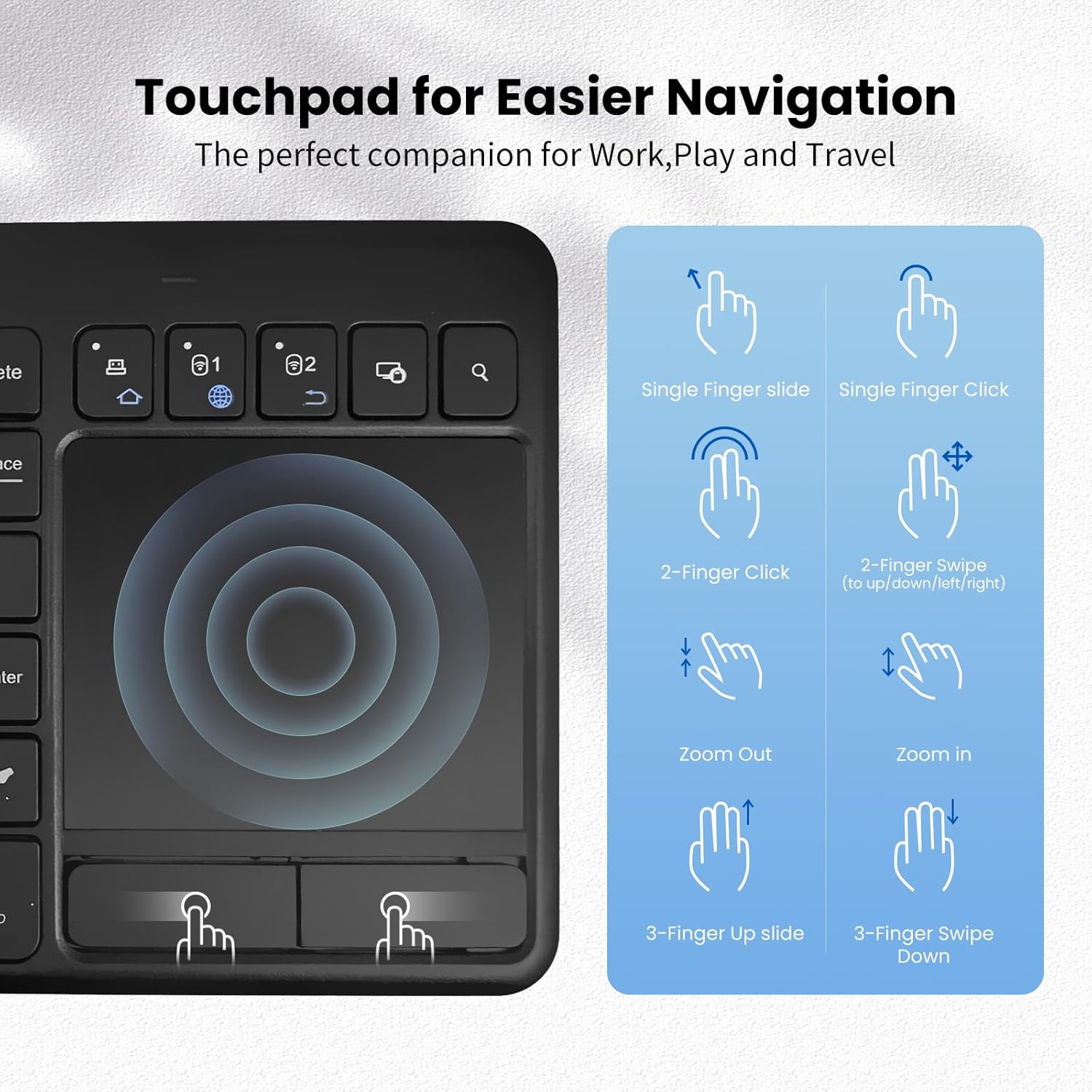
Image: A guide illustrating various touchpad gestures supported by the INFINMIND K618, including single-finger slide/click, two-finger click/swipe, zoom in/out, and three-finger slide/swipe.
- Single Finger Slide: కర్సర్ను తరలించండి.
- Single Finger Click: ఎడమ-క్లిక్ చేయండి.
- Two-Finger Click: కుడి-క్లిక్ చేయండి.
- Two-Finger Swipe (Up/Down/Left/Right): Scroll content or navigate.
- లోపలికి/బయటకు చిటికెడు: Zoom in or out (if supported by the operating system/application).
- Three-Finger Slide Up: (Specific OS function, e.g., Task View విండోస్లో).
- Three-Finger Slide Down: (Specific OS function, e.g., Show Desktop on Windows).
Note: Specific gesture functionality may vary depending on the operating system and application.
3. ఫంక్షన్ కీలు
The keyboard includes dedicated function keys (F1-F12) and multimedia shortcuts. Use the Fn key in combination with other keys to access secondary functions, if applicable.
అనుకూలత
The INFINMIND K618 keyboard is designed for broad compatibility across various operating systems and devices.

Image: Chart detailing the wide compatibility of the INFINMIND K618 keyboard with various devices (smartphones, laptops, tablets, PCs, Smart TVs) and operating systems (Mac OS, Windows 7/8/10, iOS, Android).
- ఆపరేటింగ్ సిస్టమ్స్: Windows (7/8/10/11), Android, Chrome OS, iOS, Mac OS.
- అనుకూల పరికరాలు: Laptops, Desktop PCs, Tablets (iPad, Android tablets), Smartphones (iPhone, Android phones), Smart TVs.
Note: Full functionality, especially for advanced touchpad gestures, may depend on the specific operating system version and device support.
నిర్వహణ
- శుభ్రపరచడం: Use a soft, dry cloth to clean the keyboard surface. For stubborn dirt, a slightly damp తేలికపాటి సబ్బు ఉన్న వస్త్రాన్ని ఉపయోగించవచ్చు, తద్వారా పరికరంలోకి ద్రవం ప్రవేశించదు.
- బ్యాటరీ భర్తీ: Replace AAA batteries when the low battery indicator (if present) illuminates or when performance degrades.
- నిల్వ: When not in use for extended periods, turn off the keyboard and remove the batteries to prevent leakage. Store in a cool, dry place.
- అతిశయోక్తిని నివారించండి: Do not expose the keyboard to extreme temperatures, direct sunlight, or excessive moisture.
ట్రబుల్షూటింగ్
| సమస్య | సాధ్యమైన పరిష్కారం |
|---|---|
| కీబోర్డ్ ప్రతిస్పందించడం లేదు |
|
| టచ్ప్యాడ్ సరిగ్గా పనిచేయడం లేదు |
|
| Difficulty switching between devices |
|
స్పెసిఫికేషన్లు
| ఫీచర్ | వివరాలు |
|---|---|
| మోడల్ | K618 |
| కనెక్టివిటీ | 2.4G వైర్లెస్, బ్లూటూత్ (BT1, BT2) |
| ఆపరేటింగ్ రేంజ్ | 33 అడుగుల (10 మీటర్లు) వరకు |
| శక్తి మూలం | 2 x AAA బ్యాటరీలు |
| అనుకూల OS | Windows, Android, Chrome OS, iOS, Mac OS |
| కొలతలు | 13.39 x 5.12 x 1.18 అంగుళాలు (సుమారుగా) |
| బరువు | 12.6 ఔన్సులు (సుమారుగా) |
వారంటీ మరియు మద్దతు
INFINMIND products are designed for reliability and performance. For warranty information and technical support, please refer to the warranty card included in your package or visit the official INFINMIND webసైట్.
If you encounter any issues not covered in this manual, please contact INFINMIND customer support for assistance.