
Pisichen 21.5INTS-White-NEW
పిసిచెన్ 21.5-అంగుళాల టచ్స్క్రీన్ మానిటర్ యూజర్ మాన్యువల్
Model: 21.5INTS-White-NEW
పరిచయం
This user manual provides comprehensive instructions for the setup, operation, maintenance, and troubleshooting of your Pisichen 21.5-Inch Touchscreen Monitor. Please read this manual thoroughly before using the product to ensure proper functionality and to prevent damage.
The Pisichen 21.5-inch touch monitor is designed to enhance your work efficiency and provide an interactive experience with its responsive 10-point capacitive touchscreen. It features a Full HD 1920x1080 resolution display, built-in speakers, and versatile connectivity options including HDMI, VGA, and USB for touch functionality.
కీ ఫీచర్లు
- Sensitive 10-Point Capacitive Touchscreen: Offers seamless and responsive interaction, allowing direct engagement with content and simultaneous multi-finger input.
- Stunning FHD 1080P Display: A 21.5-inch Full HD (1920x1080) resolution screen with a 1000:1 contrast ratio, 250cd/㎡ brightness, 170° viewing angle, and 60Hz refresh rate for clear and smooth visuals. Includes low-blue-light and eye-care technology.
- విస్తృత పరికర అనుకూలత: Equipped with USB2.0 (for touch), HDMI, VGA, and DC ports for easy connection to PCs, laptops, PS3/4, and gaming consoles.
- బహుముఖ ప్రదర్శన మోడ్లు: Supports duplicate, extend, and second-screen modes to enhance productivity and workspace.
- Built-in Speakers and VESA Mounting: Integrated speakers provide audio, and the 75x75mm VESA mount allows for flexible installation options.
ప్యాకేజీ విషయాలు
సెటప్తో కొనసాగడానికి ముందు అన్ని అంశాలు ప్యాకేజీలో ఉన్నాయని ధృవీకరించండి.

The package includes the Pisichen 21.5-inch touchscreen monitor, a user manual, an HDMI cable, a USB cable, and a power adapter, ensuring it is ready for immediate use.
- Pisichen 21.5-Inch Touchscreen Monitor
- పవర్ అడాప్టర్
- HDMI కేబుల్
- USB Cable (for touch function)
- వినియోగదారు మాన్యువల్
సెటప్ సూచనలు
1. మానిటర్ను కనెక్ట్ చేస్తోంది
The monitor offers various connection options to suit your needs. Ensure all connections are secure before powering on the device.

వివరంగా view of the monitor's input/output ports, including HDMI, VGA, headphone, DC power, and USB 2.0 touch ports.
- పవర్ కనెక్షన్: Connect the provided power adapter to the DC power port on the monitor and then plug it into a wall outlet.
- వీడియో కనెక్షన్ (HDMI): Use the HDMI cable to connect the monitor's HDMI port to the HDMI output port on your computer, laptop, or gaming console.
- వీడియో కనెక్షన్ (VGA): Alternatively, use a VGA cable to connect the monitor's VGA port to the VGA output port on your computer or laptop.
- Touch Function Connection: To enable the touch function, connect the included USB cable from the monitor's USB 2.0 touch port to an available USB port on your computer. This step is crucial for touch signal transmission.
- ఆడియో అవుట్పుట్ (ఐచ్ఛికం): If you prefer external audio, you can connect headphones or external speakers to the headphone jack. The monitor also has built-in speakers.
2 మౌంటు ఐచ్ఛికాలు
The Pisichen monitor supports both desktop placement and VESA wall mounting for flexible setup.
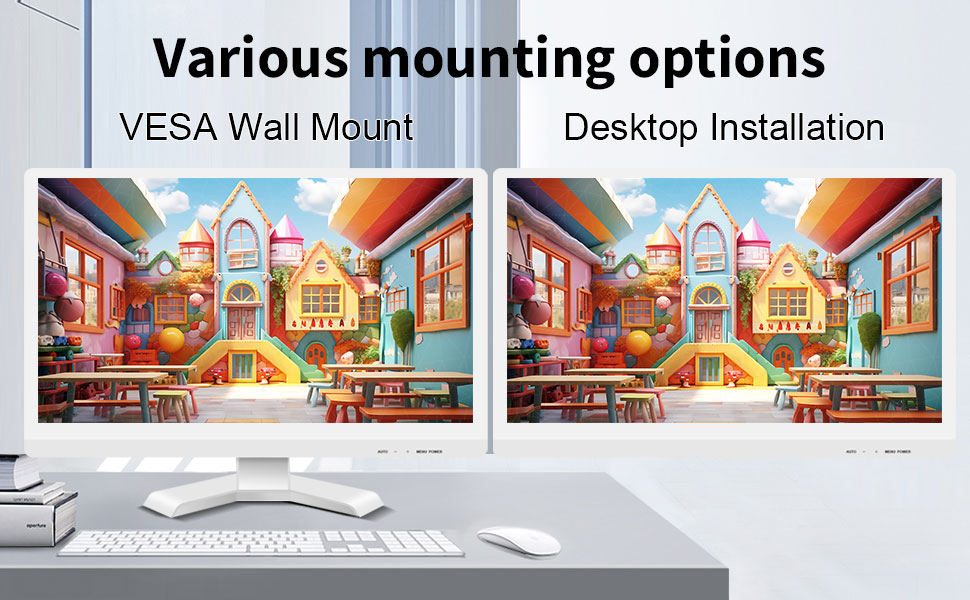
The monitor can be set up on a desktop stand or mounted on a wall using a VESA compatible bracket.
- డెస్క్టాప్ ఇన్స్టాలేషన్: Attach the provided stand to the monitor base and place it on a stable, flat surface.
- వెసా వాల్ మౌంట్: The monitor features a 75x75mm VESA mounting pattern. Use a compatible VESA bracket (not included) to mount the monitor on a wall or an adjustable arm. Ensure the mount can support the monitor's weight (9.88 pounds).

వెనుక view of the monitor highlighting the VESA 75x75mm mounting pattern and overall dimensions.
ఆపరేటింగ్ సూచనలు
1. పవర్ చేయడం ఆన్/ఆఫ్
Locate the power button on the monitor. Press it to turn the monitor on or off. The power indicator light will illuminate when the monitor is on.
2. Using the Touchscreen Function
Once the USB cable is connected to your computer, the 10-point capacitive touch function will be active. You can interact with the screen using your fingers or a passive capacitive stylus.

The monitor supports direct touch interaction for intuitive control.
- సింగిల్ టచ్: మౌస్ క్లిక్తో సమానం.
- నొక్కండి మరియు పట్టుకోండి: కుడి-క్లిక్తో సమానం.
- లాగండి: Move items by touching and dragging.
- పించ్-టు-జూమ్: కంటెంట్ను జూమ్ ఇన్ లేదా అవుట్ చేయడానికి రెండు వేళ్లను ఉపయోగించండి.
- మల్టీ-టచ్: The monitor supports up to 10 simultaneous touch points, enabling collaborative work or complex gestures.

The 10-point multi-touch feature allows for multiple users or complex interactions simultaneously.
ముఖ్యమైన గమనిక: The touch functionality is disabled on Mac OS, iPad OS, and iOS. This monitor only supports passive capacitive styluses.
3. డిస్ప్లే మోడ్లు
The monitor supports various display modes when connected to a computer:
- డూప్లికేట్ మోడ్: Displays the same content on both your primary screen and the Pisichen monitor.
- పొడిగింపు మోడ్: Extends your desktop across both screens, providing more workspace.
- Second Screen Only Mode: Displays content only on the Pisichen monitor, turning off your primary screen.
You can typically switch between these modes through your operating system's display settings (e.g., Windows Display Settings).
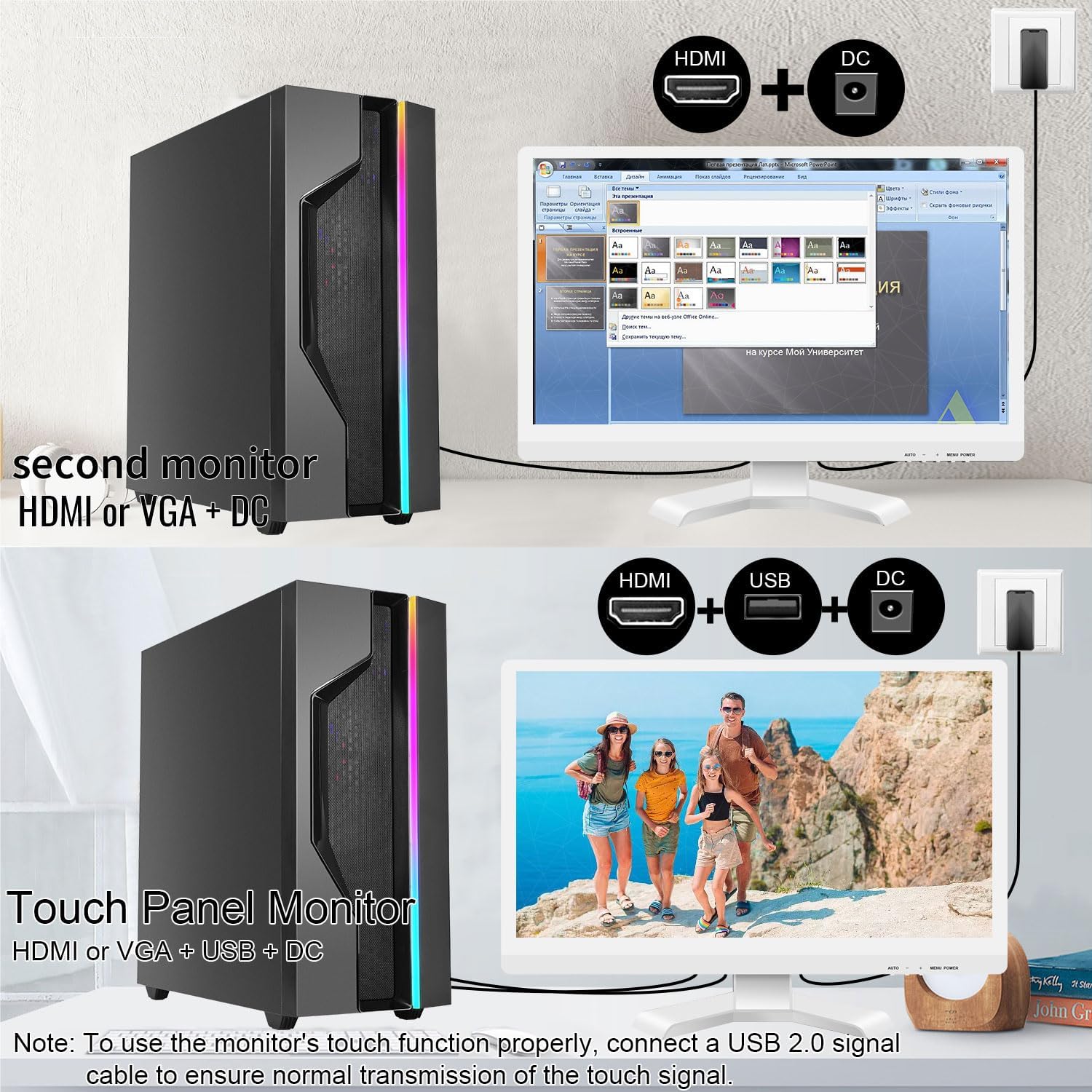
Illustrations of connecting the monitor as a secondary display or as a touch-enabled display.
4. ఆన్-స్క్రీన్ డిస్ప్లే (OSD) మెనూ
The monitor features an OSD menu for adjusting display settings. Use the buttons located on the monitor's frame (usually on the bottom right) to navigate and select options.
- మెనూ బటన్: OSD మెనుని తెరుస్తుంది.
- అప్/డౌన్ బటన్లు: మెను ఎంపికల ద్వారా నావిగేట్ చేయండి.
- ఎంటర్/ఎంచుకోండి బటన్: ఎంపికను నిర్ధారిస్తుంది లేదా ఉప-మెనూలోకి ప్రవేశిస్తుంది.
- నిష్క్రమణ బటన్: ప్రస్తుత మెనూ లేదా OSD నుండి నిష్క్రమిస్తుంది.
Common OSD settings include brightness, contrast, color temperature, input source selection, and aspect ratio.
నిర్వహణ మరియు సంరక్షణ
- స్క్రీన్ క్లీనింగ్:
Always power off the monitor and unplug it before cleaning. Use a soft, lint-free cloth lightly dampened with water or a non-abrasive, monitor-specific cleaning solution. Do not spray liquid directly onto the screen. Avoid using alcohol, ammonia, or abrasive cleaners, as they can damage the screen surface.
- సి ని శుభ్రపరచడంasing:
మానిటర్ను తుడవండి casing with a soft, dry cloth. If necessary, a slightly damp cloth can be used, but ensure no moisture enters the vents or ports.
- నిల్వ:
When not in use for extended periods, store the monitor in a cool, dry place, away from direct sunlight and extreme temperatures. If possible, use the original packaging for protection.
- వెంటిలేషన్:
Ensure the monitor's ventilation openings are not blocked. Proper airflow is essential to prevent overheating.
- నిర్వహణ:
Handle the monitor with care. Avoid dropping it or subjecting it to strong impacts. Do not place heavy objects on top of the monitor.
ట్రబుల్షూటింగ్
| సమస్య | సాధ్యమైన కారణం | పరిష్కారం |
|---|---|---|
| తెరపై చిత్రం లేదు |
|
|
| టచ్స్క్రీన్ స్పందించడం లేదు |
|
|
| చిత్రం అస్పష్టంగా లేదా వక్రీకరించబడింది |
|
|
| అంతర్నిర్మిత స్పీకర్ల నుండి శబ్దం లేదు |
|
|
స్పెసిఫికేషన్లు
| మోడల్ సంఖ్య | 21.5INTS-White-NEW |
| స్క్రీన్ పరిమాణం | 21.5 అంగుళాలు |
| రిజల్యూషన్ | 1920 x 1080 పిక్సెల్స్ (FHD 1080p) |
| కారక నిష్పత్తి | 16:9 |
| ప్రకాశం | 250 Candela (cd/㎡) |
| కాంట్రాస్ట్ రేషియో | 1000:1 |
| Viewing యాంగిల్ | 170° |
| రిఫ్రెష్ రేట్ | 60Hz |
| టచ్ టెక్నాలజీ | 10-పాయింట్ కెపాసిటివ్ టచ్ |
| ఇన్పుట్ పోర్ట్లు | HDMI, VGA, USB 2.0 (for touch), DC Power |
| ఆడియో | Built-in Speakers, Headphone Jack |
| VESA మౌంట్ అనుకూలత | 75x75mm |
| ఉత్పత్తి కొలతలు (L x W x H) | 0.78 x 20.4 x 14.9 అంగుళాలు |
| వస్తువు బరువు | 9.88 పౌండ్లు |
| తయారీదారు | షెన్జెన్ కోనోవా ఎలక్ట్రానిక్స్ కో., లిమిటెడ్ |
| మూలం దేశం | చైనా |
వారంటీ మరియు మద్దతు
For warranty information and technical support, please refer to the official Pisichen website or contact their customer service directly. Details are typically provided on the product packaging or the manufacturer's official support channels.
మీరు సందర్శించవచ్చు Pisichen Store on Amazon for more product information and potential support contacts.
Ask a question about this manual
Ask about setup, troubleshooting, compatibility, parts, safety, or missing instructions. Manuals+ will review the question and use this page’s manual context to help answer it.