
1. పరిచయం
This user manual provides detailed instructions for the KTC M27P6 27-inch MiniLED Gaming Monitor. Please read this manual thoroughly before operating the device to ensure proper usage and optimal performance. Keep this manual for future reference.
The KTC M27P6 is a high-performance gaming monitor featuring a 27-inch MiniLED panel with 1152 local dimming zones, offering exceptional contrast and brightness up to HDR1400. It supports dual display modes: 4K resolution at 160Hz and Full HD resolution at 320Hz, providing versatility for various gaming and professional needs. Key features include a 1ms GtG response time, Adaptive Sync technology, and comprehensive connectivity options including USB-C with 65W power delivery and KVM functionality.

చిత్రం: పైగాview of KTC M27P6 monitor's key features including MiniLED, 1152 local dimming zones, dual mode 4K@160Hz/FHD@320Hz, USB-C, KVM, HDR1400, 145% sRGB, Fast IPS, and Adaptive-Sync.
2. భద్రతా సమాచారం
- మానిటర్ పడిపోకుండా ఉండటానికి ఎల్లప్పుడూ స్థిరమైన, చదునైన ఉపరితలంపై ఉంచండి.
- విద్యుత్ షాక్ లేదా మంటలను నివారించడానికి మానిటర్ను వర్షం లేదా తేమకు గురిచేయవద్దు.
- Keep the monitor away from direct sunlight, heat sources, or extreme temperatures.
- మానిటర్ చుట్టూ సరైన వెంటిలేషన్ ఉండేలా చూసుకోండి. వెంటిలేషన్ ఓపెనింగ్లను బ్లాక్ చేయవద్దు.
- తయారీదారు అందించిన లేదా సిఫార్సు చేసిన పవర్ అడాప్టర్ మరియు కేబుల్లను మాత్రమే ఉపయోగించండి.
- Unplug the power cord from the outlet if the monitor will not be used for a long period.
- మానిటర్ను మీరే రిపేర్ చేయడానికి ప్రయత్నించవద్దు. అన్ని సర్వీసింగ్లను అర్హత కలిగిన సర్వీస్ సిబ్బందికి సూచించండి.
- పదునైన వస్తువులతో స్క్రీన్ను తాకడం మానుకోండి.
3. ప్యాకేజీ విషయాలు
మీ ప్యాకేజీలో అన్ని భాగాలు ఉన్నాయని నిర్ధారించుకోండి. ఏవైనా వస్తువులు తప్పిపోయినా లేదా దెబ్బతిన్నా, మీ రిటైలర్ను సంప్రదించండి.
- KTC M27P6 27-inch MiniLED Gaming Monitor
- మానిటర్ స్టాండ్ (బేస్ మరియు ఆర్మ్)
- పవర్ అడాప్టర్
- పవర్ కేబుల్
- HDMI కేబుల్
- డిస్ప్లేపోర్ట్ కేబుల్
- USB-C కేబుల్
- USB-B to USB-A Cable (for KVM/USB Hub)
- వినియోగదారు మాన్యువల్ (ఈ పత్రం)
- వారంటీ కార్డ్
4. మానిటర్ ఓవర్view
4.1 ఫ్రంట్ View
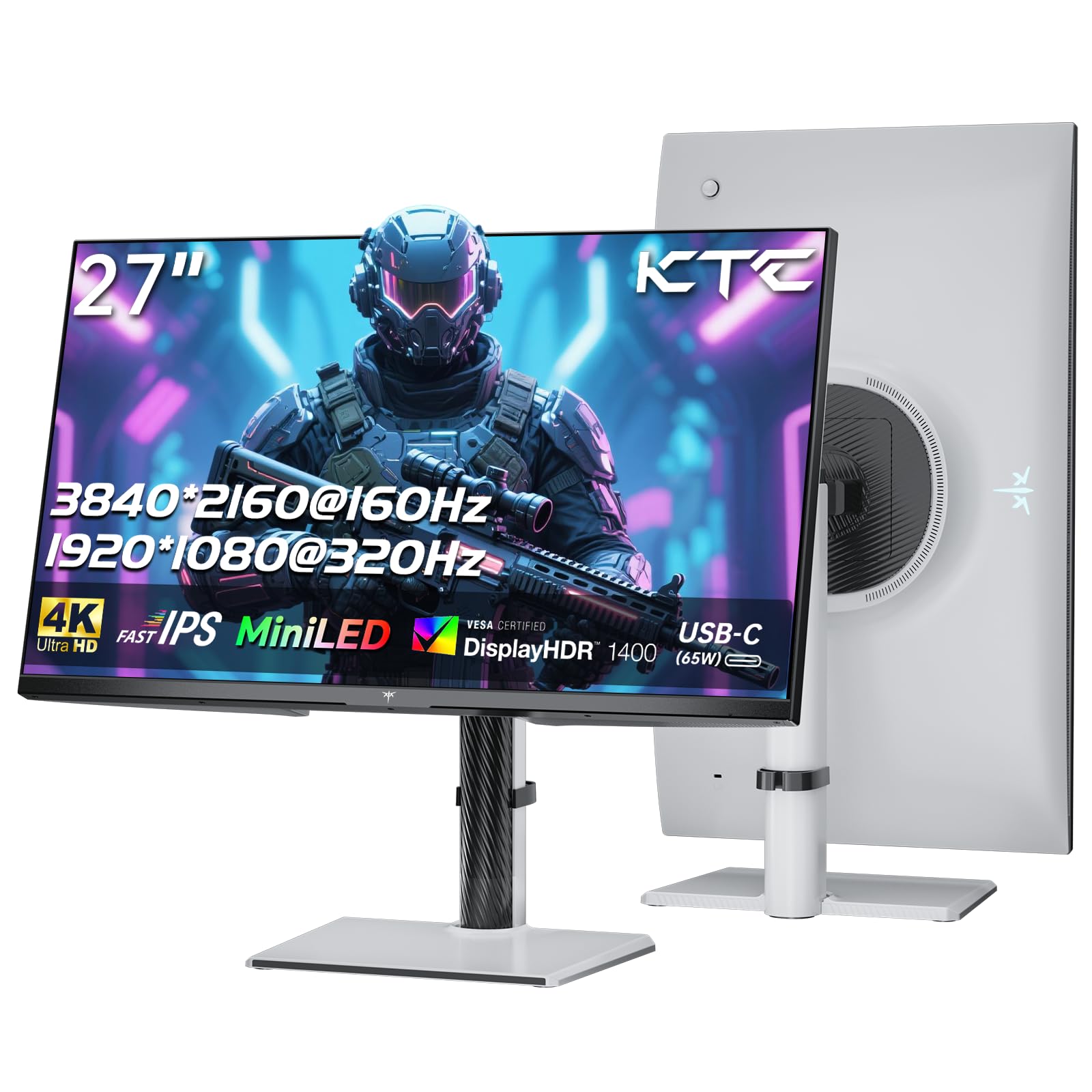
చిత్రం: ముందు భాగం view of the KTC M27P6 27-inch MiniLED Gaming Monitor.
The front of the monitor features the 27-inch MiniLED display panel. The KTC logo is typically located at the bottom center bezel.
4.2 వెనుక View మరియు పోర్ట్లు

చిత్రం: వెనుక view of the KTC M27P6 monitor, highlighting the various input/output ports and the adjustable stand.
The rear of the monitor houses the input/output ports and the stand attachment point. The ports include:
- పవర్ ఇన్పుట్: పవర్ అడాప్టర్ను కనెక్ట్ చేయడానికి.
- HDMI 2.1 పోర్ట్లు (x2): For connecting to devices supporting HDMI 2.1 (4K@160Hz / FHD@320Hz).
- DisplayPort 1.4 Ports (x2): For connecting to devices supporting DisplayPort 1.4 (4K@160Hz / FHD@320Hz).
- USB-C పోర్ట్ (x1): Full-function port supporting video input (4K@160Hz / FHD@320Hz) and 65W Power Delivery.
- USB-B Upstream Port (x1): For connecting the monitor's USB hub to your computer, enabling the downstream USB-A ports and KVM functionality.
- USB-A 3.0 Downstream Ports (x3): కీబోర్డ్లు, ఎలుకలు లేదా USB డ్రైవ్లు వంటి పరిధీయ పరికరాలను కనెక్ట్ చేయడానికి.
- 3.5mm ఆడియో అవుట్: హెడ్ఫోన్లు లేదా బాహ్య స్పీకర్లను కనెక్ట్ చేయడానికి.
వీడియో: ఒక ఓవర్view of the KTC M27P6 monitor's features and design, including its connectivity options and adjustable stand.
5. సెటప్
5.1 స్టాండ్ను అసెంబుల్ చేయడం
- ప్యాకేజింగ్ నుండి మానిటర్ మరియు స్టాండ్ భాగాలను జాగ్రత్తగా తొలగించండి.
- Attach the stand arm to the monitor panel by aligning the mounting points and securing with screws (if applicable).
- Attach the stand base to the stand arm, ensuring it is firmly connected.
- అమర్చబడిన మానిటర్ను స్థిరమైన, చదునైన ఉపరితలంపై ఉంచండి.
The monitor also supports VESA mounting (100x100mm) for use with compatible wall mounts or monitor arms. Ensure the VESA mount is rated for the monitor's weight.

Image: Diagram illustrating the multi-angle adjustment capabilities of the KTC M27P6 monitor stand, including height, tilt, swivel, and pivot.
5.2 కనెక్ట్ కేబుల్స్
- పవర్ కనెక్షన్: Connect the power adapter to the monitor's power input, then plug the power cable into a power outlet.
- వీడియో కనెక్షన్:
- For PC/Gaming Console: Connect one end of the HDMI or DisplayPort cable to your device's output and the other end to the corresponding port on the monitor.
- For USB-C Compatible Devices: Connect the USB-C cable from your device to the monitor's USB-C port for video, data, and power delivery.
- USB Hub/KVM Connection: To use the monitor's USB-A ports and KVM functionality, connect the USB-B to USB-A cable from the monitor's USB-B upstream port to a USB-A port on your computer.
- ఆడియో కనెక్షన్: If using external headphones or speakers, connect them to the 3.5mm audio out port on the monitor.
6. ఆపరేటింగ్ సూచనలు
6.1 పవర్ ఆన్/ఆఫ్
Press the power button (usually located on the back or bottom of the monitor) to turn the monitor on or off. The power indicator light will illuminate when the monitor is on.
6.2 OSD మెనూ నావిగేషన్
The On-Screen Display (OSD) menu allows you to adjust various monitor settings. Use the joystick or buttons (refer to your monitor's physical layout) to navigate the OSD menu:
- Press Joystick/Button: Enter OSD menu or confirm selection.
- జాయ్స్టిక్ను పైకి/క్రిందికి తరలించండి: మెను ఎంపికల ద్వారా నావిగేట్ చేయండి.
- జాయ్స్టిక్ను ఎడమ/కుడి వైపుకు తరలించండి: విలువలను సర్దుబాటు చేయండి లేదా ఉప-మెనూలకు తరలించండి.
- నిష్క్రమణ బటన్: Exit the current menu or OSD.
6.3 Dual Mode Switching (4K@160Hz / FHD@320Hz)
The KTC M27P6 supports seamless switching between two display modes: 4K (3840x2160) at 160Hz and Full HD (1920x1080) at 320Hz. This allows you to optimize performance based on your content (e.g., high-resolution graphics for AAA games or ultra-high refresh rate for competitive FPS games).
To switch modes, access the OSD menu and navigate to the "Display" or "Gaming" settings. Select the desired resolution and refresh rate. Your connected device must also support these resolutions and refresh rates for optimal performance.

Image: Illustration of the KTC M27P6 monitor's seamless dual mode switching capability, showing a 4K@160Hz gaming scene and a FHD@320Hz gaming scene.
6.4 అనుకూల సమకాలీకరణ
The monitor supports Adaptive Sync (AMD FreeSync and NVIDIA G-Sync compatible) to eliminate screen tearing and stuttering, providing a smoother gaming experience. Ensure Adaptive Sync is enabled in the monitor's OSD settings and in your graphics card control panel.

Image: Visual representation of Adaptive Sync technology, showing how it prevents screen tearing by synchronizing the monitor's refresh rate with the GPU's frame rate.
6.5 KVM కార్యాచరణ
The integrated KVM (Keyboard, Video, Mouse) switch allows you to control multiple computers or devices connected to the monitor using a single keyboard and mouse. To use KVM:
- Connect your primary computer to the monitor via DisplayPort/HDMI and the USB-B upstream cable.
- Connect your secondary device (e.g., laptop via USB-C) to the monitor.
- Connect your keyboard and mouse to the USB-A downstream ports on the monitor.
- Switch between connected devices using the KVM hotkey or OSD menu option.
6.6 Color Settings and HDR1400
The monitor features a MiniLED panel with 1152 local dimming zones and VESA DisplayHDR 1400 certification, providing high contrast and vibrant colors. You can adjust color settings (brightness, contrast, color temperature, gamma) through the OSD menu. For HDR content, ensure HDR is enabled in your operating system and the monitor's OSD. The monitor supports 10-bit color depth and a wide color gamut (145% sRGB / 99% DCI-P3).

Image: Visual comparison demonstrating the enhanced dynamic range and detail provided by HDR1400 on the KTC M27P6 monitor.
7. నిర్వహణ
- స్క్రీన్ క్లీనింగ్: మెత్తటి, మెత్తటి బట్టతో స్క్రీన్ను సున్నితంగా తుడవండి. మొండి మరకల కోసం, dampen the cloth with a small amount of screen cleaner (non-ammonia based). Do not spray cleaner directly onto the screen.
- సి ని శుభ్రపరచడంasing: మానిటర్ను తుడవడానికి మృదువైన, పొడి వస్త్రాన్ని ఉపయోగించండి casing. రాపిడి క్లీనర్లు లేదా ద్రావకాలను ఉపయోగించడం మానుకోండి.
- వెంటిలేషన్: Ensure the ventilation openings on the monitor are clear of dust and debris to prevent overheating.
8. ట్రబుల్షూటింగ్
| సమస్య | సాధ్యమైన కారణం | పరిష్కారం |
|---|---|---|
| తెరపై చిత్రం లేదు | పవర్ కేబుల్ డిస్కనెక్ట్ చేయబడింది; వీడియో కేబుల్ డిస్కనెక్ట్ చేయబడింది; తప్పు ఇన్పుట్ సోర్స్. | Check power and video cable connections. Select the correct input source via the OSD menu. |
| చిత్రం అస్పష్టంగా లేదా వక్రీకరించబడింది | తప్పు రిజల్యూషన్; తప్పు వీడియో కేబుల్. | Set the display resolution to the native 3840x2160 or 1920x1080. Try a different video cable. |
| ఆటలలో స్క్రీన్ చిరిగిపోవడం లేదా నత్తిగా మాట్లాడటం | Adaptive Sync not enabled; Graphics card driver issues. | Enable Adaptive Sync in monitor OSD and graphics card settings. Update graphics drivers. |
| USB పోర్ట్లు పని చేయడం లేదు | USB-B upstream cable not connected; Driver issues. | Ensure the USB-B upstream cable is connected from the monitor to your computer. Check computer's USB drivers. |
| ఆడియో నుండి శబ్దం లేదు | Incorrect audio output selected; Volume too low. | Check audio output settings on your computer. Adjust monitor and device volume. |
9. స్పెసిఫికేషన్లు
| ఫీచర్ | వివరాలు |
|---|---|
| బ్రాండ్ | కెటిసి |
| మోడల్ పేరు | M27P6 |
| స్క్రీన్ పరిమాణం | 27 Pollici (27 inches) |
| ప్యానెల్ రకం | MiniLED, Fast IPS |
| Resolution (Native) | 3840 x 2160 (4K UHD) |
| Max Refresh Rate (4K) | 160 Hz |
| Max Refresh Rate (FHD) | 320 Hz |
| ప్రతిస్పందన సమయం | 1ms GtG |
| స్థానిక డిమ్మింగ్ జోన్లు | 1152 మండలాలు |
| HDR సర్టిఫికేషన్ | వెసా డిస్ప్లే హెచ్డిఆర్ 1400 |
| ప్రకాశం | 1400 cd / m² (శిఖరం) |
| కాంట్రాస్ట్ రేషియో | 1,000,000:1 (డైనమిక్) |
| రంగు స్వరసప్తకం | 145% sRGB, 99% DCI-P3 |
| రంగు లోతు | 10-బిట్ |
| అనుకూల సమకాలీకరణ | AMD FreeSync, NVIDIA G-Sync Compatible |
| Viewing యాంగిల్ | 178 డిగ్రీలు |
| కనెక్టివిటీ | 2x HDMI 2.1, 2x DisplayPort 1.4, 1x USB-C (65W PD), 1x USB-B Upstream, 3x USB-A 3.0 Downstream, 1x 3.5mm Audio Out |
| KVM మద్దతు | అవును |
| స్టాండ్ సర్దుబాట్లు | ఎత్తు, టిల్ట్, స్వివెల్, పివోట్ |
| వెసా మౌంట్ | 100 x 100 మి.మీ |
| కొలతలు (DxWxH) | 21.1P x 61.7lx 54.7H సెం.మీ. |
10. వారంటీ మరియు మద్దతు
KTC products are covered by a limited warranty. Please refer to the warranty card included in your package for specific terms and conditions. For technical support, troubleshooting assistance, or warranty claims, please contact KTC customer service or visit the official KTC webసైట్.
You can find more information and contact details on the KTC official store page: KTC Store.