
1. ఉత్పత్తి ముగిసిందిview
The TODAAIR Outdoor WiFi Extender AC1200 is a dual-band WiFi repeater designed to extend wireless network coverage in outdoor environments. It features IP65 weatherproofing, ensuring reliable performance in various weather conditions. This device supports both 2.4 GHz and 5 GHz frequency bands, providing stable and high-speed internet access for multiple devices across a wide area.

Image 1.1: The TODAAIR Outdoor WiFi Extender AC1200, a white rectangular device, is shown mounted on a pole in an outdoor setting, extending Wi-Fi coverage to a house and pool area.
వీడియో 1.1: ఒక ఓవర్view of the TODAAIR Outdoor WiFi Extender, highlighting its features and potential applications in various outdoor settings.
2. ప్యాకేజీ విషయాలు
దయచేసి ఇన్స్టాలేషన్తో కొనసాగే ముందు అన్ని అంశాలు ప్యాకేజీలో ఉన్నాయని ధృవీకరించండి.
- TODAAIR Outdoor WiFi Extender AC1200 Unit
- పవర్ అడాప్టర్ (DC 12V)
- Installation Accessories (e.g., cable ties, mounting screws)
- వినియోగదారు మాన్యువల్
Video 2.1: This video demonstrates the unboxing process of the TODAAIR Outdoor WiFi Extender, showing all included components and the initial power-on sequence.
3. ఉత్పత్తి లక్షణాలు
- డ్యూయల్-బ్యాండ్ కనెక్టివిటీ: Supports 2.4 GHz and 5 GHz for flexible network options.
- అధిక వేగం: Up to 1200Mbps wireless speed (AC standard).
- విస్తృత కవరేజ్: Designed to cover large outdoor areas, up to 3440 sq. ft.
- IP65 వాతావరణ నిరోధకత: Resistant to dust and water, suitable for outdoor use in various weather conditions.
- బహుళ ఆపరేటింగ్ మోడ్లు: Functions as an Access Point (AP) or Repeater.
- ఈథర్నెట్ పోర్ట్: Includes a LAN port for wired connections to devices like cameras or computers.
- పరికర సామర్థ్యం: Can support connections for up to 30 devices simultaneously.

Image 3.1: The TODAAIR Extender showcasing its 1200Mbps dual-band speed (2.4G+5G) and 300ft coverage, indicating enhanced Wi-Fi experience.

Image 3.2: The TODAAIR Extender demonstrating its IP65 weatherproof capabilities, showing resistance to various weather conditions like sun, rain, snow, thunder, wind, and frost.
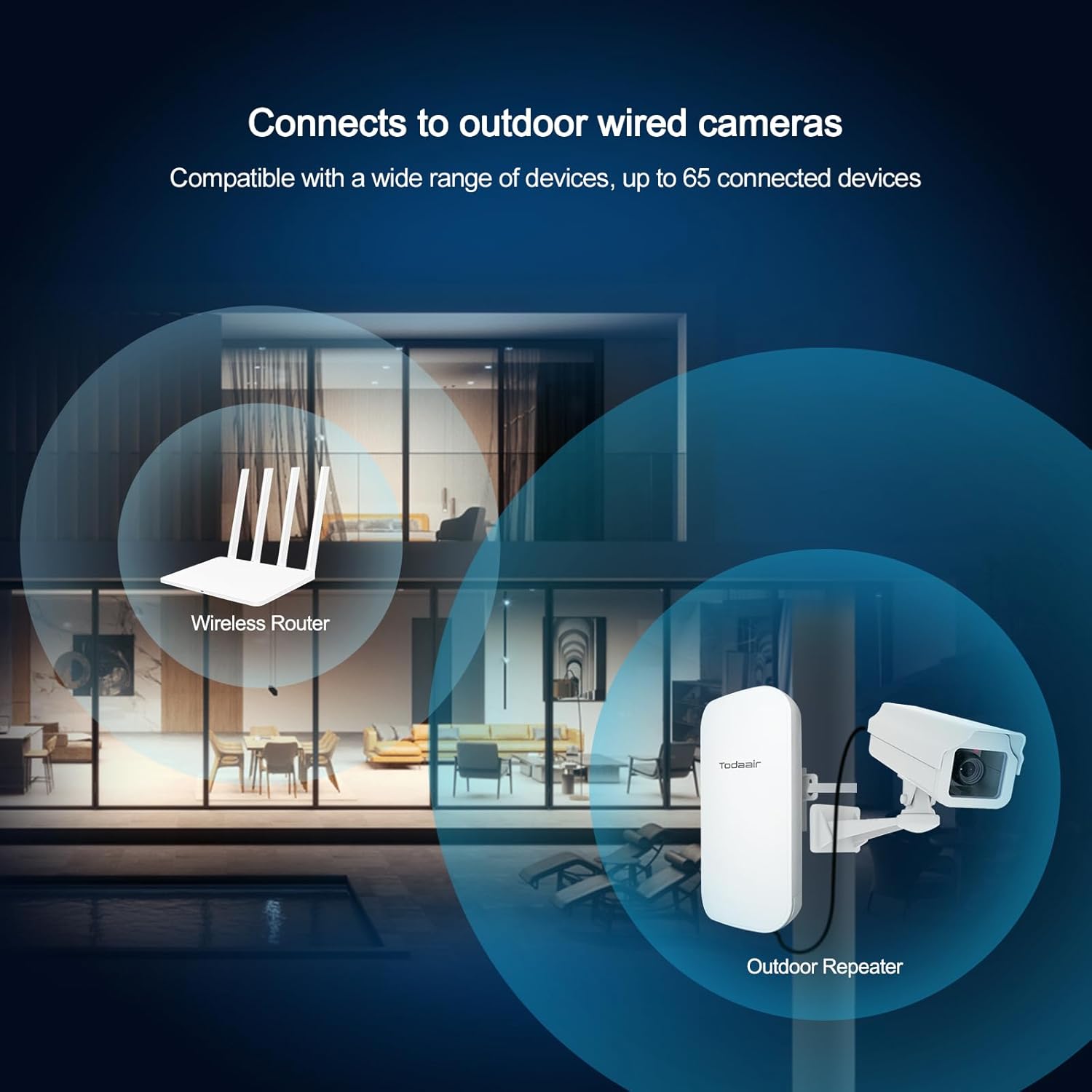
Image 3.3: The extender shown connecting to an outdoor wired camera, illustrating its compatibility with various devices.

Image 3.4: An illustration highlighting the extender's capacity to connect up to 30 devices, providing stable network connections even outdoors.

Image 3.5: This image displays various outdoor usage scenarios for the Wi-Fi extender, including yards, swimming pools, farms, and outdoor security camera setups.
4. సెటప్ సూచనలు
Follow these steps for initial setup and configuration of your TODAAIR Outdoor WiFi Extender.
4.1. భౌతిక సంబంధం
- Open the protective cover of the extender.
- Connect the provided DC 12V power adapter to the DC Power port.
- (Optional) For wired connections, connect an Ethernet cable to the LAN port.
- Close the protective cover, ensuring the power supply is protected.
- After powering on, wait approximately 20 seconds for the device to start detection. The indicator lights will flash, signaling it is ready for pairing.

చిత్రం 4.1: వివరణాత్మక view of the extender's ports, including the Reset button, LAN port, and DC Power input, with examples of connecting a computer or camera.
4.2. Initial Pairing and Configuration (via Mobile Device)
For optimal pairing success, perform the initial setup near your main router. The connection process typically involves three main steps:
- ఎక్స్టెండర్ నెట్వర్క్కి కనెక్ట్ చేయండి: Connect your mobile phone or computer to the extender's default Wi-Fi network, usually named "TDair".
- ఆకృతీకరణ పేజీని యాక్సెస్ చేయండి: తెరవండి a web browser. The system will automatically redirect you to the configuration page. If not, manually enter the default IP address (e.g., 192.168.34.1) in your browser. Enter the administrator password (default is "admin").
- Configure Repeater Settings: On the configuration page, select the "Survey" option to scan for available Wi-Fi networks. It is recommended to select the 5G band for scanning first. Choose your home Wi-Fi network (SSID) from the list and enter its password. Set the SSID and password for the extender's 2.4G and 5G frequency bands. For simplicity, these can be the same as your router's Wi-Fi password. Click "Confirm" to apply the settings. The extender will reboot.
- తిరిగి కనెక్ట్ చేయండి: Reconnect your device to the newly configured extender's Wi-Fi network (e.g., "TDair5g" or "TDair2.4g") using the password you just set.

Image 4.2: Visual steps for configuring the extender via a mobile phone, showing connection to the extender's network, entering the administrator password, and setting up the new Wi-Fi network.
Video 4.3: A step-by-step tutorial demonstrating the repeater connection operation, including connecting to the extender's default Wi-Fi, accessing the configuration page, and setting up the network.
Video 4.4: This video illustrates the pairing process for the long-range waterproof outdoor repeater, showing how to connect it to an existing Wi-Fi network.
5. ఆపరేటింగ్ మోడ్లు
TODAAIR అవుట్డోర్ వైఫై ఎక్స్టెండర్ రెండు ప్రాథమిక ఆపరేటింగ్ మోడ్లకు మద్దతు ఇస్తుంది:
- రిపీటర్ మోడ్: Extends the existing Wi-Fi signal range from your main router, eliminating dead zones.
- యాక్సెస్ పాయింట్ (AP) మోడ్: Converts a wired internet connection into a wireless network, ideal for areas without existing Wi-Fi coverage.
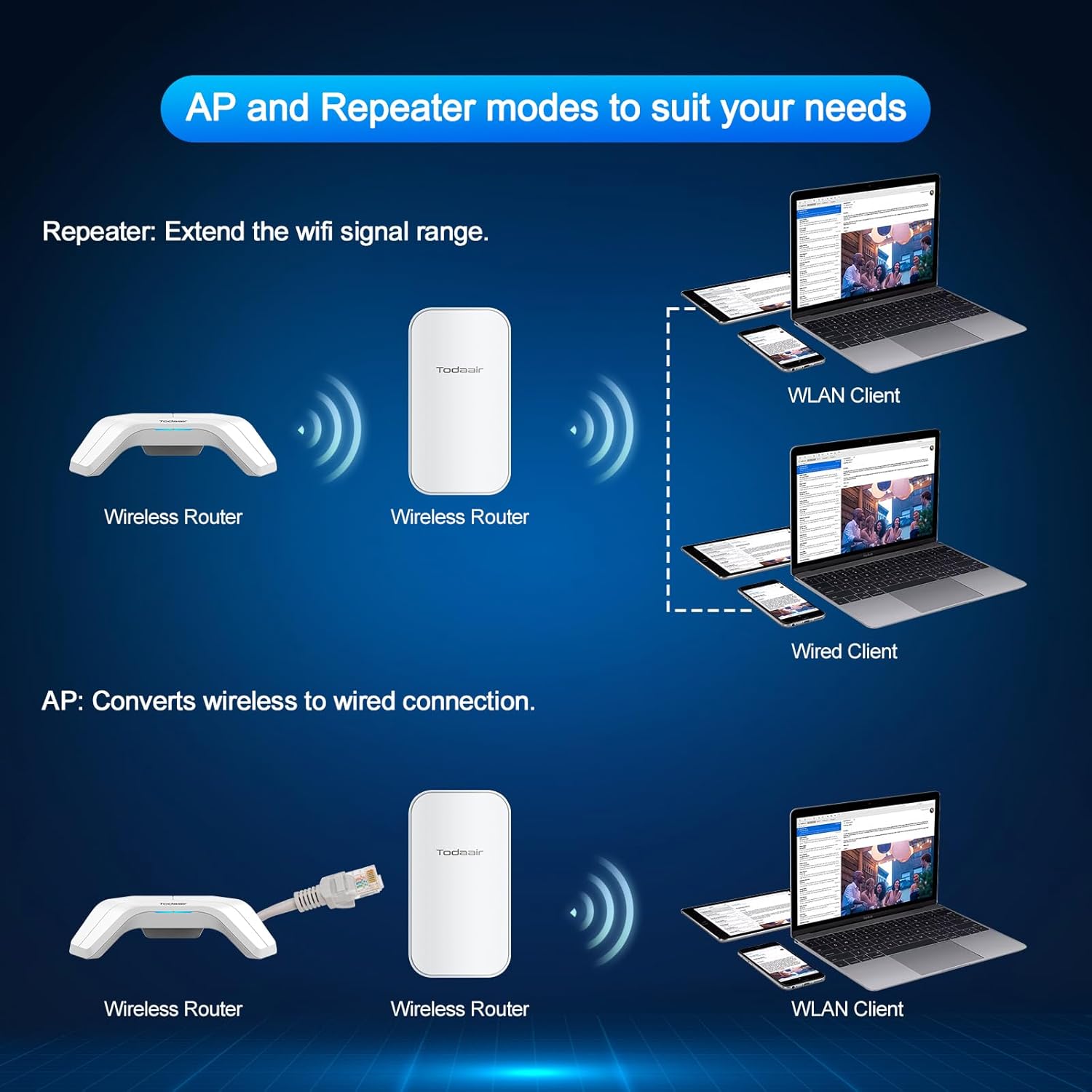
Image 5.1: A visual explanation of the Repeater mode, extending Wi-Fi from a wireless router, and AP mode, converting a wired connection to wireless.
6. ఇన్స్టాలేషన్ మార్గదర్శకాలు
Proper placement is crucial for maximizing the performance of your WiFi extender.
- సరైన దూరం: Place the extender within the strong signal range of your main router. Avoid placing it too far, which results in a weak signal, or too close, which limits its effectiveness.
- దృష్టి రేఖను: For best results, ensure a clear line of sight between the extender and your main router, minimizing obstructions like thick walls or large metal objects.
- ఎత్తు: Mounting the extender at a higher elevation can improve signal propagation, especially in outdoor environments.
- Directional Coverage: The extender provides directional coverage. Orient it towards the area where you need extended Wi-Fi.

Image 6.1: A diagram showing different installation scenarios for a Wi-Fi extender, illustrating invalid placements (too far, too close) and a correct installation for successful signal extension.
Video 6.2: This video demonstrates how the TODAAIR WiFi Extender works with a TODAAIR router to expand Wi-Fi coverage and eliminate dead zones in a home environment.
Video 6.3: A demonstration of the repeater's distance test, showing its performance in extending Wi-Fi signal over a significant outdoor range.
7. స్పెసిఫికేషన్లు
| ఫీచర్ | వివరణ |
|---|---|
| మోడల్ సంఖ్య | అవుట్డోర్ AC1200 |
| వైర్లెస్ కమ్యూనికేషన్ స్టాండర్డ్ | 802.11ac |
| మద్దతు ఉన్న ఫ్రీక్వెన్సీ బ్యాండ్లు | 2.4 GHz, 5 GHz |
| పరిధి | Up to 280 feet (approx. 3440 sq. ft. coverage) |
| వాతావరణ నిరోధక రేటింగ్ | IP65 |
| ఉత్పత్తి కొలతలు | 9 x 3 x 4 అంగుళాలు |
| తయారీదారు | TODAAIR |
8. ట్రబుల్షూటింగ్
మీరు సమస్యలను ఎదుర్కొంటే, ఈ క్రింది పరిష్కారాలను ప్రయత్నించండి:
- కనెక్షన్ లేదు:
- Ensure the extender is powered on and indicator lights are flashing.
- Verify that your device is connected to the extender's Wi-Fi network.
- Check if the password for your main router's Wi-Fi was entered correctly during setup. Incorrect passwords require a device reset and re-pairing.
- ఎక్స్టెండర్ మీ ప్రధాన రౌటర్ పరిధిలో ఉందని నిర్ధారించుకోండి.
- బలహీనమైన సిగ్నల్:
- Relocate the extender to a more central position between your router and the desired coverage area.
- Minimize physical obstructions (walls, metal objects) between the extender and your devices.
- Adjust the orientation of the extender for optimal directional coverage.
- Configuration Page Not Accessible:
- Ensure your device is connected to the extender's default Wi-Fi network ("TDair") before attempting to access the configuration page.
- మీ బ్రౌజర్ కాష్ను క్లియర్ చేయడానికి లేదా వేరే బ్రౌజర్ను ఉపయోగించడానికి ప్రయత్నించండి.
- పరికరాన్ని రీసెట్ చేస్తోంది: If issues persist, use the "RES" button (Reset) on the device to restore factory settings. This will require re-configuring the extender.
9. నిర్వహణ
To ensure the longevity and optimal performance of your TODAAIR Outdoor WiFi Extender:
- రెగ్యులర్ క్లీనింగ్: Periodically wipe the exterior of the device with a soft, dry cloth to remove dust and debris. Do not use liquid cleaners.
- ఫర్మ్వేర్ నవీకరణలు: తయారీదారుని తనిఖీ చేయండి website for any available firmware updates to ensure the device has the latest features and security enhancements.
- కేబుల్ సమగ్రత: Inspect power and Ethernet cables regularly for any signs of wear or damage. Replace damaged cables immediately.
- రక్షణ కవచం: Always ensure the protective cover over the ports is securely closed to maintain the IP65 weatherproofing.
10. వారంటీ మరియు మద్దతు
For warranty information, technical support, or further assistance, please refer to the contact details provided in the product packaging or visit the official TODAAIR webసైట్.