
1. పరిచయం
ధన్యవాదాలు, ధన్యవాదాలు.asing the VILTROX DC-A1 Camera Field Monitor. This 7-inch full HD touchscreen monitor is designed to enhance your video production workflow with its high brightness, versatile monitoring functions, and robust connectivity. This manual provides detailed instructions for proper setup, operation, and maintenance of your device.
2. భద్రతా సమాచారం
- విద్యుత్ షాక్ లేదా మంటలను నివారించడానికి మానిటర్ను వర్షం లేదా తేమకు గురిచేయవద్దు.
- Do not disassemble the product. If repairs are needed, contact authorized service personnel.
- Avoid strong impacts or vibrations, which may damage internal components.
- బలమైన అయస్కాంత క్షేత్రాల నుండి మానిటర్ను దూరంగా ఉంచండి.
- Use only specified power adapters and batteries.
- మృదువైన, పొడి వస్త్రంతో స్క్రీన్ను శుభ్రం చేయండి. కఠినమైన రసాయనాలను ఉపయోగించడం మానుకోండి.
3. ప్యాకేజీ విషయాలు
క్రింద జాబితా చేయబడిన అన్ని వస్తువులు మీ ప్యాకేజీలో చేర్చబడ్డాయని ధృవీకరించండి:
- 1x VILTROX DC-A1 Camera Field Monitor
- 1x NP-F550 Battery
- 1x Sunshade Hood
- 1x VL-550 Cold Shoe Adapter
- 1x ప్రామాణిక HDMI కేబుల్
- 1x మినీ HDMI కేబుల్
- 1x USB టైప్-C కేబుల్
- 1x క్యారీ కేస్
- 1x Custom Screen Protectors
- 1x వినియోగదారు మాన్యువల్
- 1x ప్యాకింగ్ బాక్స్

Image: All components included in the VILTROX DC-A1 Camera Field Monitor package.
4. ఉత్పత్తి ముగిసిందిview
4.1 కీ ఫీచర్లు
- 7-inch Full HD IPS Touch Screen: 1920x1080 resolution, 170° wide viewing angle, 1000:1 contrast ratio, SRGB/REC-709 color calibration.
- 2800 Nits Ultra-Brightness: Ensures clear visibility even in direct sunlight.
- 4K HDMI Loop In & Out: Supports up to 4K 60Hz signals for simultaneous monitoring.
- వృత్తిపరమైన పర్యవేక్షణ విధులు: Includes Parade waveform, Oscillogram (RGB/YUV/Y), vector graph, brightness histogram, auxiliary focus, audio column, image flip, false color, and more.
- Custom 3D LUT Support: Import 3D LUTs via USB-A for creative color effects and monitoring with camera Log modes.
- Intuitive Touch Control & Customizable Shortcut Keys: Easy menu navigation and quick access to frequently used functions (F1-F4).
- బహుళ విద్యుత్ సరఫరా ఎంపికలు: Compatible with NP-F series batteries, DC IN (10-18V/2A), and Type-C (≥9V/3A).
- Quick-Released Sunshade Hood: Detachable design for improved outdoor viewing.
- తెలివైన శీతలీకరణ ఫ్యాన్లు: Efficient heat dissipation for extended operation.
4.2. కాంపోనెంట్ ఐడెంటిఫికేషన్

Image: Detailed diagram of the VILTROX DC-A1 monitor showing all ports, buttons, and features.
- వెనుక/మెనూ బటన్
- Shortcut Key (F1-F4)
- డిస్ప్లే స్క్రీన్
- ఫ్యాన్ ఎగ్జాస్ట్ వెంట్
- USB Interface (USB-A)
- పవర్ బటన్
- సిగ్నల్ సూచిక
- Knob Key
- 1/4 స్క్రూ హోల్
- HDMI ఇన్పుట్
- HDMI అవుట్పుట్
- 1/4 స్క్రూ హోల్
- హెడ్ఫోన్ జాక్ (3.5 మిమీ)
- టైప్-సి పోర్ట్
- DC Port (DC IN)
- బ్యాటరీ విడుదల బటన్
- బ్యాటరీ స్లాట్
- శీతలీకరణ గాలి తీసుకోవడం
5. సెటప్
5.1. మానిటర్ను అటాచ్ చేయడం
Use the included VL-550 Cold Shoe Adapter to mount the monitor onto your camera's hot shoe or a compatible rig. Securely tighten the adapter to prevent accidental detachment.

Image: The VILTROX DC-A1 monitor attached to a camera via the cold shoe adapter.
5.2. మానిటర్కు శక్తినివ్వడం
The DC-A1 offers multiple power options:
- NP-F Series Battery: Insert a charged NP-F series battery (e.g., NP-F550, NP-F750, NP-F970) into the battery slot on the back of the monitor. Ensure it clicks into place. To remove, press the battery release button.
- DC IN: Connect a compatible DC power adapter (10-18V/2A) to the DC IN port.
- టైప్-సి: Connect a Type-C power source (≥9V/3A) to the Type-C port.
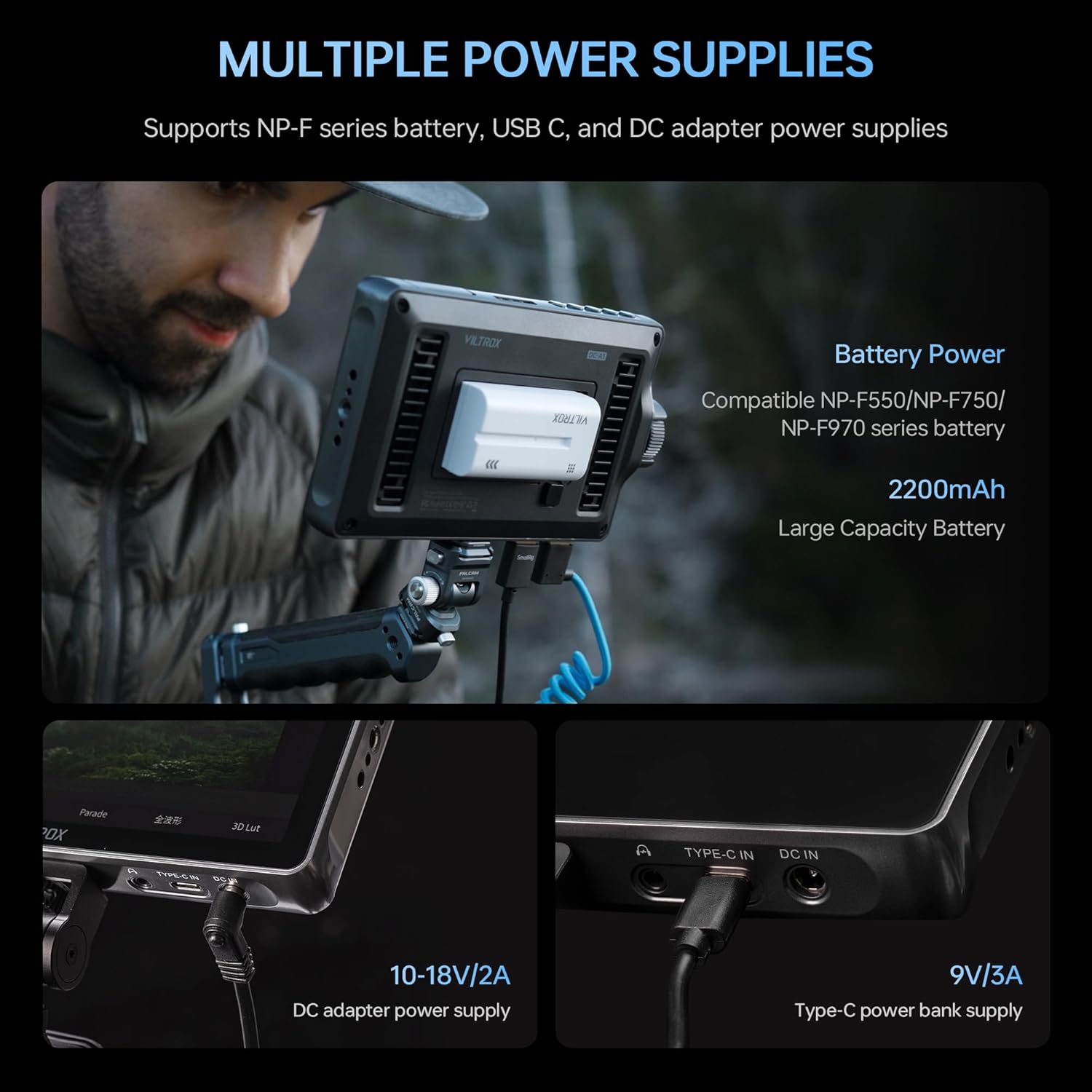
Image: The VILTROX DC-A1 monitor showing the battery slot, DC IN, and Type-C power ports.
5.3. Connecting HDMI
Connect your camera's HDMI output to the monitor's HDMI-IN port using the provided HDMI or Mini HDMI cable. If you need to loop the signal to another monitor, connect a second HDMI cable from the monitor's HDMI అవుట్ ఓడరేవు

Image: The VILTROX DC-A1 monitor connected to a camera via HDMI, demonstrating the loop-out functionality.
5.4. Attaching the Sunshade Hood
For outdoor shooting, attach the sunshade hood to the monitor to reduce glare and improve screen visibility. The hood is designed for quick attachment and removal.

Image: The VILTROX DC-A1 monitor with the sunshade hood attached, enhancing outdoor viewing.
6. ఆపరేటింగ్ సూచనలు
6.1. పవర్ ఆన్/ఆఫ్
నొక్కండి మరియు పట్టుకోండి పవర్ బటన్ (6) to turn the monitor on or off. The signal indicator (7) will illuminate when the monitor is powered on.
6.2. Basic Touch Control
The DC-A1 features an intuitive touchscreen interface. Tap or swipe gestures can be used to navigate menus and adjust settings. Double-tap the screen to quickly access the main menu.

Image: A hand interacting with the VILTROX DC-A1 touchscreen to adjust settings.
6.3. Using the Knob Key and Shortcut Buttons
ది Knob Key (8) can be rotated to adjust values and pressed to confirm selections. The four customizable సత్వరమార్గం కీలు (2) (F1-F4) allow for quick access to your preferred monitoring functions. These can be configured in the system settings.
6.4. Professional Monitoring Functions
Access various professional tools through the menu:
- Waveform/Oscillogram: Provides detailed exposure and color information.
- వెక్టర్ గ్రాఫ్: Displays color saturation and hue.
- ప్రకాశం హిస్టోగ్రాం: Shows the distribution of brightness levels.
- Auxiliary Focus (Peaking): ఖచ్చితమైన దృష్టి కేంద్రీకరణ కోసం ఇన్-ఫోకస్ ప్రాంతాలను హైలైట్ చేస్తుంది.
- తప్పుడు రంగు: Helps evaluate exposure levels by displaying different colors for different luminance values.
- చిత్రం ఫ్లిప్: Adjusts image orientation for various mounting setups.
- Audio Column: Monitors audio input levels.

Image: The VILTROX DC-A1 monitor displaying various monitoring functions like waveform, vector scope, and histogram.
6.5. 3D LUT Application
To import custom 3D LUTs:
- Save your .cube LUT fileUSB డ్రైవ్లోకి లు.
- Connect the USB drive to the monitor's USB ఇంటర్ఫేస్ (5)
- Navigate to the 3D LUT menu option and select "Import".
- Choose the desired LUT file from the USB drive to load it onto the monitor.
Once imported, you can apply these LUTs to preview different color grades or convert Log footage to Rec.709 for accurate monitoring.

Image: The VILTROX DC-A1 monitor with a USB drive connected, demonstrating the 3D LUT import process.
7. నిర్వహణ
- శుభ్రపరచడం: Use a soft, lint-free cloth to clean the monitor screen and body. For stubborn smudges, slightly dampen the cloth with water or a screen-safe cleaning solution. Avoid abrasive materials or solvents.
- నిల్వ: When not in use, store the monitor in its carry case in a cool, dry place away from direct sunlight and extreme temperatures.
- బ్యాటరీ సంరక్షణ: If using NP-F batteries, ensure they are charged regularly and stored properly to prolong their lifespan. Remove batteries if the monitor will not be used for an extended period.
- ఫర్మ్వేర్ నవీకరణలు: Check the VILTROX official website periodically for firmware updates. Updates can be installed via the USB-A port.
8. ట్రబుల్షూటింగ్
| సమస్య | సాధ్యమైన కారణం | పరిష్కారం |
|---|---|---|
| మానిటర్ పవర్ ఆన్ చేయదు. | Battery is low or not inserted correctly; power cable is loose or faulty. | Ensure battery is charged and properly seated. Check power cable connections or try a different power source. |
| వీడియో సిగ్నల్ లేదు. | HDMI cable is loose or faulty; camera output settings are incorrect; monitor input is not selected. | Verify HDMI cable connection. Check camera's HDMI output settings. Ensure the correct input source is selected on the monitor. |
| Screen is too dark/bright. | ప్రకాశం సెట్టింగ్లు తప్పు. | Adjust brightness settings via the touchscreen menu or knob. |
| టచ్స్క్రీన్ స్పందించడం లేదు. | తాత్కాలిక సాఫ్ట్వేర్ లోపం; స్క్రీన్ ప్రొటెక్టర్ జోక్యం. | Restart the monitor. Ensure screen protector is applied correctly or remove it to test. |
9. స్పెసిఫికేషన్లు
| ఫీచర్ | వివరాలు |
|---|---|
| మోడల్ పేరు | డిసి-ఎ1 |
| స్క్రీన్ పరిమాణం | 7 అంగుళాలు |
| రిజల్యూషన్ | 1920x1080 (పూర్తి HD) |
| ప్రకాశం | 2800 Nits (cd/m²) |
| కాంట్రాస్ట్ రేషియో | 1000:1 |
| Viewing యాంగిల్ | 170° (IPS) |
| HDMI ఇన్పుట్/అవుట్పుట్ | HDMI 2.0 (Supports up to 4K 60Hz) |
| ఆడియో అవుట్పుట్ | 3.5mm హెడ్ఫోన్ జాక్ |
| పవర్ ఇన్పుట్ | NP-F Battery, DC IN (10-18V/2A), Type-C (≥9V/3A) |
| కొలతలు (D x W x H) | 1.12"డి x 7.4"వా x 4.3"హ |
| వస్తువు బరువు | 12.2 ఔన్సులు (సుమారు 346 గ్రా) |
| అనుకూల పరికరాలు | DSLR కెమెరాలు |
10. వారంటీ & సపోర్ట్
The VILTROX DC-A1 Camera Field Monitor comes with a 1-సంవత్సరం తయారీదారు వారంటీ కొనుగోలు చేసిన తేదీ నుండి. ఈ వారంటీ సాధారణ ఉపయోగంలో మెటీరియల్స్ మరియు పనితనంలో లోపాలను కవర్ చేస్తుంది.
వారంటీ కవర్ చేయదు:
- Damage caused by misuse, accident, modification, or unauthorized repair.
- సాధారణ దుస్తులు మరియు కన్నీటి.
- Damage from external causes such as drops, liquid exposure, or power surges.
For warranty claims, technical support, or service inquiries, please contact VILTROX customer support through their official website or the retailer where you purchased the product. Please have your proof of purchase and product model number (DC-A1) ready.
11. ఉత్పత్తి వీడియోలు
VILTROX DC-A1 7" Camera DSLR Field Monitor Overview
వీడియో: ఒక ఓవర్view of the VILTROX DC-A1 7-inch Camera DSLR Field Monitor, showcasing its features and use cases. This video highlights the monitor's design, connectivity, and various functions in a practical setting.
VILTROX DC-A1 2800Nits Camera Field Monitor Features
Video: A detailed look at the VILTROX DC-A1 2800Nits Camera Field Monitor, focusing on its high brightness, touch controls, 4K HDMI capabilities, and professional monitoring tools like 3D LUTs and waveforms.