1. పరిచయం
This manual provides detailed instructions for the installation, operation, and maintenance of the Generic TX628-WIFI Fingerprint Time Attendance System. This device is designed to accurately record employee attendance using fingerprint recognition, RFID cards, or PINs, and offers various data management options including TCP/IP, USB, and WiFi connectivity.
2. ఉత్పత్తి ముగిసిందిview
2.1 ముఖ్య లక్షణాలు
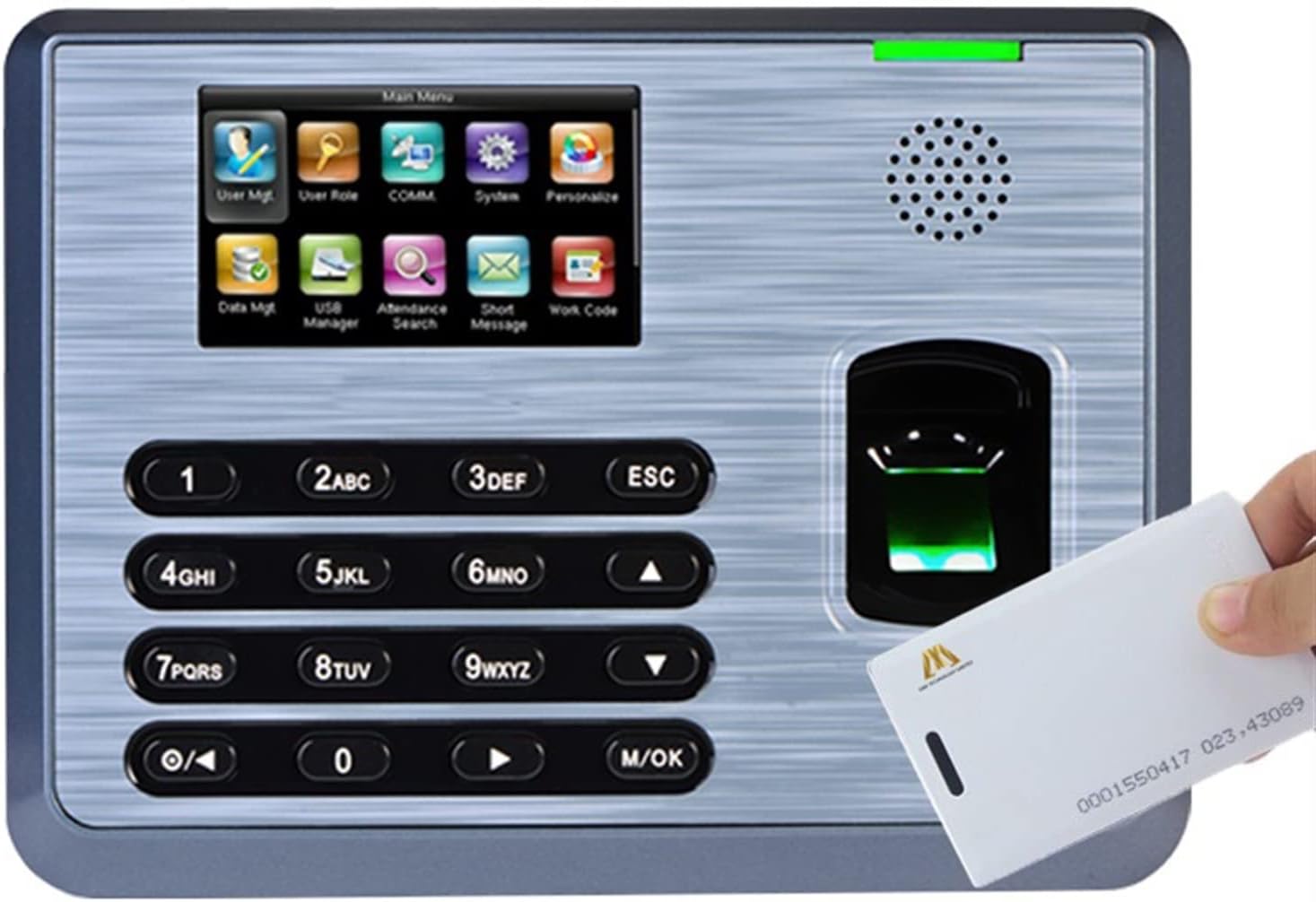
- Color TFT screen with Graphical User Interface (GUI) for intuitive operation.
- One-touch user recognition for quick attendance logging.
- Storage capacity for 3,200 fingerprint templates and 80,000 transaction records.
- Supports multiple identification methods: Fingerprint, RFID Card, or PIN.
- Integrated 125KHZ RFID card reader.
- Connectivity options: RS232/485, TCP/IP, and built-in USB port for data transfer.
- WiFi functionality for wireless network integration.
- Built-in bell scheduling for customizable alerts.
- Real-time one-touch data export for third-party applications.
- Audio-visual indications for successful or failed attendance attempts.
- Voice broadcast function to confirm clock-in/out status and display employee information.
- Automatic calculation of working hours.
2.2 భాగాలు మరియు ఇంటర్ఫేస్
The TX628-WIFI system includes the main attendance device, a power adapter, and a USB cable. Familiarize yourself with the device's front panel, rear panel, and connectivity ports.

మూర్తి 2.2.1: ముందు View of the TX628-WIFI Device. This image displays the front panel of the time attendance system, featuring the color TFT screen, numerical keypad, function buttons, fingerprint scanner, and integrated speaker.

మూర్తి 2.2.2: వైపు View of the TX628-WIFI Device. ఈ చిత్రం సైడ్ ప్రోని చూపిస్తుందిfile of the time attendance system, highlighting its compact design.

చిత్రం 2.2.3: కోణీయ View of the TX628-WIFI Device. ఈ చిత్రం పరికరం యొక్క కోణీయ దృక్పథాన్ని అందిస్తుంది, చూపండిasing the screen, keypad, and fingerprint scanner from a different viewపాయింట్.
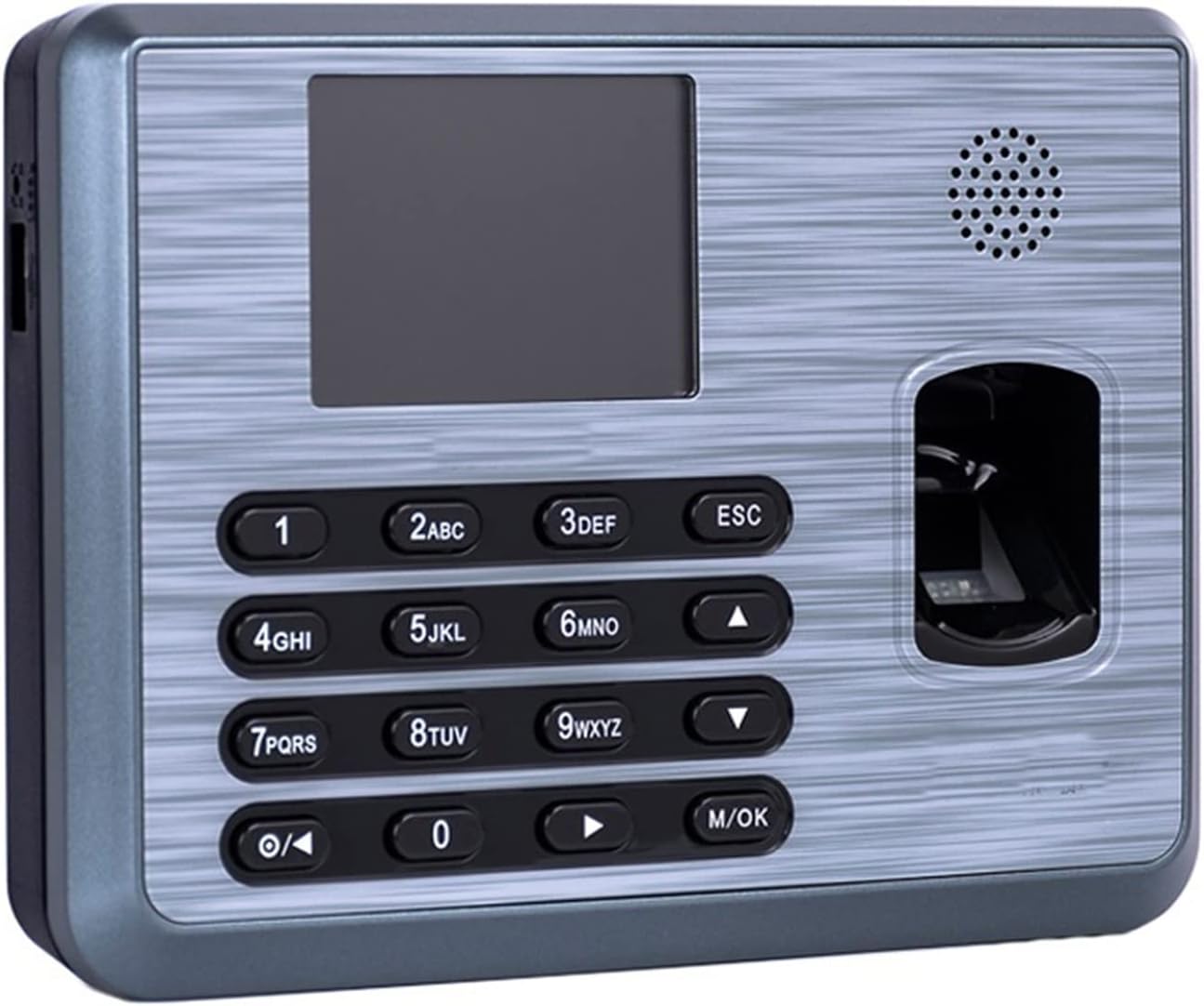
Figure 2.2.4: Alternate Angled View of the TX628-WIFI Device. This image offers another angled view, emphasizing the overall form factor and button layout.

Figure 2.2.5: TX628-WIFI with WiFi Indication. This image highlights the device's WiFi capability, showing the main screen with a WiFi logo overlay.
చిత్రం 2.2.6: వెనుక View of the TX628-WIFI Device. This image displays the back panel of the time attendance system, including mounting holes, product labels, and port covers for power and communication.
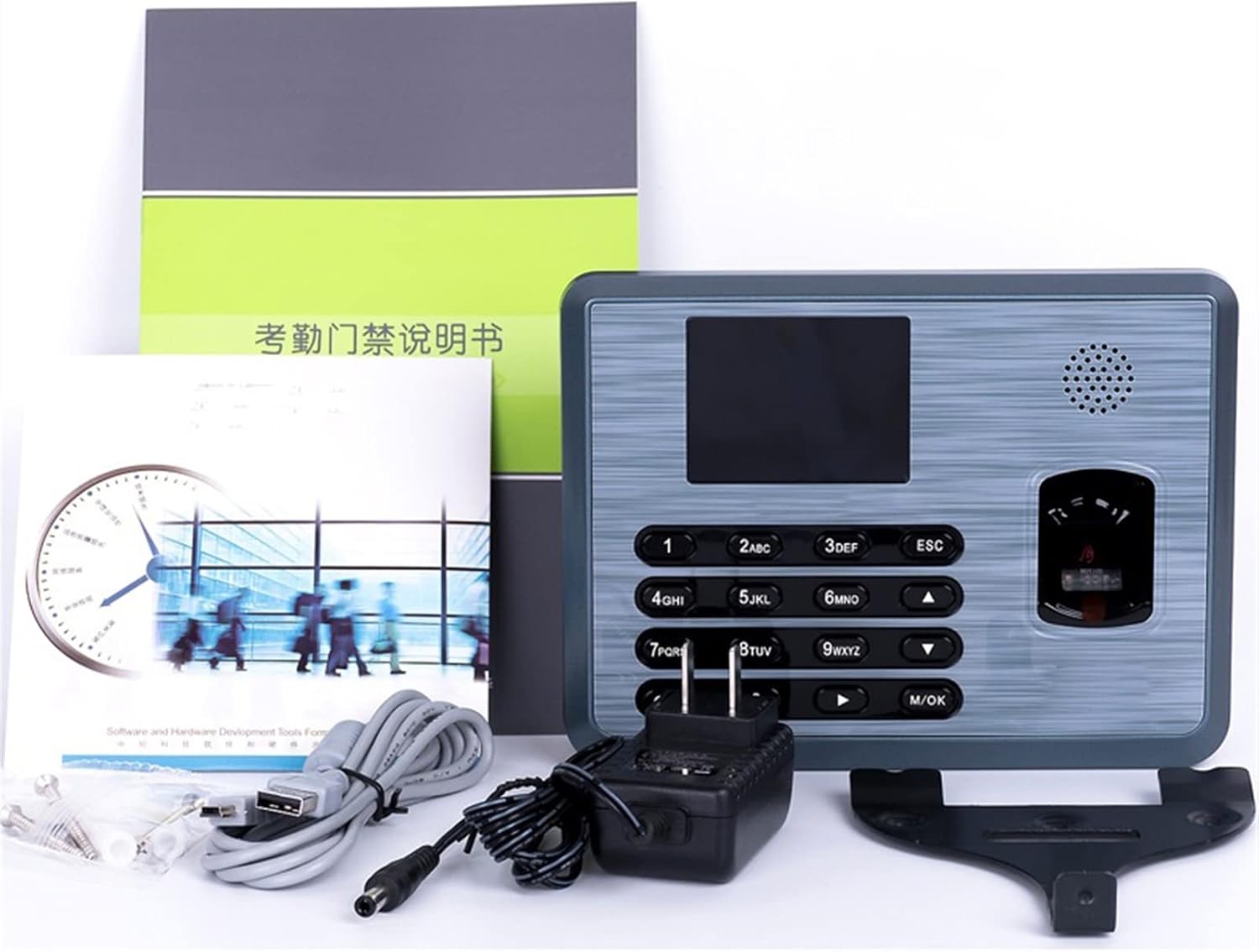
Figure 2.2.7: RFID Card Usage Demonstration. This image illustrates an RFID card being presented to the device for attendance recording, showcasing the card reader functionality.
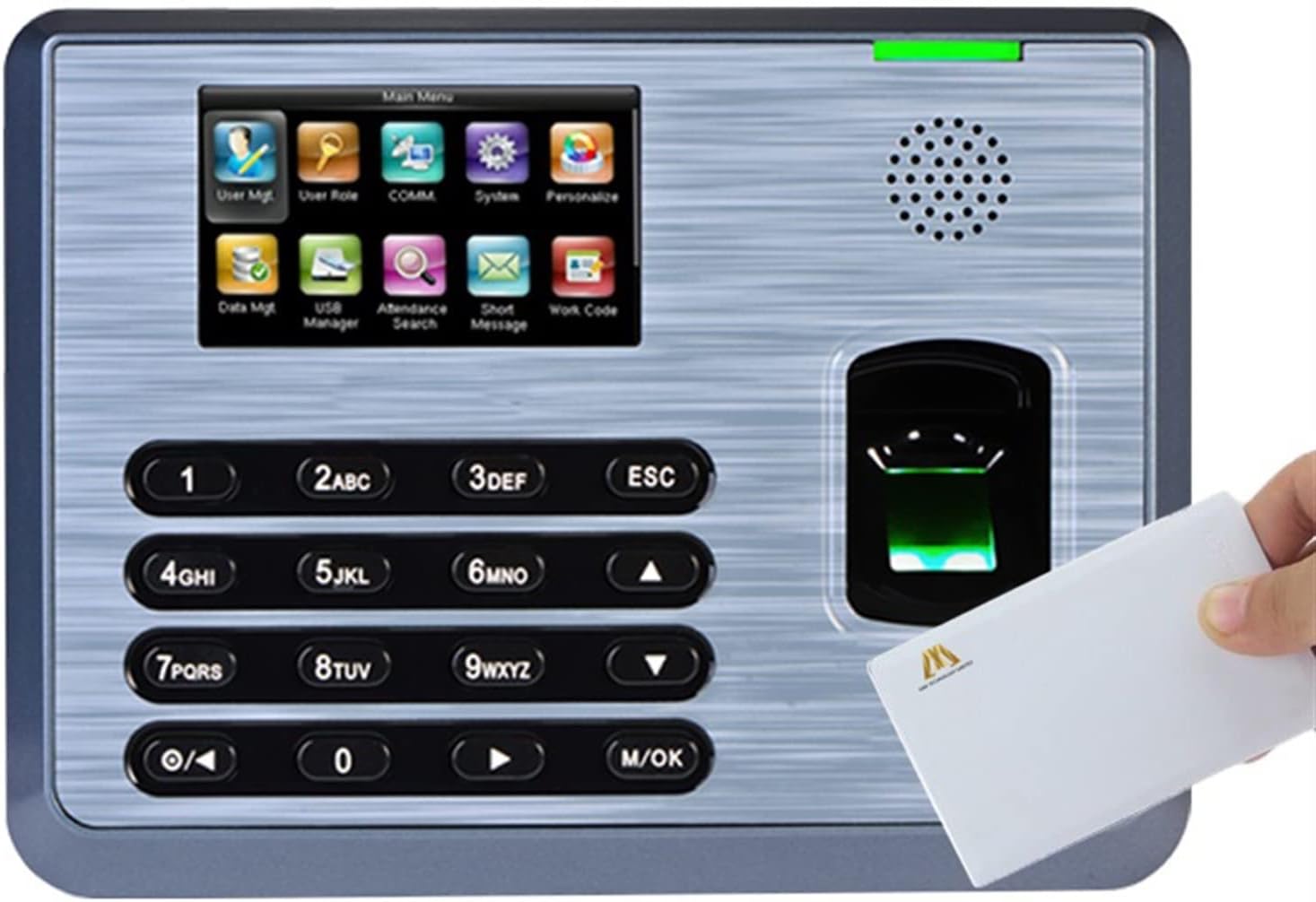
చిత్రం 2.2.8: ప్యాకేజీ విషయాలు. This image shows the complete package contents, including the TX628-WIFI device, power adapter, USB cable, mounting bracket, and user manual.
3. సెటప్
3.1 పరికరాన్ని మౌంట్ చేయడం
- Choose a suitable location for installation, ensuring it is easily accessible for employees and protected from direct sunlight or moisture.
- Use the provided mounting bracket as a template to mark drilling points on the wall.
- అవసరమైతే రంధ్రాలు వేసి, వాల్ ప్లగ్లను చొప్పించండి.
- మరలు ఉపయోగించి గోడకు మౌంటు బ్రాకెట్ను భద్రపరచండి.
- Attach the TX628-WIFI device to the mounting bracket.
3.2 పవర్ కనెక్షన్
- Connect the provided 5V DC 2A power adapter to the power input port on the device.
- Plug the power adapter into a standard electrical outlet. The device will power on automatically.
3.3 Network Configuration (TCP/IP or WiFi)
The TX628-WIFI supports both wired (TCP/IP) and wireless (WiFi) network connections for data transfer to management software.
3.3.1 Wired Connection (TCP/IP)
- Connect an Ethernet cable from the device's Ethernet port to your network router or switch.
- Access the device's system settings via the menu.
- Navigate to "COMM" (Communication) settings and configure the IP address, subnet mask, and gateway according to your network's requirements. You may use DHCP or assign a static IP.
3.3.2 Wireless Connection (WiFi)
- From the main menu, navigate to "System" then "Network Settings" or "WiFi Settings".
- Enable WiFi and scan for available networks.
- Select your desired WiFi network and enter the password.
- Confirm the connection. The device should display a successful connection status.
4. ఆపరేటింగ్ సూచనలు
4.1 వినియోగదారు నిర్వహణ
Before employees can record attendance, their information and biometric data must be enrolled in the system.
4.1.1 Enrolling a New User
- From the main menu, select "User Mgt" (User Management).
- Choose "New User" or "Add User".
- Enter a unique User ID (e.g., employee number).
- Enter the employee's name using the keypad.
- వేలిముద్ర నమోదు: Select "Enroll Finger" and follow the on-screen prompts to place the employee's finger on the scanner multiple times until enrollment is successful.
- RFID Card Enrollment: Select "Enroll Card" and present the RFID card to the reader until it is registered.
- PIN Enrollment: Optionally, set a PIN for the user.
- వినియోగదారు సమాచారాన్ని సేవ్ చేయండి.
4.1.2 Modifying User Information
- From "User Mgt", select "Manage User".
- Find the user by User ID or name.
- Select the user and choose to modify their fingerprint, card, PIN, or other details.
- మార్పులను సేవ్ చేయండి.
4.1.3 వినియోగదారుని తొలగిస్తోంది
- From "User Mgt", select "Manage User".
- Find the user to be deleted.
- Select the user and choose "Delete". Confirm the action.
4.2 Recording Attendance
Employees can record their attendance using their enrolled fingerprint, RFID card, or PIN.
4.2.1 వేలిముద్ర గుర్తింపు
- Place an enrolled finger firmly on the fingerprint scanner.
- The device will provide an audio-visual confirmation (e.g., "Thank you" and green light) upon successful recognition.
4.2.2 RFID Card Recognition
- Present an enrolled RFID card to the card reader area on the device.
- The device will provide an audio-visual confirmation upon successful recognition.
4.2.3 PIN Recognition
- Press the "M/OK" button to access the menu.
- Enter your User ID using the keypad.
- Press "M/OK", then enter your PIN.
- Press "M/OK" again to confirm. The device will provide audio-visual confirmation.
4.3 డేటా నిర్వహణ
Attendance records can be exported for further processing using management software.
4.3.1 Exporting Data via USB
- Insert a USB flash drive into the device's USB port.
- From the main menu, select "Data Mgt" (Data Management).
- Choose "Download Attendance Data" or "Export Data".
- Select the desired date range for the data export.
- Confirm the export. The data will be saved to the USB drive in a compatible format.
4.3.2 Real-time Data Transfer (TCP/IP or WiFi)
- Ensure the device is properly connected to your network (refer to Section 3.3).
- Install the compatible attendance management software on your computer.
- Configure the software to connect to the device using its IP address.
- The software can then download attendance records in real-time or on demand.
5. నిర్వహణ
- శుభ్రపరచడం: Regularly wipe the fingerprint scanner and screen with a soft, dry, lint-free cloth. Avoid using abrasive cleaners or solvents.
- పర్యావరణం: Operate the device within the specified temperature range of 0°C to 45°C and humidity of 20% to 80%. Protect it from direct sunlight, dust, and moisture.
- డేటా బ్యాకప్: Periodically back up attendance data to an external storage device or your management software to prevent data loss.
- ఫర్మ్వేర్ నవీకరణలు: తయారీదారుని తనిఖీ చేయండి webసరైన పనితీరు మరియు భద్రతను నిర్ధారించడానికి అందుబాటులో ఉన్న ఏవైనా ఫర్మ్వేర్ నవీకరణల కోసం సైట్.
6. ట్రబుల్షూటింగ్
6.1 సాధారణ సమస్యలు మరియు పరిష్కారాలు
| సమస్య | సాధ్యమైన కారణం | పరిష్కారం |
|---|---|---|
| పరికరం పవర్ ఆన్ చేయదు. | పవర్ అడాప్టర్ కనెక్ట్ కాలేదు లేదా తప్పుగా ఉంది; పవర్ అవుట్లెట్ సమస్య. | Check power adapter connection. Try a different power outlet. Ensure the adapter is 5V DC 2A. |
| Fingerprint recognition fails frequently. | Finger is dirty, wet, or scarred; fingerprint not properly enrolled; scanner is dirty. | Ensure finger is clean and dry. Re-enroll fingerprint if necessary, trying different angles. Clean the fingerprint scanner. |
| RFID కార్డ్ గుర్తించబడలేదు. | Card not enrolled; card is damaged; incorrect card type (e.g., not 125KHZ). | Ensure the card is enrolled. Try a different enrolled card. Verify the card type is compatible. |
| Cannot connect to network (TCP/IP or WiFi). | Incorrect network settings; cable issue (for TCP/IP); incorrect WiFi password; network interference. | Verify IP address, subnet mask, gateway, and DNS settings. Check Ethernet cable. Re-enter WiFi password. Ensure device is within WiFi range. |
| Data export fails via USB. | USB drive not formatted correctly; USB drive is full or faulty. | Ensure USB drive is formatted to FAT32. Try a different USB drive. |
7. స్పెసిఫికేషన్లు
| ఫీచర్ | వివరాలు |
|---|---|
| వేలిముద్ర కెపాసిటీ | 3200 టెంప్లేట్లు |
| కార్డ్ కెపాసిటీ | 10000 |
| లావాదేవీ సామర్థ్యం | 80,000 రికార్డులు |
| హార్డ్వేర్ ప్లాట్ఫారమ్ | ZEM510 ద్వారా మరిన్ని |
| సెన్సార్ | ఆప్టికల్ సెన్సార్ |
| అల్గోరిథం వెర్షన్ | Finger v10.0 |
| కమ్యూనికేషన్ | RS232/485, TCP/IP, USB, WiFi |
| ప్రదర్శించు | 3-అంగుళాల TFT స్క్రీన్ |
| విద్యుత్ సరఫరా | 5 వి డిసి 2 ఎ |
| ఆపరేటింగ్ ఉష్ణోగ్రత | 0°C - 45°C (32°F - 113°F) |
| ఆపరేటింగ్ తేమ | 20% - 80% (ఘనీభవనం కానిది) |
| కొలతలు | Approximately 1"W x 1"H (Note: This dimension seems generic and might not be accurate for the actual device. Refer to product packaging for precise dimensions.) |
| వస్తువు బరువు | 1000 గ్రాములు (2.2 పౌండ్లు) |
| మెటీరియల్ | మెటల్ |
8. వారంటీ మరియు మద్దతు
For warranty information, please refer to the documentation included with your purchase or contact the retailer. For technical support, please reach out to the manufacturer or your point of purchase. Keep your purchase receipt and model number (TX628-WIFI) readily available when seeking support.
The product is manufactured by AOTAODIANZISHANGWU.


