
1. పరిచయం
Thank you for choosing the Attoe F-18 Wireless Vertical Gaming Mouse. This ergonomic mouse is designed to provide a comfortable user experience, reducing wrist strain during extended use, while offering advanced features for gaming and productivity. It features tri-mode connectivity (2.4GHz wireless, Bluetooth 5.0, and wired USB-C), 12 programmable buttons, a 5-direction rocker, and adjustable DPI up to 24000.

Image 1.1: Attoe F-18 Wireless Vertical Gaming Mouse with USB receiver.
2. ప్యాకేజీ విషయాలు
- Attoe F-18 Vertical Gaming Mouse
- USB-C ఛార్జింగ్ కేబుల్
- 2.4GHz USB రిసీవర్
- వినియోగదారు మాన్యువల్
3. సెటప్ మరియు కనెక్టివిటీ
3.1 మౌస్ను ఛార్జ్ చేయడం
The Attoe F-18 mouse is equipped with a built-in 800mAh ternary lithium battery. Before first use, or when the low battery warning activates, charge the mouse using the provided USB-C cable.
- Connect the USB-C end of the cable to the mouse and the USB-A end to a power source (e.g., computer USB port, USB wall adapter).
- During charging, the four indicator lights on the mouse will illuminate in sequence.
- All four lights will turn off when the mouse is fully charged.
- A red light flashing quickly indicates the battery level has dropped to 25%, signaling the need for charging.

Image 3.1: Illustration of the 800mAh battery and charging indicators.
3.2 మౌస్ను కనెక్ట్ చేయడం
The Attoe F-18 supports three connection modes: 2.4GHz Wireless, Bluetooth 5.0, and Wired USB-C.
3.2.1 2.4GHz వైర్లెస్ కనెక్షన్
- దిగువన ఉన్న పవర్ స్విచ్ని ఉపయోగించి మౌస్ను ఆన్ చేయండి.
- Press the bottom Bluetooth button briefly to select 2.4G mode (red indicator light).
- Remove the USB receiver from its storage slot on the bottom of the mouse.
- Insert the USB receiver into an available USB port on your computer. The mouse will automatically connect.

Image 3.2: Steps for connecting via 2.4GHz USB wireless.
3.2.2 బ్లూటూత్ 5.0 కనెక్షన్
- దిగువన ఉన్న పవర్ స్విచ్ని ఉపయోగించి మౌస్ను ఆన్ చేయండి.
- Press the bottom Bluetooth button briefly to select Bluetooth mode (blue indicator light). The mouse can pair with up to two Bluetooth devices.
- మీ కంప్యూటర్ లేదా పరికరంలో, బ్లూటూత్ను ప్రారంభించి, కొత్త పరికరాల కోసం శోధించండి.
- Select "F-18" or "Attoe Mouse" from the list of available devices to pair.
3.2.3 Wired USB-C Connection
Connect the mouse directly to your computer using the provided USB-C cable. The mouse will function as a wired device and charge simultaneously.
3.3 సాఫ్ట్వేర్ ఇన్స్టాలేషన్ (విండోస్ మాత్రమే)
To customize the 12 programmable buttons and macro settings, download the dedicated software driver. This software is compatible with Windows operating systems only; Mac OS lacks programming features.
- ఉత్పత్తి ప్యాకేజింగ్ లేదా తయారీదారు యొక్క website for the software download link.
- Download and run the installer. If your security program flags the installer, approve the action (e.g., select "Trust") to proceed.
- ఇన్స్టాలేషన్ను పూర్తి చేయడానికి ఆన్-స్క్రీన్ సూచనలను అనుసరించండి.
- Once installed, launch the software to customize button functions, lighting, and macros. Programmable data is saved directly to the mouse, so settings persist even when connected to a new computer.

Image 3.3: Screenshot of the custom driver programming software interface.
4. ఆపరేటింగ్ సూచనలు
4.1 ఎర్గోనామిక్ డిజైన్
The vertical design of the Attoe F-18 mouse promotes a natural handshake position, which helps alleviate wrist pain, shoulder fatigue, and tendinitis often associated with traditional horizontal mice. This design is ideal for right-handed users and supports various hand sizes for comfortable extended use.

Image 4.1: Visual comparison of vertical mouse grip versus common horizontal mouse grip.
4.2 Button Functions and 5-Direction Rocker
The mouse features 12 programmable buttons, including a unique 5-direction rocker for enhanced control.
- ఎడమ/కుడి బటన్లు: ప్రామాణిక మౌస్ క్లిక్లు.
- స్క్రోల్ వీల్: నిలువు స్క్రోలింగ్ మరియు మధ్య-క్లిక్ ఫంక్షన్ కోసం.
- ముందుకు/వెనుకకు బటన్లు: Located on the left side for navigation.
- DPI బటన్: Adjusts sensitivity (see section 4.3).
- 5-Direction Rocker: Located near the thumb, this rocker replaces five traditional keys (W, A, S, D, and Space/Click) for agile in-game navigation. It allows movements forward, backward, left, right, and a central click.
- BT/2.4G Button: For switching between connectivity modes.
All buttons, except the BT/2.4G button, can be customized using the programming software.

Image 4.2: Close-up of the 5-way joystick, curved buttons, and side function keys.

Image 4.3: Keystroke analysis chart detailing button assignments.
4.3 DPI సర్దుబాటు
The mouse features 5 adjustable DPI presets (1600/2400/3200/4800/24000) powered by a high-precision PMW3325 sensor. Press the DPI button to cycle through the settings. The DPI indicator lights will change to reflect the current setting:
- 1st light: 1600 DPI
- 2nd light: 2400 DPI
- 3rd light: 3200 DPI
- 4th light: 4800 DPI
- All 4 lights: 24000 DPI

Image 4.4: DPI indicators and RGB lighting on the mouse.
4.4 RGB లైటింగ్
The side RGB strips feature 5 dynamic effects (Neon, Marquee, Streamer, etc.) to enhance your gaming atmosphere. Lighting modes can be customized via the software.
4.5 Device/Mode Switching
కనెక్ట్ చేయబడిన పరికరాలు లేదా మోడ్ల మధ్య మారడానికి:
- Briefly press the Bluetooth button on the bottom of the mouse.
- The indicator light will show red for 2.4GHz mode and blue for Bluetooth mode.
- The mouse can switch between up to two paired Bluetooth devices and one 2.4GHz receiver connection.

Image 4.5: Diagram illustrating the device/mode switching function on the mouse bottom.
5. నిర్వహణ
To ensure the longevity and optimal performance of your Attoe F-18 mouse, follow these maintenance guidelines:
- శుభ్రపరచడం: మౌస్ ఉపరితలాన్ని తుడవడానికి మృదువైన, పొడి వస్త్రాన్ని ఉపయోగించండి. మొండి ధూళి కోసం, కొద్దిగా dampen గుడ్డను నీటితో లేదా తేలికపాటి శుభ్రపరిచే ద్రావణంతో తుడవండి. కఠినమైన రసాయనాలు లేదా రాపిడి పదార్థాలను నివారించండి.
- నిల్వ: ఎక్కువసేపు ఉపయోగంలో లేనప్పుడు, బ్యాటరీ జీవితాన్ని ఆదా చేయడానికి మౌస్ను ఆపివేయండి. ప్రత్యక్ష సూర్యకాంతి మరియు తీవ్రమైన ఉష్ణోగ్రతలు లేకుండా చల్లని, పొడి ప్రదేశంలో నిల్వ చేయండి.
- యాంటీ-స్లిప్ ప్యాడ్లు: Ensure the protective film is removed from the Teflon anti-slip pads on the bottom of the mouse for smooth movement.
6. ట్రబుల్షూటింగ్
If you encounter issues with your Attoe F-18 mouse, refer to the following common solutions:
- మౌస్ స్పందించడం లేదు:
- మౌస్ ఆన్ చేయబడిందని నిర్ధారించుకోండి.
- బ్యాటరీ స్థాయిని తనిఖీ చేయండి మరియు అవసరమైతే ఛార్జ్ చేయండి.
- Verify the correct connection mode (2.4GHz, Bluetooth, or Wired) is selected.
- For 2.4GHz, ensure the USB receiver is securely plugged into a working USB port. Try a different USB port.
- For Bluetooth, ensure Bluetooth is enabled on your device and the mouse is paired correctly.
- If using wired mode, ensure the USB-C cable is properly connected.
- Cursor lag or erratic movement:
- మౌస్ శుభ్రమైన, ప్రతిబింబించని ఉపరితలంపై ఉందని నిర్ధారించుకోండి.
- Interference can affect wireless performance. Move the mouse closer to the receiver or try a different USB port for the receiver.
- Check for other wireless devices operating on the same frequency.
- బ్యాటరీ తగినంతగా ఛార్జ్ చేయబడిందని నిర్ధారించుకోండి.
- Programmable buttons not working:
- Ensure the customization software is installed and running on a Windows PC.
- Verify that the buttons have been correctly programmed and saved within the software.
- Remember that Mac OS does not support programming features for this mouse.
- DPI మారడం లేదు:
- సెట్టింగులను తిప్పడానికి DPI బటన్ను గట్టిగా నొక్కండి. సూచిక లైట్లను గమనించండి.
7. స్పెసిఫికేషన్లు
| ఫీచర్ | స్పెసిఫికేషన్ |
|---|---|
| బ్రాండ్ | Attoe |
| మోడల్ సంఖ్య | F-18 |
| కనెక్టివిటీ టెక్నాలజీ | 2.4GHz వైర్లెస్, బ్లూటూత్ 5.0, USB-C వైర్డ్ |
| మూవ్మెంట్ డిటెక్షన్ టెక్నాలజీ | ఆప్టికల్ (PMW3325 సెన్సార్) |
| DPI స్థాయిలు | 1600 / 2400 / 3200 / 4800 / 24000 |
| బటన్ల సంఖ్య | 12 (ప్రోగ్రామబుల్) |
| బ్యాటరీ కెపాసిటీ | 800mAh Ternary Lithium Battery |
| ఉత్పత్తి కొలతలు | 4.3 x 2.8 x 0.04 అంగుళాలు (110 x 72 x 76.5 మిమీ) |
| వస్తువు బరువు | 3.88 ఔన్సులు (105 ± 5 గ్రా) |
| బటన్ జీవితకాలం | ≥20 మిలియన్ క్లిక్లు |
| స్క్రోల్ వీల్ జీవితకాలం | ≥1.2 million rotations |
| ప్రభావవంతమైన పరిధి | ≥10మీ |
| ఆపరేటింగ్ వాల్యూమ్tagఇ/కరెంట్ | 3.7V === 15mA |
| 2.4GHz Rolling Rate | 125-1000Hz |
| Bluetooth Rolling Rate | 133Hz |
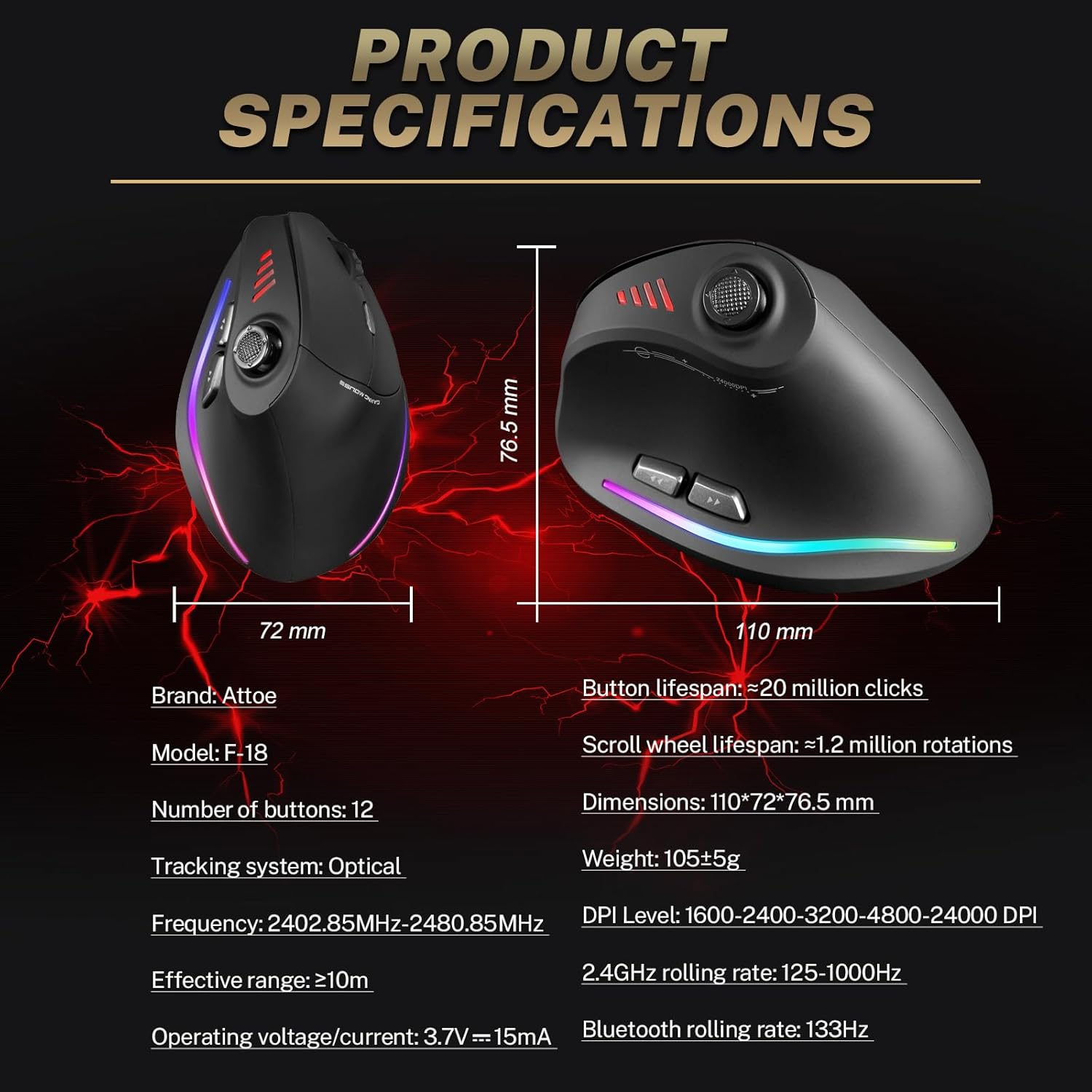
Image 7.1: Diagram showing product dimensions and key specifications.
8. వారంటీ మరియు మద్దతు
For warranty information or technical support, please refer to the documentation included with your product or visit the official Attoe website. If you require further assistance, contact Attoe customer service.