
1. పరిచయం
Thank you for choosing the LabelCreate D450BT Bluetooth Thermal Shipping Label Printer. This manual provides comprehensive instructions to help you set up, operate, and maintain your printer effectively. Please read this manual thoroughly before using the device to ensure optimal performance and longevity.
2. ప్యాకేజీ విషయాలు
Verify that all items listed below are included in your package. If any items are missing or damaged, please contact LabelCreate customer support.
- LabelCreate D450BT Thermal Label Printer
- పవర్ అడాప్టర్
- USB కేబుల్
- త్వరిత ప్రారంభ గైడ్
- Sample Thermal Labels (4x6 inches)

మూర్తి 2.1: Contents of the LabelCreate D450BT package, including the printer, sample labels, quick start guide, and a USB-C adapter.
3. ఉత్పత్తి ముగిసిందిview
The LabelCreate D450BT is a high-speed thermal label printer designed for efficiency and versatility. It supports both Bluetooth and USB connectivity, making it suitable for various operating environments.
ముఖ్య లక్షణాలు:
- వైర్లెస్ బ్లూటూత్ కనెక్టివిటీ: Connects to mobile devices within a 5-meter range.
- USB కనెక్షన్: Compatible with computers via USB cable.
- హై-స్పీడ్ ప్రింటింగ్: Prints at up to 150mm/s, producing approximately 72 sheets of 4"x6" labels per minute.
- Built-in Paper Slot: Accommodates up to 250 sheets of 4"x6" labels, eliminating the need for an external roll holder.
- విస్తృత లేబుల్ అనుకూలత: Supports thermal labels from 0.78" to 4.4" wide, ideal for 4"x6" shipping labels, barcodes, and other postal labels.
- Broad Platform Support: Compatible with major shipping platforms such as Shopify, Etsy, eBay, Amazon, Poshmark, FedEx, ShipStation, ShippingEasy, Shippo, and Ordoro.
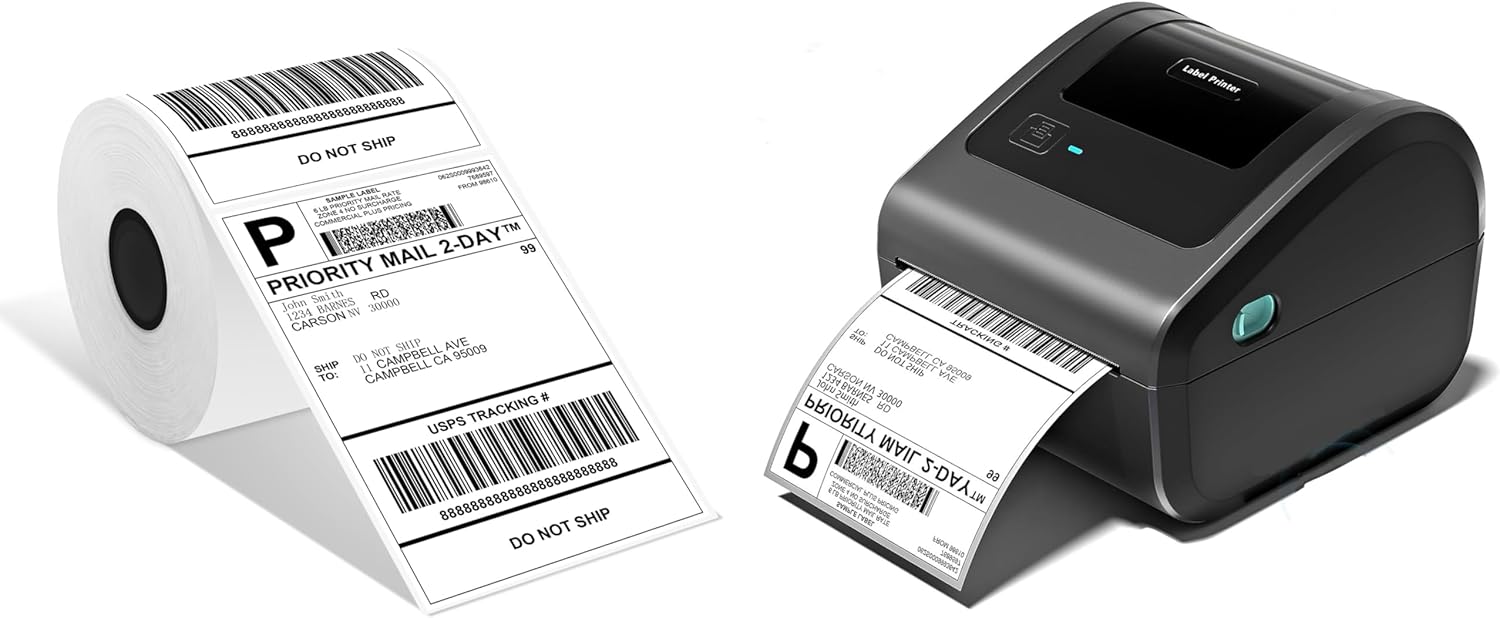
మూర్తి 3.1: The LabelCreate D450BT printer shown with a roll of 4x6 inch shipping labels.

మూర్తి 3.2: The D450BT supports both Bluetooth and USB connections, compatible with Android, iOS, iPad, Mac OS, Windows, Chrome OS, and Linux, often utilizing the Labelife application.
4. సెటప్ సూచనలు
4.1. హార్డ్వేర్ కనెక్షన్
- Connect the power adapter to the printer's power port and plug it into an electrical outlet.
- For computer connection, plug one end of the USB cable into the printer and the other end into your computer's USB port.
- Turn on the printer using the power button. The indicator light should illuminate.
4.2. లేబుల్లను లోడ్ చేస్తోంది
The D450BT printer supports both roll labels and folding labels, utilizing its built-in paper slot.
- ప్రింటర్ కవర్ను తెరవండి.
- For Roll Labels: Place the roll of thermal labels into the built-in paper slot. Ensure the labels feed smoothly from the bottom of the roll and the print side is facing up.
- For Folding Labels: Place the stack of folding labels into the rear paper guide. Ensure the print side is facing up.
- Adjust the paper guides to fit the label width snugly, without being too tight.
- ప్రింటర్ కవర్ను మూసివేయండి. ప్రింటర్ స్వయంచాలకంగా లేబుల్ పరిమాణాన్ని గుర్తించి క్రమాంకనం చేస్తుంది.

మూర్తి 4.1: The D450BT printer supports both roll labels (up to 250 in 4x6 inch tray) and folding labels, loaded via the built-in paper slot.

మూర్తి 4.2: A roll of 250 4x6 inch thermal labels, suitable for the D450BT printer.
4.3 సాఫ్ట్వేర్ మరియు డ్రైవర్ ఇన్స్టాలేషన్
For optimal performance, install the appropriate drivers or mobile application.
For Windows/Mac Computers (USB Connection):
- Visit the official LabelCreate website or refer to the Quick Start Guide for driver download links.
- Download and install the printer driver compatible with your operating system.
- ఇన్స్టాలేషన్ను పూర్తి చేయడానికి ఆన్-స్క్రీన్ సూచనలను అనుసరించండి.
For Mobile Devices (Bluetooth Connection):
- Download the "Labelife" application from your device's app store (App Store for iOS, Google Play Store for Android).
- మీ మొబైల్ పరికరంలో బ్లూటూత్ ప్రారంభించబడిందని నిర్ధారించుకోండి.
- Open the Labelife app and follow the in-app instructions to connect to your D450BT printer.

మూర్తి 4.3: The LabelCreate D450BT printer can be controlled via the Labelife app on a smartphone, shown alongside the quick start guide and sampలే లేబుల్స్.
5. ఆపరేటింగ్ సూచనలు
5.1. Printing from a Computer (USB)
- Ensure the printer is connected via USB and powered on.
- డాక్యుమెంట్ లేదా లేబుల్ను తెరవండి file you wish to print (e.g., a shipping label PDF).
- వెళ్ళండి File > ప్రింట్ చేయండి.
- Select the LabelCreate D450BT printer from the list of available printers.
- Adjust print settings such as paper size (e.g., 4x6 inches) and orientation as needed.
- క్లిక్ చేయండి ముద్రించు.
5.2. Printing from a Mobile Device (Bluetooth)
- Ensure the printer is powered on and connected to your mobile device via the Labelife app.
- Open the Labelife app.
- Import or create the label you wish to print within the app.
- Adjust print settings as required (e.g., label size, quantity).
- నొక్కండి ముద్రించు button within the app.
5.3. Supported Label Types
The D450BT printer is versatile and can print various types of thermal labels, including:
- Shipping Labels (e.g., 4x6 inches)
- Barcode Labels
- Postal Labels
- ఉత్పత్తి లేబుల్స్
- Gift Labels
- Logistics Labels

మూర్తి 5.1: Examples of various labels that can be printed with the D450BT, including logistics, gift, and product labels.
6. నిర్వహణ
Regular maintenance ensures the longevity and optimal performance of your LabelCreate D450BT printer.
6.1. ప్రింట్ హెడ్ను శుభ్రపరచడం
The print head is a critical component and should be cleaned periodically to prevent print quality issues.
- ప్రింటర్ను ఆపివేసి, పవర్ కార్డ్ను అన్ప్లగ్ చేయండి.
- ప్రింటర్ కవర్ను తెరవండి.
- Gently wipe the print head with an alcohol swab or a lint-free cloth lightly dampఐసోప్రొపైల్ ఆల్కహాల్తో కలుపుతారు.
- కవర్ను మూసివేసి ప్రింటర్ను ఆన్ చేసే ముందు ప్రింట్ హెడ్ పూర్తిగా ఆరనివ్వండి.
6.2. జనరల్ క్లీనింగ్
Wipe the exterior of the printer with a soft, dry cloth to remove dust and debris. Avoid using harsh chemicals or abrasive cleaners.
7. ట్రబుల్షూటింగ్
If you encounter issues with your LabelCreate D450BT printer, refer to the following common problems and solutions.
7.1. ప్రింటర్ స్పందించడం లేదు
- పవర్ కార్డ్ సురక్షితంగా కనెక్ట్ చేయబడిందని మరియు ప్రింటర్ ఆన్ చేయబడిందని నిర్ధారించుకోండి.
- Check the USB cable connection to your computer or the Bluetooth connection to your mobile device.
- ప్రింటర్ మరియు మీ కంప్యూటర్/మొబైల్ పరికరాన్ని పునఃప్రారంభించండి.
- సరైన ప్రింటర్ డ్రైవర్ ఇన్స్టాల్ చేయబడి ఎంచుకోబడిందని ధృవీకరించండి.
7.2. పేలవమైన ముద్రణ నాణ్యత
- Clean the print head as described in Section 6.1.
- Ensure you are using high-quality thermal labels.
- Check print density settings in your printer preferences or the Labelife app.
- Ensure labels are loaded correctly and not wrinkled or damaged.
7.3. Labels Not Feeding Correctly
- Verify that labels are loaded correctly with the print side facing up.
- Adjust the paper guides to fit the label width properly.
- Ensure there are no obstructions in the paper path.
- Check if the label roll/stack is within the supported size and quantity limits (e.g., max 250 4x6 inch labels).
8. స్పెసిఫికేషన్లు
| ఫీచర్ | స్పెసిఫికేషన్ |
|---|---|
| మోడల్ | D450BT |
| ప్రింటింగ్ టెక్నాలజీ | డైరెక్ట్ థర్మల్ |
| ప్రింట్ స్పీడ్ | 150 mm/s |
| కనెక్టివిటీ | బ్లూటూత్, USB |
| లేబుల్ వెడల్పు | 0.78" నుండి 4.4" (20మి.మీ నుండి 112మి.మీ) |
| Max Label Capacity (4x6") | 250 sheets (in built-in tray) |
| మద్దతు ఉన్న OS | Windows, Mac OS, Chrome OS, Linux, Android, iOS |
9. వారంటీ మరియు మద్దతు
LabelCreate products are designed for reliability and performance. For warranty information, please refer to the documentation included with your purchase or visit the official LabelCreate webసైట్.
If you require technical assistance or have questions about your D450BT printer, please contact LabelCreate customer support. You can find contact details on our official webసైట్ లేదా మీ కొనుగోలు ప్లాట్ఫారమ్ ద్వారా.
For more information and products, visit the LabelCreate Store.