
పరిచయం
This manual provides essential instructions for the setup, operation, maintenance, and troubleshooting of your Anmite 23.8 Inch Portable Monitor. Please read this manual thoroughly before using the product to ensure proper functionality and longevity.
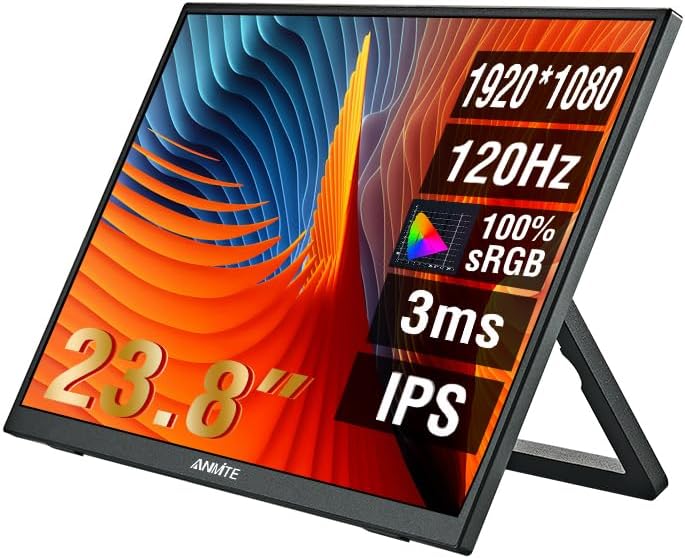
చిత్రం: ముందు భాగం view of the Anmite 23.8 Inch Portable Monitor, highlighting its key display features.
ప్యాకేజీ విషయాలు
ప్యాకేజీలో అన్ని అంశాలు ఉన్నాయని నిర్ధారించుకోండి:
- Anmite 23.8 Inch Portable Monitor
- USB-C నుండి USB-C కేబుల్
- మినీ HDMI నుండి HDMI కేబుల్ వరకు
- పవర్ అడాప్టర్
- వినియోగదారు మాన్యువల్ (ఈ పత్రం)
సెటప్
మానిటర్ను కనెక్ట్ చేస్తోంది
The Anmite portable monitor supports connectivity via Type-C (USB-C) and Mini HDMI ports. Ensure your device supports video output over the chosen port.
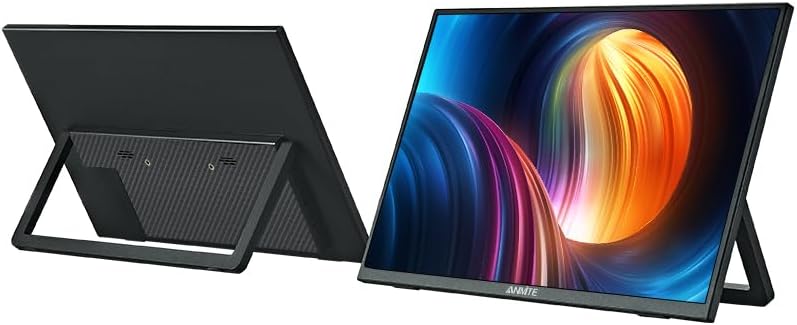
చిత్రం: వెనుక view of the Anmite portable monitor, illustrating the integrated stand and port locations.
- పవర్ కనెక్షన్: Connect the provided power adapter to the monitor's power input port and then to a power outlet.
- USB-C Connection (for compatible devices): If your laptop, phone, or other device supports video output and power delivery over a single USB-C port, connect one end of the USB-C to USB-C cable to your device and the other end to the monitor's full-featured USB-C port. This connection can provide both video signal and power to the monitor.
- HDMI Connection (for laptops, gaming consoles): Connect one end of the Mini HDMI to HDMI cable to the monitor's Mini HDMI port and the other end to your device's HDMI output port. If using HDMI, ensure the monitor is also powered via the power adapter or a separate USB-C power source.
- ఆడియో అవుట్పుట్: The monitor has built-in speakers. For external audio, connect 3.5mm headphones or speakers to the monitor's audio output jack.
ప్రారంభ పవర్ ఆన్
After connecting the necessary cables, press the power button on the monitor. The monitor should automatically detect the input signal. If not, you may need to manually select the input source via the On-Screen Display (OSD) menu.
ఆపరేటింగ్
ఆన్-స్క్రీన్ డిస్ప్లే (OSD) మెనూ
The OSD menu allows you to adjust various display settings. Typically, buttons on the side or back of the monitor are used to navigate the menu.
- మెనూ బటన్: OSD మెనుని తెరవడానికి నొక్కండి.
- అప్/డౌన్ బటన్లు: మెను ఎంపికల ద్వారా నావిగేట్ చేయండి.
- ఎంటర్/ఎంచుకోండి బటన్: Confirm a selection or enter a sub-menu.
- నిష్క్రమణ బటన్: Exit the current menu or OSD.
సాధారణ సెట్టింగ్లు
- ప్రకాశం/కాంట్రాస్ట్: డిస్ప్లే యొక్క ప్రకాశం మరియు కాంట్రాస్ట్ స్థాయిలను సర్దుబాటు చేయండి.
- వాల్యూమ్: Control the audio output level from the built-in speakers or headphone jack.
- ఇన్పుట్ మూలం: Manually select between USB-C and HDMI inputs if auto-detection fails.
- రంగు సెట్టింగ్లు: రంగు ఉష్ణోగ్రత, రంగు మరియు సంతృప్తతను చక్కగా ట్యూన్ చేయండి.
- కారక నిష్పత్తి: Adjust the display's aspect ratio (e.g., 16:9, 4:3).
- రిఫ్రెష్ రేట్: Ensure your device is configured to output at 120Hz for optimal performance.
నిర్వహణ
మానిటర్ శుభ్రపరచడం
To maintain optimal display quality, clean the monitor regularly.
- శుభ్రపరిచే ముందు ఎల్లప్పుడూ మానిటర్ను పవర్ ఆఫ్ చేసి, అన్ప్లగ్ చేయండి.
- కొద్దిగా మెత్తని, మెత్తని బట్టను ఉపయోగించండి dampనీరు లేదా రాపిడి లేని స్క్రీన్ క్లీనర్తో శుభ్రం చేయండి.
- క్లీనర్ను నేరుగా స్క్రీన్పై పిచికారీ చేయవద్దు. ముందుగా దానిని గుడ్డకు పూయండి.
- ఆల్కహాల్, అమ్మోనియా లేదా రాపిడి క్లీనర్లను ఉపయోగించడం మానుకోండి, ఎందుకంటే ఇవి స్క్రీన్ ఉపరితలాన్ని దెబ్బతీస్తాయి.
నిల్వ
When not in use for extended periods, store the monitor in a cool, dry place, preferably in its original packaging or a protective sleeve to prevent dust and scratches.
ట్రబుల్షూటింగ్
మీ మానిటర్తో మీకు సమస్యలు ఎదురైతే, ఈ క్రింది సాధారణ సమస్యలు మరియు పరిష్కారాలను చూడండి:
| సమస్య | సాధ్యమైన పరిష్కారం |
|---|---|
| పవర్ లేదు / మానిటర్ ఆన్ అవ్వడం లేదు | Ensure the power adapter is securely connected to both the monitor and a working power outlet. Try a different outlet. |
| సిగ్నల్ లేదు / ఖాళీ స్క్రీన్ | Check that the video cable (USB-C or HDMI) is securely connected to both the monitor and your device. Verify your device is outputting a signal. Use the OSD menu to manually select the correct input source. |
| మినుకుమినుకుమనే లేదా వక్రీకరించబడిన చిత్రం | Check cable connections. Ensure your device's display settings (resolution, refresh rate) are compatible with the monitor (FHD 1080P, 120Hz). Try a different cable. |
| స్పీకర్ల నుండి శబ్దం లేదు | Increase the volume via the OSD menu or your connected device. Ensure the audio output is routed to the monitor. Check if headphones are plugged in. |
| Monitor randomly turns off | Ensure stable power supply. Check for overheating (though unlikely for a monitor). |
ఈ పరిష్కారాలను ప్రయత్నించిన తర్వాత కూడా సమస్య కొనసాగితే, దయచేసి కస్టమర్ మద్దతును సంప్రదించండి.
స్పెసిఫికేషన్లు
Detailed technical specifications for the Anmite 23.8 Inch Portable Monitor:
| ఫీచర్ | స్పెసిఫికేషన్ |
|---|---|
| బ్రాండ్ | అన్మైట్ |
| మోడల్ | 23.8 Inch Portable Monitor (ASIN: B0FBG52K2K) |
| స్క్రీన్ పరిమాణం | 23.8 అంగుళాలు |
| రిజల్యూషన్ | FHD 1080p (1920 x 1080) |
| రిఫ్రెష్ రేట్ | 120Hz |
| ప్యానెల్ రకం | IPS |
| కారక నిష్పత్తి | 16:9 |
| స్క్రీన్ ఉపరితలం | మాట్టే |
| కనెక్టివిటీ | 1x USB-C (Full-featured), 1x Mini HDMI, 1x 3.5mm Audio Out |
| ఆడియో | అంతర్నిర్మిత స్పీకర్లు |
| కొలతలు (సుమారుగా) | 53.8cm (21.18in) W x 32cm (12.6in) H x 1.3cm (0.51in) D (excluding stand) |
| నికర బరువు (సుమారుగా) | 2.2kg (77.6oz) |

Image: Detailed dimensions of the Anmite 23.8 Inch Portable Monitor.
వారంటీ మరియు మద్దతు
For warranty information, please refer to the documentation provided at the time of purchase or contact your retailer. For technical support or further assistance, please visit the official Anmite webసైట్ లేదా వారి కస్టమర్ సేవా విభాగాన్ని సంప్రదించండి.
Anmite Official Store: https://www.amazon.com/stores/Anmite/page/AA26DD50-6EDF-44BA-B22D-A61716CFF2F4