
Pisichen HD-22INTS-NEW
Pisichen 22 Inch Touchscreen Monitor User Manual
Model: HD-22INTS-NEW
పరిచయం
This manual provides detailed instructions for the installation, operation, and maintenance of your Pisichen 22 Inch FHD 1080P Touchscreen Monitor. Please read this manual thoroughly before using the product to ensure proper functionality and to prevent damage.
ఉత్పత్తి లక్షణాలు
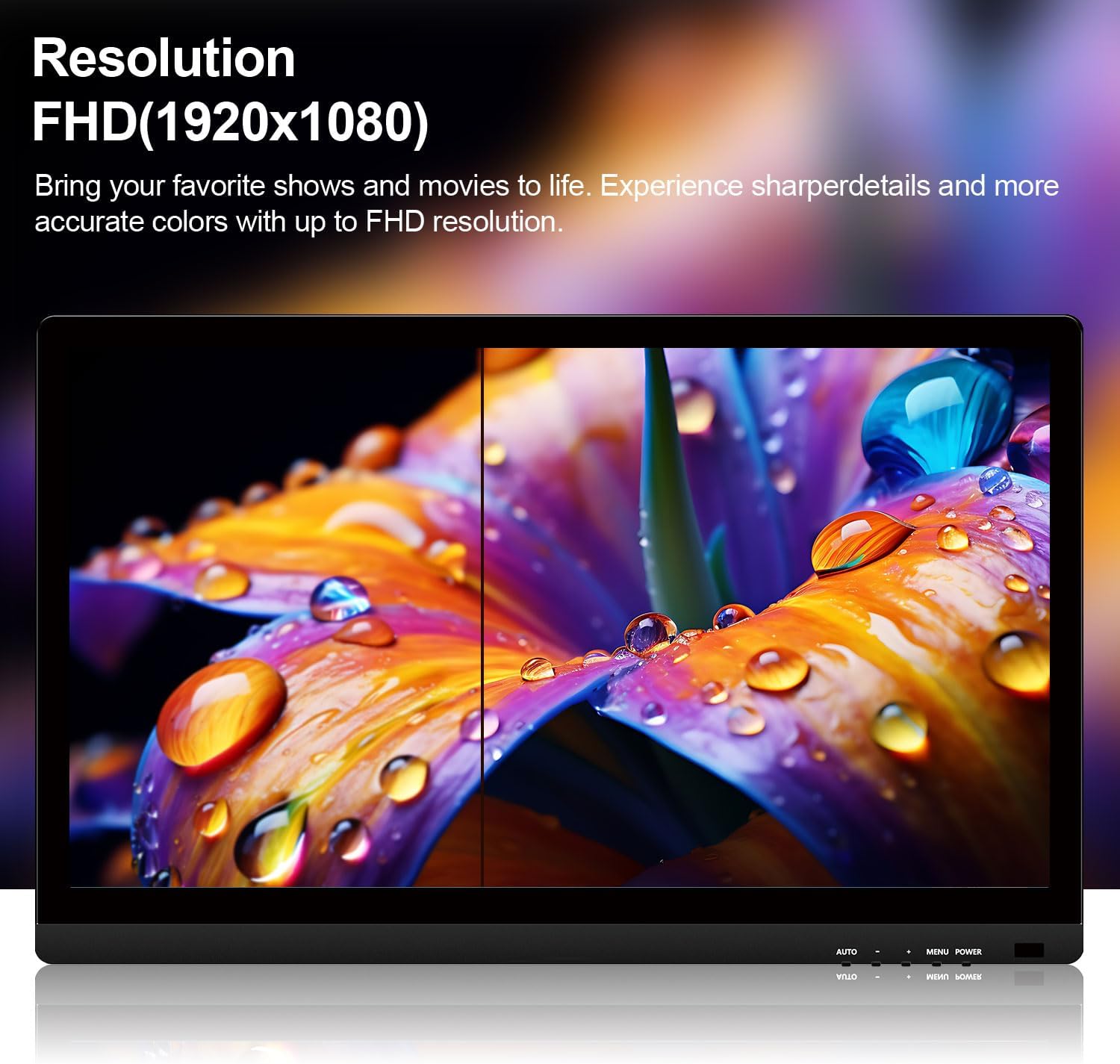
- 22-Inch Full HD (1920x1080P) Display: Provides crisp and detailed images with vibrant colors.
- 10-Point Capacitive Touch: Responsive multi-touch technology for intuitive interaction.
- బహుముఖ కనెక్టివిటీ: Equipped with HDMI, VGA, and USB ports for broad compatibility.
- అంతర్నిర్మిత స్పీకర్లు: Integrated audio for convenience.
- VESA మౌంట్ అనుకూలమైనది: Supports 75x75mm VESA mounting for flexible installation.
- స్థిరమైన స్టాండ్: Designed to minimize wobbling during touch operation.
- ఫ్రేమ్లెస్ డిజైన్: Modern aesthetic with narrow bezels.
ప్యాకేజీ విషయాలు
క్రింద జాబితా చేయబడిన అన్ని వస్తువులు మీ ప్యాకేజీలో చేర్చబడ్డాయని దయచేసి ధృవీకరించండి:
- Pisichen 22 Inch Touchscreen Monitor
- పవర్ అడాప్టర్
- HDMI కేబుల్
- VGA కేబుల్
- USB-A to USB-B Cable (for touch functionality)
- వినియోగదారు మాన్యువల్

This image displays the 22-inch touchscreen monitor along with all the cables and power adapter necessary for its operation, including an HDMI cable, VGA cable, USB cable for touch, and the power supply.
సెటప్ సూచనలు
1. స్టాండ్ అసెంబ్లింగ్
The monitor comes with a pre-attached stand designed for stability. Ensure the monitor is placed on a flat, stable surface. The stand is fixed and offers limited adjustability for angle. For enhanced stability during touch use, the stand is securely fastened.

This image illustrates the robust design of the monitor's stand, engineered to provide stability and prevent wobbling during touch interactions. It shows the base and the connection point to the monitor.
2. VESA వాల్ మౌంటింగ్ (ఐచ్ఛికం)
The monitor supports VESA 75x75mm mounting standards. This allows for installation on compatible wall mounts or adjustable arms (sold separately). To mount the monitor, remove the stand (if detachable) and secure the monitor to the VESA mount using appropriate screws.

ఈ చిత్రం వెనుక భాగాన్ని అందిస్తుంది view of the monitor, clearly indicating the VESA 75x75mm mounting pattern for wall or arm installation. It also shows the overall dimensions of the monitor.
3. కేబుల్స్ కనెక్ట్
Connect the necessary cables to the corresponding ports on the back of the monitor and your computer:
- శక్తి: Connect the power adapter to the DC port on the monitor and then to a power outlet.
- వీడియో ఇన్పుట్:
- HDMI కనెక్షన్ కోసం: HDMI కేబుల్ యొక్క ఒక చివరను మానిటర్ యొక్క HDMI పోర్ట్కు మరియు మరొక చివరను మీ కంప్యూటర్ యొక్క HDMI అవుట్పుట్కు కనెక్ట్ చేయండి.
- VGA కనెక్షన్ కోసం: VGA కేబుల్ యొక్క ఒక చివరను మానిటర్ యొక్క VGA పోర్ట్కు మరియు మరొక చివరను మీ కంప్యూటర్ యొక్క VGA అవుట్పుట్కు కనెక్ట్ చేయండి.
- టచ్ ఫంక్షనాలిటీ: To enable touch input, connect the USB-A to USB-B cable from the monitor's USB port to an available USB port on your computer.
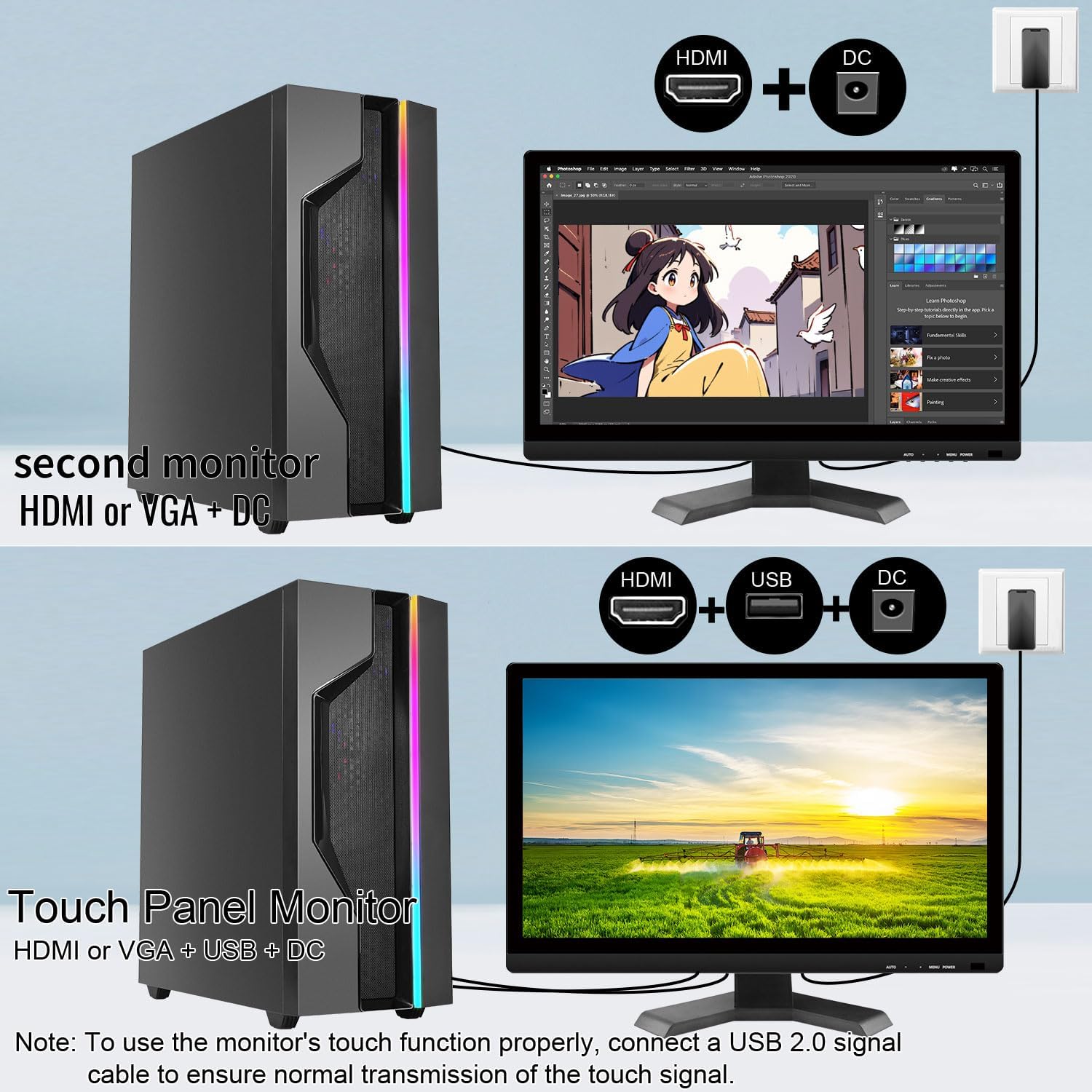
This diagram illustrates the required cable connections for the monitor. It shows the HDMI, VGA, USB, and DC power ports, and how they connect to a computer to enable both display and touch functions.

This image highlights the different input and output ports available on the monitor, including HDMI, VGA, DC power input, and a USB port for touch functionality.
ఆపరేటింగ్ సూచనలు
1. పవర్ ఆన్/ఆఫ్
నొక్కండి శక్తి button located on the bottom right of the monitor to turn it on or off. The power indicator light will illuminate when the monitor is active.
2. ఆన్-స్క్రీన్ డిస్ప్లే (OSD) మెనూ
Use the buttons on the bottom right of the monitor to navigate and adjust settings:
- మెను: OSD మెనుని తెరుస్తుంది.
- +: Navigates up or increases values.
- -: Navigates down or decreases values.
- దానంతట అదే: Automatically adjusts image settings (for VGA input).
Common OSD settings include brightness, contrast, color temperature, and input source selection.
3. టచ్ కార్యాచరణ
Once the USB cable is connected to your computer, the monitor's 10-point multi-touch function will be active. This allows for gestures such as tapping, swiping, pinching to zoom, and two-handed operations, similar to a tablet or smartphone.

This image demonstrates the monitor's multi-touch capability, showing two individuals simultaneously interacting with the screen, highlighting its responsiveness and support for multiple touch signals.
This image illustrates the convenience of the touchscreen, showing a user interacting directly with the display for tasks like zooming, eliminating the need for a traditional mouse and keyboard in certain applications.
4. అంతర్నిర్మిత స్పీకర్లు
The monitor includes built-in speakers for audio output. Audio will be routed through HDMI or VGA (if supported by your system) and can be controlled via your computer's volume settings or the monitor's OSD menu.
Applications and Use Cases
The Pisichen touchscreen monitor is designed for various environments and applications:
- Retail & Catering Systems: Ideal for point-of-sale (POS) systems and ordering machines, enabling fast and interactive transactions.
- Vertical Screen Office: Suitable for displaying code, documents, or data in a vertical orientation, reducing the need for scrolling.
- Self-service Terminals: Perfect for bank ATMs, hospital registration, and airport check-in, allowing users to complete tasks independently.
- Warehousing and Logistics Management: Facilitates inventory inquiry and goods sorting with quick touch responses.
- Production Line Console: Used for real-time monitoring and adjusting production parameters directly on the screen.

This image depicts the monitor being used as a POS system in a retail setting, demonstrating its utility for interactive ordering and checkout processes.

This image shows the monitor configured in a vertical orientation, suitable for tasks like programming or document review, allowing more content to be viewed without scrolling.
నిర్వహణ
మీ మానిటర్ యొక్క దీర్ఘాయువు మరియు సరైన పనితీరును నిర్ధారించడానికి, ఈ నిర్వహణ మార్గదర్శకాలను అనుసరించండి:
- స్క్రీన్ క్లీనింగ్: మెత్తటి, మెత్తటి బట్టతో స్క్రీన్ను సున్నితంగా తుడవండి. మొండి మరకల కోసం, కొద్దిగా dampనీటితో లేదా స్క్రీన్-సేఫ్ క్లీనింగ్ సొల్యూషన్తో గుడ్డను తుడవండి. కఠినమైన రసాయనాలు లేదా రాపిడి పదార్థాలను నివారించండి.
- సి ని శుభ్రపరచడంasing: మానిటర్ను శుభ్రం చేయడానికి మృదువైన, పొడి వస్త్రాన్ని ఉపయోగించండి casing.
- వెంటిలేషన్: మానిటర్ యొక్క వెంటిలేషన్ ఓపెనింగ్లు స్పష్టంగా ఉన్నాయని మరియు వేడెక్కకుండా నిరోధించడానికి అవి అడ్డుకోబడకుండా చూసుకోండి.
- నిల్వ: ఎక్కువసేపు ఉపయోగంలో లేనప్పుడు, మానిటర్ను చల్లని, పొడి ప్రదేశంలో, ప్రత్యక్ష సూర్యకాంతి మరియు తీవ్రమైన ఉష్ణోగ్రతలకు దూరంగా నిల్వ చేయండి.
ట్రబుల్షూటింగ్
If you encounter issues with your Pisichen touchscreen monitor, refer to the following common solutions:
No Display / Power Issue
- Ensure the power adapter is securely connected to both the monitor and a working power outlet.
- Check if the power indicator light on the monitor is on. If not, press the POWER button.
- Verify that the video cable (HDMI or VGA) is correctly connected to both the monitor and your computer.
- Try connecting the monitor to a different power outlet or using a different power cable if available.
టచ్ ఫంక్షన్ పనిచేయడం లేదు
- USB కనెక్షన్: Ensure the USB-A to USB-B cable is securely connected from the monitor's USB port to your computer's USB port. The touch function requires this dedicated USB connection in addition to the video cable.
- డ్రైవర్ ఇన్స్టాలేషన్: For Windows operating systems, the touch functionality is typically plug-and-play. If issues persist, check your computer's Device Manager for any unrecognized devices or update USB drivers.
- విండోస్ కాలిబ్రేషన్: If touching the display moves the cursor incorrectly, go to Control Panel > Hardware and Sound > Tablet PC Settings. Select this touchscreen monitor when prompted and follow the calibration instructions.
- macOS Compatibility: Due to macOS system restrictions, the touch function of this monitor will కాదు work after connecting to a MacBook or other Apple devices.
- మద్దతు లేని పరికరాలు: Some devices, including PS3/4/5, Switch, Xbox, Steam Deck, TV stick, TV cube, and certain Apple products, do not support touch functionality with this monitor due to platform-specific restrictions.

This image presents a list of frequently asked questions, providing quick answers to common concerns regarding touch connectivity, cursor behavior, stand adjustability, and compatibility with macOS.

This image visually lists devices such as PlayStation consoles, Xbox, Nintendo Switch, and Steam Deck, indicating that their platforms do not support the touch functionality of this monitor.
Wobbly Stand
- Ensure the monitor is placed on a completely flat and stable surface.
- While the stand is designed for stability, excessive force during touch interaction may cause slight movement. Use gentle and controlled touches.
- If wobbling is significant, consider VESA mounting the monitor to a more rigid arm or wall mount.
స్పెసిఫికేషన్లు
| ఫీచర్ | స్పెసిఫికేషన్ |
|---|---|
| బ్రాండ్ | పిసిచెన్ |
| మోడల్ సంఖ్య | HD-22INTS-NEW |
| స్క్రీన్ పరిమాణం | 22 అంగుళాలు |
| రిజల్యూషన్ | FHD 1080p (1920 x 1080 పిక్సెల్స్) |
| కారక నిష్పత్తి | 16:9 |
| Screen Finish | నిగనిగలాడే |
| కాంట్రాస్ట్ రేషియో | 800:1 |
| రిఫ్రెష్ రేట్ | 60 Hz |
| ప్రదర్శన రకం | LED |
| ప్రకాశం | 250 లక్స్ |
| ప్రతిస్పందన సమయం | 5 మిల్లీసెకన్లు |
| కనెక్టివిటీ టెక్నాలజీ | HDMI, VGA, USB (టచ్ కోసం) |
| హార్డ్వేర్ కనెక్టివిటీ | HDMI, USB 2.0 Type B, VGA |
| అదనపు ఫీచర్లు | Built-In Speakers, Frameless, Touchscreen |
| ఉత్పత్తి కొలతలు (D x W x H) | 2 x 52 x 38 Centimetres (approx. 1.98 x 51.82 x 37.85 cm) |
| వస్తువు బరువు | 4.08 కిలోలు |
| VESA అనుకూలత | 75x75mm |
| మూలం దేశం | చైనా |
వారంటీ సమాచారం
This product comes with a limited warranty. For specific details regarding the warranty period and coverage, please refer to the warranty card included in your product packaging or contact customer support. The warranty description in the product specifications indicates a period of "1", which typically refers to one year from the date of purchase.
కస్టమర్ మద్దతు
If you experience any problems that are not listed in this manual or require further assistance, please contact our customer service team. When contacting support, please provide a detailed description of the issue, including any relevant pictures or videos, to help our technical team identify and resolve the problem efficiently.
కస్టమర్ సర్వీస్ ఇమెయిల్: support_2308@163.com
You may also contact us via the Amazon platform for support.
Ask a question about this manual
Ask about setup, troubleshooting, compatibility, parts, safety, or missing instructions. Manuals+ will review the question and use this page’s manual context to help answer it.