
1. పరిచయం
This manual provides essential information for the setup, operation, maintenance, and troubleshooting of your NIMO 17.3-inch FHD IPS Laptop, model Nimo N176. Please read this guide thoroughly to ensure proper use and to maximize the lifespan of your device.

Image 1.1: The NIMO 17.3-inch FHD IPS Laptop, model Nimo N176, showcasing దాని పూర్తి డిస్ప్లే మరియు కీబోర్డ్.
2. ప్యాకేజీ విషయాలు
క్రింద జాబితా చేయబడిన అన్ని అంశాలు మీ ఉత్పత్తి ప్యాకేజింగ్లో చేర్చబడ్డాయని నిర్ధారించుకోండి:
- 1 x నిమో N176 ల్యాప్టాప్
- 1 x టైప్-C 65W PD ఫాస్ట్ ఛార్జర్
- 1 x యూజర్ మాన్యువల్ (ఈ పత్రం)
- విండోస్ 11 హోమ్ ఆపరేటింగ్ సిస్టమ్ (ముందే ఇన్స్టాల్ చేయబడింది)
3. సెటప్
3.1 ప్రారంభ పవర్ ఆన్
- పెట్టె నుండి ల్యాప్టాప్ మరియు ఛార్జర్ను అన్ప్యాక్ చేయండి.
- Connect the Type-C 65W PD Fast Charger to the laptop's Type-C port and a power outlet.
- ల్యాప్టాప్ మూత తెరవండి. ల్యాప్టాప్ స్వయంచాలకంగా పవర్ ఆన్ కావచ్చు లేదా మీరు కీబోర్డ్పై ఉన్న పవర్ బటన్ను నొక్కాల్సి రావచ్చు.
- Follow the on-screen instructions to complete the initial Windows 11 setup, including language, region, network connection, and user account creation.
3.2 ల్యాప్టాప్ను ఛార్జ్ చేయడం
The NIMO laptop includes a Type-C 65W PD fast charger and a 6.56ft USB-C to USB-C cable. This charger supports Power Delivery (PD) for efficient charging.
- Connect the charger to the laptop's Type-C port.
- A full charge provides approximately 5 hours of average battery life.
- The charger can also be used to charge other compatible USB-C devices such as tablets and smartphones.

Image 3.2: The included Type-C 65W PD Fast Charger and USB-C cable, capable of charging the laptop and other compatible devices.
3.3 ఫింగర్ప్రింట్ రీడర్ సెటప్
The laptop features a built-in fingerprint sensor on the touchpad for secure and quick login.
- విండోస్ సెట్టింగ్లు > ఖాతాలు > సైన్-ఇన్ ఎంపికలకు నావిగేట్ చేయండి.
- Locate the 'Fingerprint recognition (Windows Hello)' section.
- Follow the on-screen prompts to register your fingerprint. You may need to set up a PIN first.
- Once registered, you can use your fingerprint to unlock the laptop.
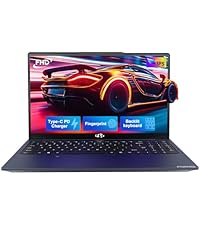
Image 3.3: Close-up of the touchpad showing the integrated fingerprint sensor for one-touch secure login.
4. ఆపరేటింగ్ సూచనలు
4.1 Keyboard Backlight
The NIMO N176 laptop is equipped with a backlit keyboard for improved visibility in low-light conditions.
- To toggle the backlight on/off or adjust its brightness, use the dedicated function keys (usually ఎఫ్ఎన్ + ఎఫ్ఎక్స్, where Fx is a specific function key with a backlight icon). Refer to the keyboard layout for the exact key combination.
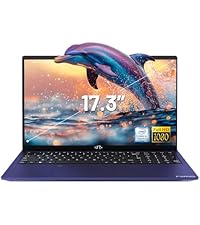
Image 4.1: The backlit keyboard illuminated, demonstrating its utility for typing in dim environments.
4.2 Webcam Privacy Switch
For enhanced privacy, the laptop features a physical switch to disable the webకామ్.
- Locate the small physical switch next to the webcam lens at the top of the display.
- Slide the switch to cover the lens for privacy. Slide it back to uncover the lens and enable the webకామ్.

Image 4.2: The laptop's integrated webcam with its physical privacy switch, shown in both open and closed positions.
4.3 కనెక్టివిటీ పోర్ట్లు
The Nimo N176 laptop offers various ports for connecting external devices:
- USB 2.0 పోర్ట్: 1 port, typically for peripherals like mice or keyboards.
- USB 3.0 పోర్ట్లు: 3 ports, for high-speed data transfer with compatible devices.
- Type-C Port (PD Charge Only): For power input using the provided charger.
- టైప్-సి పోర్ట్ (మల్టీఫంక్షన్): Supports data transfer and potentially video output (check specific model capabilities).
- HDMI పోర్ట్: బాహ్య డిస్ప్లేలు లేదా ప్రొజెక్టర్లకు కనెక్ట్ చేయడానికి.
- హెడ్ఫోన్ జాక్: హెడ్ఫోన్లు లేదా బాహ్య స్పీకర్లకు ఆడియో అవుట్పుట్ కోసం.
- మైక్రో SD కార్డ్ స్లాట్: నిల్వను విస్తరించడానికి లేదా మెమరీ కార్డ్ల నుండి డేటాను బదిలీ చేయడానికి.
- కెన్సింగ్టన్ లాక్ స్లాట్: For physical security of the laptop.

Image 4.3: Diagram illustrating the various connectivity ports available on the NIMO N176 laptop, including USB, HDMI, and Type-C ports.
5. నిర్వహణ
5.1 RAM and SSD Upgrade
The NIMO N176 laptop is designed to support user-upgradable RAM and SSD components.
- హెచ్చరిక: Opening the laptop to perform upgrades may void your warranty if not done correctly or if damage occurs. Consult professional assistance if you are unsure.
- Ensure the laptop is powered off and disconnected from the charger before attempting any internal modifications.
- Refer to the detailed service manual (if available) or contact NIMO support for specific instructions on accessing and replacing RAM and SSD modules.
చిత్రం 5.1: అంతర్గత view of the NIMO laptop, highlighting the locations of the RAM and SSD for potential upgrades.
5.2 మీ ల్యాప్టాప్ను శుభ్రపరచడం
Regular cleaning helps maintain the laptop's appearance and performance.
- స్క్రీన్: ఎలక్ట్రానిక్స్ కోసం ప్రత్యేకంగా రూపొందించిన మృదువైన, మెత్తటి బట్టను ఉపయోగించండి. D.ampనీటితో లేదా స్క్రీన్ క్లీనర్తో కొద్దిగా రుద్దండి. కఠినమైన రసాయనాలను నివారించండి.
- కీబోర్డ్ మరియు చాసిస్: మెత్తని గుడ్డను ఉపయోగించండి. మొండి ధూళి కోసం, కొద్దిగా dampతేలికపాటి సబ్బు ద్రావణంతో కూడిన ఎనెడ్ క్లాత్ను ఉపయోగించవచ్చు, తద్వారా ఎటువంటి ద్రవం రంధ్రాలలోకి ప్రవేశించకుండా చూసుకోవచ్చు. కంప్రెస్డ్ ఎయిర్ కీల మధ్య నుండి దుమ్మును తొలగించగలదు.
- Always power off the laptop and disconnect it from power before cleaning.
6. ట్రబుల్షూటింగ్
ఈ విభాగం మీ NIMO N176 ల్యాప్టాప్తో మీరు ఎదుర్కొనే సాధారణ సమస్యలను పరిష్కరిస్తుంది.
- ల్యాప్టాప్ ఆన్ చేయడం లేదు: Ensure the charger is properly connected and the power outlet is functional. Try a different outlet. If the battery is completely drained, it may take a few minutes of charging before the laptop responds.
- స్క్రీన్ ఖాళీగా ఉంది: Check if the laptop is powered on. Try connecting an external monitor to see if there's a display output. Adjust screen brightness using function keys.
- Wi-Fi కనెక్టివిటీ సమస్యలు: విండోస్ సెట్టింగ్లలో Wi-Fi ప్రారంభించబడిందని నిర్ధారించుకోండి. మీ రౌటర్ మరియు ల్యాప్టాప్ను పునఃప్రారంభించండి. నవీకరించబడిన నెట్వర్క్ డ్రైవర్ల కోసం తనిఖీ చేయండి.
- నెమ్మది పనితీరు: Close unnecessary applications. Check for sufficient free space on the SSD. Run a virus scan. Consider upgrading RAM or SSD if performance remains consistently low.
- కీబోర్డ్ లేదా టచ్ప్యాడ్ స్పందించడం లేదు: Restart the laptop. Check for updated drivers in Device Manager. Ensure the touchpad hasn't been accidentally disabled via a function key.
For more complex issues or if the problem persists, please refer to the Warranty and Support section for contact information.
7. స్పెసిఫికేషన్లు
NIMO N176 ల్యాప్టాప్ కోసం వివరణాత్మక సాంకేతిక వివరణలు:
| ఫీచర్ | స్పెసిఫికేషన్ |
|---|---|
| బ్రాండ్ | నిమో |
| మోడల్ పేరు | నిమో N176 |
| స్క్రీన్ పరిమాణం | 17.3 అంగుళాలు |
| స్క్రీన్ రిజల్యూషన్ | 1920 x 1080 పిక్సెల్స్ (FHD IPS) |
| ప్రాసెసర్ | Intel Pentium N100 (4 Cores, up to 3.4GHz) |
| RAM | 8 GB DDR4 (3200 MHz) |
| హార్డ్ డ్రైవ్ | 512 GB SSD (PCIe) |
| గ్రాఫిక్స్ కోప్రాసెసర్ | ఇంటిగ్రేటెడ్ గ్రాఫిక్స్ (ఇంటెల్) |
| ఆపరేటింగ్ సిస్టమ్ | Windows 11 హోమ్ |
| వైర్లెస్ రకం | వై-ఫై 6 (802.11a/b/g/n/ac), బ్లూటూత్ 5.2 |
| USB పోర్ట్లు | 1x USB 2.0, 3x USB 3.0 |
| ఇతర పోర్టులు | HDMI, Type-C (PD Charge Only), Type-C (Multifunction), Headphone Jack, Micro SD Slot |
| Webకెమెరా | 2 MP వెనుక Webcam Resolution (Note: Front webcam is typically 720p HD) |
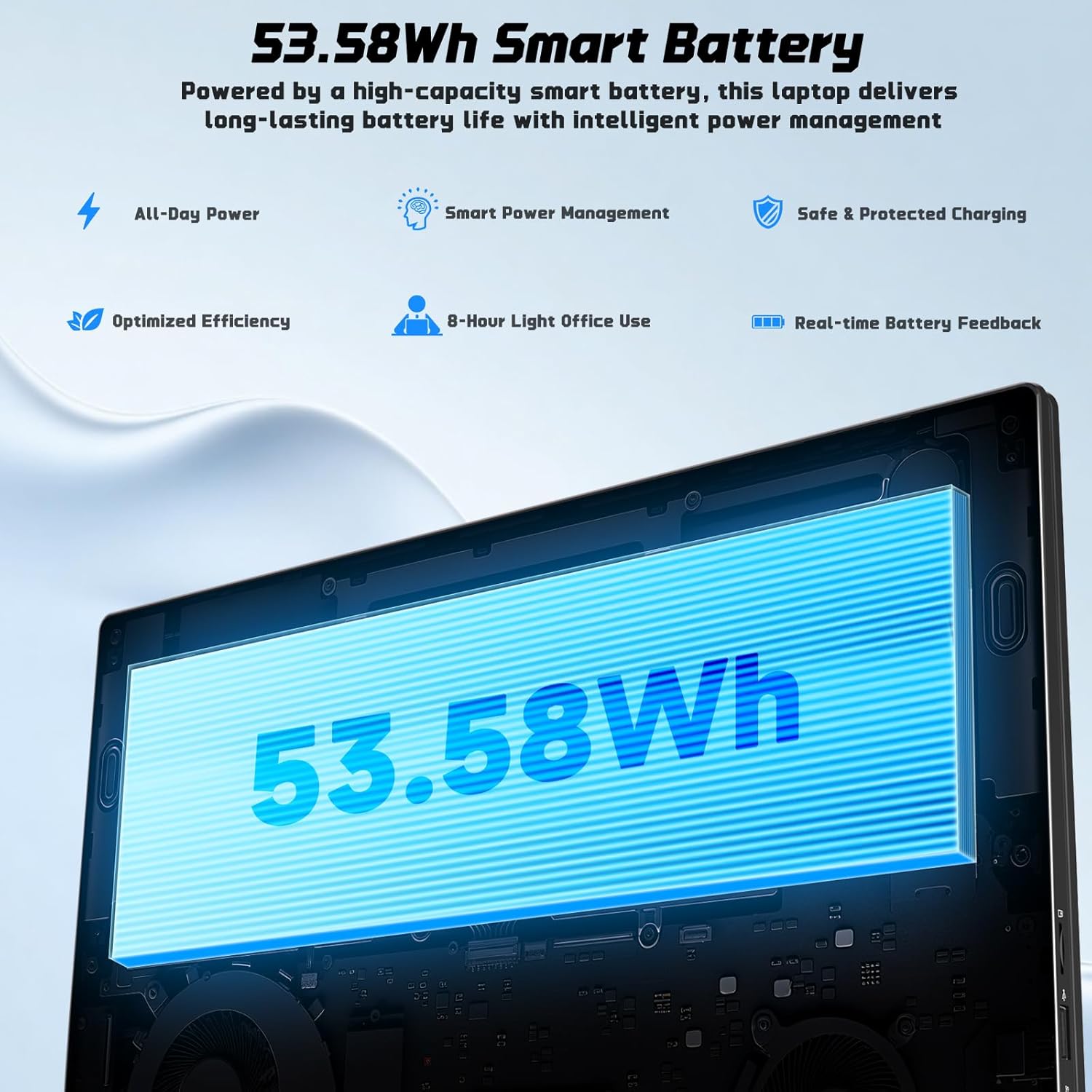
| బ్యాటరీ లైఫ్ | Approx. 5 Hours (53.58Wh Lithium Polymer) |
| వస్తువు బరువు | 3.84 పౌండ్లు |
| ఉత్పత్తి కొలతలు | 15.66 x 9.99 x 0.74 అంగుళాలు |
| ప్రత్యేక లక్షణాలు | Backlit Keyboard, Fingerprint Reader, HD Audio, Memory Card Slot, Numeric Keypad |

Image 7.1: The NIMO laptop's 17.3-inch FHD IPS display, highlighting its visual clarity and anti-glare properties.

Image 7.2: Visual representation of the Intel N100 processor, indicating its performance capabilities.

Image 7.3: Diagram illustrating the 53.58Wh smart battery, emphasizing its capacity and power management features.
8. వారంటీ మరియు మద్దతు
NIMO provides comprehensive support for your product.
- తయారీదారు వారంటీ: Your NIMO N176 laptop is covered by a 2-year manufacturer's warranty. This warranty covers defects in materials and workmanship under normal use.
- రిటర్న్స్ పాలసీ: A 90-day hassle-free return and exchange service is offered by NIMO Direct Inc.
- కస్టమర్ మద్దతు: For any concerns, technical assistance, or warranty claims, please contact NIMO's dedicated support team. Refer to the contact information provided on the NIMO official webసైట్ లేదా మీ కొనుగోలు డాక్యుమెంటేషన్లో.
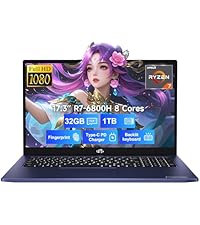
Image 8.1: Visual representation of NIMO's after-sales service, including domestic assembly, 90-day returns, and 2-year support.