
పరిచయం
The NIIMBOT B21 Pro is a high-definition 300DPI inkless thermal label printer designed for versatile use in homes, offices, and businesses. This portable device connects wirelessly via Bluetooth to your smartphone or PC, allowing you to create custom labels for various applications, including product identification, addressing, pricing, and organization. This manual provides detailed instructions for setting up, operating, and maintaining your B21 Pro label printer.

Image: The NIIMBOT B21 Pro thermal label printer showcasing its main features and specifications.
ఉత్పత్తి ముగిసిందిview
The NIIMBOT B21 Pro offers enhanced features for superior label printing. Key highlights include:
- ఇంక్ లెస్ థర్మల్ ప్రింటింగ్: No need for ink cartridges, reducing operational costs.
- High Definition 300DPI: Produces crisp, clear labels and photos.
- విస్తృత లేబుల్ అనుకూలత: Supports label widths from 20mm to 50mm.
- Automatic Label Identification: The printer automatically recognizes the loaded label type.
- Automatic Paper Rewind: Ensures precise label positioning and reduces waste.
- సుదీర్ఘ బ్యాటరీ జీవితం: 1500mAh బ్యాటరీ ఎక్కువ వినియోగాన్ని అందిస్తుంది.
- టైప్-సి ఛార్జింగ్: అనుకూలమైన మరియు వేగవంతమైన ఛార్జింగ్.
- వైర్లెస్ కనెక్టివిటీ: Seamless connection via Bluetooth to smartphones and PCs.

చిత్రం: ఒక ఓవర్view of the NIIMBOT B21 Pro's updated features, including 300DPI resolution, smart paper return, and various printing capabilities.
సెటప్
1. అన్బాక్సింగ్ మరియు ప్రారంభ ఛార్జ్
Carefully unpack the NIIMBOT B21 Pro printer and all included accessories. Before first use, connect the printer to a power source using the provided Type-C USB cable to fully charge the battery. A full charge typically takes about 1.5 hours and provides up to 4 hours of continuous operation.
2. Loading Label Roll
- Open the printer's top cover by gently pushing the release latch.
- Insert the label roll into the compartment, ensuring the printing surface of the labels faces upwards.
- Pull a small portion of the label paper out through the printer slot.
- Close the printer cover firmly until it clicks into place. The printer will automatically detect the label type and size.
3. Smartphone Connection (via NIIMBOT App)
- Download the official "NIIMBOT" app from the Apple App Store (for iOS) or Google Play Store (for Android).
- మీ స్మార్ట్ఫోన్లో బ్లూటూత్ని ప్రారంభించండి.
- Turn on your B21 Pro label printer.
- Open the NIIMBOT app. Tap on the "Not Connected" status or the Bluetooth icon within the app to search for and connect to your B21 Pro printer.

Image: Step-by-step guide showing how to download the NIIMBOT app, enable Bluetooth, connect the printer, load labels, and print from a smartphone.
4. PC Connection (via NIIMBOT Driver)
- అధికారిక NIIMBOTని సందర్శించండి webసైట్: www.niimbot.net.
- Navigate to the download section and download the appropriate driver for your PC operating system (e.g., Windows 32/64-bit).
- Install the downloaded driver on your PC.
- Connect the B21 Pro printer to your PC using a USB cable.
- Open the NIIMBOT desktop application, create a new label, and proceed to print.

Image: Visual guide demonstrating how to download the NIIMBOT PC driver from the official website, create, and print labels using the desktop application.
ఆపరేటింగ్ సూచనలు
1. Creating and Customizing Labels
- Open the NIIMBOT app on your smartphone or the software on your PC.
- Select a pre-designed template or choose to start a new, blank label design.
- Utilize the app's extensive features to add various elements to your label:
- వచనం: Choose from over 20 fonts, adjust size, style (bold, italic), and alignment.
- చిత్రాలు: Import images from your device or use built-in icons (over 1000 available).
- QR కోడ్లు & బార్కోడ్లు: Generate and embed QR codes or various barcode types.
- Other Elements: Add dates, serial numbers, tables, or decorative borders (over 100 available).
- Arrange and resize elements as needed to create your desired label layout.
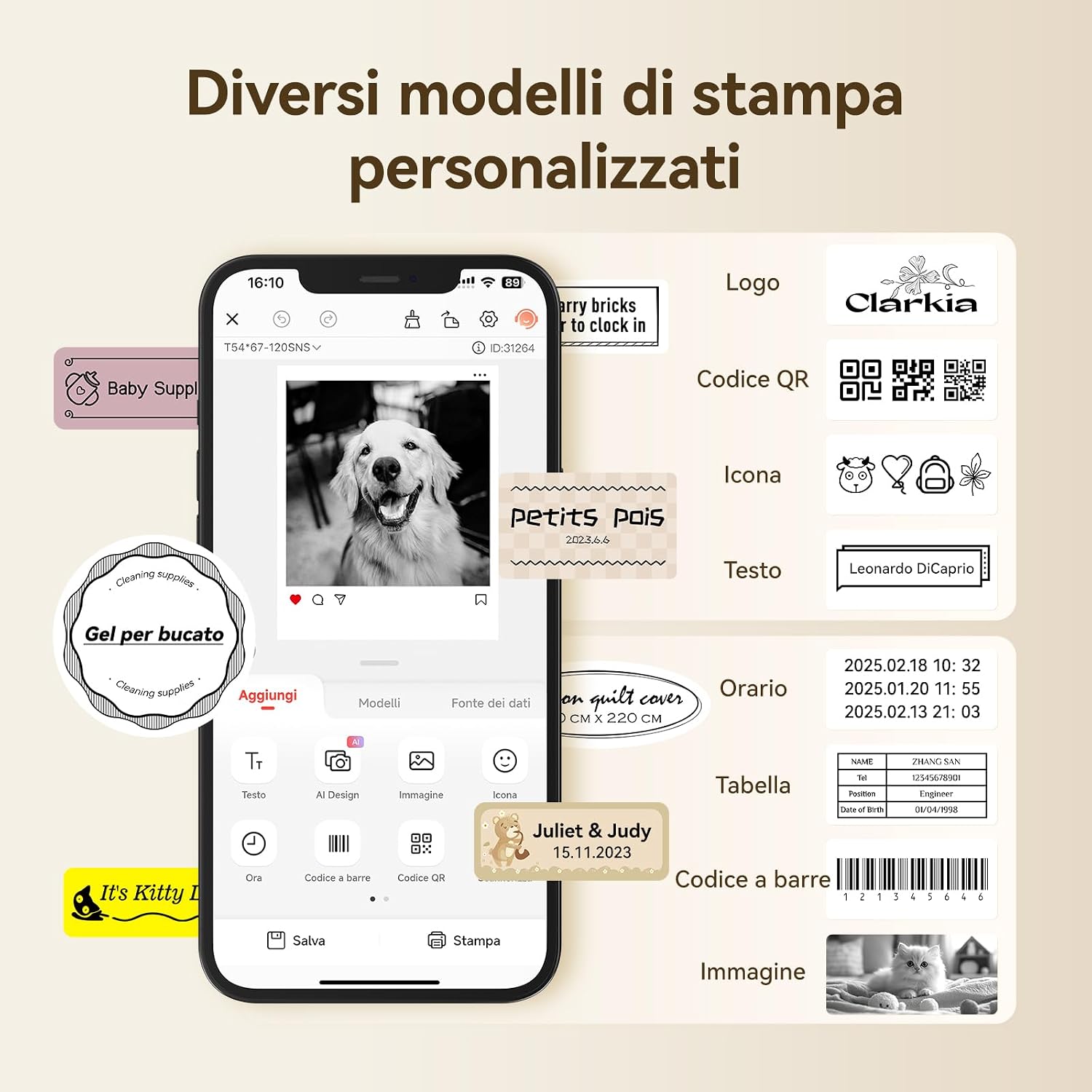
Image: A smartphone screen displaying the NIIMBOT app interface, highlighting options for adding text, QR codes, icons, images, and other elements to a label design.
2. ప్రింటింగ్ లేబుల్స్
- Once your label design is complete, tap the "Print" button in the app or software.
- Review the print settings, such as the number of copies and print density.
- Confirm your selections, and the printer will automatically feed and print the labels at a speed of 60 mm/s. The B21 Pro's automatic paper return feature ensures precise label positioning.

Image: A sequence of three smartphone screens illustrating the quick process of modifying and printing labels, emphasizing efficiency.
3. Photo Printing
Leverage the 300DPI resolution of the B21 Pro to print high-quality black and white photos on compatible thermal labels. Simply select an image from your device within the NIIMBOT app, adjust its size and position to fit the label, and print.

Image: The B21 Pro printer shown with various photo labels, demonstrating its capability to print images from a smartphone.
4. లేబుల్ అప్లికేషన్లు
The NIIMBOT B21 Pro is suitable for a wide range of applications, enhancing organization and efficiency:
- గృహ సంస్థ: Ideal for labeling pantry items, storage boxes, spice jars, and personal belongings.
- కార్యాలయ ఉపయోగం: Perfect for organizing files, cables, office supplies, and creating professional-looking address labels.
- Retail/Business: Create product labels, price tags, QR codes for inventory management, and shipping labels (note: not compatible with shipping labels requiring specific formats).
- వ్యక్తిగతీకరణ: Customize gifts, scrapbooking projects, and decorative labels for crafts.

చిత్రం: ఒక కోల్లెజ్ షోasing various practical applications of the inkless thermal label printer, such as QR/barcode labels, address labels, custom logos, medicine organization, and general storage.

Image: A kitchen scene featuring labeled glass jars on a countertop, demonstrating the use of the B21 Pro for pantry organization.
నిర్వహణ
Proper maintenance ensures the longevity and optimal performance of your NIIMBOT B21 Pro label printer.
- ప్రింట్ హెడ్ క్లీనింగ్: Regularly clean the print head to maintain high print quality. Turn off the printer and allow it to cool. Gently wipe the print head with a soft, lint-free cloth lightly moistened with isopropyl alcohol. Avoid touching the print head with bare hands.
- బ్యాటరీ సంరక్షణ: To prolong the battery's lifespan, avoid frequent deep discharges. Charge the printer when the battery indicator is low. If storing the printer for an extended period, charge it to approximately 50% and recharge every few months.
- లేబుల్ నిల్వ: Store label rolls in a cool, dry place, away from direct sunlight, high temperatures, and humidity. Improper storage can degrade the thermal material and affect print quality.
ట్రబుల్షూటింగ్
If you encounter issues with your NIIMBOT B21 Pro, refer to the following common troubleshooting steps:
- Printer Not Connecting:
- Ensure Bluetooth is enabled on your smartphone or PC and the printer is powered on.
- Restart both the printer and your connecting device.
- Check if the printer is already connected to another device. Disconnect it if necessary.
- Update the NIIMBOT app or PC driver to the latest version.
- పేలవమైన ముద్రణ నాణ్యత:
- Verify that the label roll is inserted correctly with the printing surface facing upwards.
- నిర్వహణ విభాగంలో వివరించిన విధంగా ప్రింట్ హెడ్ను శుభ్రం చేయండి.
- Ensure you are using genuine NIIMBOT labels compatible with the B21 Pro.
- Adjust the print density settings within the NIIMBOT app or software.
- ఫీడింగ్ లేదా జామింగ్ చేయని లేబుల్స్:
- Confirm the label roll is properly seated and there are no obstructions in the paper path.
- Ensure the labels are within the supported width range of 20-50mm.
- Remove any torn or damaged labels from the roll or feed path.
- ప్రింటర్ ఆన్ కావడం లేదు:
- Ensure the battery is charged. Connect the printer to a power source and try again.
- సమస్య కొనసాగితే, కస్టమర్ సపోర్ట్ని సంప్రదించండి.
స్పెసిఫికేషన్లు
| ఫీచర్ | వివరాలు |
|---|---|
| బ్రాండ్ | NIIMBOT |
| మోడల్ సంఖ్య | B21 ప్రో |
| ప్రింటింగ్ టెక్నాలజీ | థర్మల్ (ఇంక్ లేని) |
| ప్రింట్ రిజల్యూషన్ | 300 DPI |
| ప్రింట్ స్పీడ్ | 60 mm/s |
| లేబుల్ వెడల్పు | 20 - 50 మి.మీ. |
| కనెక్టివిటీ | బ్లూటూత్ |
| బ్యాటరీ కెపాసిటీ | 1500 mAh |
| ఛార్జింగ్ ఇంటర్ఫేస్ | టైప్-సి |
| మద్దతు ఉన్న OS | iOS, Android, PC (Windows) |
వారంటీ మరియు మద్దతు
For detailed warranty information, technical support, or service inquiries regarding your NIIMBOT B21 Pro label printer, please refer to the documentation included with your product. You can also visit the official NIIMBOT website for further assistance and resources:
Please ensure you have your product model number and purchase details available when contacting support.