
పరిచయం
This manual provides essential information for setting up, operating, maintaining, and troubleshooting your Lenovo IdeaCentre 24 All-in-One desktop computer. Please read this manual thoroughly before using your device to ensure proper functionality and safety.
పెట్టెలో ఏముంది
ప్యాకేజింగ్లో అన్ని వస్తువులు ఉన్నాయని నిర్ధారించుకోండి:
- Lenovo IdeaCentre 24 All-in-One Desktop Computer (Monitor with integrated components)
- USB Calliope Wired Keyboard
- USB Calliope Wired Mouse
- పవర్ అడాప్టర్ మరియు పవర్ కార్డ్
- డాక్యుమెంటేషన్ (త్వరిత ప్రారంభ మార్గదర్శి, వారంటీ సమాచారం)
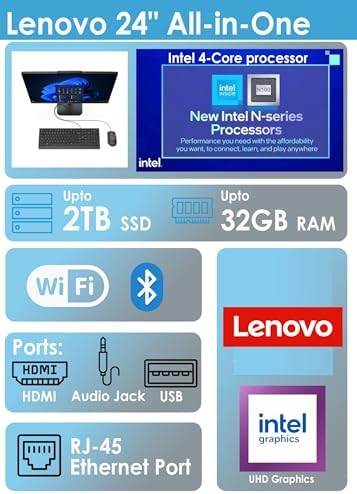
Image: The image displays the Lenovo IdeaCentre 24 All-in-One computer, including the monitor, wired keyboard, wired mouse, and power adapter, as typically found in the product packaging.
సెటప్ సూచనలు
- పరికరాన్ని అన్ప్యాక్ చేయండి: Carefully remove all components from the packaging. Place the All-in-One computer on a stable, flat surface.
- కీబోర్డ్ మరియు మౌస్ను కనెక్ట్ చేయండి: Plug the USB cables of the wired keyboard and mouse into the available USB ports on the rear of the computer.
- పవర్ కనెక్ట్ చేయండి: Connect the power cord to the power adapter, then plug the adapter into the power input port on the rear of the computer. Plug the other end of the power cord into a wall outlet.
- పవర్ ఆన్: Press the power button, usually located on the side or bottom edge of the monitor. The Lenovo logo will appear on the screen.
- ప్రారంభ విండోస్ సెటప్: Windows 11 సెటప్ ప్రక్రియను పూర్తి చేయడానికి స్క్రీన్పై ఉన్న సూచనలను అనుసరించండి. ఇందులో మీ ప్రాంతం, భాష ఎంచుకోవడం, Wi-Fi నెట్వర్క్కు కనెక్ట్ చేయడం మరియు వినియోగదారు ఖాతాను సృష్టించడం వంటివి ఉంటాయి.

చిత్రం: ఈ చిత్రం వివరణాత్మకమైన view of the rear panel of the Lenovo IdeaCentre 24 All-in-One, highlighting the various ports including USB-A, HDMI-out, Ethernet (RJ-45), headphone/microphone combo jack, and the Kensington Security Slot.
ఆపరేటింగ్ సూచనలు
పవర్ ఆన్/ఆఫ్
- పవర్ ఆన్ చేయడానికి: పవర్ బటన్ను నొక్కండి.
- షట్ డౌన్ చేయడానికి: విండోస్లో స్టార్ట్ బటన్ను క్లిక్ చేసి, ఆపై పవర్ > షట్ డౌన్ ఎంచుకోండి.
- పునఃప్రారంభించడానికి: స్టార్ట్ బటన్ను క్లిక్ చేసి, ఆపై పవర్ > రీస్టార్ట్ ఎంచుకోండి.
- నిద్రించడానికి: ప్రారంభ బటన్ను క్లిక్ చేసి, ఆపై పవర్ > స్లీప్ ఎంచుకోండి.
నెట్వర్క్లకు కనెక్ట్ చేస్తోంది
Your IdeaCentre 24 supports both Wi-Fi 6 and wired Ethernet connections.
- Wi-Fi: During initial setup, you will be prompted to connect to a wireless network. To connect later, click the Wi-Fi icon in the taskbar, select your network, and enter the password.
- ఈథర్నెట్: Plug an Ethernet cable from your router or modem into the RJ-45 port on the rear of the computer.
పెరిఫెరల్స్ ఉపయోగించడం
Connect external devices such as USB drives, external monitors, or headphones to the appropriate ports. The system features multiple USB-A ports (Hi-Speed USB / USB 2.0 and USB 10Gbps / USB 3.2 Gen 2) and an HDMI-out 1.4b port for external displays.
కీ ఫీచర్లు
The Lenovo IdeaCentre 24 All-in-One is designed for efficient daily computing with a focus on performance and space-saving design.
- ప్రాసెసర్: Powered by the Intel N100 Processor (4C / 4T, Max Turbo up to 3.4GHz, 6MB Cache) for reliable performance and energy efficiency.
- మెమరీ & నిల్వ: Equipped with 16GB DDR4 RAM and a 1TB PCIe NVMe M.2 SSD for seamless multitasking and ample నిల్వ సామర్థ్యం.
- ప్రదర్శన: Features a 23.8" FHD (1920x1080) IPS Anti-glare display with 250 nits brightness and 99% sRGB color accuracy, designed to minimize eye fatigue.
- కనెక్టివిటీ: Includes Intel Wi-Fi 6 AX203 (802.11ax 2x2) and Bluetooth 5.2 for stable wireless connections.
- పోర్టులు: Rear ports include 2x USB-A (Hi-Speed USB / USB 2.0), 2x USB-A (USB 10Gbps / USB 3.2 Gen 2), 1x HDMI-out 1.4b, 1x Ethernet (RJ-45), and 1x headphone/microphone combo jack (3.5mm).
- ఇంటిగ్రేటెడ్ Webక్యామ్: Built-in HD camera for video conferencing and online communication.
- ఆపరేటింగ్ సిస్టమ్: విండోస్ 11 హోమ్తో ముందే ఇన్స్టాల్ చేయబడింది.
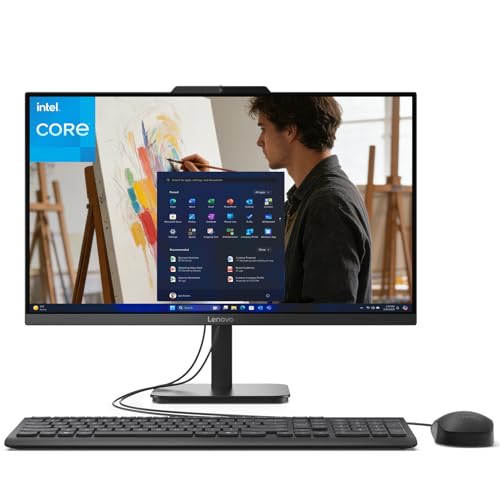
Image: This graphic illustrates the main technical specifications and connectivity options of the Lenovo IdeaCentre 24 All-in-One, including processor type, storage, RAM, wireless capabilities, and available ports.
స్పెసిఫికేషన్లు
| భాగం | స్పెసిఫికేషన్ |
|---|---|
| ప్రాసెసర్ | Intel N100 (4C / 4T, Max Turbo up to 3.4GHz, 6MB Cache) |
| గ్రాఫిక్స్ | ఇంటిగ్రేటెడ్ ఇంటెల్ UHD గ్రాఫిక్స్ |
| మెమరీ (RAM) | 16GB DDR4 |
| నిల్వ | 1TB PCIe NVMe M.2 SSD |
| ప్రదర్శించు | 23.8" FHD (1920x1080) IPS Anti-glare 250nits, 99% sRGB |
| ఆపరేటింగ్ సిస్టమ్ | Windows 11 హోమ్ |
| WLAN + బ్లూటూత్ | Intel Wi-Fi 6 AX203, 802.11ax 2x2 + BT5.2 |
| వెనుక పోర్టులు | 2x USB-A (USB 2.0), 2x USB-A (USB 3.2 Gen 2), 1x HDMI-out 1.4b, 1x Ethernet (RJ-45), 1x headphone/microphone combo jack (3.5mm) |
| కెమెరా | HD Webకెమెరా |
| కొలతలు (WxDxH) | 539.3 x 185 x 422.78 మిమీ (21.23 x 7.3 x 16.65 అంగుళాలు) |
| బరువు | సుమారు 4.3 కిలోలు (9.47 పౌండ్లు) |
నిర్వహణ
క్రమం తప్పకుండా నిర్వహణ మీ కంప్యూటర్ యొక్క దీర్ఘాయువు మరియు సరైన పనితీరును నిర్ధారించడంలో సహాయపడుతుంది.
- శుభ్రపరచడం: స్క్రీన్ మరియు బాహ్య ఉపరితలాలను శుభ్రం చేయడానికి మృదువైన, మెత్తటి బట్టను ఉపయోగించండి. మొండి గుర్తుల కోసం, dampనీటితో లేదా స్క్రీన్-సేఫ్ క్లీనర్తో గుడ్డను కొద్దిగా రుద్దండి. కఠినమైన రసాయనాలను నివారించండి.
- సాఫ్ట్వేర్ అప్డేట్లు: లెనోవా మద్దతు నుండి విండోస్ నవీకరణలు మరియు డ్రైవర్ నవీకరణలను క్రమం తప్పకుండా తనిఖీ చేయండి మరియు ఇన్స్టాల్ చేయండి. webసిస్టమ్ స్థిరత్వం మరియు భద్రతను నిర్ధారించడానికి సైట్.
- వెంటిలేషన్: కంప్యూటర్ వేడెక్కకుండా ఉండటానికి వెంటిలేషన్ ఓపెనింగ్లు మూసుకుపోకుండా చూసుకోండి.
- డేటా బ్యాకప్: డేటా నష్టాన్ని నివారించడానికి ముఖ్యమైన డేటాను కాలానుగుణంగా బాహ్య డ్రైవ్ లేదా క్లౌడ్ నిల్వకు బ్యాకప్ చేయండి.
ట్రబుల్షూటింగ్
If you encounter issues, try these basic troubleshooting steps:
- శక్తి లేదు: Ensure the power cord is securely connected to both the computer and the wall outlet. Try a different outlet.
- ప్రదర్శన లేదు: Check if the computer is powered on. If connected to an external monitor, ensure the correct input source is selected on the external monitor.
- కీబోర్డ్/మౌస్ స్పందించడం లేదు: Verify that the USB cables are securely plugged into the correct ports. Try plugging them into different USB ports.
- ఇంటర్నెట్ కనెక్షన్ లేదు: For Wi-Fi, check if Wi-Fi is enabled and you are connected to the correct network. For Ethernet, ensure the cable is properly connected to both the computer and the router/modem. Restart your router/modem.
- నెమ్మదిగా పనితీరు: Close unnecessary applications. Check for available Windows updates. Ensure sufficient free space on your SSD.
మరింత అధునాతన ట్రబుల్షూటింగ్ లేదా నిరంతర సమస్యల కోసం, Lenovo మద్దతును చూడండి. webసైట్ లేదా కస్టమర్ సేవను సంప్రదించండి.
వారంటీ మరియు మద్దతు
Your Lenovo IdeaCentre 24 All-in-One computer comes with a standard manufacturer's warranty. Please refer to the warranty documentation included in your product packaging for specific terms and conditions.
For technical support, driver downloads, and additional resources, visit the official Lenovo support website. You will need your product's serial number, typically found on a label on the back or bottom of the device.