
పరిచయం
This manual provides instructions for the Brydge 10.9 MAX+ Wireless Keyboard Case. This product is designed to enhance your iPad experience by providing a physical keyboard with a multi-touch trackpad and a protective case. Please read this manual thoroughly before use to ensure proper operation and care.
అనుకూలత
The Brydge 10.9 MAX+ Wireless Keyboard Case is compatible with the following iPad models:
- iPad 10th Generation (Model Numbers: A2696, A2757, A2777)
- iPad A16 (11th Generation) (Model Numbers: A3354, A3355, A3356)
ముఖ్యమైన: This keyboard case is not designed for use with iPad Air, iPad Pro, iPad 9th Gen, or older iPad models.
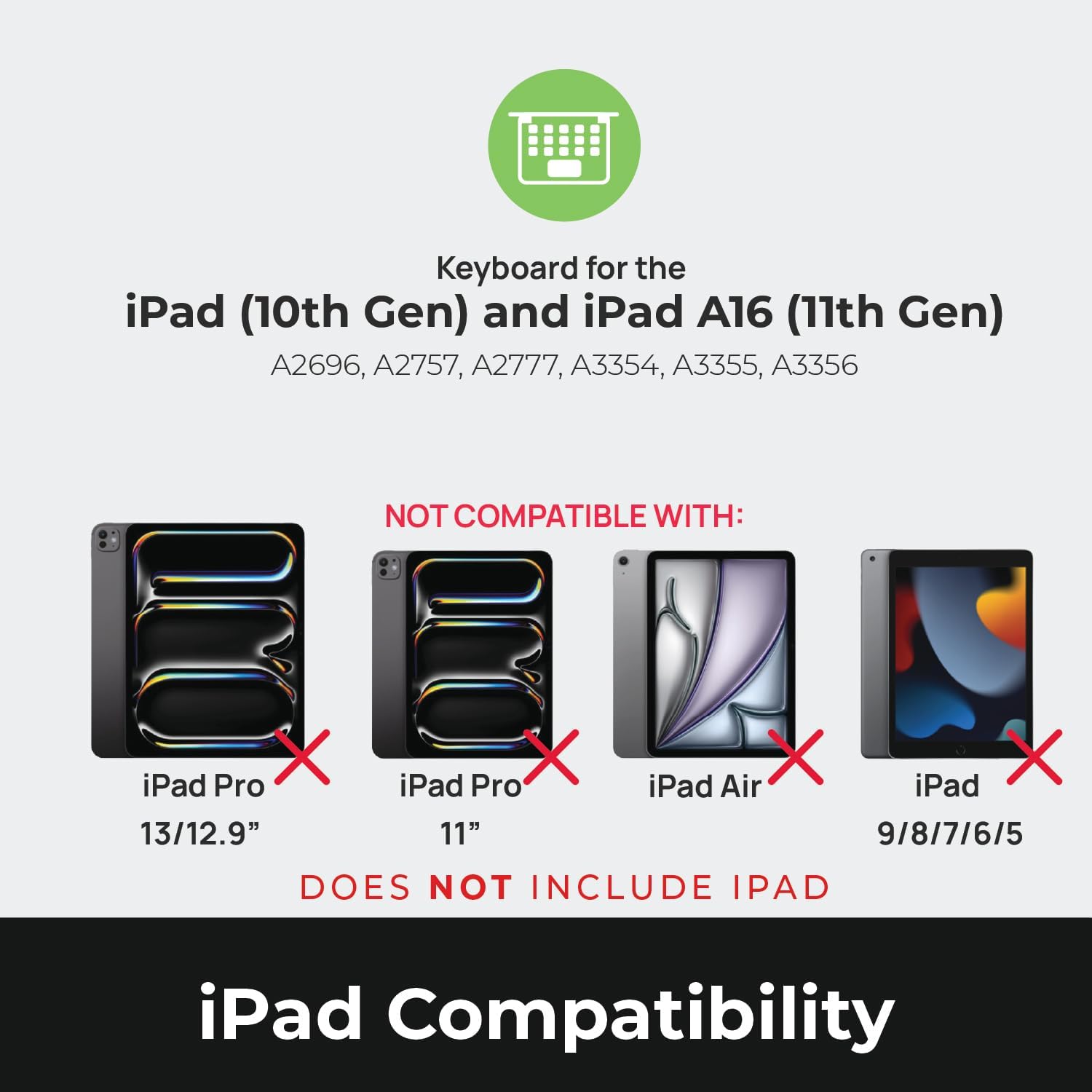
Image: Compatibility chart showing supported iPad models (10th Gen, A16 11th Gen) and incompatible models (iPad Pro 13/12.9", iPad Pro 11", iPad Air, iPad 9/8/7/6/5).
పెట్టెలో ఏముంది
అన్ప్యాక్ చేసిన తర్వాత, అన్ని వస్తువులు ఉన్నాయని నిర్ధారించుకోండి:
- 1 x Brydge 10.9 MAX+ Wireless Keyboard
- 1 x Detachable Magnetic SnapFit Case
- 1 x యూజర్ మాన్యువల్ (ఈ పత్రం)
Note: An iPad and USB-C charging cable are not included. The USB-C cable typically comes with your iPad.

Image: Depiction of the box contents, including the keyboard, case, and user manual.
సెటప్ సూచనలు
1. Attaching Your iPad to the SnapFit Case
- Carefully align your iPad with the SnapFit Case.
- Gently press the iPad into the case until it is securely seated. The case is designed for a snug fit to provide protection.
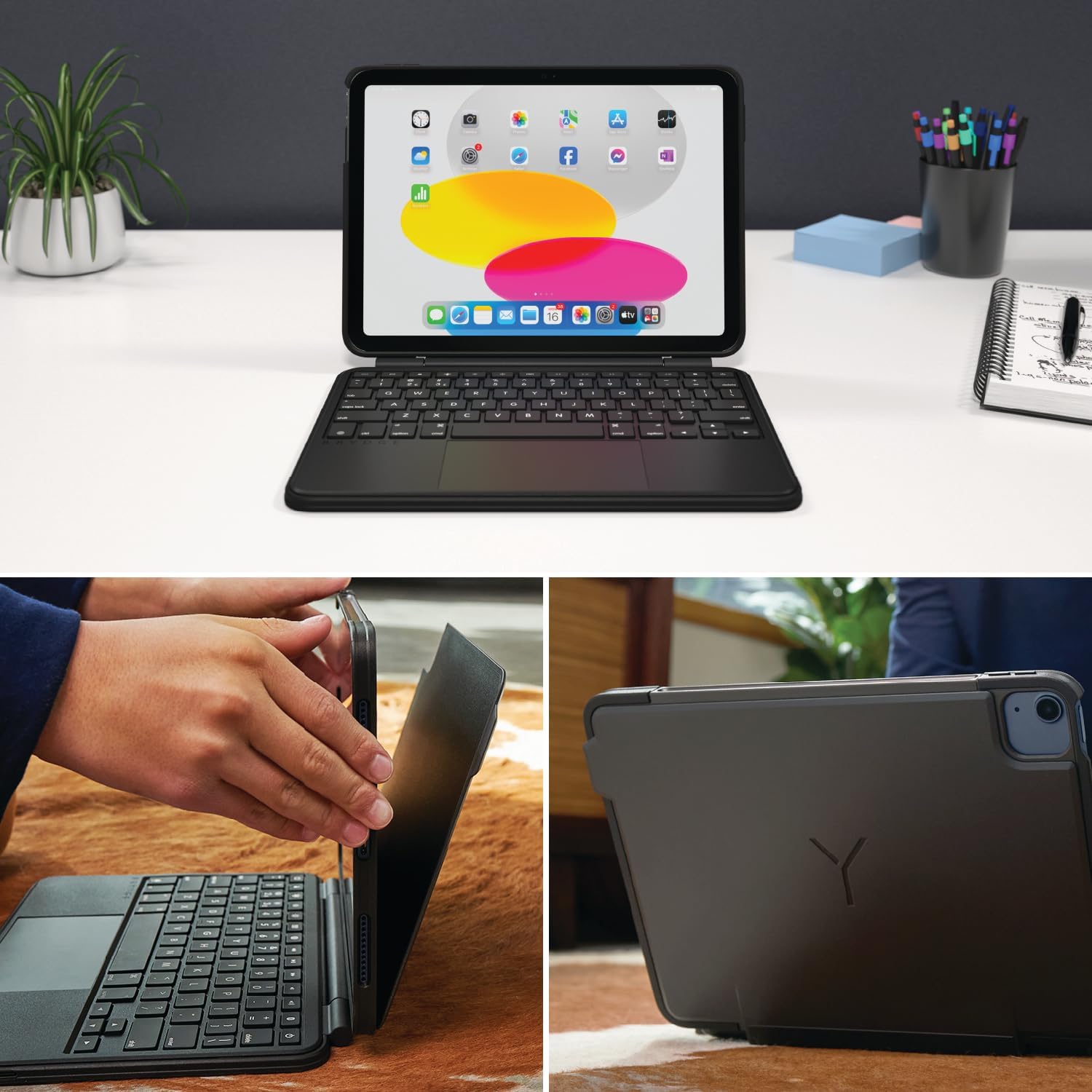
Image: Shows the process of attaching the iPad to the SnapFit case and the case attached to the keyboard.
2. Connecting the Case to the Keyboard
The SnapFit Case features a magnetic back cover that securely attaches to the Brydge keyboard. Simply align the back of the cased iPad with the magnetic area on the keyboard base until it snaps into place.
3. కీబోర్డ్ను ఛార్జ్ చేయడం
Before first use, it is recommended to fully charge the keyboard. Use a USB-C cable (not included) to connect the keyboard's charging port to a power source. The charging port is typically located on the side or back of the keyboard.
4. బ్లూటూత్ పెయిరింగ్
- కీబోర్డ్ ఛార్జ్ చేయబడిందని మరియు పవర్ ఆన్ చేయబడిందని నిర్ధారించుకోండి.
- మీ ఐప్యాడ్లో, ఇక్కడికి వెళ్లండి సెట్టింగ్లు > బ్లూటూత్.
- బ్లూటూత్ ఆన్ చేయండి.
- The Brydge keyboard should appear in the "Other Devices" list. Tap on its name to connect.
- If prompted, enter the pairing code displayed on your iPad using the Brydge keyboard, then press నమోదు చేయండి.
The keyboard features Instant-On™ Connectivity via Bluetooth 5.0, providing a quick and stable connection once paired.

Image: Illustrates the keyboard's Bluetooth 5.0 and Instant-On connectivity features.
ఆపరేటింగ్ సూచనలు
కీబోర్డ్ విధులు
- బ్యాక్లిట్ కీలు: The keyboard features adjustable backlit keys with 3 brightness levels. Use the dedicated function keys (usually located in the top row) to cycle through brightness settings or turn the backlight off.
- ఫంక్షన్ కీలు: The top row of keys provides quick access to iPadOS functions such as Home, Search, Brightness, Media Controls, and Volume.
మల్టీ-టచ్ ట్రాక్ప్యాడ్
The integrated multi-touch trackpad supports various iPadOS gestures for navigation and interaction. Refer to your iPad's settings for a full list of supported gestures.
- క్లిక్ చేయడం: Press down on the trackpad to perform a click.
- స్క్రోలింగ్: పైకి లేదా క్రిందికి స్క్రోల్ చేయడానికి రెండు వేళ్లను ఉపయోగించండి.
- జూమ్: జూమ్ ఇన్ లేదా అవుట్ చేయడానికి రెండు వేళ్లతో చిటికెడు.
- యాప్ స్విచ్చర్: Swipe up with three fingers to open the App Switcher.
- హోమ్ స్క్రీన్: Swipe up with one finger from the bottom edge to return to the Home Screen.

Image: Highlights the detachable magnetic SnapFit case and the native multi-touch trackpad.
సర్దుబాటు చేస్తోంది Viewకోణాలు
The keyboard allows for a screen rotation of up to 135 degrees, enabling various viewing angles for typing, drawing, or media consumption.

Image: Displays key features including up to 3-month battery life, 3 levels of backlit keys, and 0-130° viewing కోణాలు.
బ్యాటరీ లైఫ్
The keyboard offers up to 3 months of battery life on a single charge, depending on usage and backlight settings. To conserve battery, the keyboard will enter sleep mode after a period of inactivity.
నిర్వహణ
- శుభ్రపరచడం: ఒక మృదువైన ఉపయోగించండి, డిamp, lint-free cloth to clean the keyboard and case. Avoid abrasive cleaners or solvents.
- నిల్వ: When not in use for extended periods, ensure the keyboard is fully charged and stored in a cool, dry place.
- బ్యాటరీ సంరక్షణ: To prolong battery life, avoid fully discharging the keyboard frequently. Charge it when the battery indicator is low.
ట్రబుల్షూటింగ్
కీబోర్డ్ బ్లూటూత్ ద్వారా కనెక్ట్ కావడం లేదు
- కీబోర్డ్ ఛార్జ్ అయ్యిందని నిర్ధారించుకోండి.
- మీ ఐప్యాడ్లో బ్లూటూత్ ప్రారంభించబడిందని ధృవీకరించండి.
- మీ ఐప్యాడ్ బ్లూటూత్ సెట్టింగ్లలో పరికరాన్ని మర్చిపోయి, తిరిగి జత చేయడానికి ప్రయత్నించండి.
- మీ ఐప్యాడ్ మరియు కీబోర్డ్ రెండింటినీ పునఃప్రారంభించండి.
Trackpad Not Responding or Moving Erratically
- Ensure the keyboard is fully charged. Low battery can affect trackpad performance.
- Clean the trackpad surface with a soft, dry cloth to remove any debris or smudges.
- బ్లూటూత్ కనెక్షన్ని డిస్కనెక్ట్ చేసి, మళ్లీ కనెక్ట్ చేయండి.
- Check for any firmware updates for the Brydge keyboard via the Brydge Connect App (if available).
కీలు స్పందించడం లేదు
- Confirm the keyboard is powered on and connected via Bluetooth.
- కీల కింద ఏవైనా భౌతిక అడ్డంకులు ఉన్నాయా అని తనిఖీ చేయండి.
- If specific keys are not working, try restarting the keyboard and iPad.
స్పెసిఫికేషన్లు
| మోడల్ సంఖ్య | BRY8042 |
| ఉత్పత్తి కొలతలు | 10"L x 7.65"W x 0.8"H (10 x 7.65 x 0.8 అంగుళాలు) |
| వస్తువు బరువు | 1.85 పౌండ్లు |
| కనెక్టివిటీ టెక్నాలజీ | బ్లూటూత్ 5.0 |
| కీబోర్డ్ వివరణ | వైర్లెస్ |
| ప్రత్యేక లక్షణాలు | Backlit, Rechargeable, Multi-Touch Trackpad, Detachable Magnetic SnapFit Case |
| రంగు | నలుపు |
| మెటీరియల్ | Polycarbonate, Thermoplastic Polyurethane (TPU) |
| బ్యాటరీ | 1 Nonstandard Battery (included), up to 3 months battery life |
| Viewing యాంగిల్ | 135 డిగ్రీల వరకు |
వారంటీ మరియు మద్దతు
This product is subject to a standard return policy, typically 30 days from the date of purchase for refunds or replacements. For specific warranty details, please refer to the documentation provided with your purchase or contact Brydge customer support.
For technical assistance, troubleshooting, or warranty claims, please visit the official Brydge support website or contact their customer service department. Contact information can usually be found on the Brydge webసైట్ లేదా ప్యాకేజింగ్ మెటీరియల్స్లో.
Note: Protection plans may be available for purchase separately.