
పరిచయం
The Yofidra 15.6" Digital Calendar is an interactive touchscreen display designed to help families manage schedules, chores, meal plans, and more. It functions as an all-in-one home command center, integrating calendar synchronization, a reward-based chore chart, a digital photo frame, and smart reminders. This manual provides detailed instructions for setting up, operating, and maintaining your device.

చిత్రం: పైగాview of the Yofidra Digital Calendar's features, including calendar, photo frame, chores, rewards, meal plan, to-do list, timer, notifications, weather, calendar sync, auto-rotate, and sleep mode.
ప్యాకేజీ విషయాలు
సెటప్తో కొనసాగడానికి ముందు అన్ని అంశాలు ప్యాకేజీలో ఉన్నాయని ధృవీకరించండి.
- Yofidra 15.6" Digital Calendar
- పవర్ అడాప్టర్
- Adjustable Stand (for desk placement)
- Wall Mounting Plate and Screws (for wall installation)
- వినియోగదారు మాన్యువల్ (ఈ పత్రం)
సెటప్
1. పవర్ కనెక్షన్
- Connect the power adapter to the DC input port on the back of the digital calendar.
- పవర్ అడాప్టర్ను ప్రామాణిక ఎలక్ట్రికల్ అవుట్లెట్లోకి ప్లగ్ చేయండి.
- పరికరం స్వయంచాలకంగా పవర్ ఆన్ అవుతుంది.
2. వై-ఫై కనెక్షన్
- Upon first boot-up, the device will guide you through the initial setup process.
- మీకు ఇష్టమైన భాషను ఎంచుకోండి.
- Choose your Wi-Fi network from the list and enter the password. A stable internet connection is required for full functionality, including calendar synchronization and app features.
3. AIMOR App Installation and Account Setup
The Yofidra Digital Calendar uses the AIMOR app for advanced features and remote management.
- Download the "AIMOR" app from the Google Play Store (for Android devices) or the Apple App Store (for iOS devices).
- యాప్ని తెరిచి ఖాతాను సృష్టించండి.
- Follow the on-screen instructions in the app to pair your digital calendar with your account. This typically involves scanning a QR code displayed on the calendar or entering a device ID.

Image: The digital calendar displaying a family photo, with a smartphone showing the AIMOR app for photo and video sharing.
4. Calendar Synchronization
The Yofidra Digital Calendar supports synchronization with popular calendar services.
- Within the AIMOR app or directly on the calendar's settings, navigate to the calendar sync options.
- Connect your Google, Outlook, iCloud, Cozi, or Yahoo calendar accounts.
- Events will automatically sync, allowing you to view and edit schedules from both the calendar and your connected devices.

Image: The Yofidra Digital Calendar displaying a synchronized schedule, with icons for Google, Outlook, iCloud, and Yahoo, illustrating seamless integration with external calendar services.
5 మౌంటు ఐచ్ఛికాలు
The calendar can be placed on a desk using its adjustable stand or mounted on a wall.
డెస్క్ ప్లేస్మెంట్:
- Attach the adjustable stand to the back of the calendar.
- Place the calendar on a flat, stable surface. The device supports both landscape and portrait orientations, which can be adjusted via the stand.
వాల్ మౌంటు:
- Use the provided wall mounting plate and screws.
- Ensure the mounting location is suitable and can support the weight of the device.
- Follow the instructions provided with the mounting hardware to securely attach the calendar to the wall.
- The calendar will automatically switch between portrait and landscape modes when rotated.

Image: The Yofidra Digital Calendar displayed in both desktop and wall-mounted configurations, illustrating its automatic rotation feature between portrait and landscape modes.
Video: Wall-Mounting Installation Guide. This video demonstrates the steps for securely mounting the Yofidra Digital Calendar on a wall.
ఆపరేటింగ్ సూచనలు
1. ప్రాథమిక నావిగేషన్
- The Yofidra Digital Calendar features a responsive touchscreen display.
- Swipe left or right to navigate between different viewలు లేదా అప్లికేషన్లు.
- Tap icons to open specific features like Calendar, Chore Chart, Meal Plan, or Photo Frame.
- హోమ్ స్క్రీన్ ఓవర్ని అందిస్తుందిview of your daily calendar, chores, rewards, meal plan, to-do items, and photos. Tap on any module to access its detailed page.
Video: Product Functions and How to Use. This video provides a general overview of the calendar's functions and basic operation.
2. Calendar Management
- Viewing మోడ్లు: Switch between Schedule, Day, Week, and Month views using the options at the top of the calendar interface.
- Adding Events: Tap the '+' icon or an empty slot on the calendar to add a new event. Enter event details such as title, time, date, and assign colors for different family members or event types.
- Editing Events: Tap on an existing event to modify its details.
- నావిగేషన్: Use the arrow icons to move between weeks or months. Tap "Today" to return to the current date.
3. Chore Chart and Rewards
The integrated chore chart helps assign tasks and motivate family members with a reward system.
- Assigning Chores: Access the Chore Chart section. You can assign tasks with fixed schedules and reminders.
- రివార్డ్ సిస్టమ్: Set up a point-based reward system within the AIMOR app. Points are awarded upon completion of chores, encouraging responsibility.

Image: A child interacting with the Yofidra Digital Calendar, which shows a reward-based chore chart with points for completed tasks.
4. Meal Plan
Plan your family's meals directly on the calendar.
- Navigate to the Meal Plan section.
- Add meals for each day of the week. This helps in planning groceries and avoiding last-minute meal decisions.

Image: A family in a kitchen, with the Yofidra Digital Calendar prominently displaying a weekly meal plan, aiding in family organization.
5. To-Do List
Keep track of tasks and errands with the integrated to-do list.
- Access the To-Do section to create and manage shared lists.
- Tasks can be added directly on the calendar or through the AIMOR app.
6. Smart Photo Frame
When idle, the calendar transforms into a digital photo frame.
- Use the AIMOR app to easily transfer photos and videos from your smartphone to the calendar.
- The calendar will display a revolving photo album, showcasing your memories. No subscription is required for this feature.
7. Smart Reminders and Utilities
- గడియారం: ప్రస్తుత సమయాన్ని ప్రదర్శిస్తుంది.
- టైమర్: Set countdown timers for cooking, activities, or other needs.
- వాతావరణం: Provides current weather conditions and forecasts.
- నోటిఫికేషన్లు: Receive timely alerts for events, chores, and other important information.
- Custom Repeat Cycles: Set events or reminders to repeat daily, weekly, monthly, or yearly.
- ఆటో-ప్రకాశం: The screen brightness adjusts automatically based on ambient light.
- శక్తిని ఆదా చేసే స్లీప్ మోడ్: The device can be set to enter a low-power sleep mode during specified hours.
నిర్వహణ
- శుభ్రపరచడం: స్క్రీన్ మరియు బాహ్య భాగాన్ని శుభ్రం చేయడానికి మృదువైన, పొడి వస్త్రాన్ని ఉపయోగించండి. రాపిడి క్లీనర్లు లేదా ద్రావకాలను నివారించండి.
- సాఫ్ట్వేర్ అప్డేట్లు: The calendar system supports remote updates. Ensure your device is connected to Wi-Fi and check for available updates periodically in the settings menu to access new features and improvements.
- నిల్వ: The device has 64GB of internal storage for photos and videos. Manage your content through the AIMOR app to optimize storage.
ట్రబుల్షూటింగ్
| సమస్య | సాధ్యమైన కారణం | పరిష్కారం |
|---|---|---|
| పరికరం పవర్ ఆన్ చేయదు. | పవర్ అడాప్టర్ కనెక్ట్ కాలేదు లేదా అవుట్లెట్ తప్పుగా ఉంది. | Ensure the power adapter is securely connected to the device and a working electrical outlet. Try a different outlet. |
| Wi-Fiకి కనెక్ట్ చేయడం సాధ్యపడదు. | తప్పు పాస్వర్డ్, పరిధి దాటిపోయింది లేదా నెట్వర్క్ సమస్య. | Verify the Wi-Fi password. Move the device closer to the router. Restart your router and the digital calendar. |
| Calendar not syncing with external services. | Incorrect account credentials or app permissions. | Check your account login details in the AIMOR app or calendar settings. Ensure the AIMOR app has necessary permissions to access your external calendars. Verify internet connection. |
| Photos/videos not uploading. | App connectivity issues or insufficient storage. | Ensure the AIMOR app is connected to the calendar and has internet access. Check the calendar's storage capacity. Restart the app and the calendar. |
| స్క్రీన్ స్పందించడం లేదు. | తాత్కాలిక సాఫ్ట్వేర్ లోపం. | Restart the device by unplugging and re-plugging the power adapter. If the issue persists, contact customer support. |
స్పెసిఫికేషన్లు
| ఫీచర్ | వివరాలు |
|---|---|
| బ్రాండ్ | Yofidra |
| మోడల్ | sku1J0003_1 |
| స్క్రీన్ పరిమాణం | 15.6 అంగుళాలు |
| ఉత్పత్తి కొలతలు | 15.7"అడుగు x 9.8"అడుగు |
| మెటీరియల్ | యాక్రిలోనిట్రైల్ బుటాడిన్ స్టైరీన్ (ABS) |
| మౌంటు రకం | Desk Mount & Wall Mount |
| నిల్వ సామర్థ్యం | 64GB (for 15.6" model) |
| కనెక్టివిటీ | Wi-Fi |
| Supported Calendar Services | Google, Outlook, iCloud, Cozi, Yahoo |
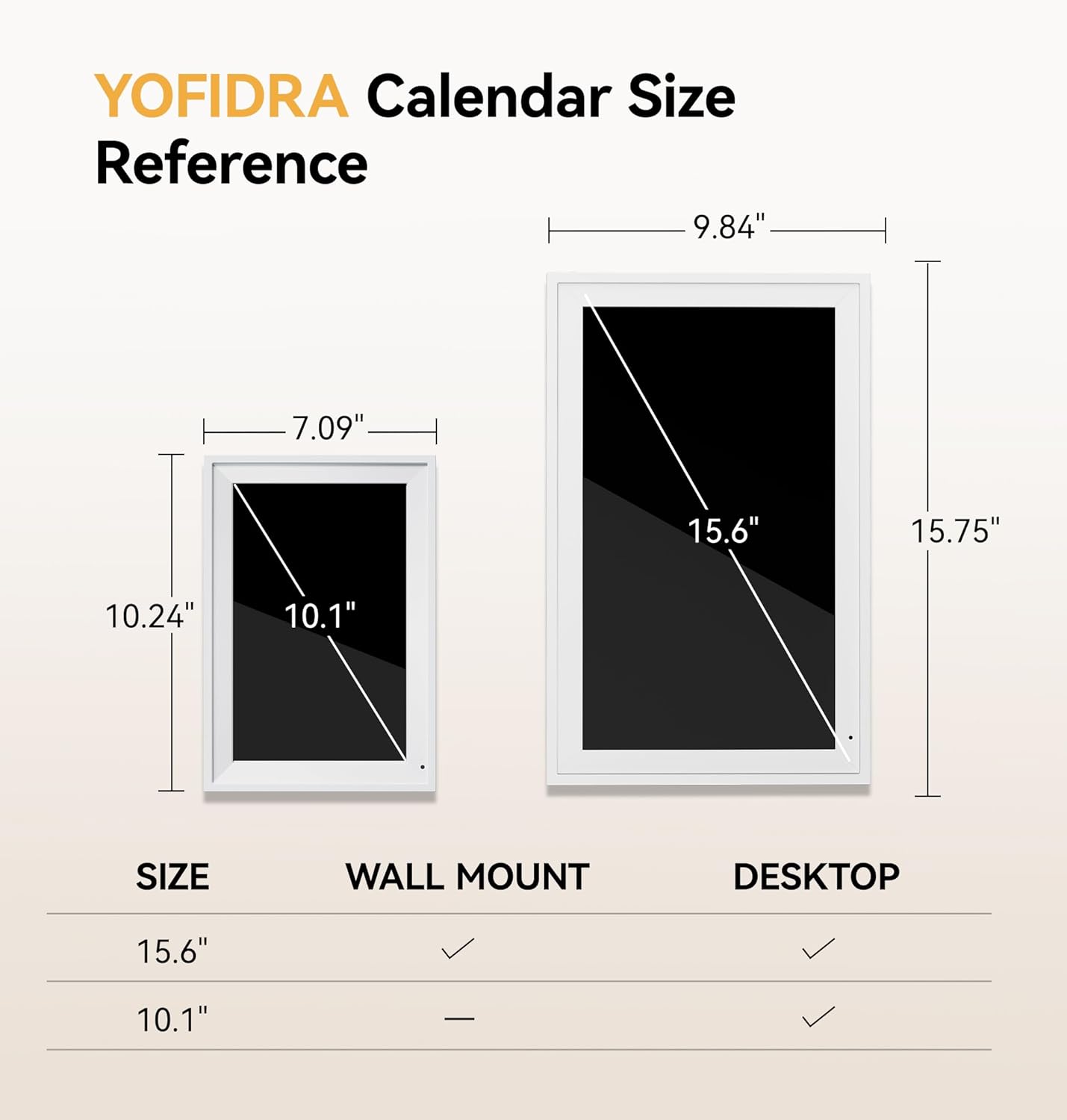
Image: Size reference for Yofidra Digital Calendars, detailing dimensions for 10.1" and 15.6" models, and indicating wall mount and desktop compatibility.
వారంటీ మరియు మద్దతు
For warranty information, please refer to the documentation included with your purchase or visit the official Yofidra webసైట్.
If you encounter any issues not covered in the troubleshooting section, or require further assistance, please contact Yofidra customer support. Contact details can typically be found on the product packaging, the official website, or within the AIMOR app's help section.
ఆన్లైన్ వనరులు: