
1. ఉత్పత్తి ముగిసిందిview
This manual provides instructions for the installation, operation, and maintenance of your ElecMoga 5400Mbps WiFi 6 USB Adapter, Model M-30V-AX5400. This device is designed to enhance your computer's wireless connectivity, offering high-speed tri-band WiFi 6 capabilities for seamless internet access on compatible Windows 10/11 systems.
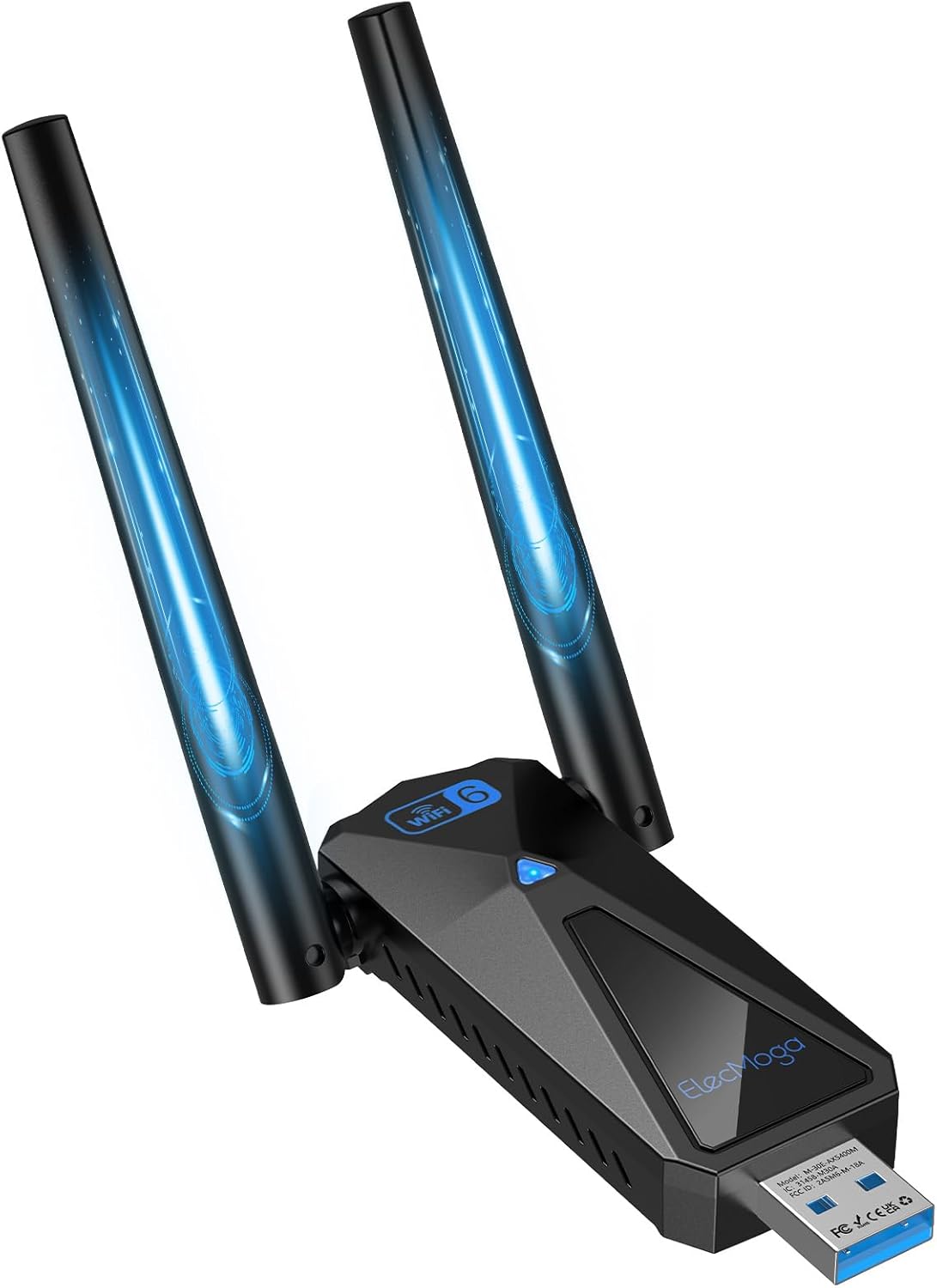
Image 1.1: The ElecMoga WiFi 6 USB Adapter, highlighting its 5400Mbps speed capability and USB 3.0 interface. The image also illustrates the speed difference between WiFi 6 (2402Mbps) and WiFi 5 (867Mbps) on the 5GHz/6GHz band.
2 కీ ఫీచర్లు
- WiFi 6 Tri-Band Technology: Supports speeds up to 5400 Mbps across 2.4 GHz, 5 GHz, and 6 GHz bands. The 2.4 GHz band is suitable for long-distance transmission, while 5 GHz and 6 GHz bands are ideal for high-speed, short-distance data transfer.
- Wide Wireless Protocol Compatibility: Compatible with IEEE 802.11ax, 802.11ac, 802.11a/n/b/g wireless protocols, ensuring stable connections with various router types.
- Enhanced Signal Reception: Equipped with a 2 dBi gain antenna to improve signal coverage and strength. The antenna's angle can be adjusted for optimal signal reception.
- Stable USB 3.0 Transmission: Utilizes a USB 3.0 interface for faster data transfer rates and reduced interference. Features advanced WPA2 encryption for secure connections.
- ప్లగ్ మరియు ప్లే ఇన్స్టాలేషన్: Optimized for Windows 10 and Windows 11 systems, allowing for driver-free installation.

Image 2.1: A visual summary of the adapter's features, including 5400Mbps speed, Wi-Fi 6, USB 3.0, 2.4GHz and 5GHz/6GHz bands, Wi-Fi Access Point and Reception modes, and a 2dBi antenna.
3. సెటప్ మరియు ఇన్స్టాలేషన్
The ElecMoga WiFi 6 USB Adapter is designed for easy, driver-free installation on Windows 10 and Windows 11 operating systems. Follow these steps to set up your adapter:
- అడాప్టర్ను చొప్పించండి: Plug the USB 3.0 end of the WiFi adapter into an available USB 3.0 port on your desktop or laptop computer. Ensure it is securely connected.
- ఆటోమేటిక్ డ్రైవర్ ఇన్స్టాలేషన్: For Windows 10/11 users, the system should automatically detect the device and install the necessary drivers. No manual driver download or CD installation is typically required.
- ఇన్స్టాలేషన్ను ధృవీకరించండి: Once installed, the adapter will appear in your computer's network settings. You can then proceed to connect to a wireless network.
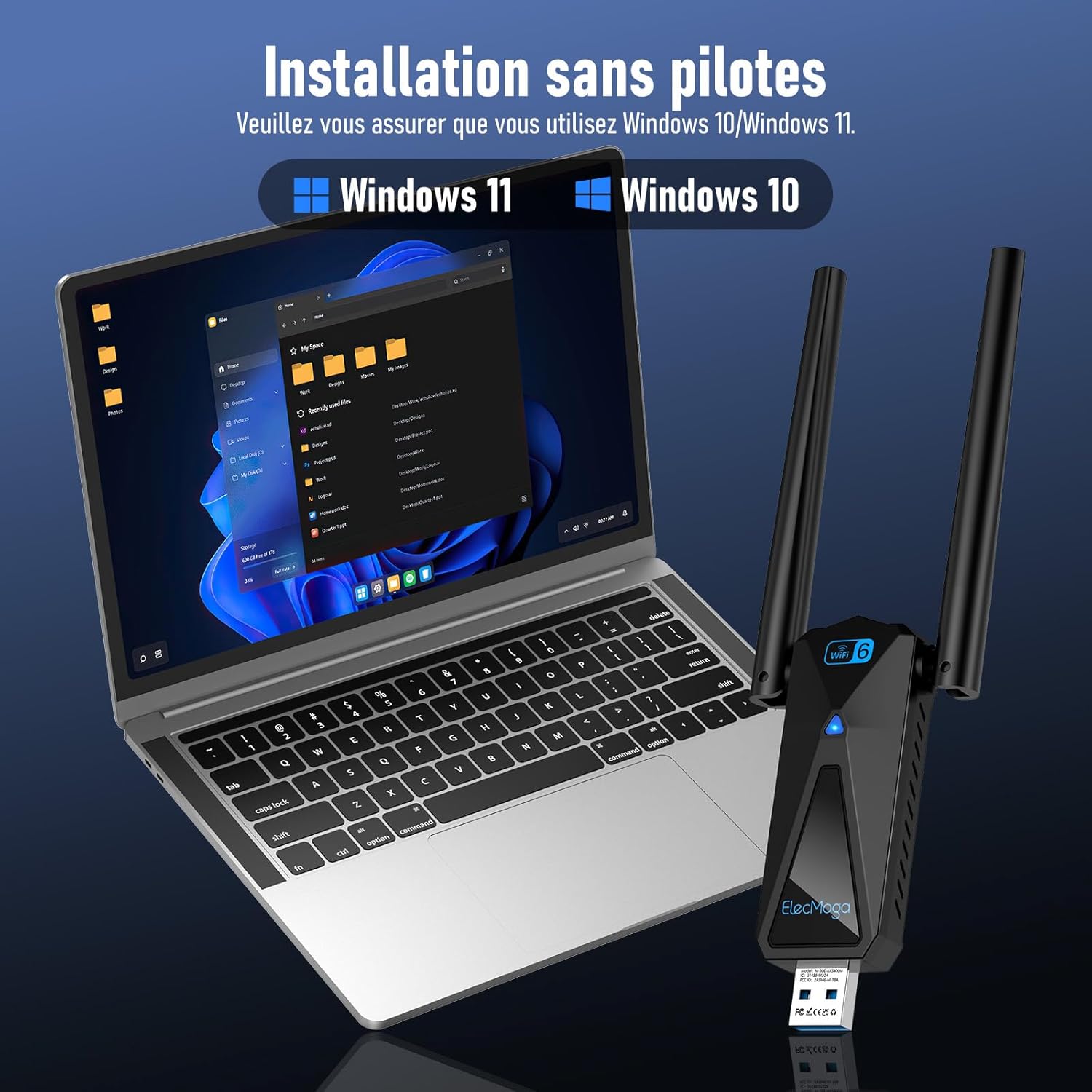
Image 3.1: The adapter connected to a laptop, illustrating the driver-free installation process for Windows 10 and Windows 11.
4. ఆపరేటింగ్ సూచనలు
After successful installation, you can use your ElecMoga WiFi 6 USB Adapter in two primary modes: Wi-Fi Reception and Wi-Fi Access Point.
4.1. Wi-Fi Reception Mode
This is the standard mode for connecting your computer to an existing wireless network.
- అడాప్టర్ మీ కంప్యూటర్కి ప్లగ్ చేయబడిందని నిర్ధారించుకోండి.
- Open your computer's network settings (e.g., click the Wi-Fi icon in the taskbar).
- అందుబాటులో ఉన్న నెట్వర్క్ల జాబితా నుండి మీకు కావలసిన Wi-Fi నెట్వర్క్ను ఎంచుకోండి.
- ప్రాంప్ట్ చేయబడితే నెట్వర్క్ పాస్వర్డ్ను నమోదు చేసి, 'కనెక్ట్' క్లిక్ చేయండి.
- Adjust the adapter's antennas to optimize signal strength. The antennas can be rotated 90 degrees and 180 degrees to find the best position.
4.2. Wi-Fi Access Point Mode
This mode allows your computer to create a Wi-Fi hotspot, sharing its wired internet connection with other wireless devices.
- Ensure your computer has a stable wired internet connection.
- Plug the WiFi adapter into your computer.
- Navigate to your computer's network settings and locate the 'Mobile hotspot' or 'Access Point' feature.
- Configure the network name (SSID) and password for your new hotspot.
- Enable the mobile hotspot feature. Other devices can now connect to your computer's shared internet connection.
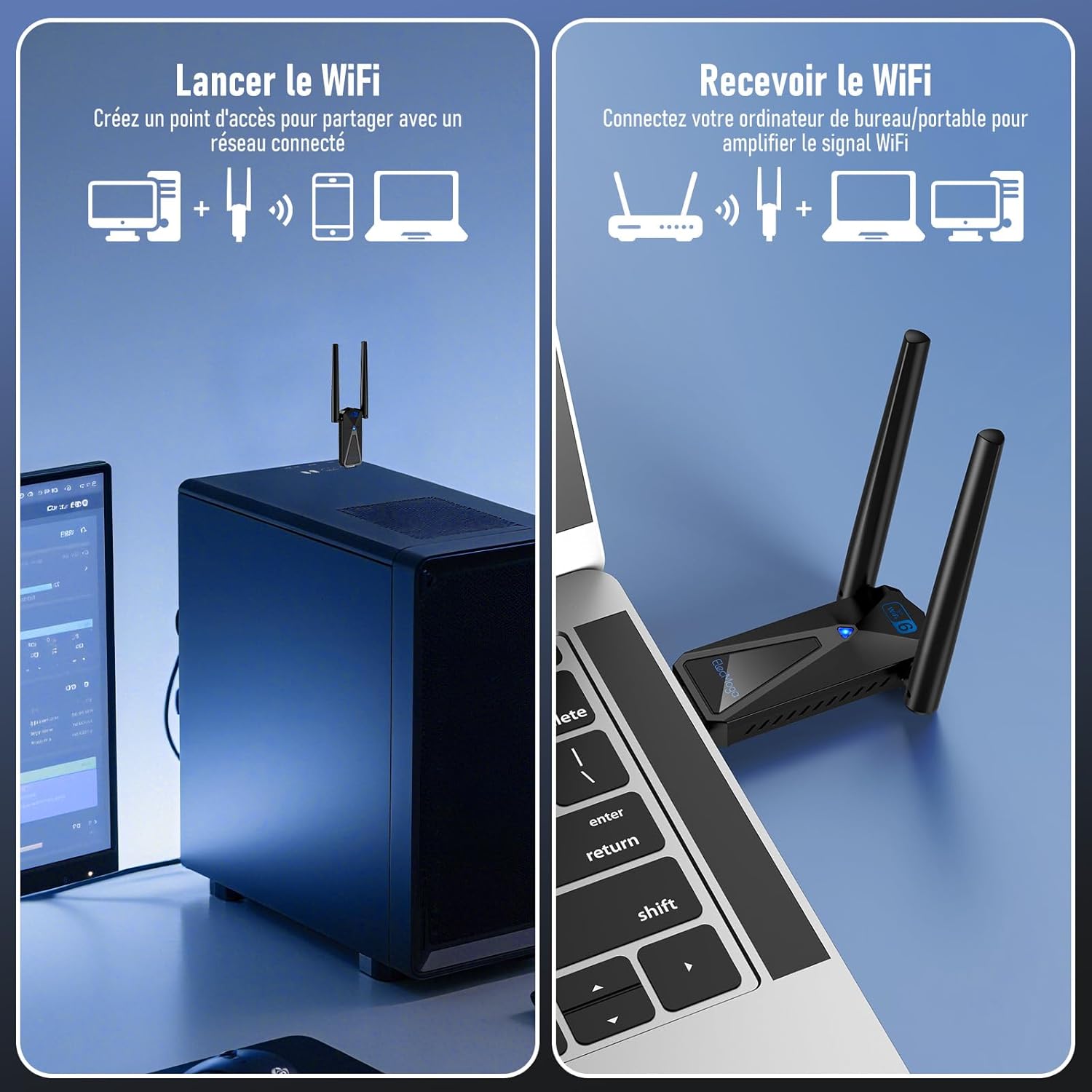
Image 4.1: The adapter demonstrating its dual functionality: creating a Wi-Fi access point to share a connected network and receiving Wi-Fi to amplify the signal for a desktop or laptop.
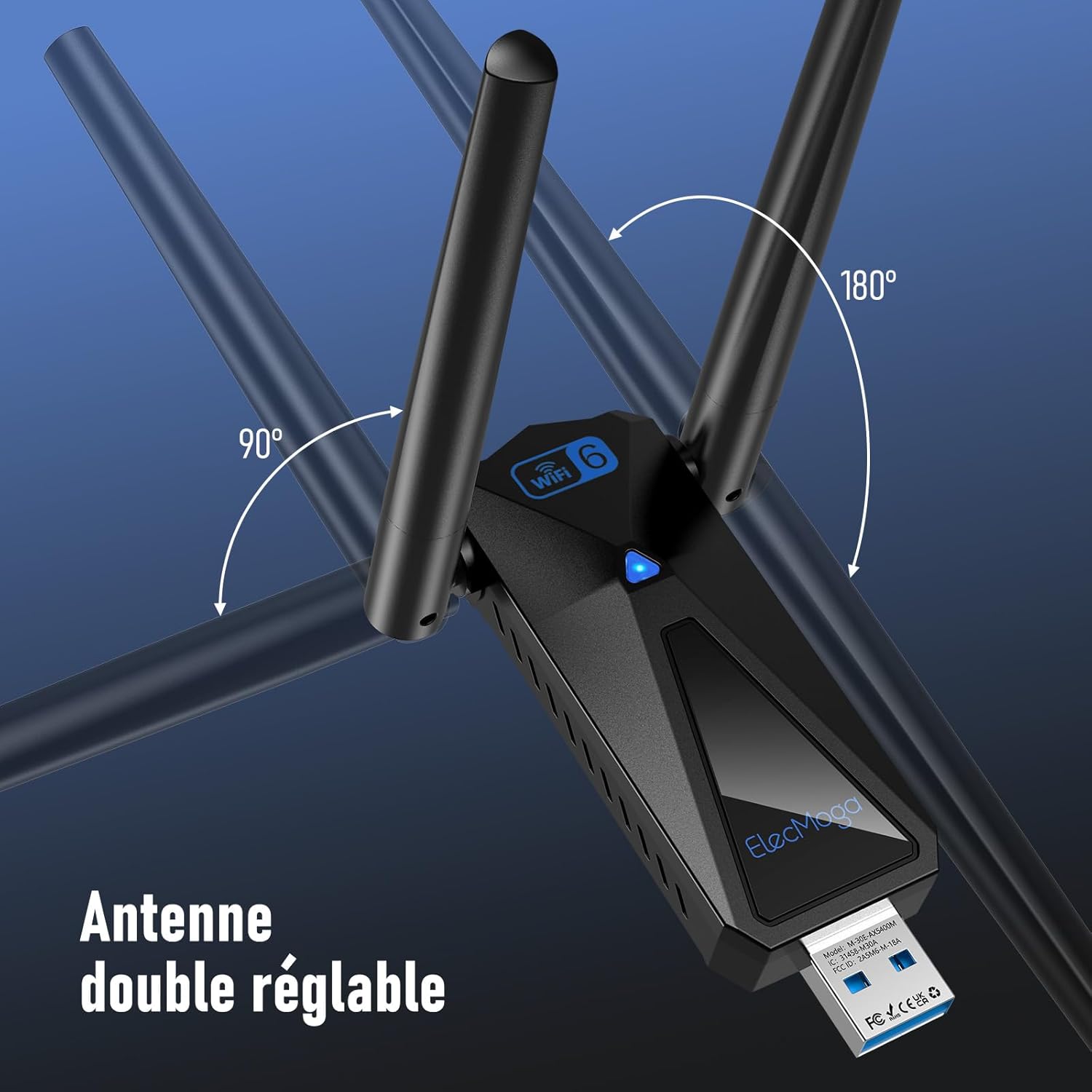
Image 4.2: The adapter's adjustable dual antennas, illustrating their ability to rotate 90 and 180 degrees for optimal signal positioning.
5. నిర్వహణ
To ensure the longevity and optimal performance of your ElecMoga WiFi 6 USB Adapter, follow these maintenance guidelines:
- శుభ్రముగా ఉంచు: దుమ్ము మరియు చెత్తను తొలగించడానికి అడాప్టర్ను మృదువైన, పొడి వస్త్రంతో క్రమం తప్పకుండా తుడవండి. ద్రవ క్లీనర్లను ఉపయోగించడం మానుకోండి.
- సరైన నిర్వహణ: Avoid dropping or subjecting the adapter to strong impacts. Handle the antennas gently when adjusting their position.
- నిల్వ: ఎక్కువసేపు ఉపయోగంలో లేనప్పుడు, అడాప్టర్ను ప్రత్యక్ష సూర్యకాంతి మరియు తీవ్రమైన ఉష్ణోగ్రతలు లేకుండా చల్లని, పొడి ప్రదేశంలో నిల్వ చేయండి.
- USB పోర్ట్ కేర్: Ensure the USB port on your computer is clean and free of obstructions before inserting the adapter.
6. ట్రబుల్షూటింగ్
If you encounter issues with your ElecMoga WiFi 6 USB Adapter, refer to the following troubleshooting tips:
- Wi-Fi కనెక్షన్ లేదు:
- Ensure the adapter is firmly plugged into a functioning USB 3.0 port.
- Check if Wi-Fi is enabled in your computer's settings.
- మీ కంప్యూటర్ మరియు మీ Wi-Fi రౌటర్ను పునఃప్రారంభించండి.
- Verify that the correct Wi-Fi network is selected and the password is entered accurately.
- నెమ్మది కనెక్షన్ వేగం:
- Adjust the adapter's antennas to find an optimal signal position.
- Ensure your computer is within a reasonable range of your Wi-Fi router.
- ఇతర ఎలక్ట్రానిక్ పరికరాల నుండి సంభావ్య జోక్యం కోసం తనిఖీ చేయండి.
- Confirm that your router supports Wi-Fi 6 for maximum performance.
- Ensure your computer's USB port is USB 3.0, as USB 2.0 ports will limit speed.
- అడాప్టర్ గుర్తించబడలేదు:
- అడాప్టర్ను వేరే USB పోర్ట్లోకి ప్లగ్ చేసి ప్రయత్నించండి.
- If using Windows 10/11, ensure your operating system is up to date.
- Check Device Manager for any unrecognized devices or driver issues.
If problems persist, please contact ElecMoga customer support for further assistance.
7. స్పెసిఫికేషన్లు
| ఫీచర్ | స్పెసిఫికేషన్ |
|---|---|
| బ్రాండ్ | ఎలెక్మోగా |
| మోడల్ సంఖ్య | M-30V-AX5400 |
| హార్డ్వేర్ ఇంటర్ఫేస్ | USB 3.0 |
| అనుకూల పరికరాలు | డెస్క్టాప్, ల్యాప్టాప్ |
| డేటా లింక్ ప్రోటోకాల్ | IEEE 802.11ax, IEEE 802.11ac, IEEE 802.11a/n/b/g |
| డేటా బదిలీ రేటు | సెకనుకు 5400 మెగాబిట్లు |
| యాంటెన్నా లాభం | 2 dBi |
| వస్తువు బరువు | 51 గ్రాములు |
| Compatible OS Family | విండోస్ |
| Minimum OS Requirement | Windows 10 |
8. వారంటీ మరియు మద్దతు
The ElecMoga WiFi 6 USB Adapter comes with a 2-year availability of spare parts in the EU. For any questions, technical support, or warranty claims, please contact ElecMoga customer service through the retailer where you purchased the product or visit the official ElecMoga webసంప్రదింపు సమాచారం కోసం సైట్.